Production · Editing hand-off
Open your AI takes in your editor, in shot-list order
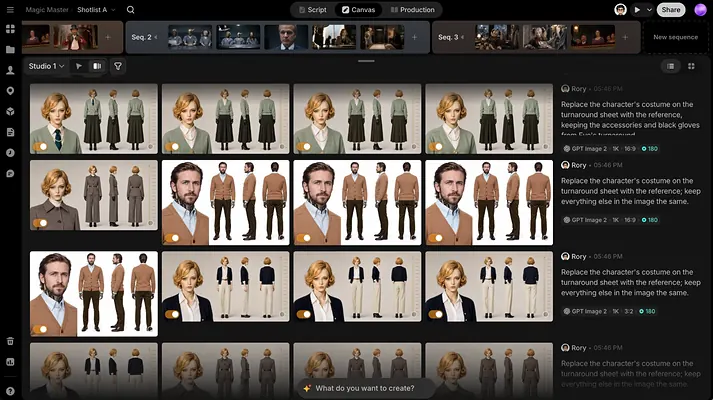
Generating the takes is half the job. The other half is getting them into an editor without downloading a hundred files, renaming them and lining them up by hand. ClipTap hands the cut over as a real editing timeline, with every take where the Shotlist says it goes.
Two ways to hand it over
- Export, from any computer: a zip with an FCPXML timeline and a Media folder holding every take, named by your naming template.
- ClipTap Space, on a Mac: your projects appear as a drive, and Premiere Pro, Final Cut Pro, DaVinci Resolve or CapCut opens the Shotlist straight from it. Media downloads only as it plays.
What the timeline holds
- Every sequence of the Shotlist, one project per sequence.
- The take you chose on each shot, or its first video, or failing that its first image, held for the shot's length.
- Gaps where a shot has no take yet, so the timing of the cut stays intact.
- Trims you made in the player, with the rest of the file there to extend into.
Alternates without the mess
Choose how the other takes come along: current takes only, alternates stacked on the tracks above (switched off), or as auditions in Final Cut Pro, with the current take as the first pick. Your editor can swap a take in one click instead of digging through a folder.
Opening it in each editor
Final Cut Pro
File › Import › XML. With auditions, open a clip to switch takes.
DaVinci Resolve
File › Import › Timeline; point it at the Media folder if it asks.
CapCut (剪映)
import the FCPXML and link the Media folder. With ClipTap Space, CapCut opens the Shotlist as its own draft, media found.
Premiere Pro
open the Shotlist from ClipTap Space, which writes a Premiere project file in each Shotlist folder.
The frame rate matches your takes by default (rounded to a rate every editor offers), or pick 23.976 to 60 yourself.
Questions
No. Export works on any computer. Space saves the download and keeps the drive current: a new take or a reordered shot shows up within seconds.
A Mac with Apple silicon on macOS 26 or later. On other computers, use Export.
The timeline points at the Media folder by relative path. Keep it next to the FCPXML when you unzip, or relink to it once; every take is in that one folder.
Hand your next cut to the editor in one click.
Start free. Credits never expire, and you pay only for what you generate