Export to an editor
Turn a Shotlist into an FCPXML timeline and a folder of media you can open in Final Cut Pro, DaVinci Resolve or CapCut.
Export turns your Shotlist into a real editing timeline. ClipTap takes the take on each shot, across every sequence, and gives you a zip: all the media in one folder, plus an FCPXML timeline that Final Cut Pro, DaVinci Resolve and CapCut (剪映) can import.
Open it from the Project menu: Export.
On a Mac with ClipTap Space, you don't need to export: your editor opens the Shotlist straight from the drive, with the same take choice, alternates and handles, and nothing to download first. Export is for an editor who doesn't have it.
What gets exported
Export covers every sequence in the active Shotlist. Open the Shotlist you want first; without one, the dialog says Open a Shotlist to export.
For each shot, ClipTap uses:
- the shot's selected take, or
- if none is selected, its first video, or
- failing that, its first image.
Images hold for the shot's planned duration, or 5 seconds if the shot has none. A shot with no take at all becomes a gap of its length, so the timing of the cut stays intact. When you export, a toast sums it up, for example "Exporting 12 clips from 3 sequences · 2 shots without a take".
Export settings
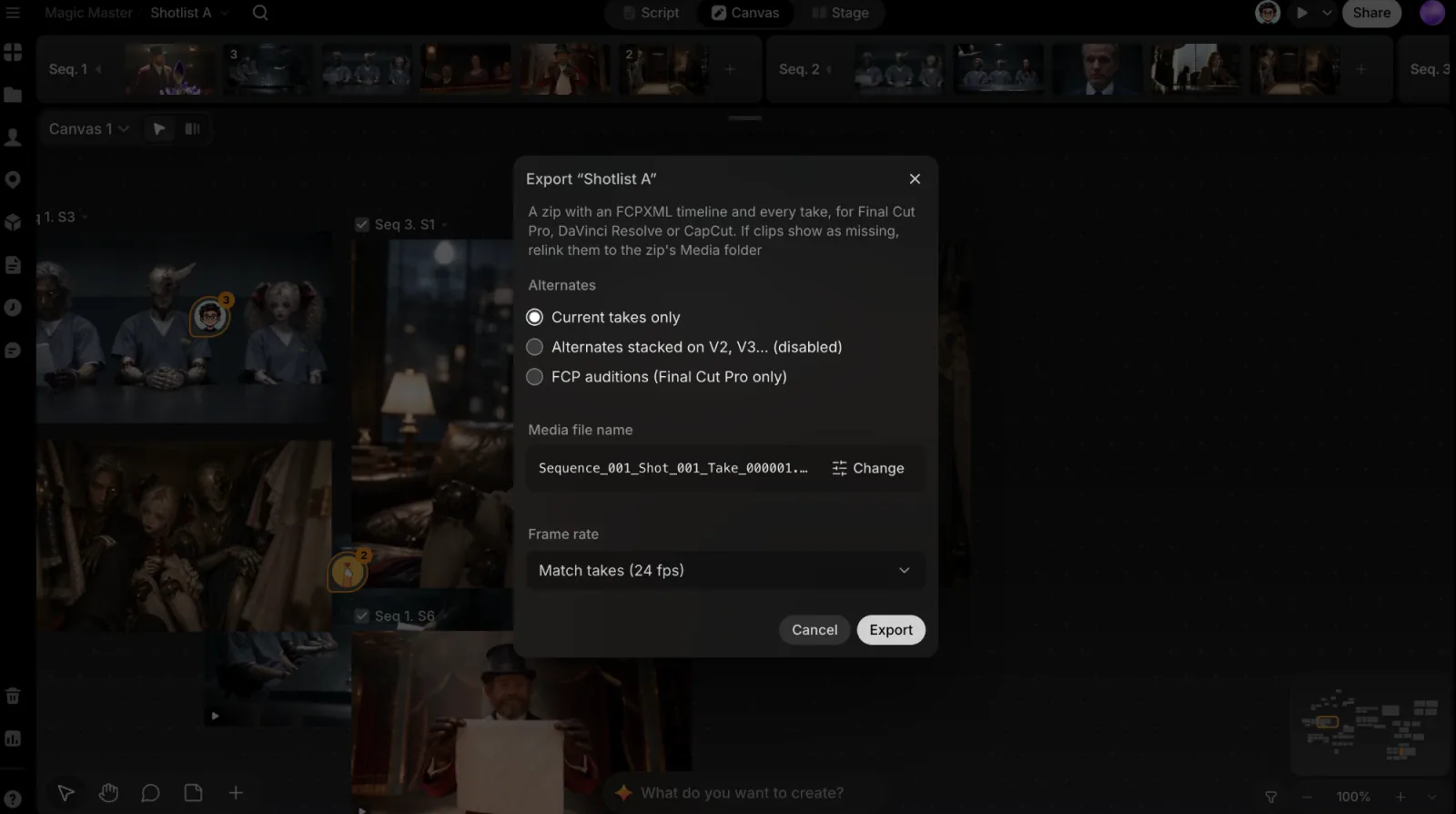
Alternates
- Current takes only (default): just the current take on each shot. One clean track, your current cut.
- Alternates stacked on V2, V3… (disabled): every other take saved to a shot rides along on higher video tracks, lined up with its shot. They come in disabled, so playback stays your main cut with the alternates one click away.
- FCP auditions (Final Cut Pro only): each shot becomes an audition clip in Final Cut Pro, with the current take as its first pick and the alternates inside it.
Every take goes into the zip as the whole file. A take you trimmed in the player plays exactly that part in the editor too, with the rest of the file there to extend into; a take you haven't trimmed plays whole.
Media file name and Frame rate
- Media file name: an example of how your files will be named. Click Change to edit the template in the project's File naming settings.
- Frame rate: Match takes (the default, shown with its rate, such as Match takes (24 fps)) runs the timeline at the rate most current video takes share, rounded to a rate every editor offers: 12.5 fps becomes 25, 15 becomes 30, 16 becomes 24. You can also pick 23.976, 24, 25, 29.97, 30, 50, 59.94 or 60. Clips keep their own rate; the editor conforms them.
Click Export to start. The zip downloads straight to your browser.
What's in the zip
The zip is named after the project and Shotlist, <Project> - <Shotlist>.zip:
| Path | What it is |
|---|---|
<Shotlist>.fcpxml | The timeline (FCPXML 1.10), one project per sequence |
Media/… | Every take in one folder, named by your File naming template |
Keep the Media folder next to the .fcpxml. The timeline points at the media by relative path, which a download can't avoid: it doesn't know where you'll unzip it. If an editor shows clips as missing, relink them to the Media folder; every take is in it, so one folder covers them all.
Open it in your editor
Unzip the export first.
Choose File › Import › XML… and pick the .fcpxml. The import creates an event named after the Shotlist, with one project per sequence. If you exported with FCP Auditions, open an audition clip to switch between takes.
Next
Set the project's style
Give the project one Style with the Agent, by picking a preset, building a moodboard in a short interview, or reading the style off pictures you like.
ClipTap Space
A Mac app that puts your projects on a drive, so your editor opens a Shotlist with every take in place and media downloads only as you play it.