ClipTap Agent
The AI partner in every project that reads your script, Story Outline, Library, canvas and Stage, and does the work you ask for in plain words.
ClipTap Agent works beside you from the first idea to the final cut. Ask in plain words: it reads your project and does the work. It can write and revise a script, build a Shotlist, set up your Library, set the project's style, generate takes, or stage a scene in the Director.
Open it
Click the orb at the far right of the top bar, or press ⌘/ (Ctrl/ on Windows). The Agent opens as a chat panel on the right; press Esc or click Close agent to hide it again. Drag the panel's left edge to make it wider or narrower.
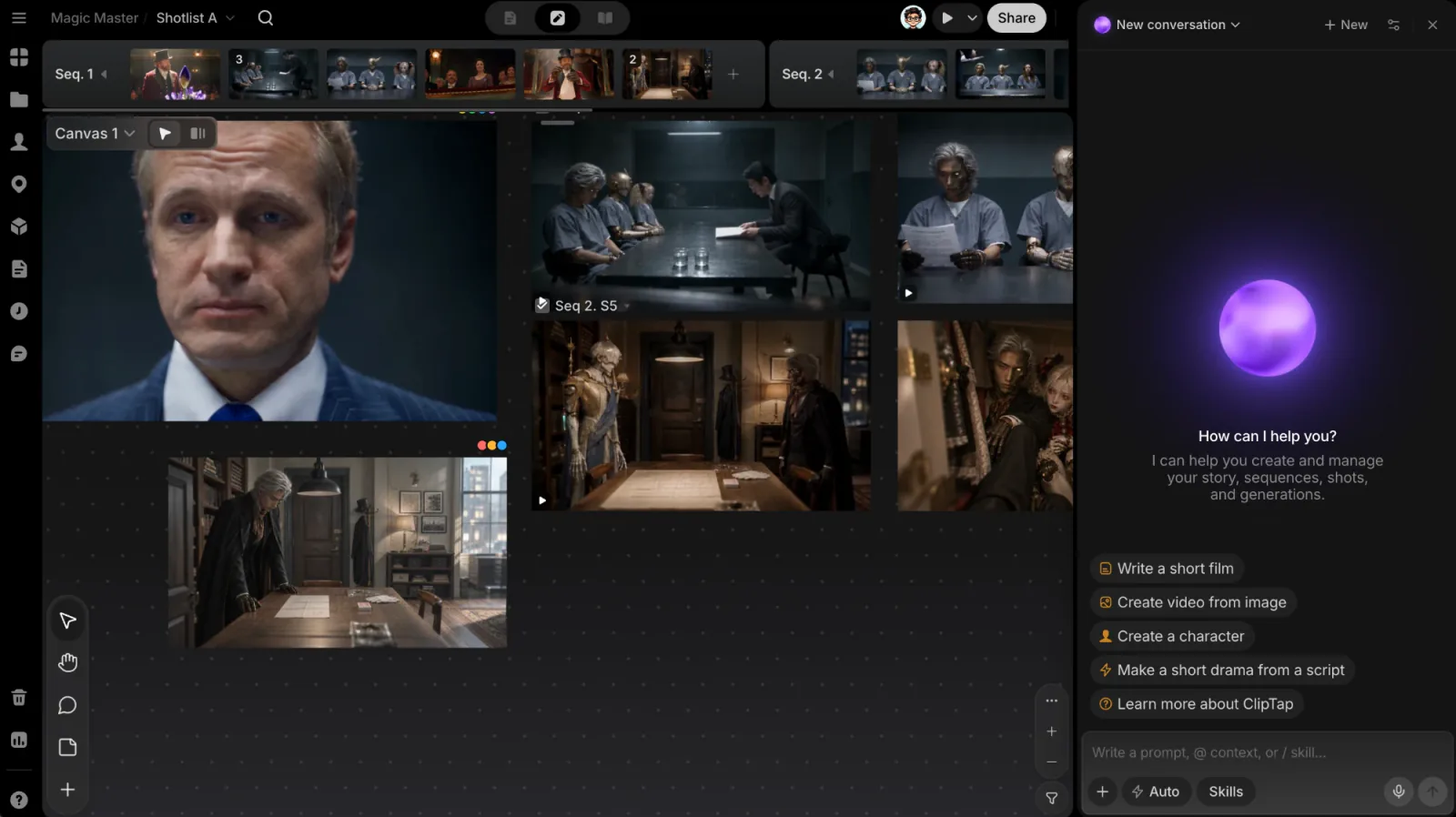
The panel header holds:
- Chat title (New conversation for a fresh one): opens Chats, where you switch back to an earlier conversation. Each row's … menu has Rename and Delete.
- New: starts a new chat.
- Agent settings: default models and More settings (see Settings).
- Close agent.
A new chat greets you with How can I help you? and a row of starter pills: Write a short film, Create video from image, Create a character, Make a short drama from a script, and Learn more about ClipTap, which takes you on a short tour of what the Agent can do. A click puts the starter text in the composer; edit it if you like, then send it.
Chats are private. Even on a shared project, only you can see the chats you start and the work the Agent did in them.
Write your message
The composer reads Write a prompt, @ context, or / skill…. Besides typing, you can:
- Talk: click the mic (Voice input) and speak. Your words appear in the field as you talk, after whatever was already there. Click the mic again, or press Esc, to stop. Voice input is charged by the second.
- Point at things with
@: type@to reference Characters, Locations, Props, Scripts, History or Uploads. The pick becomes an inline chip in your message. See Referencing with @. - Attach context with +: Click to pick a file on the canvas, choose from Uploads, Characters, Locations, Props or Scripts, or drop a file on Upload. Files you select on the canvas or in Files view join the tray on their own. A message can carry up to 12 references.
- Add a Skill with
/: type/or click Skills to pick a ready-made way of working. See Skills.
The pill next to + is the Confirmation mode (see Ask or Auto).
What it can do
- Bring filmmaking know-how: story development, screenwriting, shot planning, cinematography, sound and prompt writing are built in.
- Understand your project: it reads your scripts, the Story Outline, Stage, the canvas and the Library, so you don't re-explain anything. It can also find things in the project for you.
- Write and revise scripts: drafts and edits episodes directly. You see its cursor as it writes. It also keeps the Story Outline's entries up to date as episodes settle things.
- Build characters: Create a character starts an interview, one question at a time, then makes the character's Library entry and sheet. Your answers are kept word for word with the character.
- Manage your Library: creates and updates Characters, Locations and Props, writes their prompt cards (including a three-view turnaround) and designs character voices.
- Set the project's style: picks a preset with you, interviews you, or reads the style off pictures. See Set the project's style.
- Manage shots and sequences: creates Shotlists, adds, updates and reorders shots and sequences, writes and reviews shot prompt cards, copies or moves takes between shots, and selects takes.
- Generate and check takes: images, video and voice on any model, single or in batches. It can look over finished takes and tell you which ones miss the brief.
- Work with video: trim, join and split clips, pull a frame, and describe what happens in a video.
- Search the web: finds reference images you can import, and reads web pages you point it to.
- Stage scenes in 3D: builds and blocks a scene in the Director and plans its cameras.
Edits to scripts, the Story Outline, the Library and shots apply right away, with no confirmation step. Links under the reply take you to what it made, such as Open in Library, Open this episode, Show on Stage or Open the Director.
Undoing the Agent's writes
Only some writes can be taken back:
- Scripts: open that episode on the Script page and press ⌘Z (⌘⇧Z to redo). This works for the Agent's recent writes, as long as you haven't edited the episode since.
- Story Outline: there is no undo for the Agent's writes; the rows it changed glow, and you edit or delete them like any entry. See Story Outline.
Changes to the Library, shots and the canvas have no undo. Ask the Agent to change them back, or fix them yourself.
Approving generations
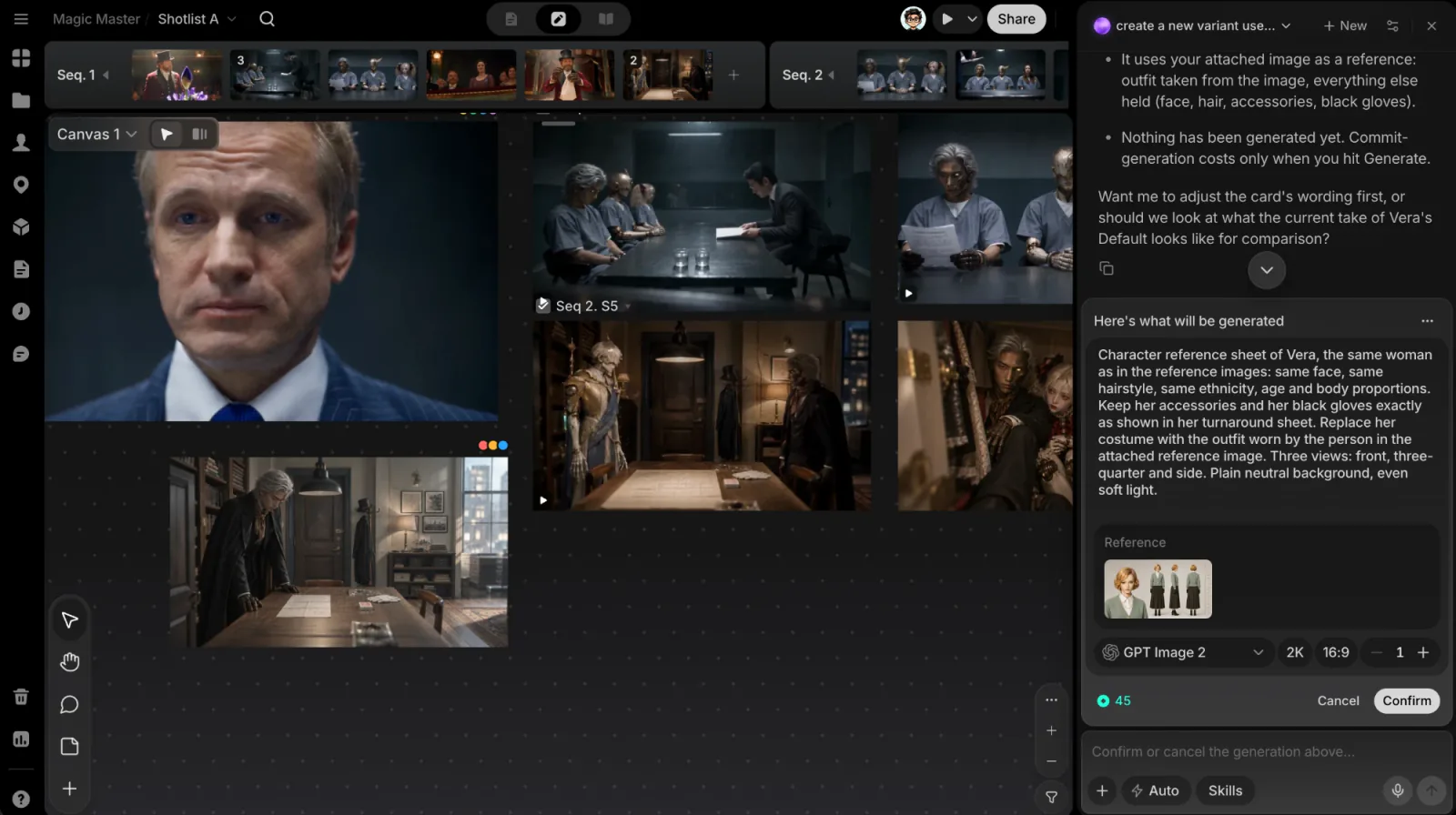
Every generation pauses in the chat on a review card headed Here's what will be generated. Page through each item, edit its prompt, and change Quality, Aspect ratio, Duration and the Number of output. Batch edit changes Model, Quality, Ratio and Number of output across all items at once. The card shows the total credits; click Confirm to run or Cancel to drop it.
If you don't have enough credits, the card shows Not enough credit with a Purchase credit button, and Confirm stays disabled.
Ask or Auto
The Confirmation setting, in the composer pill or in Agent settings, picks how often the Agent stops to ask:
- Ask (default): the Agent checks in with you before it generates.
- Auto: the Agent works without stopping to ask. Generations still wait for you on the review card.
Questions and approvals
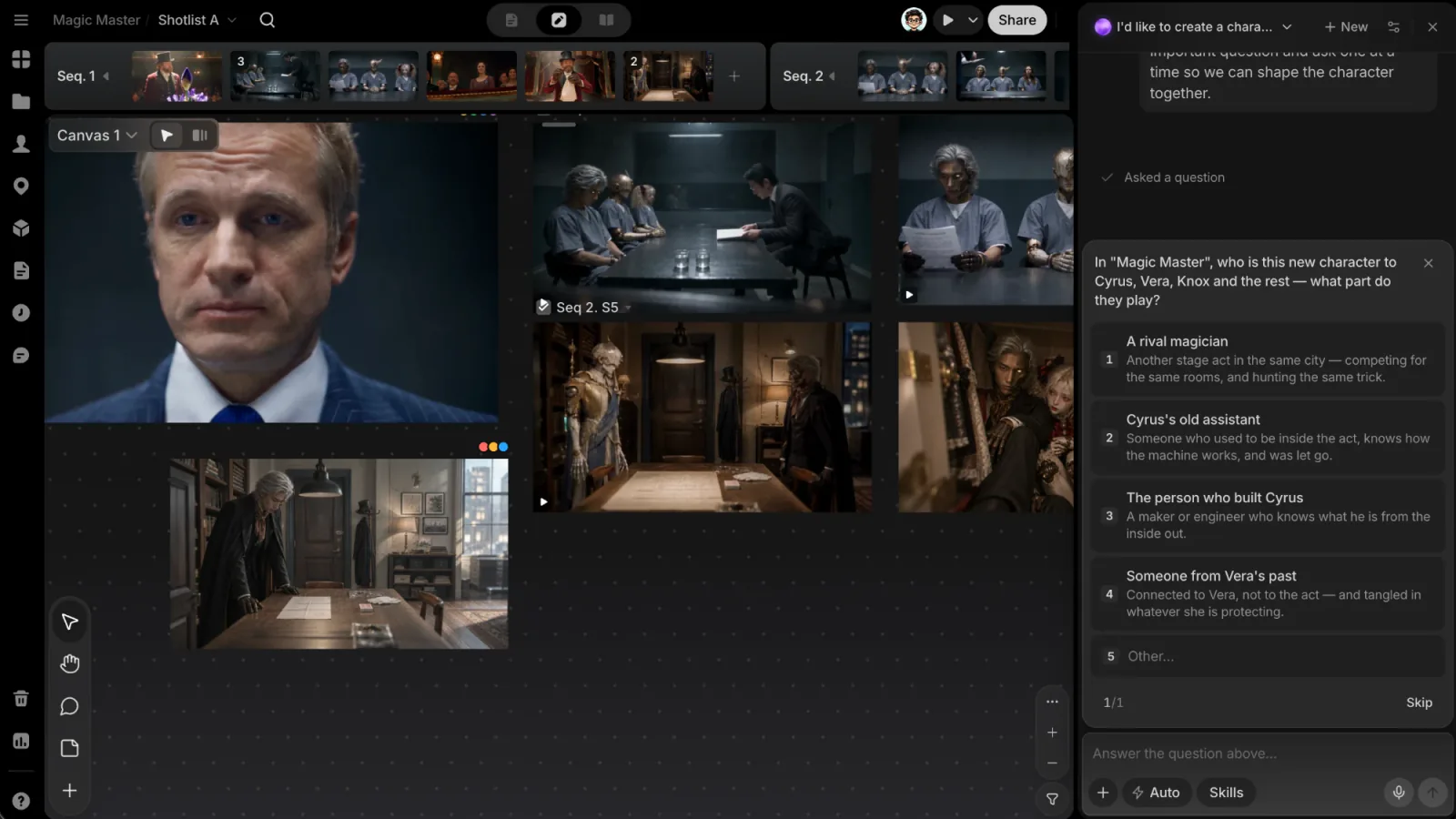
When the Agent needs a decision, it asks with a question card above the composer:
- Pick a numbered option, or use the digit keys and ↑↓. Some options come with a picture, such as style presets.
- Type your own answer under Other…, or click Skip.
- When you can pick several options, finish with Submit; a single answer goes with Continue.
- A card can hold several questions: move between them with Previous question and Next question.
- The close button lets you answer in the message box instead.
The Agent can delete canvas items, Story Outline entries, episodes, Library items, sequences and shots, but it always asks first. An approval card reads Agent wants to… and names what goes, with Allow and Don't allow (keys 1 and 2 work too). One answer covers the whole batch.
Run a whole pipeline
Three Skills take a project through many steps on their own: Opus Pipeline, Shuohao Pipeline and Studio Pipeline. Pick one with /, say where to start, and the Agent works step by step.
- Shuohao Pipeline and Studio Pipeline go from a script (Studio can also start from an idea) to Library cards, shots and prompt cards, and stop when every prompt card is ready for you to generate. They generate nothing themselves.
- Opus Pipeline goes further: after you confirm the generations, it reviews the takes, picks the best, puts together a rough cut and writes up a report. You give it the script, answer a few questions, confirm what gets generated and give notes on the cut.
The Confirmation mode sets the checkpoints. In Ask, the pipeline stops at every question and approval. In Auto, it keeps going from one step to the next without waiting for you, for up to 12 turns in a row; generations still wait on the review card.
While it works
The Agent's steps appear in the chat as it goes, grouped as Used N tools. You can keep typing: sending while it works adds your message to Queued messages, and it's sent after the current reply. Remove one with Remove queued message, or click Stop Agent to stop the current reply.
Under your own messages, Reuse puts the text back in the composer and Copy message copies it. Agent replies have a copy button.
Credits
Working with the Agent uses credits from your workspace, charged as it goes: each step is billed when it finishes, so there is no price before you send. Generations are quoted on the review card before they run.
If the workspace runs out of credits during a turn, the Agent stops and a red card says so. What it already wrote stays. Add credits, then click Continue where you stopped. A turn also stops when you reach a daily or weekly cap your workspace set for you. See Credits.
Settings
The settings button in the panel header shows Default AI models (Image model and Video model) and More settings, which opens Settings at the Agent group. It has five pages:
- General: Confirmation, then Default AI models: the Agent model that runs the Agent (DeepSeek or Claude), the Image model and the Video model. A model your ClipTap setup doesn't offer shows Not configured.
- Personalization: a Tone of voice (Direct, Clear, Neutral, Warm, Efficient or Detailed) and Custom instructions the Agent follows in every chat. Changes save automatically.
- Skills: your Skills. See Skills.
- MCP: connect the Agent to your own tools (below).
- Memory: what the Agent keeps following across chats. Only you see these. Tell the Agent "remember …" or add one here; each sits under This project or All projects, and you can pin it, move it between the two, or delete it.
Connect your tools (MCP)
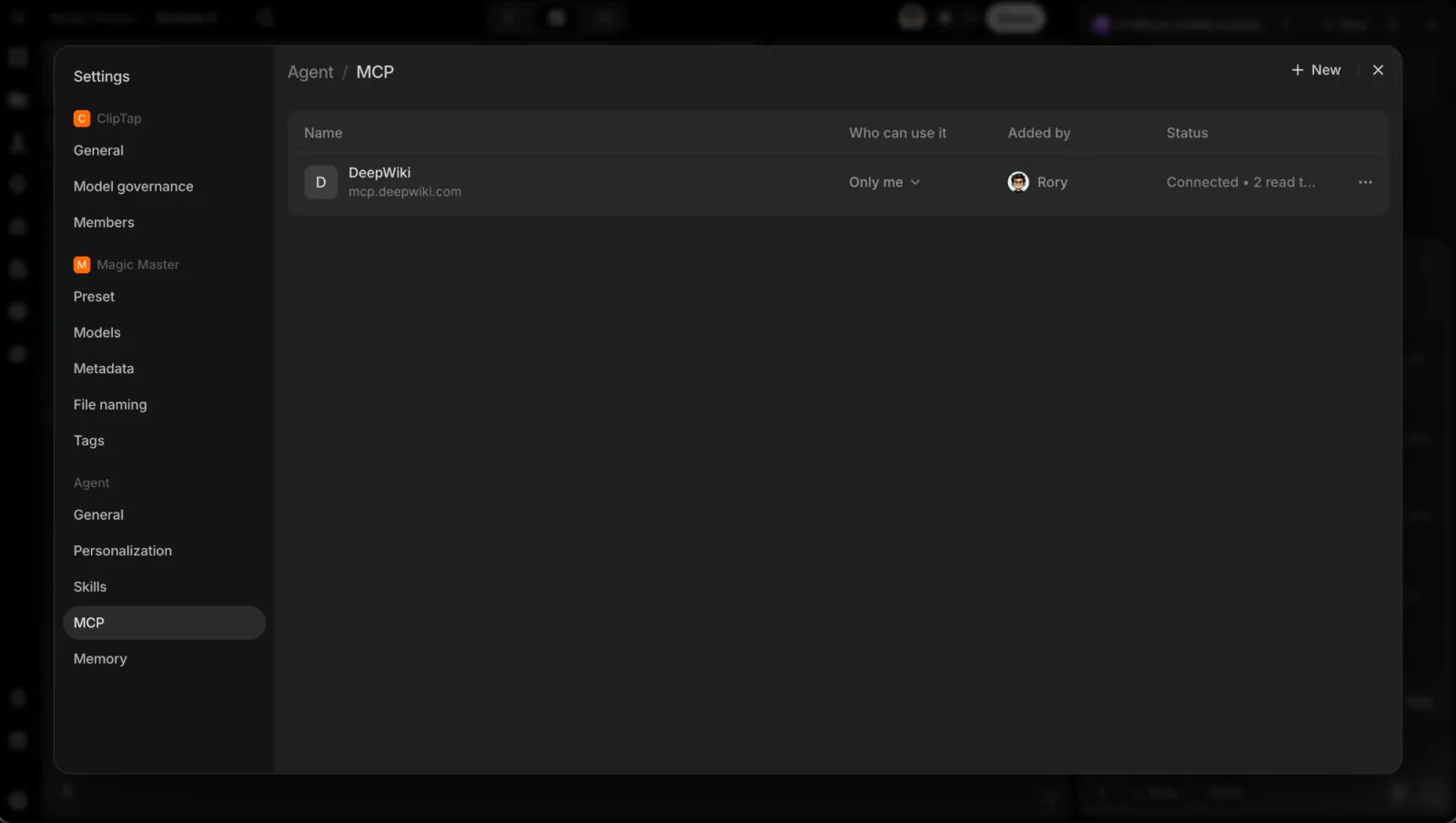
The Agent can read from outside tools, such as an issue tracker or a notes app, through their MCP servers. On the MCP page, click New and fill in:
- Name and Server URL (it must start with
https://). - Bearer token (Optional): leave it blank to sign in through the server.
- Who can use it: Only me (you, in all your chats), This project (everyone who can open the project; only the project owner can add one) or Workspace (every member; only workspace owners and admins can add one).
- Sign-in, for a shared connector: Each person signs in with their own account, so the Agent reads only what that person can see, or One token for everyone, where everyone's Agent reads with the token you add.
A working connector shows Connected • N read tools. Only read tools are enabled: the Agent can look things up, never change anything in the other tool.
This is the Agent reaching out to your tools. To work in ClipTap from Claude or ChatGPT instead, see MCP for Claude and ChatGPT.
Example prompts
- "Write a three-minute short film about a night-shift nurse."
- "Build a Shotlist from episode 1."
- "Interview me to build the lead, then make her character sheet."
- "Give me more coverage on the dialogue in scene 3: reverse angles and close-ups."
- "Generate four takes of shot 1.2 on a video model."
- "Stage the rooftop scene in the Director with a low-angle camera."