Stage
Generate your Library and your shots card by card or in batches, and track every shot in Grid, Kanban and List layouts.
What Stage is for
Stage is where you turn the plan into takes and keep track of them. Select Stage in the top bar (next to Script and Canvas) to leave the canvas and work card by card: each character, location, prop and shot is a card with its prompt and its takes.
Stage has two sections, switched from the toolbar:
- Library (the default): one card for each variant of your Characters, Locations and Props.
- Shots: the same sequences and shots you build in the Sequence timeline, in three synced layouts: Grid, Kanban and List. A change in one shows in the others, and filters apply across all three.
A project can have several Shotlists, each with its own sequences. Stage shows the active one; switch from the Shotlists panel on the left rail or the Shotlist picker in the top bar (see Shotlists).
Library
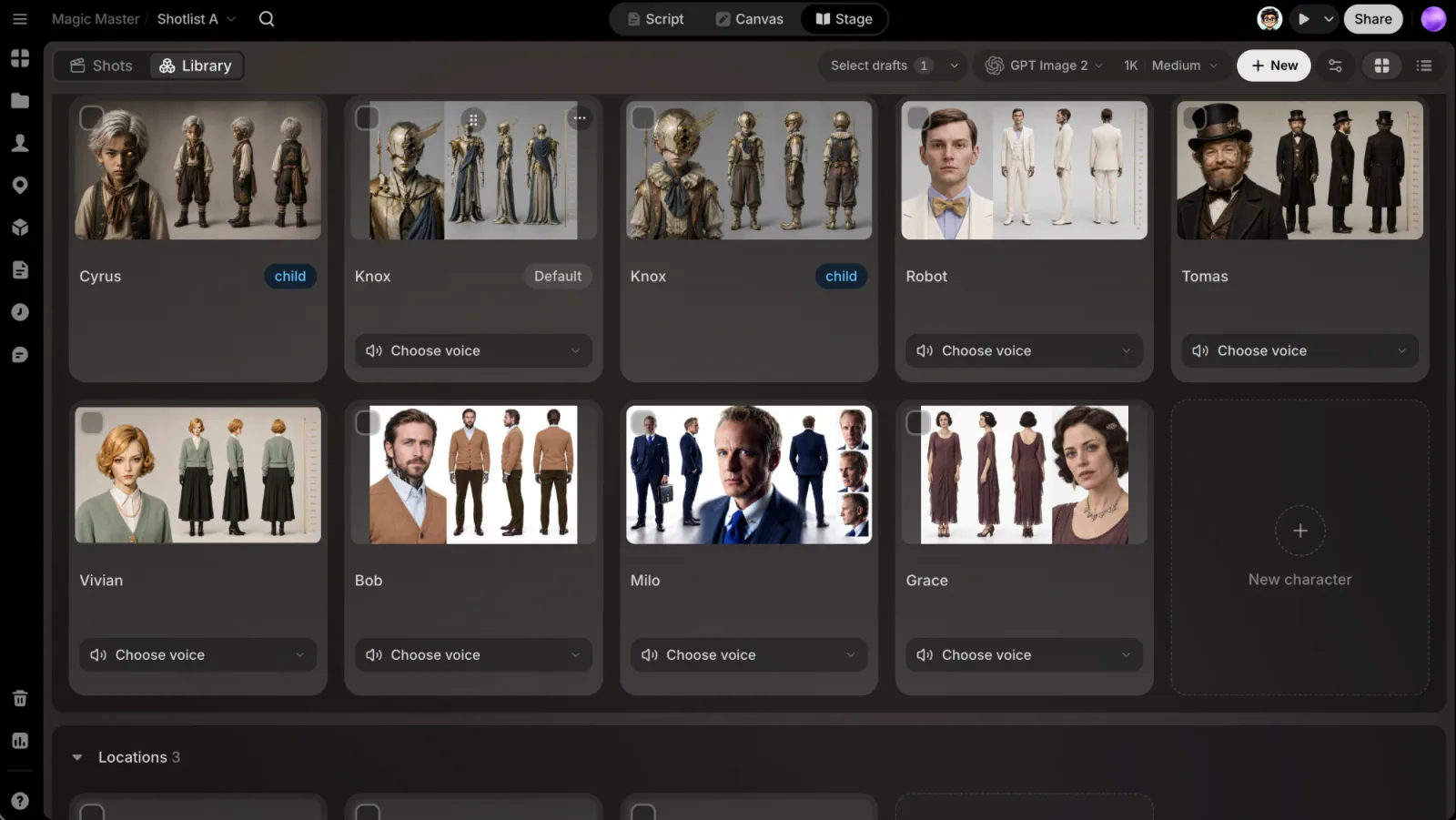
The Library section lays out every variant of every Library entry as a card, under Characters, Locations and Props. An entry's default variant comes first, followed by its other variants (Mara, Mara · Rain coat). A badge on each card names the variant, and a dashed New character, New location or New prop card at the end of a section adds an entry.
The buttons at the top right switch the Library between Grid, the cards described below, and List: one row per entry with its Preview, Name, Look, Appearances, Voice and Voice description.
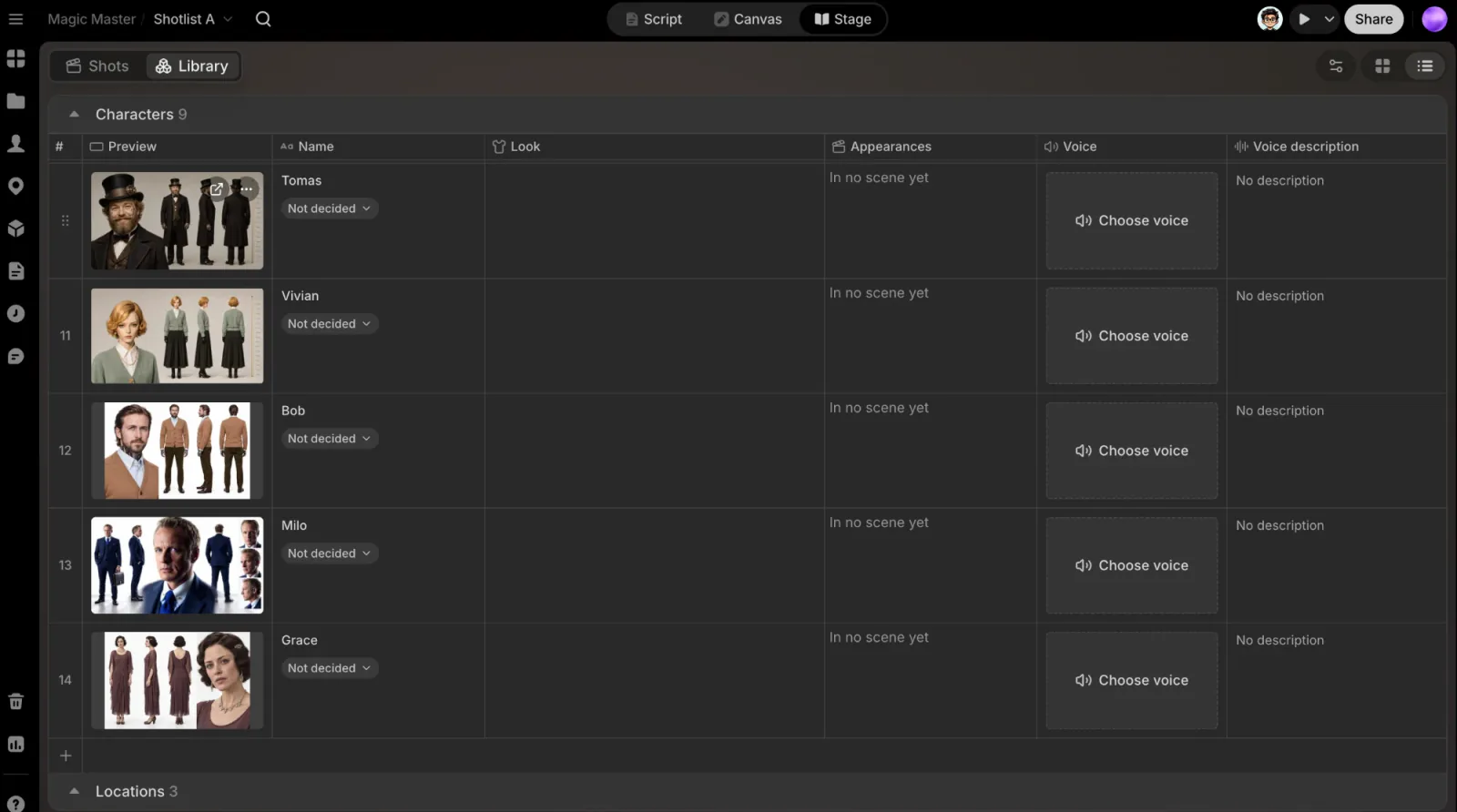
Each card shows the variant's current picture and the prompt that makes it. Click the picture or the prompt to open the card page, where you write the prompt and generate takes. Every take you generate or add lands on the card; arrows on the picture step through them.
The current take is what your shots use. A variant's current picture is the reference every shot prompt naming that character, location or prop attaches when it generates. Pick a different take as current on the card page, and every shot you generate after that uses it.
Each card's ⋯ menu (or right-click) has:
- Open, and Open in Library to open the entry in the Library panel.
- Add variant and Rename variant.
- Select from library and Upload from device to add takes you already have.
- Download the take on show.
- Remove take, and Delete the entry (or Delete variant).
Voices
A character's default card carries its voice. Open the voice chip to Choose from library, Upload from device (an MP3 or WAV of up to 15 seconds), Design voice (opens the character's Voice tab, where you describe the voice and generate it), or Remove voice. A character has one voice, and every variant speaks with it.
You can also take a voice from a shot's take: see Card pages.
A variant marked Voice-over (set in the Library) is heard, never seen: its picture is optional and never used as a reference.
Generate Library cards in a batch
The toolbar has Select drafts, which ticks every card with a prompt waiting to run, a Model for this batch picker for the pictures, and New to add a character, location or prop. You can also tick the checkbox on a card's picture yourself (hold Shift for a range).
The bar at the bottom shows how many cards are selected and offers Generate for the ones with a draft prompt, plus Generate voices for selected characters whose voice is described. Each button shows its cost in credits.
Grid
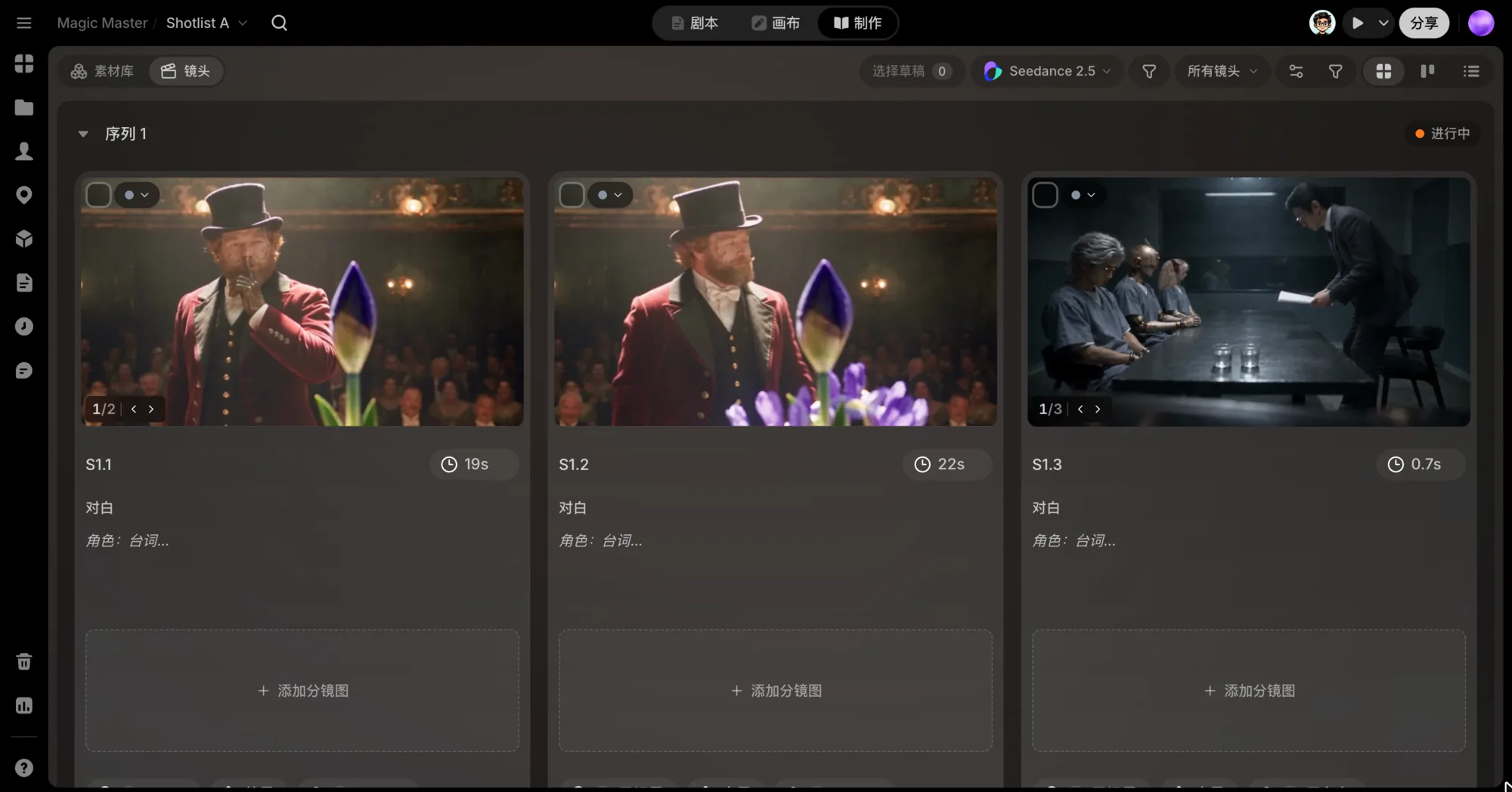
The Grid layout shows every shot as a card, sequence by sequence. Each card carries the shot code (S1.1), a duration chip, a status chip, the shot's picture with its storyboard, a preview of its prompt (click it to open the card page), its Dialogue, and chips for Location, INT/EXT, Character, Prop, Shot type, Lens, Camera movement, Notes, Assignee, Priority and Due date. Click a chip to change its value.
A take the Agent has checked wears a QC pill on its picture: QC passed, QC: worth a look or QC failed, with its score. Kanban and List show the same verdict as a dot on the thumbnail.
View options switches between Vertical layout and Horizontal layout (one sideways-scrolling row per sequence), sets the number of Columns, and toggles which Metadata shows on the cards.
Each card's ⋯ menu (or right-click):
- Open: opens the card page.
- Copy (⌘C) and Paste (⌘V).
- Duplicate.
- Move to... ›: move the shot to another sequence.
- Remove take and Delete shot.
Each card also has:
- A grip at the top of the card (on hover): drag it to reorder the shot within its sequence.
- Take arrows on the picture: step through the takes assigned to that shot.
- A checkbox in the top-left corner: select shots for a batch (below).
A dashed New shot card at the end of each sequence adds a shot.
Storyboard
A shot's Storyboard holds one storyboard sheet picture. Click Add storyboard to Select from library or Upload from device. Its ⋯ menu has Use in video prompt, which hands the sheet to the video model with the shot's prompt, and Remove storyboard.
Generate shots in a batch
When the Agent has storyboarded a scene, its shots wait as drafts: a prompt, ready to run. To run many at once:
- In the Shots toolbar, click Select drafts to tick every shot with a draft (click again to Clear selection), or tick cards yourself (hold Shift for a range, across sequences).
- Choose the Model for this batch.
- Click Generate in the bar at the bottom. The button shows the number of shots and the cost in credits.
The bar also shows:
- Skipped: shots that already have a take, are running, or have no prompt. A batch only runs drafts.
- Storyboards: ticked, shots with more than one cut that have no storyboard get one drawn first, and their videos wait for it. Untick it to run the videos without storyboards.
- More actions (⋯): Move to..., Status, Assignee and Delete for every selected shot.
- Cancel leaves multi-select.
Two checks may come up before the batch starts:
- A shot is longer than the model makes. The dialog names the shots; Generate anyway cuts them to the model's longest length. To keep their timing, ask the Agent to re-split them for that model first.
- A character has no voice yet. Queue for the voice runs the first shot, takes the voice from it and runs the rest with that voice, so it sounds the same throughout. Run all now starts every shot at once, and the voice may differ from shot to shot.
A shot that waits for its storyboard, a picture or a voice starts by itself when that is ready.
List
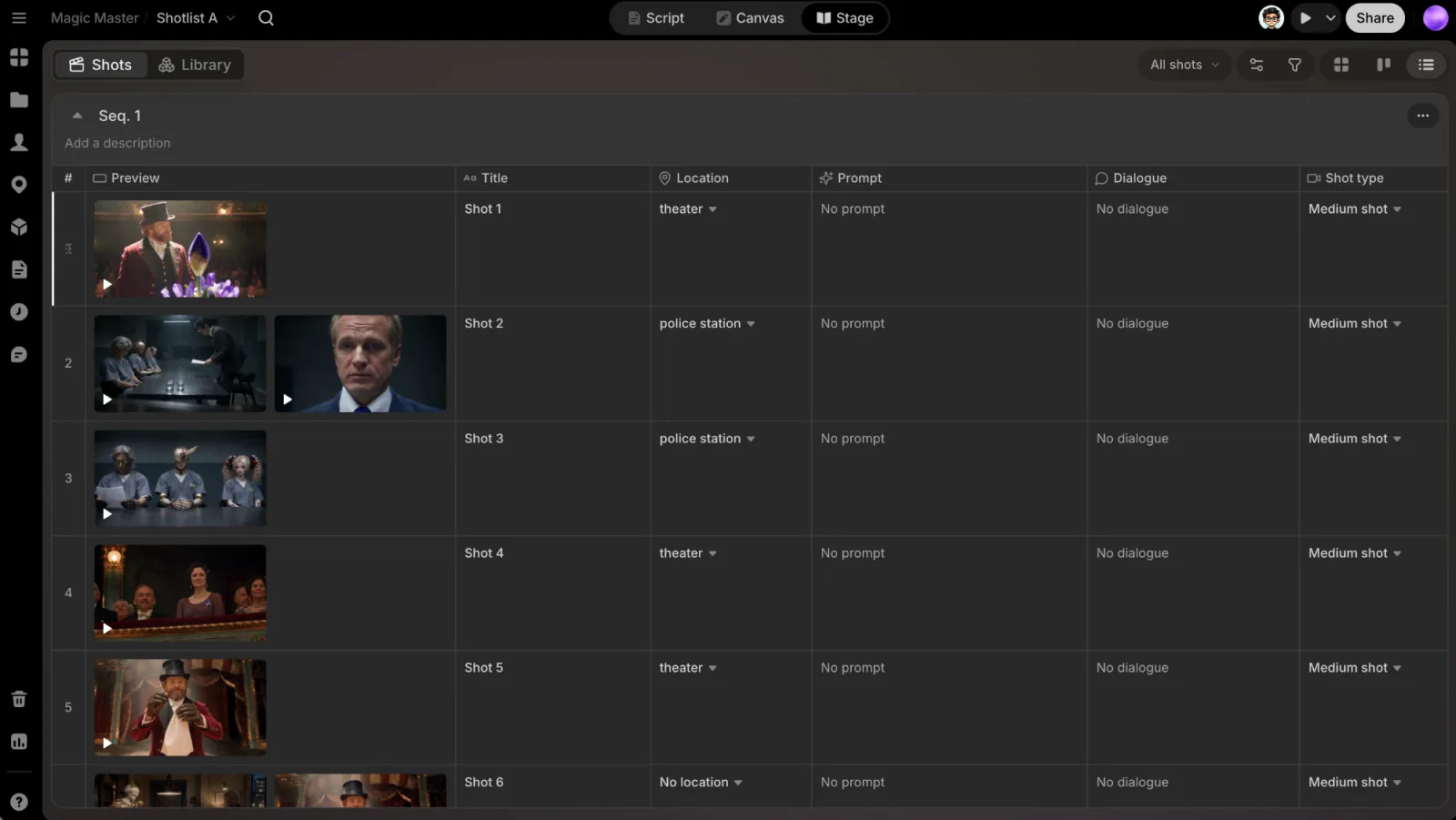
The List layout is a table for detailed metadata edits. Default columns are Preview, Status, Description, Dialogue, Shot type, Duration, Character, Assignee and References; you can add Title, Prompt, Storyboard prompt, Notes, Location, Prop, INT/EXT, Lens, Camera movement, Priority and Due date.
- Show, hide or reorder columns in View options › Columns. Drag a header's edge to resize it (double-click to reset), or right-click a header and choose Hide Column.
- Add a reference with the + in the References column: pick an image from your Library, then call it with
@in the prompt box (see @ references). - Fill an empty Preview cell with Choose from library or Upload from device.
- Name a sequence by clicking its bar, and add a description there. The bar's ⋯ menu opens Reorder sequences: drag-reorder and rename sequences, then Apply changes.
- Add shots or sequences from the + at the bottom: Add a shot, Add multiple shots or New sequence. Hover between two rows to insert a shot right there.
- Reorder rows by dragging a row's handle, also across sequences.
Kanban
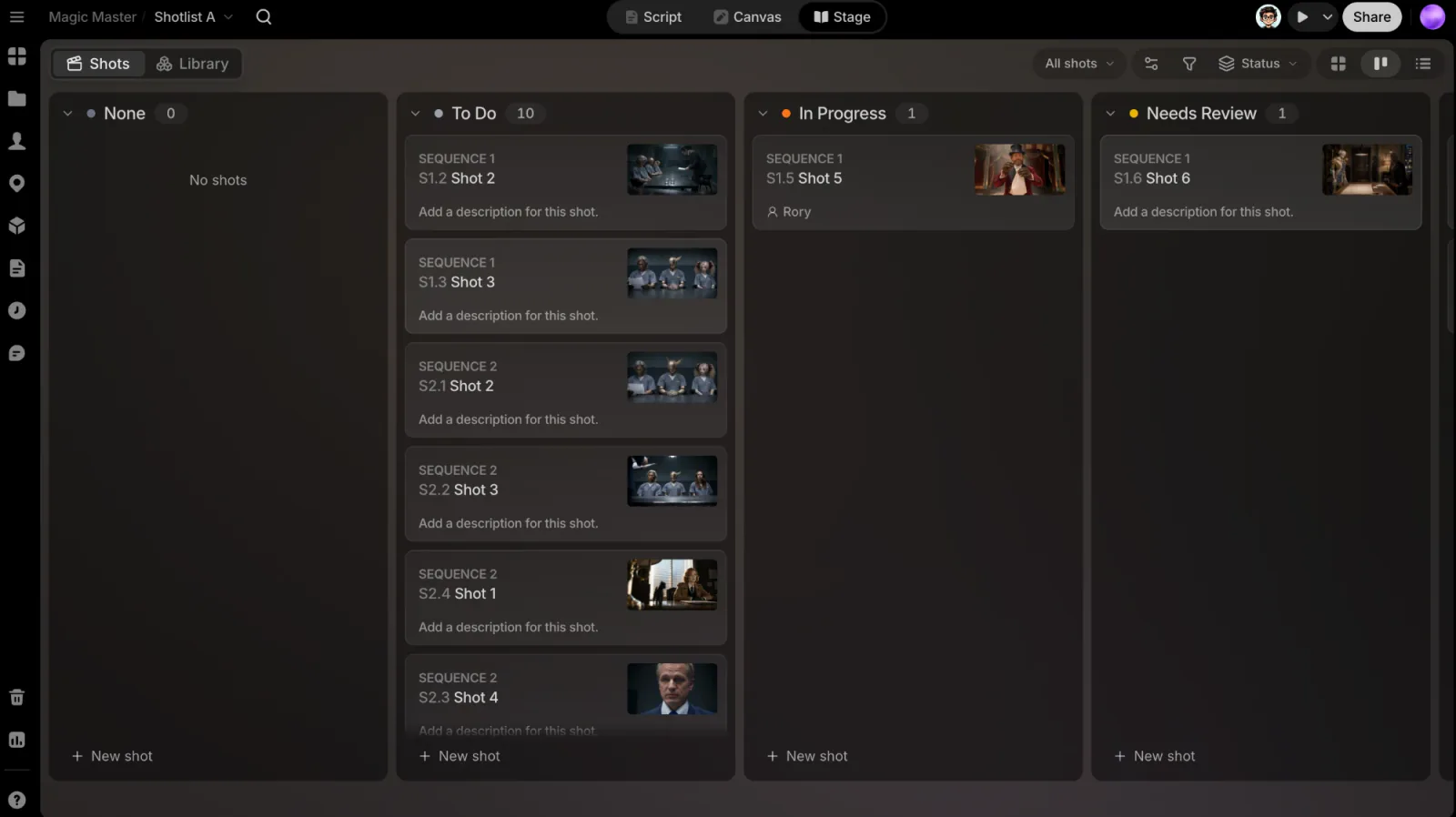
Track production progress at a glance: group by status to see what's to do, in progress and done, and drag a shot into the next column as it moves through your pipeline.
- Drag cards between columns to change their value for the field you group by. Press Esc to cancel a drag; with a card focused, Shift + ← / → moves it to the next column.
- Collapse a column with the caret in its header, and drag columns to reorder them.
- Group by Status, Priority, Assignee, Scene, Character or Location from the selector in the toolbar.
- Add a shot with New shot at the foot of a column: pick the sequence, and the new shot takes that column's value.
- Choose card fields in View options › Card fields: Thumbnail, Description, Assignee, Priority and Due date. Double-click a card to open its Shot info.
Status values are To Do, In Progress, Needs Review, Done and Archived, plus none (not started).
Filters and views
Click Add filter (in Shots) to narrow any layout. Each filter is a chip: pick a field (Sequence, Status, Assignee, Location, Character or Priority) and a value. Remove one with its ×, or use Clear all filters.
The views menu on the left applies a ready-made filter: All shots, or under Your views, Top priorities (high priority), To-dos (status To Do) and Needs review (status Needs Review).
Filter before a batch: narrow to a sequence or a status, then Select drafts ticks only what you see.
Card pages
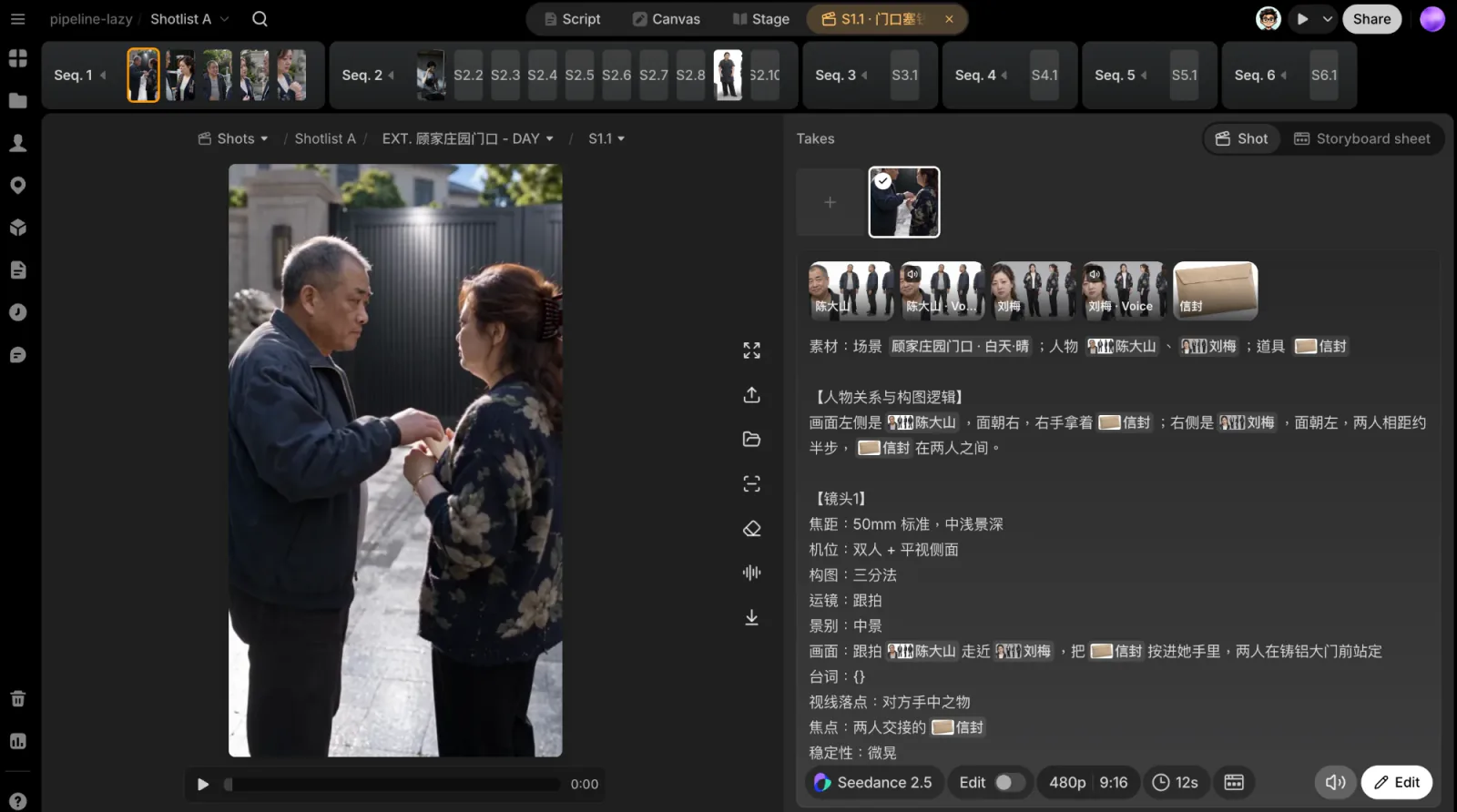
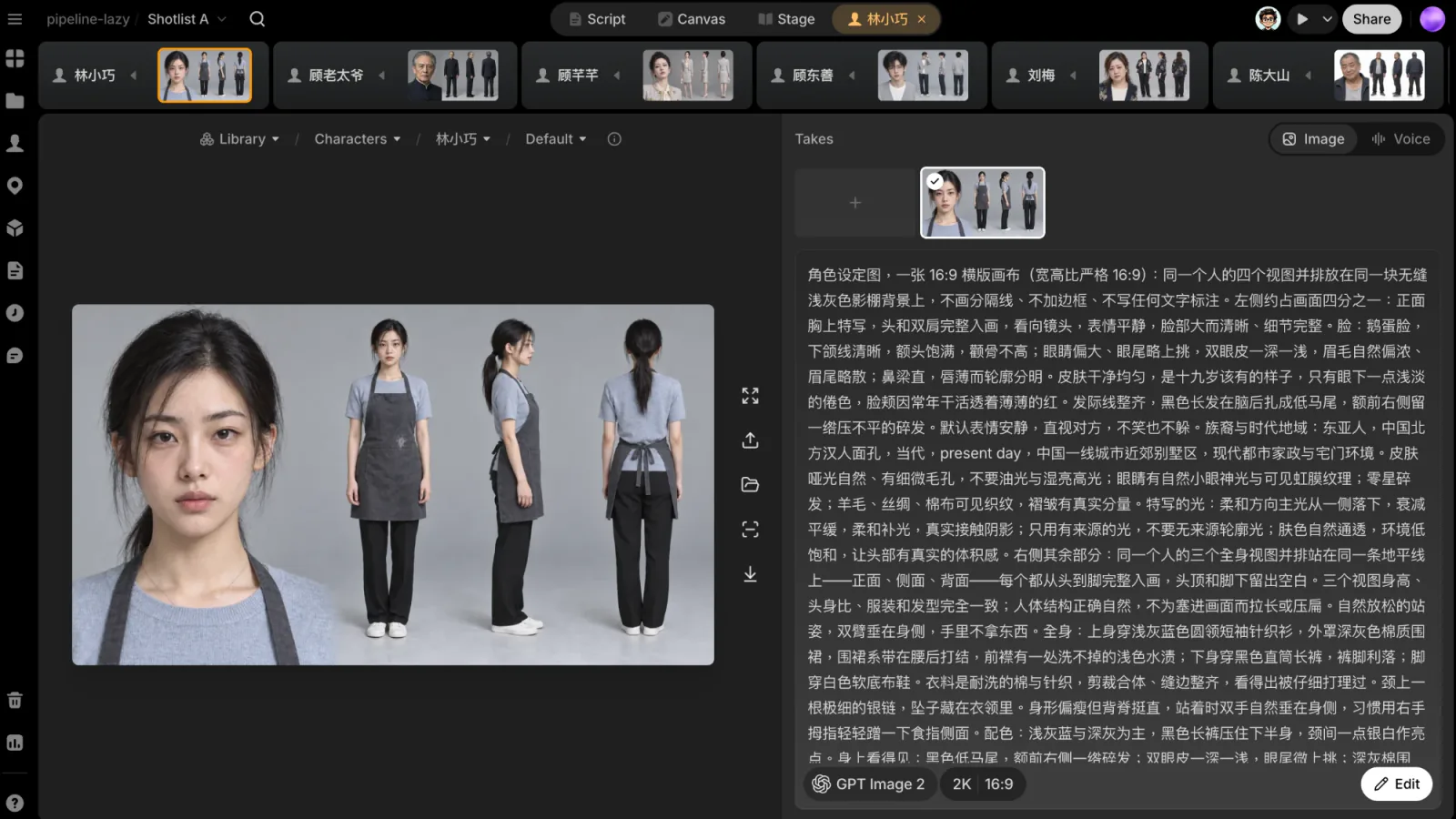
Click a card's picture (or choose Open) to open its card page. It opens as its own tab in the top bar, after Stage; close the tab to go back.
- The strip at the top is the shot timeline (or, for a Library card, the Library's variants). Click a chip to switch to that card. Hover a chip to see its takes, and click one to make it the current take.
- The current take fills the left side. The crumb trail above it ends in the take's number: open it to make another take current.
- The prompt box on the right is the card's prompt. Edit it and generate more takes; your edits save as a draft. Discard draft puts the prompt back to the one that made the current take; the takes are kept.
- Tabs: a shot's page has Shot and Storyboard sheet; a character's page has Image and Voice.
The buttons beside the take work on it:
- Upload a take from your device, or Choose from library.
- Upscale this take and Remove the subtitles from this take. The result becomes the current take when it lands.
- Take a voice from this take: pick the speaking characters and the seconds where each one talks, and the voice lands on the character. Use it when a video take has a voice you want to keep for the rest of the series.
- Download the take.
Press ← / → to step to the neighbouring card and Esc to go back.
Shot info
Shot info opens on the left with four tabs:
- Details: the shot's description, prompt, dialogue, and properties such as Duration, Lens, Location, Shot type, Camera movement and Priority.
- Cuts: the cuts the Agent planned for the shot when it storyboarded the scene, headed with their count and total length. Each cut lists its characters, props, beats and lines.
- References: the references assigned to the shot.
- Takes: every take assigned to the shot.
Double-click a card in Kanban to open it, or follow a link to a shot from the Agent.
Shot durations
- A planned shot is a whole number of seconds, rounded up, and at least 1 second, because video models take whole seconds.
- A shot with cuts lasts as long as its cuts together, rounded up. Each cut keeps tenths of a second, from 0.5 to 30 seconds, and a shot has at most 10 cuts.
- A chosen video take shows the length it plays, or its trimmed length, in tenths of a second.
An image with no duration holds for 15 seconds in the player and for 5 seconds in an export.
Next
To hand your shots to an editor, see Export or ClipTap Space. To manage characters, locations and props, see Library.