Embeds
Put a web page on the canvas, such as a reference video, a mood board or a shared doc, and open it full size without leaving the project.
An Embed puts a web page on the canvas next to your takes: a YouTube or Vimeo reference, a Figma or Miro board, a shared Google Doc, a Notion page, a Spotify track. It shows as a live page or as a link card, and opens full size over the canvas when you need to use it.
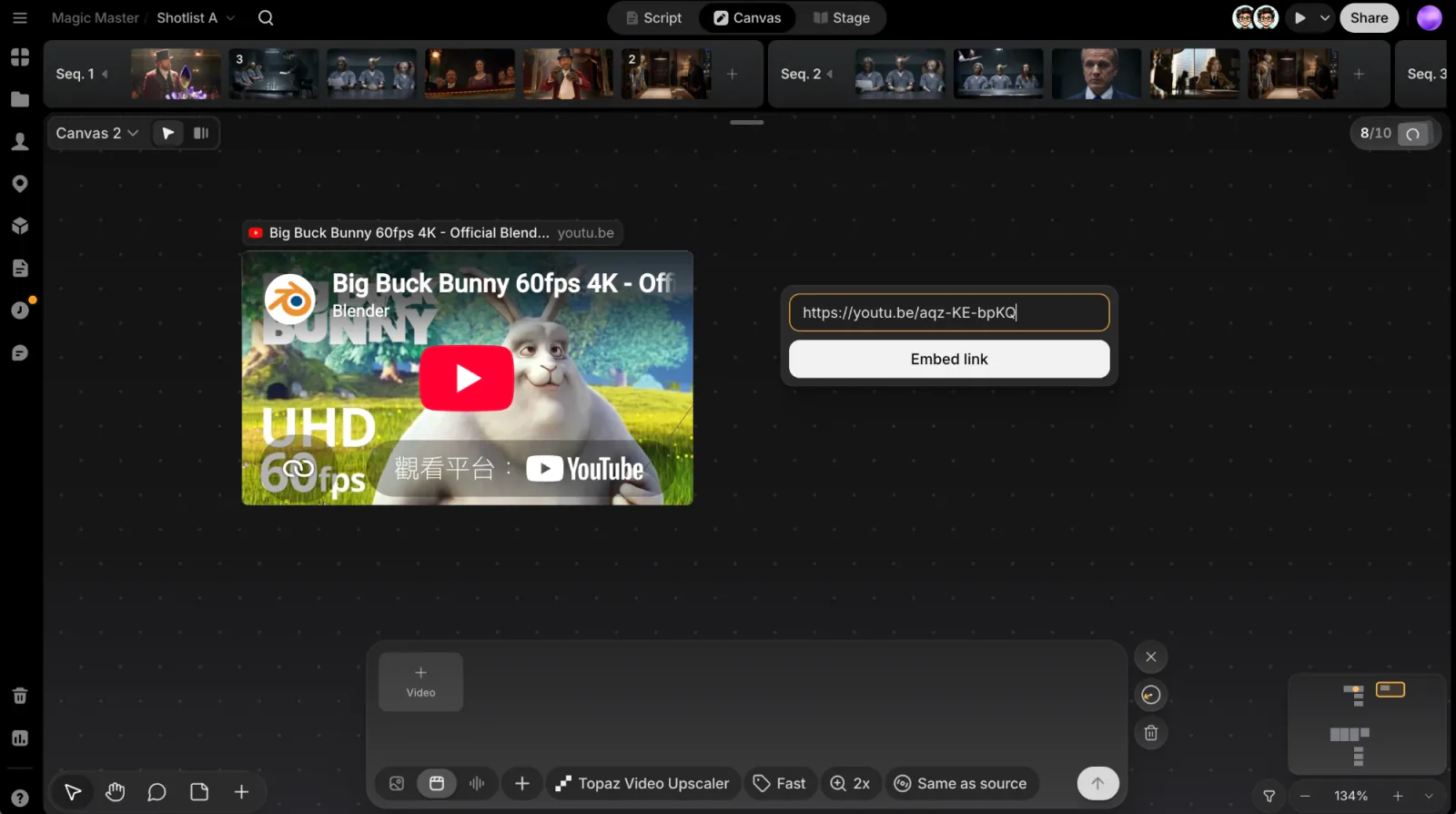
Add an Embed
- Paste a link: copy an
https://address and paste it on the canvas (⌘V). The Embed appears on the canvas right away. - From the Add menu: click Add (+) in the toolbar, or right-click empty canvas and, under Add, choose Embed. Paste the address into Link ("Paste a link, e.g. https://…") and click Embed link.
Links to YouTube, Vimeo, Loom, Bilibili, Spotify, Figma, Miro, Google Docs and Google Drive are turned into the site's own player or viewer, so they play and scroll properly.
Page or card
ClipTap checks each page and shows it the best way it can:
- Page: the live page, scaled to the node. On the canvas it is a preview: you move and select it like any other node.
- Card: the page's title, description, picture and site name, for sites that don't allow being shown inside other sites.
Switch between them in the Embed's menu with Show as page and Show as card. If a site may refuse, Show as page says "This site may not allow it". Google Docs and Notion pages only show when they are shared publicly ("Only pages shared publicly show here").
Drag a corner to resize an Embed to any shape: a document reads better tall, a video wide.
Open the page
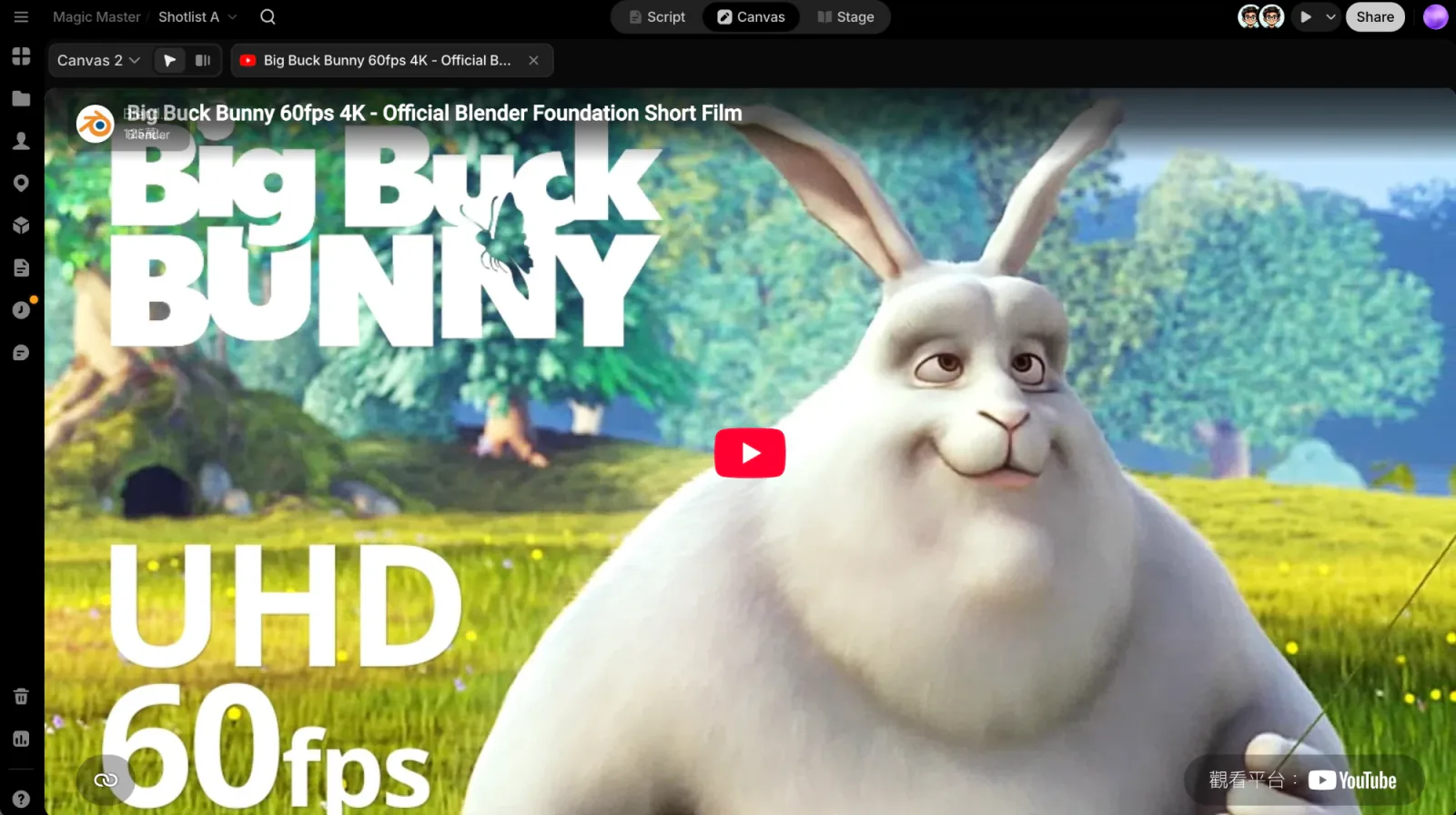
To use the page, click, scroll, play or type in it, open it over the canvas:
- Hover the Embed and click Enter › next to its title, or
- double-click it, or select it and press Enter.
The page fills the canvas area, and a chip with its title sits at the top left. Click the chip's × (Close page) or press Esc to go back to the canvas. If the site doesn't allow being shown inside other sites, the page says so and offers Open in new tab instead.
The Embed menu
Hover an Embed and click its ⋯ (Embed options), or right-click it:
- Enter: open the page over the canvas.
- Open in new tab: open the page in your browser.
- Copy link: copy a link to this Embed on the canvas.
- Edit link…: point the Embed at another address, then Save.
- Reload: load the page again. If it couldn't be checked ("Couldn't check this page"), this reads Try again.
- Show as page / Show as card.
- Duplicate and Delete.
Viewers who can't edit the project see Enter, Open in new tab and Copy link.
Remove an Embed
Select it and press Delete or Backspace, or choose Delete in its menu. Press ⌘Z to bring it back. Each canvas has its own Embeds.
Next
Groups and arranging
Frame related files in groups, tidy up a messy canvas in one click, and send new generations into a group.
Film language
Browse a library of camera, lighting, composition and other film techniques on the canvas, and drop their ready-made prompts and example clips into the prompt box.