Gen history
Every generation in the project in one list, to find, open, reuse or drag back onto a canvas.
Gen history lists every generation in the project, whether or not it's on a canvas right now. Open it with History on the left rail, between Scripts and Comments. While generations are running, the button shows how many.
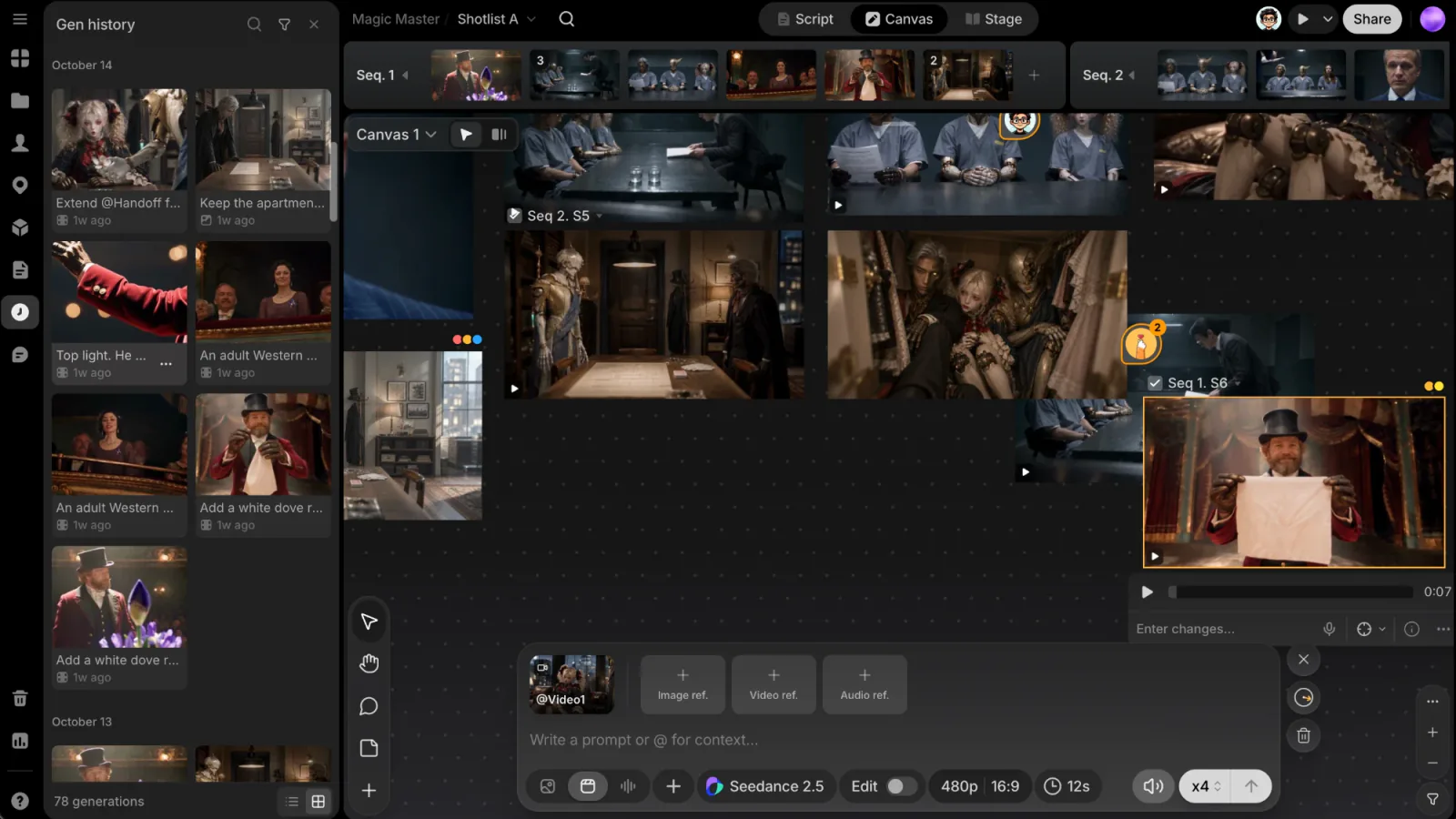
What you see
- Every generation: across the whole project, not just the canvas you're on. Newest first, under day labels such as Today and Yesterday. Each card shows the picture, its prompt and how long ago it was made.
- Running generations show Generating... with the time so far.
- Failed generations keep their card with a red mark. Hover or click the mark to see Why it failed with the reason, and Copy error ID if you need to report it. Cancelled ones read Cancelled.
- Grid or list: switch with Grid view / List view in the footer. The footer also shows how many generations the list holds.
Uploads aren't listed here; they're in the Uploads panel. See Library.
Find a generation
- Filter: narrow by Sequence (All, or Current for the sequence of the shot you're working on) or by Author. Active filters show as chips under the header; click a chip's × to remove it.
- Search history: search by prompt, author or file name.
Open, reuse, place
- Double-click a card, or choose Open from its menu, to see the file in File view. A single click doesn't move the canvas.
- Drag a card onto the canvas to place the file again, for example after you took it off a canvas.
- Right-click a card, or click its ⋯, for Open, Reuse prompt, Download, Copy image (images), Copy prompt, Prompt info and Delete. The bottom of the menu shows when it was made and by whom. Reuse prompt brings back the model, settings, references and frames too, and also works on a failed generation, so you can try it again from the prompt box.
Select and delete
Hover a card and tick its box to start a selection. While you're selecting, clicks tick more cards. The footer shows the count, Clear and Delete. Right-click inside a selection to act on all of it, for example Download or Delete N takes.
- Delete on a take asks Move this take to the Trash?. Confirm with Move to Trash: the take leaves the canvas and Gen history, and you can restore it from the Trash.
- Failed and cancelled generations have no file, so deleting them takes them off the list for good.
Why it helps
Taking a file off a canvas never deletes it. It stays here, ready to drag back onto any canvas. That keeps canvases tidy without losing work: only Delete in Gen history or Uploads sends a file to the Trash.
Use Gen history when you:
- Took something off a canvas and want it back.
- Look for a take from earlier in the project that isn't on the canvas you're viewing. The Files view only shows one canvas; Gen history covers the whole project.
- Want to know why a generation failed, or run its prompt again.
To follow generations while they run, use the Queue at the top right of the canvas; see Canvas.
Trash
Deleted takes and uploads, and Director desks moved there from the Files view, wait in the Trash at the bottom of the left rail. Restore them from there, or delete them forever. See Trash.