Sequence timeline
Build your Shotlist on the Canvas, sequence by sequence, assign takes to shots, and play the cut.
The sequence timeline is your project's shot list, shown across the top of the Canvas tab (see Canvas). Each sequence is a block of ordered shots, labelled Seq. 1, Seq. 2 and so on. A shot shows the picture of its take, or its code (S1.1, S1.2…) while it is still empty; a shot with more than one take shows a count badge. Assign a file to a shot and it appears in that row at once, turning canvas work into project structure.
Click the small handle at the top centre of the canvas (Collapse timeline / Expand timeline) to close or reopen the timeline. Scroll over the strip with your mouse wheel to move through it sideways.
When to use it
Use the timeline for fast, in-canvas structuring: ordering shots and assigning files as you generate. Move to Stage for metadata, status tracking, batch generation and bulk planning.
Shotlists
A project can hold several Shotlists, each a complete, independent set of sequences and shots, such as one per episode. The timeline always shows the active one, and so does Stage; switching one switches the other.
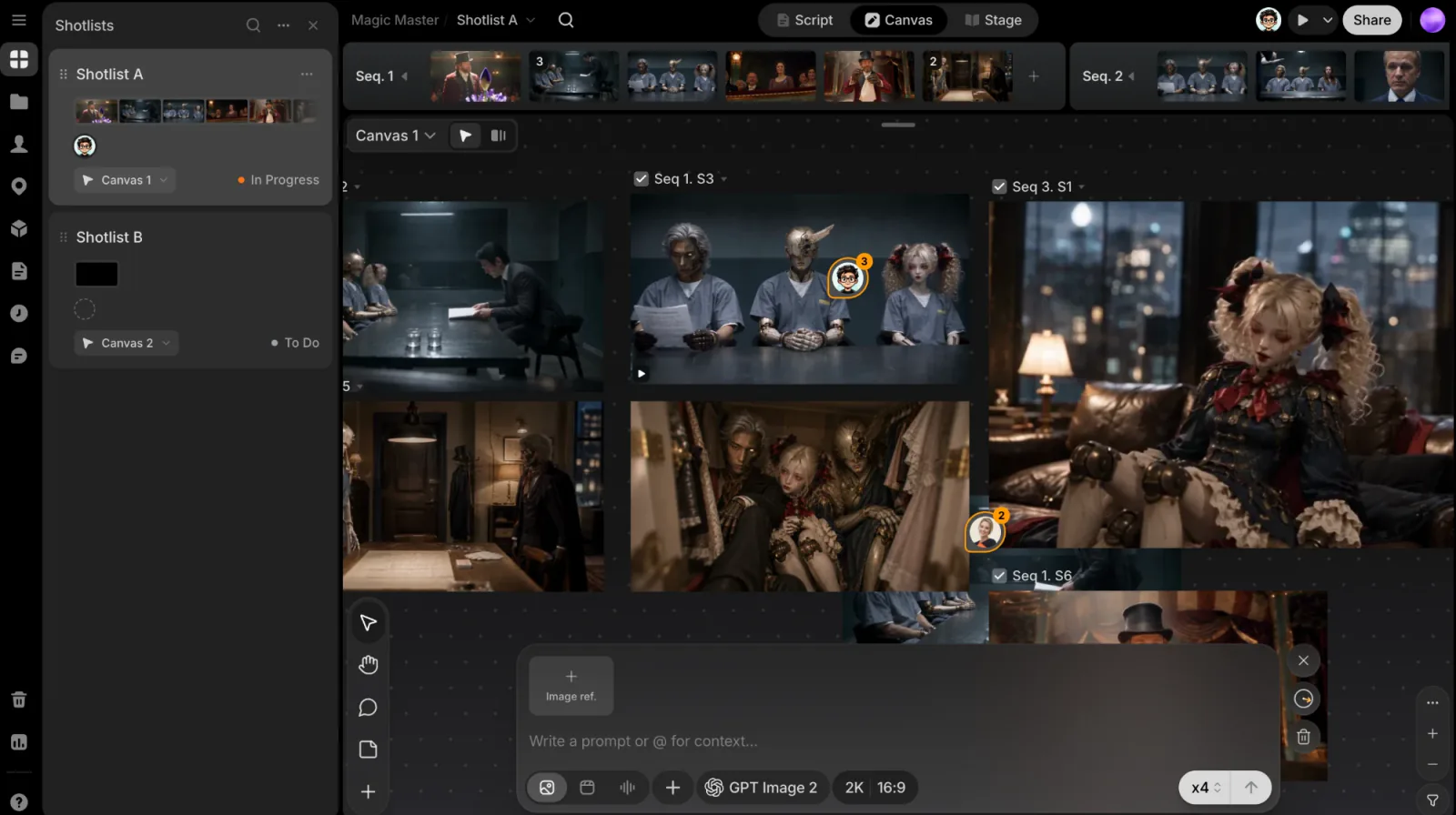
The Shotlists panel
The Shotlists button at the top of the left rail lists every Shotlist as a card. Each card shows, from top to bottom:
- the name, with its ⋯ menu,
- a mini timeline of its sequences, drawn as the shots' pictures,
- the faces of the people assigned to its shots (or No one assigned),
- a Bind canvas picker: choose the canvas this Shotlist belongs to, or No canvas,
- its overall status. Click it for Open in Shots, as a List or a Kanban, on Stage.
Click a card to make that Shotlist active; if it has a bound canvas, that canvas opens too.
- New shotlist: from the panel header's ⋯ menu. A new Shotlist starts with one sequence and one empty shot.
- Copy link, Duplicate, Rename or Delete: from a card's ⋯ menu or by right-clicking it. Double-click a name to rename it. Duplicate copies the sequences, shots and their assigned takes. Delete is disabled while only one Shotlist is left.
- Reorder: drag a card by its grip (or move it with the keyboard). Reordering is off while you search the panel.
The Shotlist picker
You can also switch Shotlists from the picker in the top bar, right of the project name; the active one has a check. It has New to add a Shotlist, and each row's ⋯ menu has Duplicate, Rename and Delete.
Every new project starts with Shotlist A, holding Seq. 1 with one empty shot. New Shotlists are named with the next letter: Shotlist B, Shotlist C, and so on.
Add a sequence or shot
- Add a sequence: click the dashed New sequence tile at the end of the timeline. It comes with an empty first shot.
- Add shots to a sequence: click the + at the end of that sequence, then choose Add shot or Add multiple shots. Add multiple shots opens a dialog: set the number with the stepper, check the summary (sequence name, current number of shots, new shots, total) and confirm.
Assign files to shots from the canvas
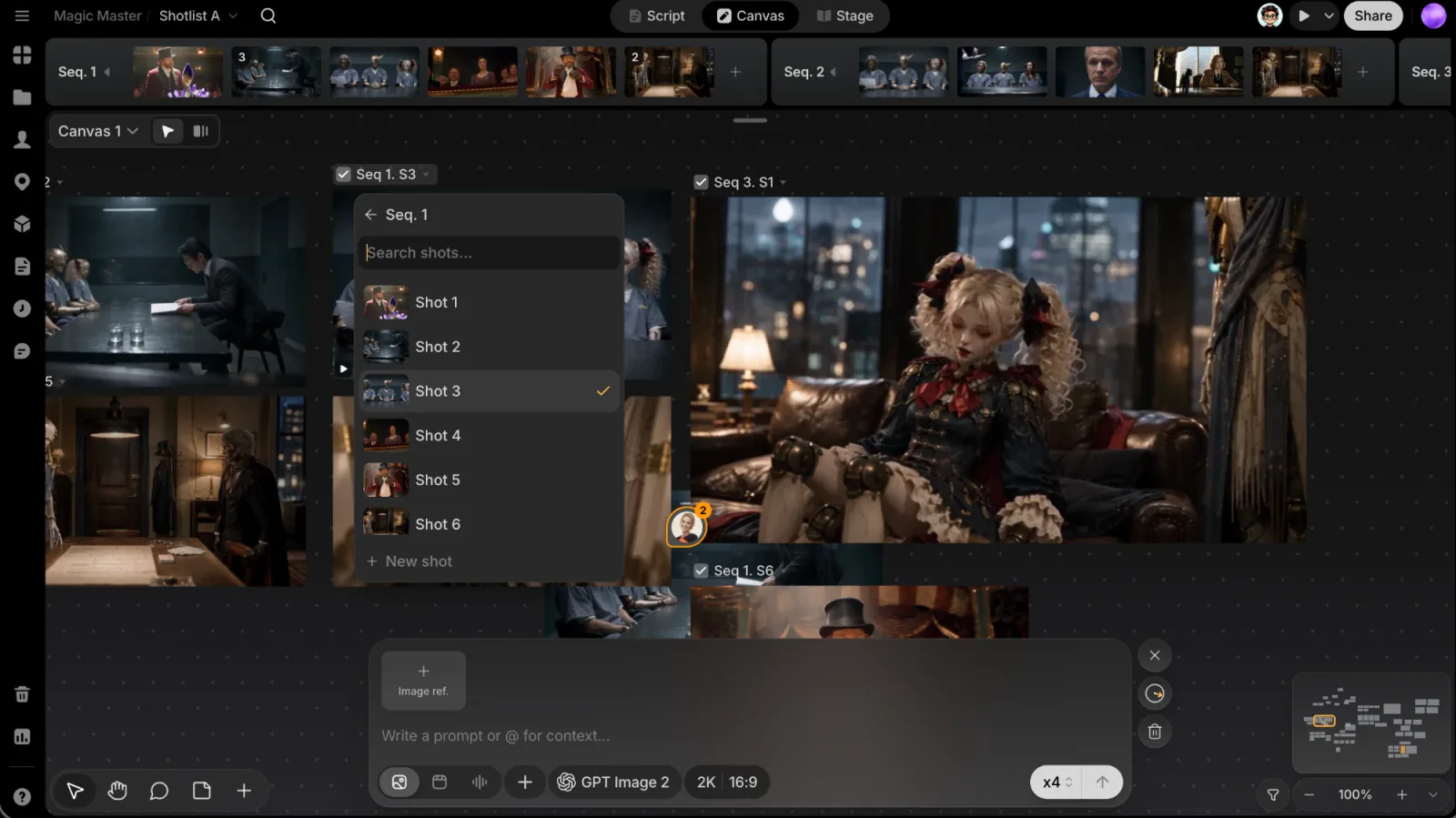
The timeline needn't be open to assign a file: every canvas file shows a checkbox and a Select for... control above it when you hover it (and always while it is assigned or selected).
- Tick the checkbox to assign the file to the active shot, or untick it to unassign it. Once assigned, the label shows where it lives, for example
Seq 1. S2. - Open Select for... to search the Shotlist's sequences; choose one to see its shots (Search shots...), then a shot to assign the file to.
- Choose New sequence at the bottom of the list to create a sequence with an empty first shot, then pick that shot.
- After choosing a sequence, choose New shot at the bottom of its shot list to create and assign one.
The same panel is also the Select for › submenu in the file's ⋯ menu. The control needs room above the file: if a file is small on screen, zoom in. A selected file shows it from about 85% zoom.
Work with shots
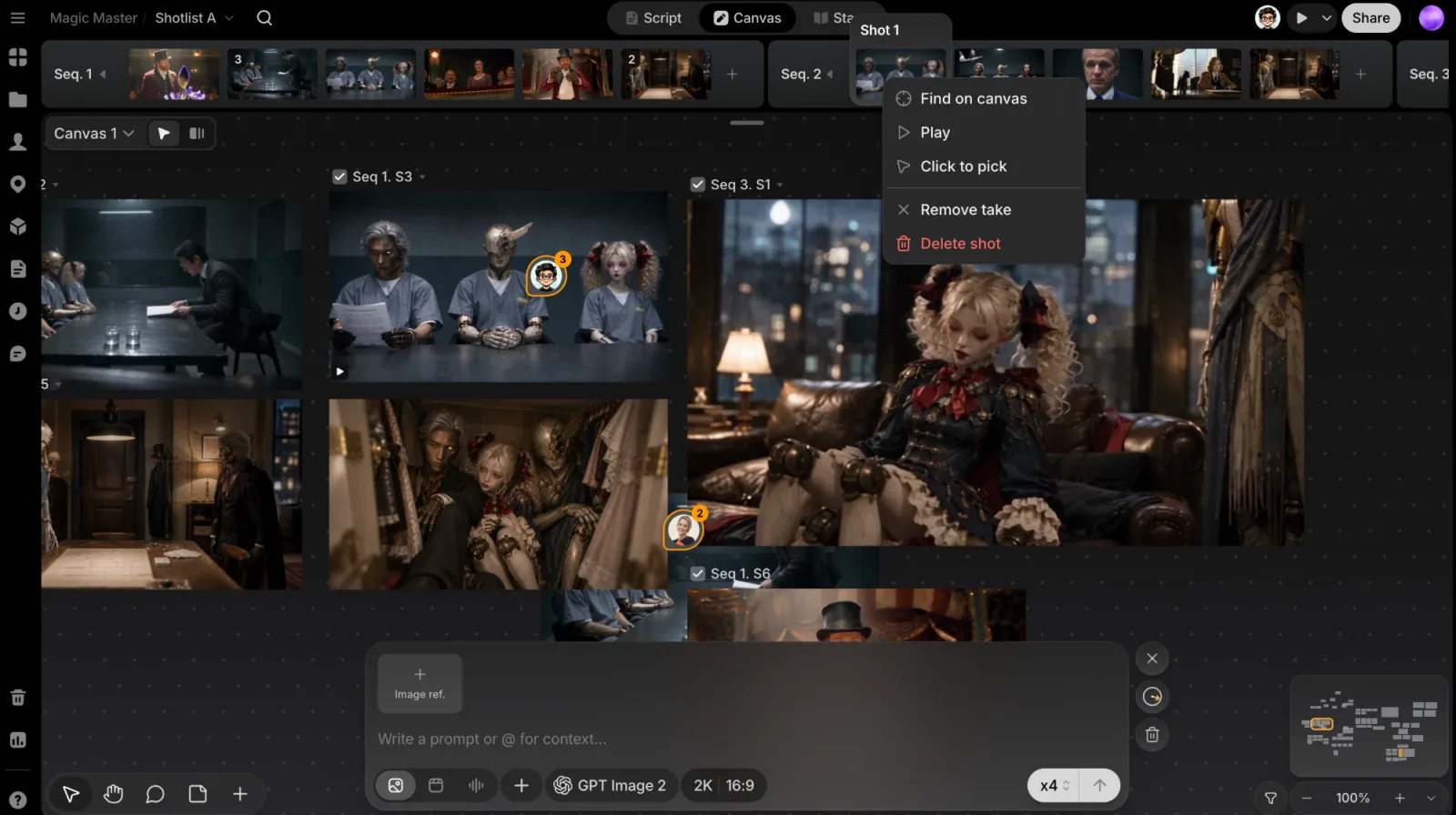
- Hover a shot to open its card, headed Shot and its number. The current take comes first, with the other takes below it. Click another take to make it the current one; double-click a take to find it on the canvas.
- Fill an empty shot: hover it and click the empty tile, or choose Click to pick from its menu, then click a file on the canvas.
- Reorder shots: drag a shot to a new position in its sequence, or focus it and press Alt with ← / →.
- Right-click a shot for Find on canvas, Play, Click to pick (when the shot can take one), Remove take and Delete shot.
- Remove take unassigns the take; it stays on the canvas.
- Delete shot removes the shot from its sequence after you confirm. Its takes become unassigned, not deleted.
A shot's details, including its planned cuts, live in Shot info.
Shots can't be dragged between sequences on the timeline. Use Move to... on a shot card on Stage, or assign the take to a shot in the other sequence with Select for....
Manage a sequence
Right-click anywhere on a sequence to open its actions:
- Play
- Collapse / Expand
- Duplicate: keeps the shot count and shot fields but not the takes, so the new sequence starts with empty shots.
- Copy link
- Collapse all / Expand all
- Delete sequence (disabled on the last sequence)
A collapsed sequence becomes a small stack of up to three cover pictures that fans out when you hover it. To name a sequence, click its bar in Stage's List layout.
To hand the Shotlist to an editor, use Export in the Project menu, which exports the whole Shotlist. See Export, or open it straight in your editor with ClipTap Space.
Play your Shotlist
Click the play pill in the top bar (Open player) to watch the active Shotlist from start to finish, or open its menu and choose Play in new tab (⌘⇧P, CtrlShiftP on Windows). Play in a shot or sequence menu starts the player there.
The player steps through each shot's current take, with Previous shot, play/pause, Next shot and mute controls, plus a breadcrumb to jump to any sequence or shot.
- Images hold for the shot's duration. An image with no duration holds for 15 seconds, and an empty shot holds for 3 seconds.
- Batch edit duration in the player's menu sets the duration of every image shot at once.
- Trim video sets where a video take starts and ends; Save trim keeps it. A trimmed take plays only that part, here and in an export.
Next: manage this structure in more detail
Continue to Stage for metadata, status tracking and batch generation across the same sequences and shots.