Get started
Walk through your first ClipTap project, from Home to a canvas, a first take, a shot, and a project you can share.
ClipTap is one place for a whole film or series: the script, the shot list, generation, review and the hand-off to your editor. This page walks you through a first project in the order you'd do the work.
Start from Home
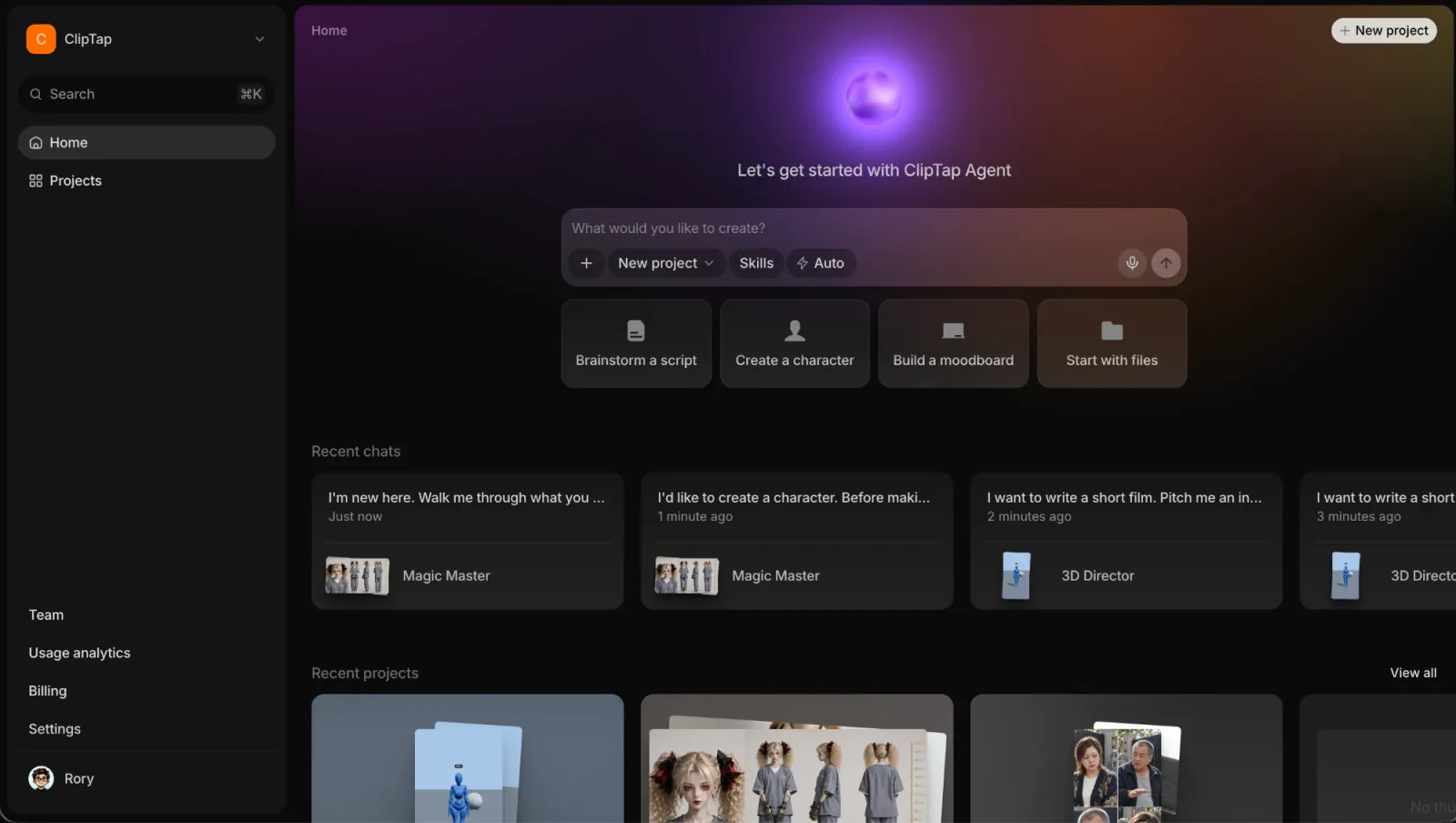
After you sign in you land on Home, under Let's get started with ClipTap Agent. Type into What would you like to create? and send it, and the ClipTap Agent opens the project and gets to work.
- The New project pill under the box picks where the request goes: a new project, or one you already have.
- Skills adds a Skill to the request, so the Agent follows that way of working.
- Ask / Auto sets how often the Agent stops to check with you. Either way, nothing is generated until you confirm it.
- The microphone lets you dictate instead of typing, and + attaches files.
The starters below the box, Brainstorm a script, Create a character and Build a moodboard, fill the box with a request for you to adjust and send. Start with files opens the file picker. Recent chats and Recent projects take you back to earlier work.
Or create an empty project
Click New project at the top right of Home or on Projects. A new project comes ready to use: a canvas called "Canvas 1", a Shotlist called "Shotlist A" with "Sequence 1" and one shot in it, and a starter set of tags.
It's called "Untitled project" until you rename it. Click the name in the top-left of the project to change it (Enter saves, Esc cancels), or use Menu › Rename. No two projects in a workspace share a name, so a new project takes the next free one.
Land on the canvas
The project opens on the Canvas tab, beside Script and Stage at the top. The canvas is infinite and shared: everyone on the project sees the same board and works on it at the same time.
An empty canvas shows How would you like to get started? with four choices: Upload files (a script, images or videos), Write a script, Build a moodboard and Create a character. Or type into the box at the bottom (Plan, @ for context, / for commands...) to talk to the Agent. The hint above it explains three words: say "propose" for a plan only, "create" to write it into the project, and "generate" when you want media made, which spends credits.
Close the card to start from a blank canvas.
Generate your first takes
Two ways to make something:
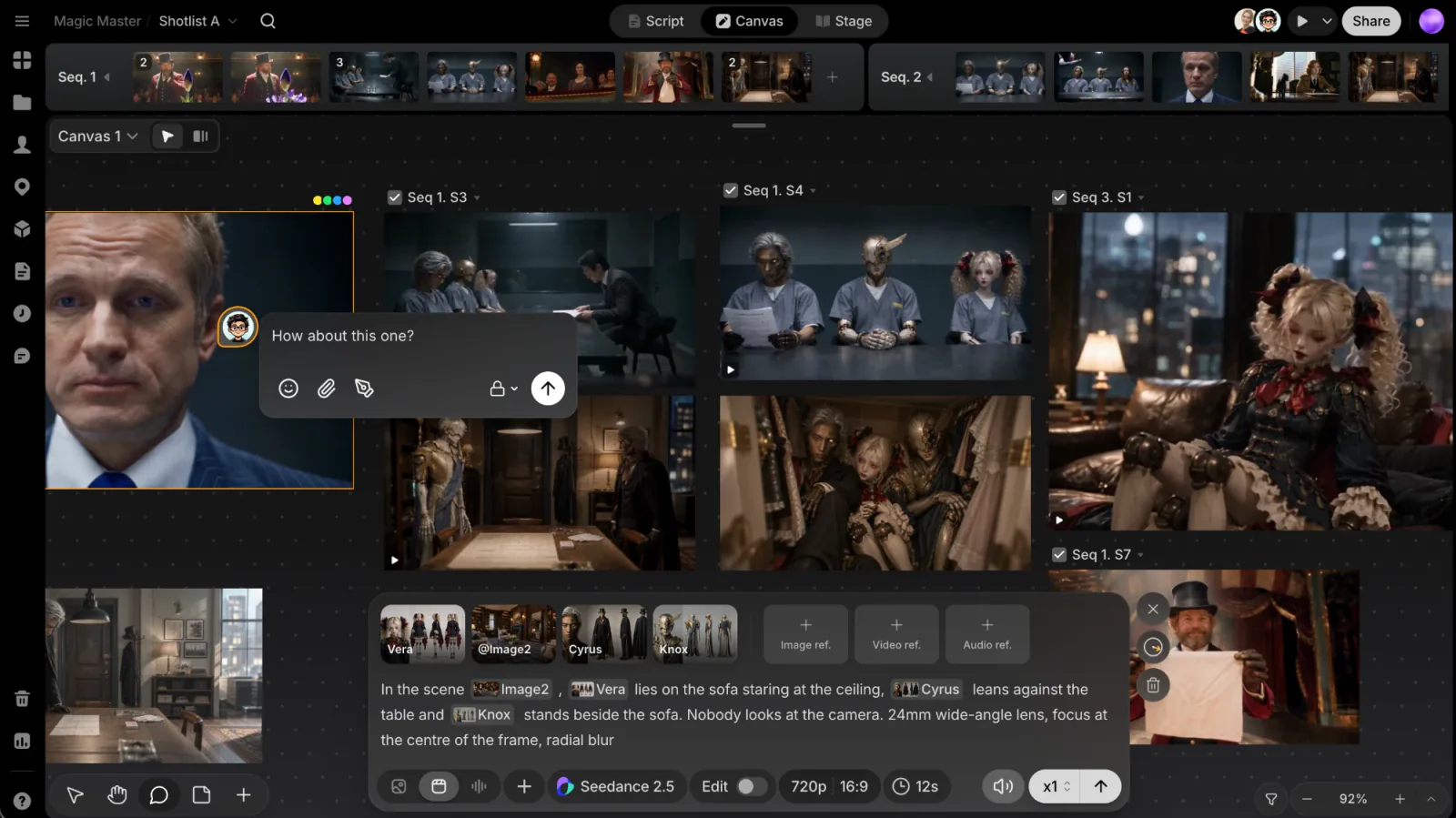
- The prompt box at the bottom of the canvas. Write what you want, pick a model, add references, and generate. Hover the generate button to see what it costs. The takes land where the Next take box sits on the canvas.
- The Agent, from the orb at the top right or ⌘/. Describe what you want in plain words. Before anything is generated, the Agent shows a review card with the prompt, the settings and the cost, and waits for Confirm.
Pick a take for a shot
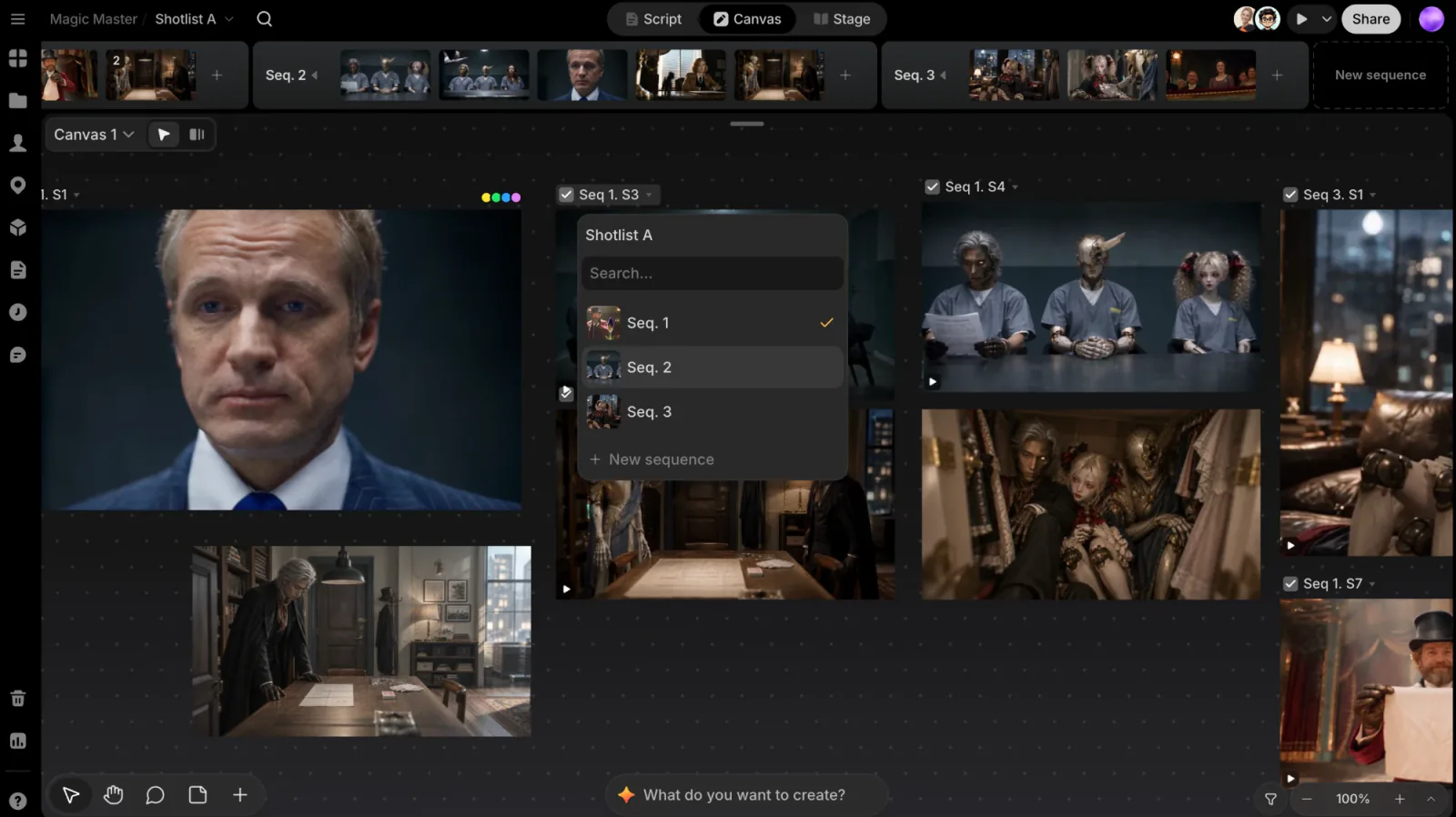
The sequence timeline runs along the top of the canvas. Hover a take and use Select for... above it (or Select for in its ⋯ menu) to make it the take for a shot. It lands in the timeline straight away, and the sequence plays as you fill it.
Work on a take
Click a file on the canvas to bring up its toolbar: reuse its prompt, add it as a reference to your next generation, describe a change, or open ⋯ for tools, crop, edit, tags and more. See File toolbar.
Write the story
The Script tab holds your screenplay, episode by episode. Write it there, import the one you have, and develop it with the Agent. See Scripts. The premise, the rules of the world, each episode's plan and the threads that must pay off live in the Story Outline.
More canvases, more Shotlists
- Canvases: open the picker at the top-left of the canvas (its header reads Canvases) and create as many as you need. A canvas belongs to the project, not to a sequence, so you can keep one per part of the story and one for scratch. See Canvas.
- Shotlists: a project can hold several Shotlists, each its own set of sequences and shots. Switch between them from the Shotlist name in the top bar, or open the Shotlists panel in the left rail. Use a second Shotlist to try another cut without touching the main one. See Stage.
Stay consistent
Save anything you'll reuse: a character's face, a location, a prop. Then call it back instead of describing it again.
- Save it: right-click an image on the canvas (or open ⋯ on its toolbar) and choose Add to... to save it as a Character, Location or Prop.
- Find it: saved items collect in the Characters, Locations and Props panels in the left rail, and in Stage's Library. See Library.
- Use it: type
@in the prompt box to bring a saved character, location or prop into the prompt, with the same face, the same set, the same object. See Referencing with @.
To settle how the whole project looks, pick or write its style in Settings, or let the Agent interview you about it.
Run it from Stage
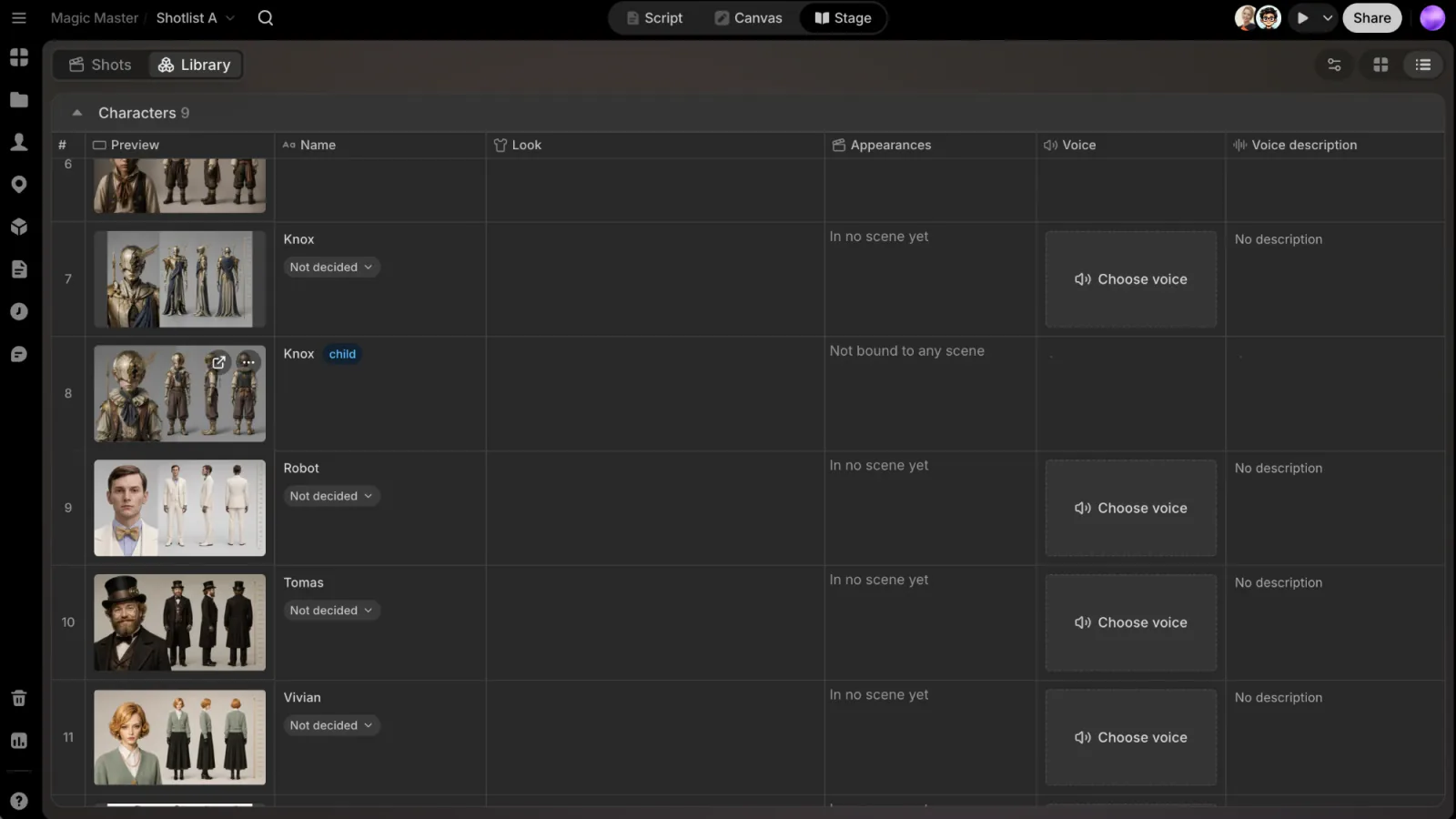
Once there's real structure to track, click Stage at the top of the project.
- Library: every character, location and prop, with its looks, takes and voice.
- Shots: every shot in the Shotlist, as a Grid, a Kanban board for status, or a List with all the details.
Stage and the canvas are the same project: change a shot in one and it changes in the other. See Stage.
Always within reach
The left rail opens panels over the canvas: Shotlists, Uploads, Characters, Locations, Props, Scripts, History, Comments, and at the bottom Trash, Analytics and Help.
- History: every file ever generated or uploaded in the project.
- Files view: switch the canvas pill at the top-left to Files view to see everything made on that canvas as a feed, and choose what goes on the board.
- Trash: deleted files wait here until you restore them.
- Command palette: press ⌘K (Ctrl+K on Windows) to jump anywhere, run an action or find a take.
Share your work
Click Share at the top right. Invite people by name or email with Can edit, Can comment or Can view, or create a Review link that anyone can open without an account to watch the Shotlist and leave comments. See Sharing.
Hand it to your editor
Open Menu › Export to download the active Shotlist as a ZIP with the media and an FCPXML timeline. See Export. On a Mac, ClipTap Space puts your projects in Finder and opens them in your editor without downloading everything first.
Credits and caps
Generating media and the Agent's work are paid in credits from the workspace's shared balance. You always see the price before a generation runs. Your workspace's owners and admins can set a weekly or daily cap for each member; you see yours under Menu › Credits. See Credits and Member credit caps.
Vocabulary
- Shotlist: a full set of sequences and shots; a project can have several.
- Sequence: a run of shots within a Shotlist.
- Shot: a slot for one piece of the story, where you keep your selects.
- Take: a file picked for a shot.
- File: one generation or upload.
- Character, Location, Prop: the items you save to the Library and bring back with
@.