Groups and arranging
Frame related files in groups, tidy up a messy canvas in one click, and send new generations into a group.
A group is a colored frame on the canvas that holds a set of files. Use groups to separate explorations, keep references and outputs together, and stop a busy canvas from turning into a pile. For loose files, Tidy up lines them up in one click.
When to use groups
Files inside a group keep their normal take size and sit in a tidy grid. The frame grows to fit its files; files are never shrunk to fit the frame. Each canvas has its own groups.
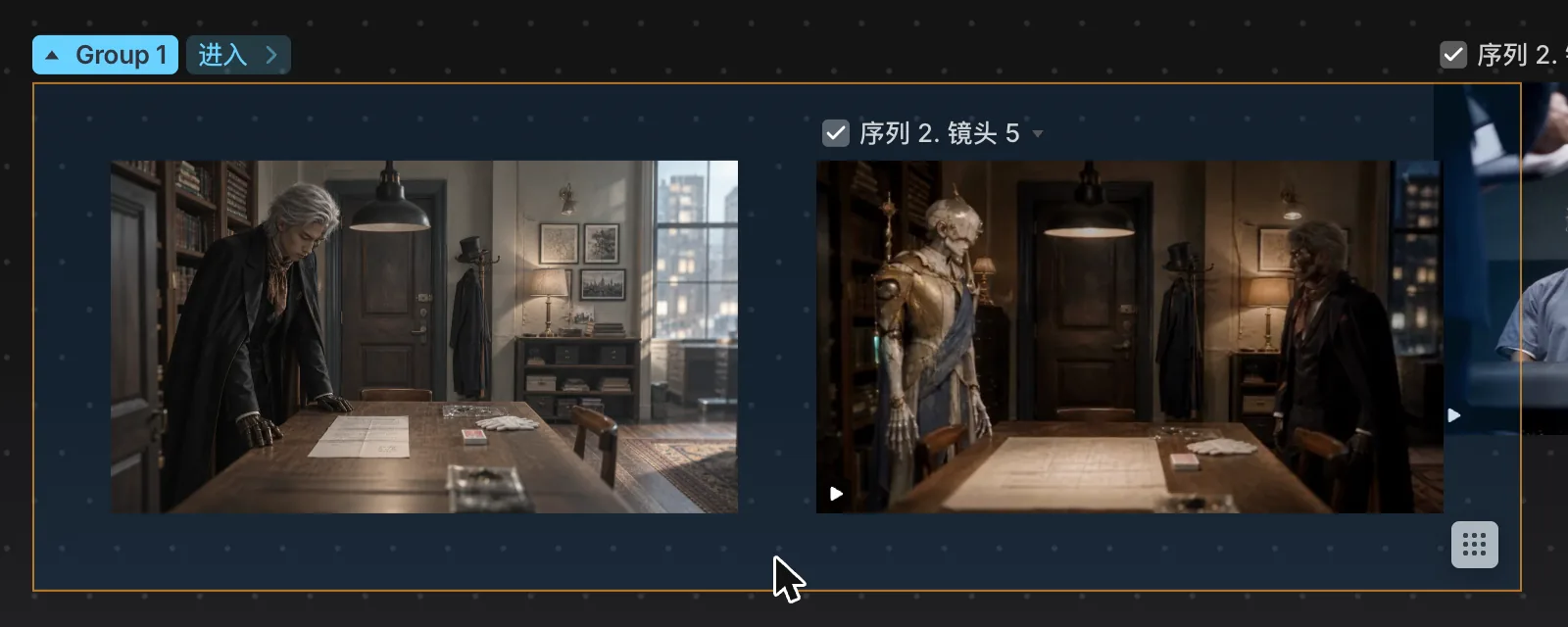
Create groups before a big run of generations. They work best shaping the work early, not cleaning up after the canvas is already crowded.
Create a group
- Right-click empty canvas and choose Create group. An empty group named
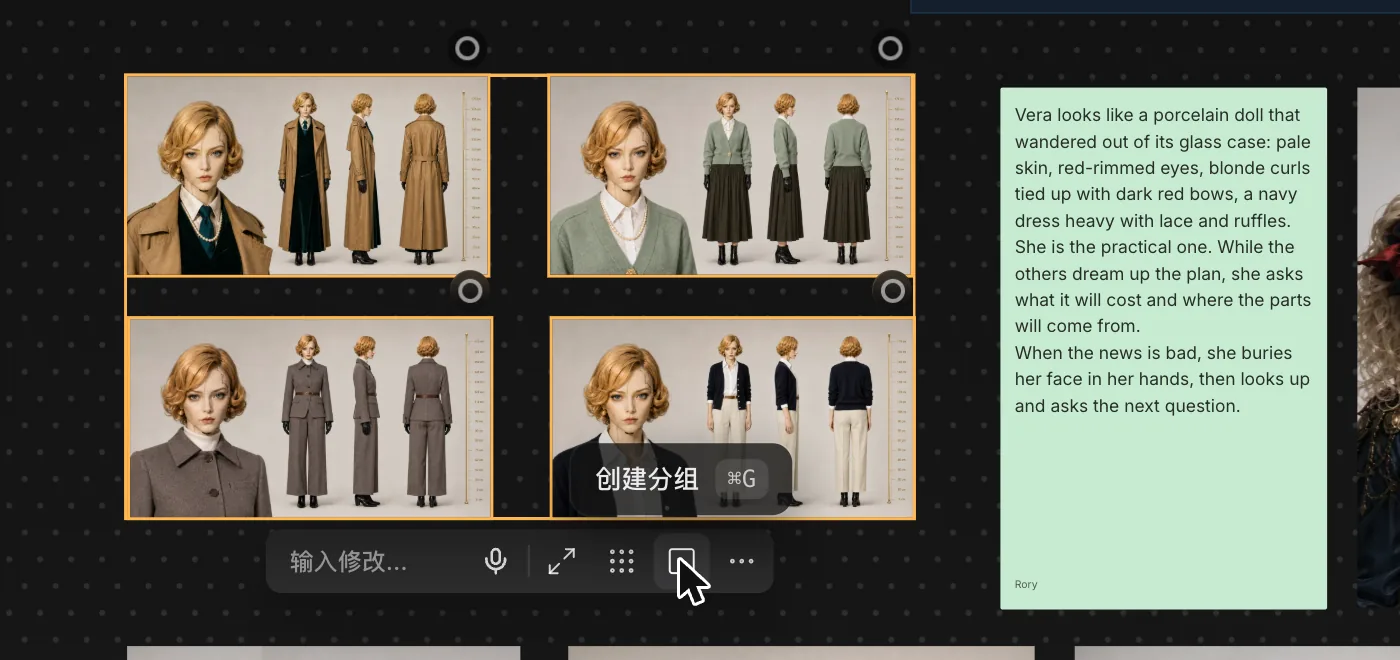
Group 1,Group 2… appears where you clicked. - Select two or more files and press ⌘G (CtrlG on Windows), or click Group in the toolbar below the selection. The new frame wraps the files where they already are, in the order you read them.
- Let it happen: when the ClipTap Agent or Stage makes several takes at once, they land together in one group. Character and location sheets the Agent makes land in named groups.
Put files in and take them out
- Drag a file into a group's frame to add it, or out of the frame to take it out.
- Paste a picture while a group is selected and it goes straight into that group.
- In Files view, use Assign to group › in a take's menu.
Inside a group you can drag files anywhere. Drag the frame's corner to resize it; it won't get smaller than the files inside.
Arrange the canvas
- Tidy up: select several loose files and click Tidy up in the toolbar below them (it is also in their ⋯ menu). They line up in a neat grid where they are. On a group, hover it and click the Tidy up button in its corner.
- Organize (N): in the group menu, re-arranges the group's N files into a grid, keeping the frame where it is.
- Line things up: while you move or resize something on the canvas, guides show when its edges or center line up with its neighbors', and it snaps to them. Hold Shift while dragging to move along one axis only.
- Move by the title: drag a group's name chip (or a Director or Film language node's title) to move the whole node.
- Collapse: click the triangle left of a group's name to fold it into a small stacked preview of its files. Click it again, or double-click the stack, to expand it.
Every arrange step is one undo: press ⌘Z to put things back.
Generate into a group
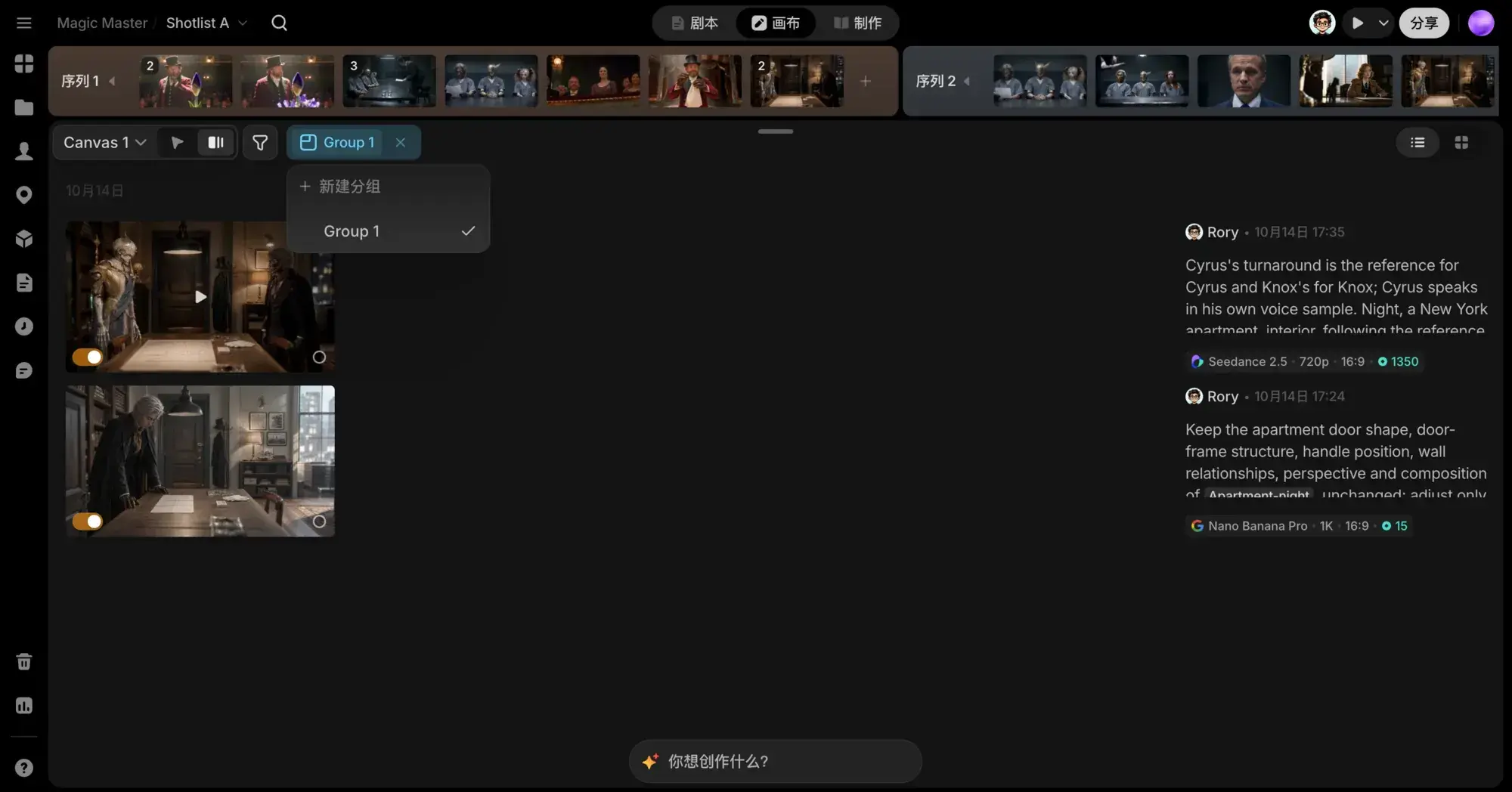
Hover a group and click Enter › next to its name. You land in Files view showing only that group's files (an empty group reads No generations yet), and new generations from the prompt box land inside the group on the canvas until you leave.
You can also start from Files view: click the Target group button beside the prompt box. The chip reads Pick a group until you choose one.
While you're in group mode, a chip with the group's name sits at the top left of Files view:
- Click the chip (Generate into group) to open Switch group: pick another group, or start a New group. The current group has a check.
- Click its × (Exit group mode) to stop generating into the group.
The group menu
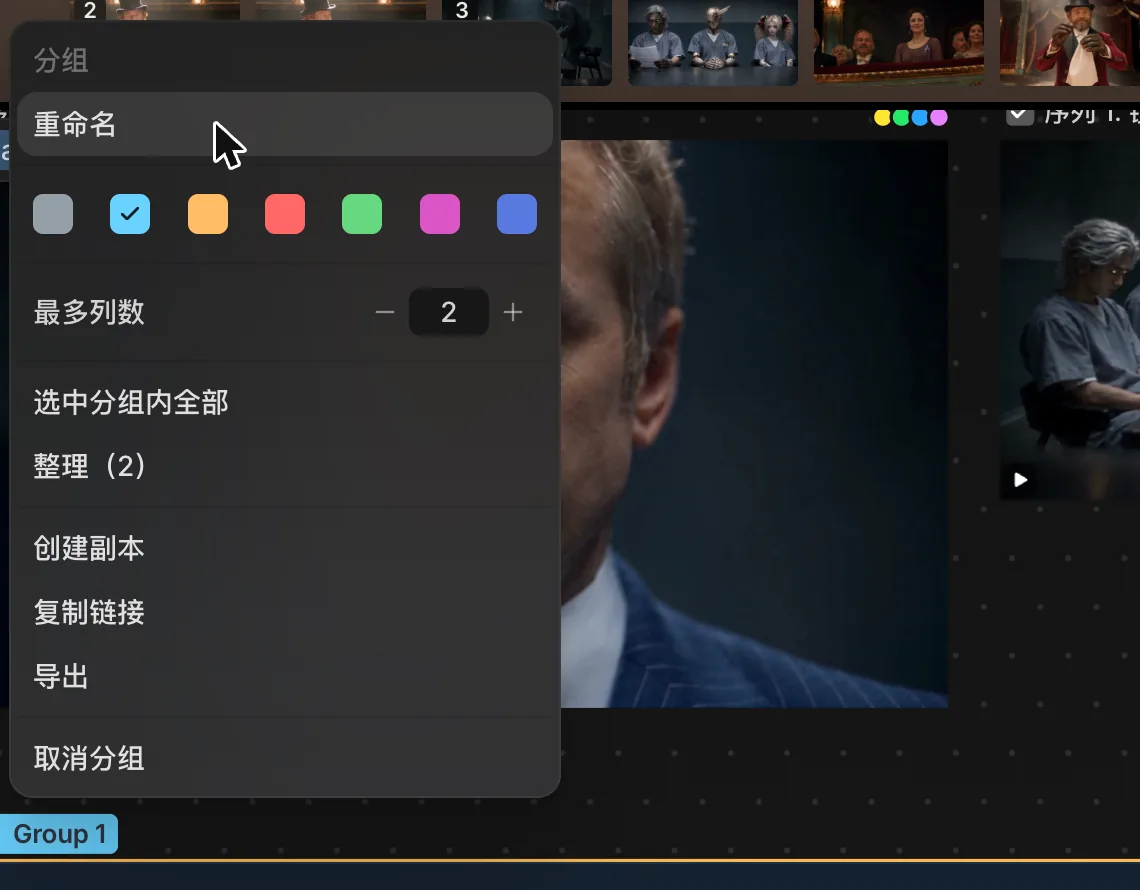
Click a group's name chip, or right-click the frame, to open its menu. Double-click the name chip to rename the group in place.
- Rename: edit the name. Enter saves, Esc cancels.
- Color: seven swatches: Grey, Blue, Amber, Coral, Green, Magenta and Indigo.
- Max columns: how many columns the grid uses, from 1 to 8.
- Select all in group: selects every file inside.
- Organize (N): re-arranges the group's files into a grid.
- Duplicate: copies the group and its files.
- Copy link: copies a link to the group.
- Export: downloads a JSON file named after the group that lists each file's details (id, type, model, prompt, resolution, title). It doesn't include the media itself.
- Ungroup (⌘⇧G): removes the frame. The files stay exactly where they are and become the selection.
Delete a group
Select the group and press Delete or Backspace.
Deleting a group also takes every file inside it off the canvas. Press ⌘Z to undo. If you only want to remove the frame, use Ungroup.
Save a group to the Library
There's no group-level Add to.... Use Select all in group, then choose Add to... from the selected files' menu to save them into a Character, Location or Prop in the Library.
Next
Canvas
Lay out references, takes and notes on infinite canvases, review everything in Files view, follow your generations in the Queue, and work live with your team.
Embeds
Put a web page on the canvas, such as a reference video, a mood board or a shared doc, and open it full size without leaving the project.