Workspaces & team
The dashboard, Home and Projects, the people in your workspace and their credit caps, and billing.
A workspace is where your team's projects and credits live. Everyone in it spends from the same credit balance, and each person's role decides what they can see and change. Some pages call the workspace an organization; it's the same thing.
When you sign up, ClipTap creates a workspace for you. Others can invite you to theirs, so you may belong to several.
The dashboard
Outside a project, the sidebar on the left takes you everywhere:
- At the top, the current workspace, which opens the workspace switcher.
- Search (⌘K, Ctrl+K on Windows): search takes, shots, sequences and the Library across every project. See Command palette.
- Home and Projects, below.
- At the bottom, Team, Usage analytics, Billing and Settings for the current workspace. Guests don't see these.
- Your name, which opens a menu with Account settings, Help docs, Terms & policies and Sign out.
Switch workspaces
Click the workspace at the top of the sidebar to open Workspaces, a list of every workspace you belong to with your role in each. Pick one to switch. ClipTap remembers the last workspace you used and opens it next time.
Home
Home is where you start something new, under Let's get started with ClipTap Agent. Type into What would you like to create? and send it: the ClipTap Agent opens the project and works on your request.
- The New project pill under the box sends the request to a new project, or pick one of your projects instead.
- Skills adds a Skill, and Ask / Auto sets how often the Agent stops to check with you.
- The starters Brainstorm a script, Create a character and Build a moodboard fill the box for you to adjust and send. Start with files opens the file picker.
Below, Recent chats reopens your latest Agent conversations, and Recent projects shows what you worked on last (View all goes to Projects). New project at the top right creates an empty project. See Get started.
Projects
Every project in the workspace that you can open, as cards showing when each was opened, created or edited. Click New project to create an empty project and open its canvas.
Open a card's menu (or right-click it) for Rename, Copy link and Delete. Deleting asks you to type the project's name. A deleted project disappears at once; its data is kept for 30 days, when only support ([email protected]) can recover it, and is then deleted for good.
Team
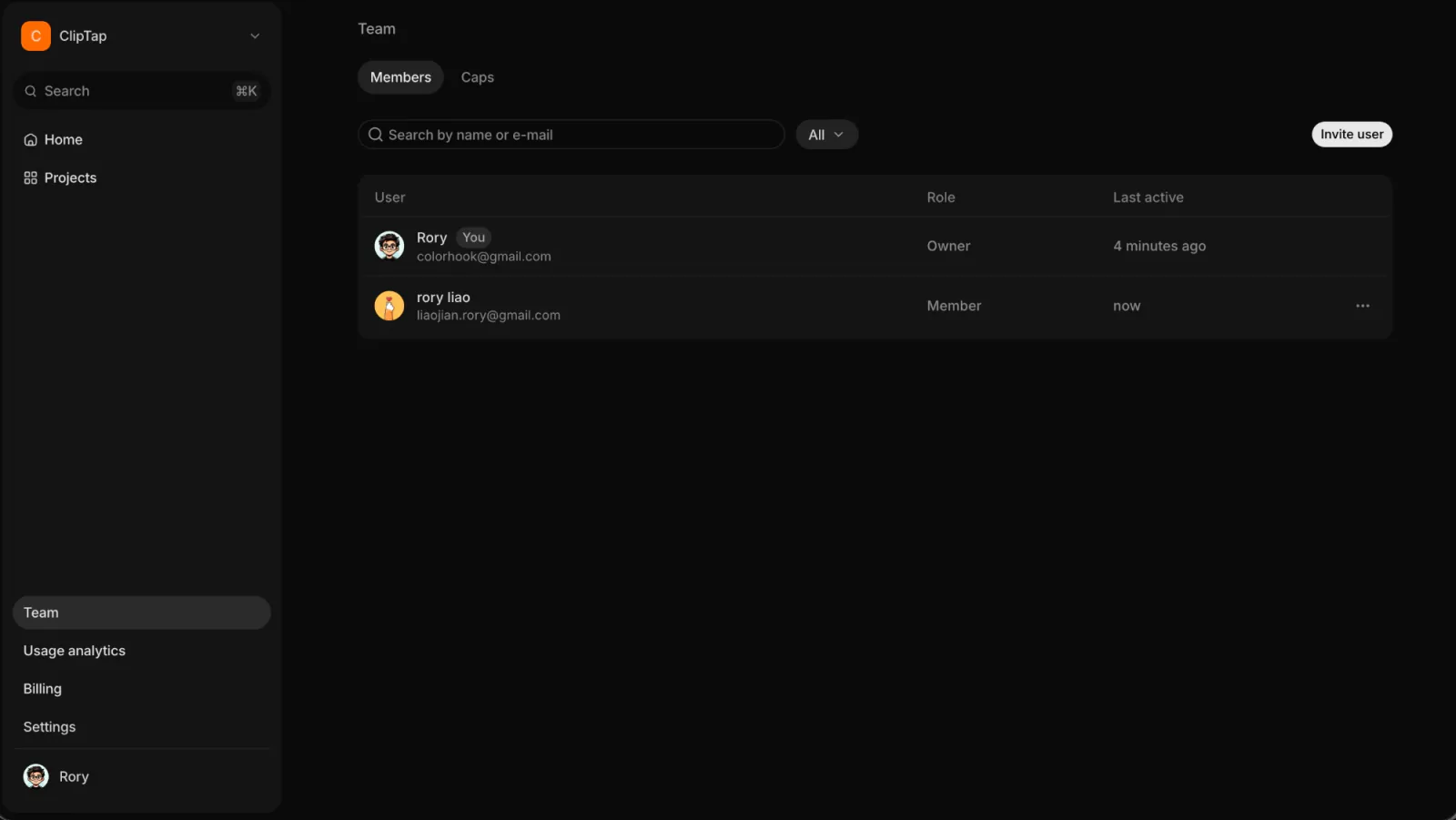
Team has two tabs, Members and Caps. You'll find the same panel in Settings under the workspace's Members.
Members lists everyone in the workspace with their Role and when they were Last active. Your own row is marked You. Use Search by name or e-mail and Filter by role to narrow the list.
Roles
| Role | What they can do |
|---|---|
| Owner | Everything, including billing |
| Admin | Manages people, settings and every project |
| Member | Creates projects and edits shared ones |
| Commenter | Comments on the workspace's projects |
| Viewer | Views the workspace's projects |
| Guest | Sees only projects shared with them |
What a Member, Commenter or Viewer gets in a particular project also depends on that project's sharing. See Sharing.
Invite people
Owners and admins can invite. Click Invite user, enter an email address, choose a role (Member by default), and click Invite. The invitee gets an email with a link that's valid for 7 days.
Pending invitations show as Invited, or Expired once the link runs out. Their row menu has Resend invitation and Revoke invitation.
Change a role or remove someone
Open a person's row menu for Change role or Remove user. Admins manage everyone except owners; only an owner can make someone an owner or change another owner.
Member credit caps
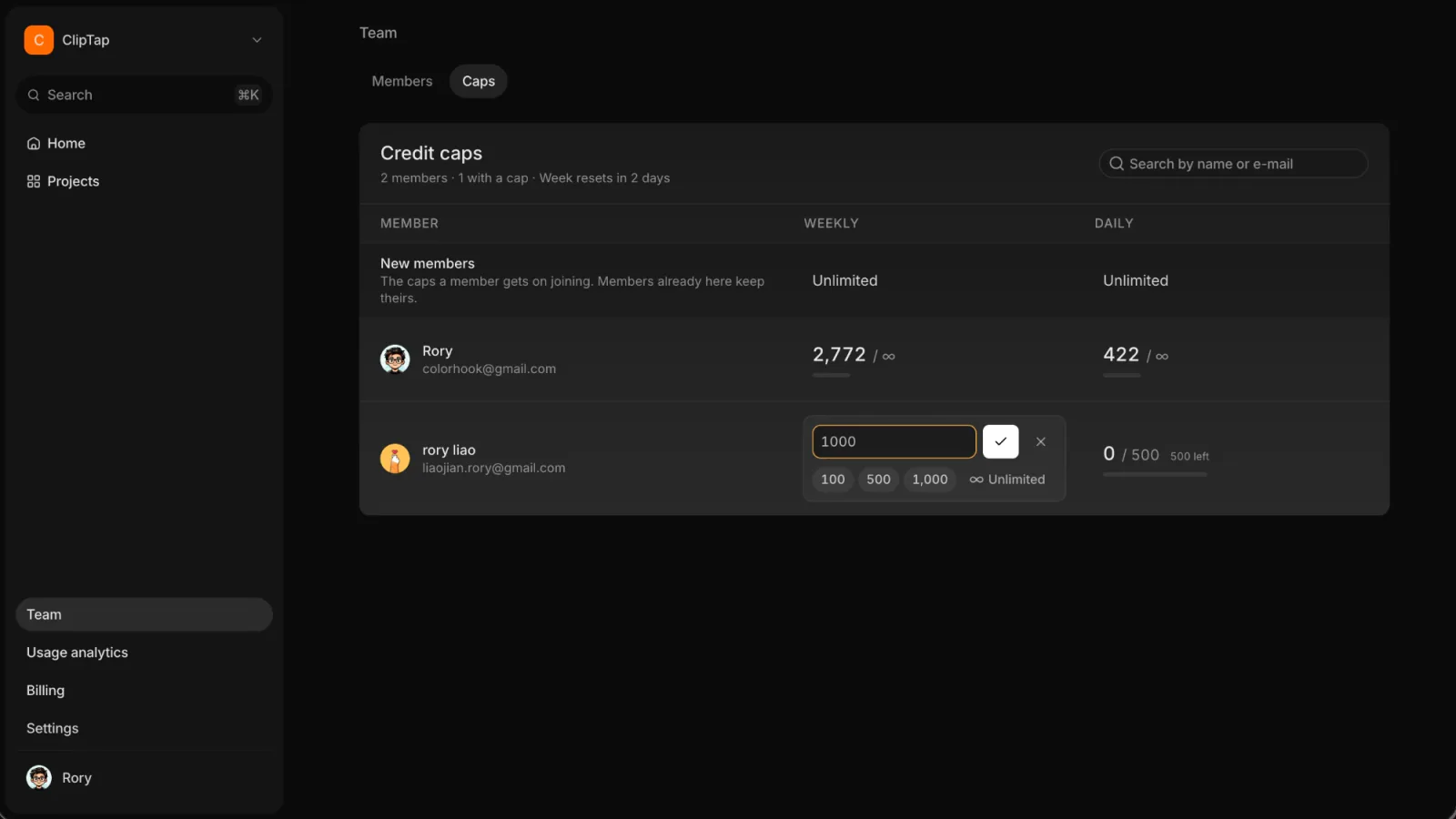
Credits are shared, so owners and admins can limit how much each member spends. Open Team › Caps: Credit caps lists every member with a Weekly and a Daily column, each showing what they've spent against their cap.
- Click a cell to edit it. Type a number of credits, or pick 100, 500, 1,000 or Unlimited. Enter saves, Esc leaves it as it was.
- The New members row sets the caps people get when they join. Members already here keep theirs.
- Days start at midnight UTC and weeks on Monday; the line under the title says when the week resets.
When a generation, an Agent turn, a transcription or voice input would take someone past a cap, it doesn't start. The message asks them to have an admin raise the cap, or to wait for the day or week to reset. Members see their own caps in a project under Menu › Credits.
Usage analytics
Usage analytics shows how the workspace spends its credits: by member, by model, over time, and how long the balance is likely to last. See Analytics.
Billing
Billing is where owners and admins buy credits and see purchases: the Team credit balance with Buy credits, any Model-scoped credits, and Purchase history. See Credits.
Settings and your account
Settings in the sidebar opens the workspace's settings: its name and logo, which models the team can use, and its members. Account settings in your menu opens your own profile, passkeys, language, and leaving the workspace or deleting your account. Both live in one dialog, described in Settings.