Edit & crop images
Paint directly on an image or crop a file on the canvas, without regenerating it.
Sometimes a file only needs a quick hand touch: an arrow to show where the camera should move, a scribbled note for a colleague, or a tighter frame. ClipTap has two manual tools for this, Edit and Crop. Neither uses AI or credits.
Open the tools
Right-click an image on the canvas, or click ⋯ on its toolbar, then choose Actions › Crop or Actions › Edit. Both are in the menu for images. To crop a video, select it and press C.
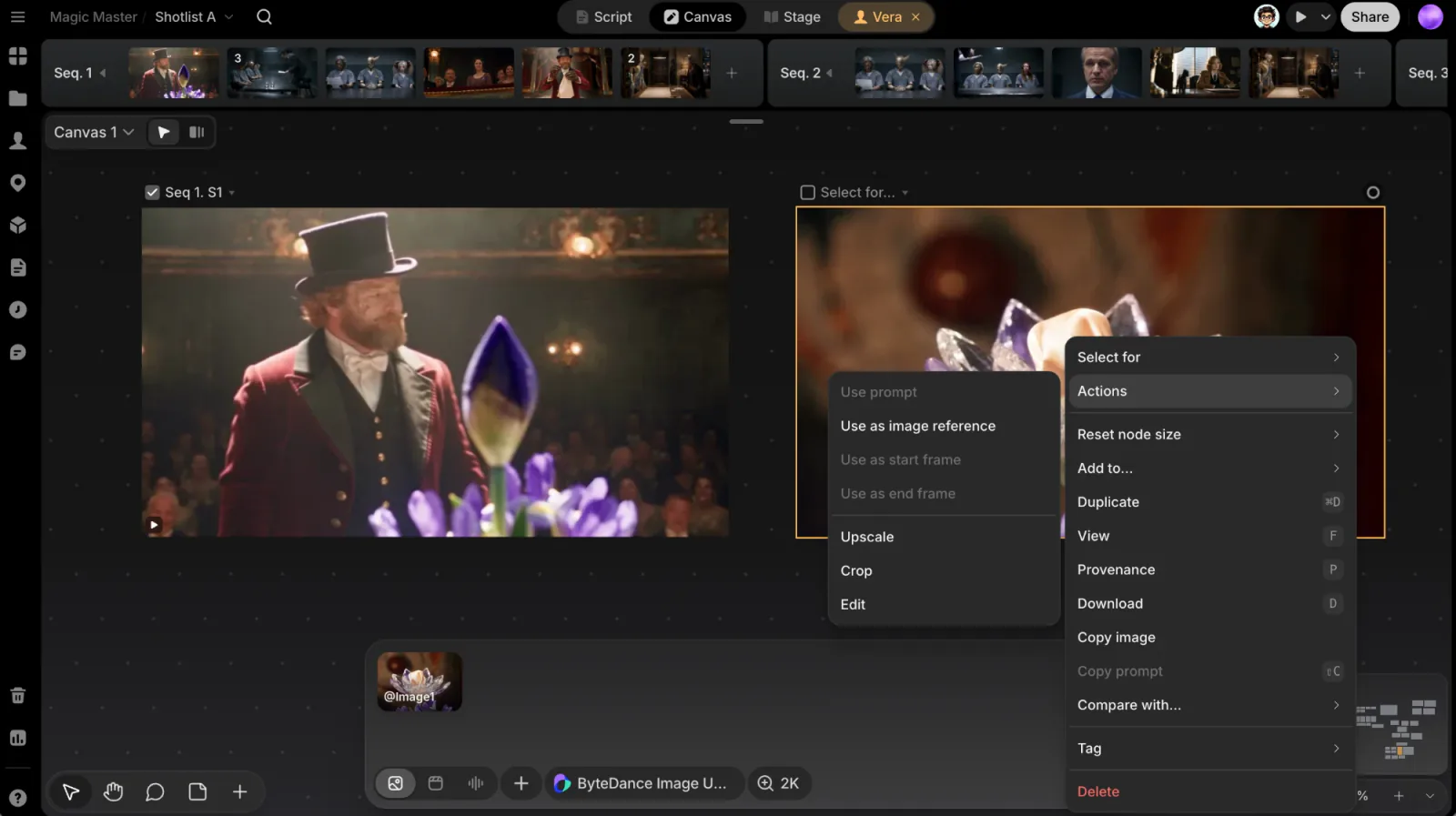
Paint on an image
Edit opens the image on a dark stage with a paint bar along the bottom. Hover any control to see its shortcut.
| Control | What it does | Shortcut |
|---|---|---|
| Cancel | Close without saving | Esc |
| Brush | Paint strokes | B |
| Eraser | Erase your strokes (never the picture itself) | E |
| Ink | Pick a colour and set Ink opacity from 10% to 100% | 1–9 set 10–90%, 0 sets 100% |
| Size | Brush or eraser size, 2–120 px | [ / ] |
| Undo / Redo | Step through your strokes | ⌘Z / ⇧⌘Z or ⌘Y |
| Save | Save the edit as a new file | Enter |
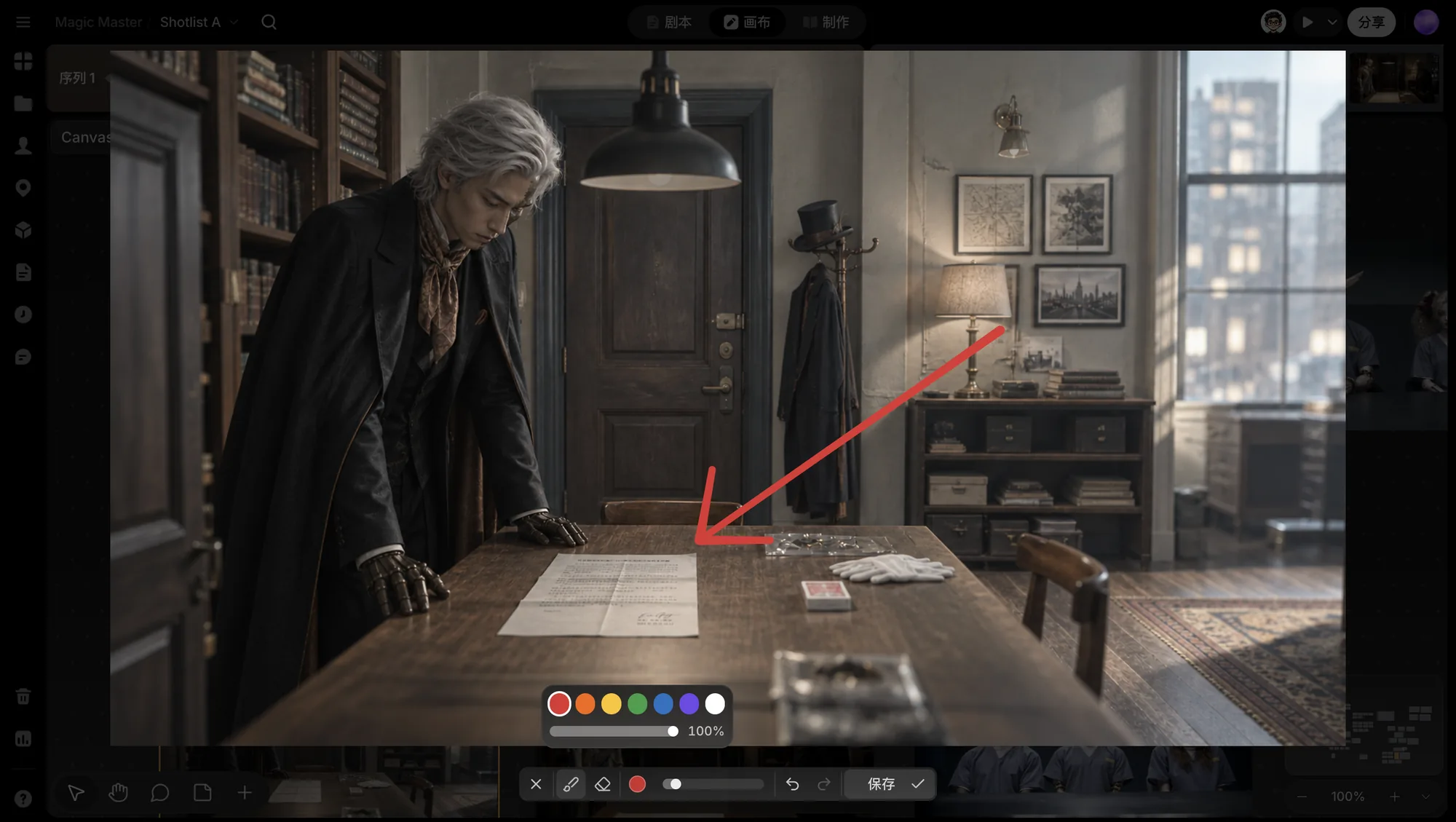
Paint
Pick Brush and draw on the image. The ink is red by default.
Adjust
Change the colour, opacity or size, erase stray marks, or undo.
Save
Click Save. It reads Done until you've painted.
The edit is saved as a new file to the right of the original, with your strokes flattened into the picture. The original stays untouched. If the new file lands off screen, the canvas moves to show it.
On Windows, use Ctrl in place of ⌘.
Crop a file
Crop opens the file with a frame you can adjust.
Set the frame
Drag the frame to move it, or drag its corners and edges to resize it. Hold Shift to keep the shape.
Pick a ratio (optional)
Click the Aspect ratio button and choose 16:9, 9:16, 1:1, 2:3 or 3:2. A free drag switches it back to Custom.
Apply
Click Crop or press Enter. Press Esc or click outside the image to cancel.
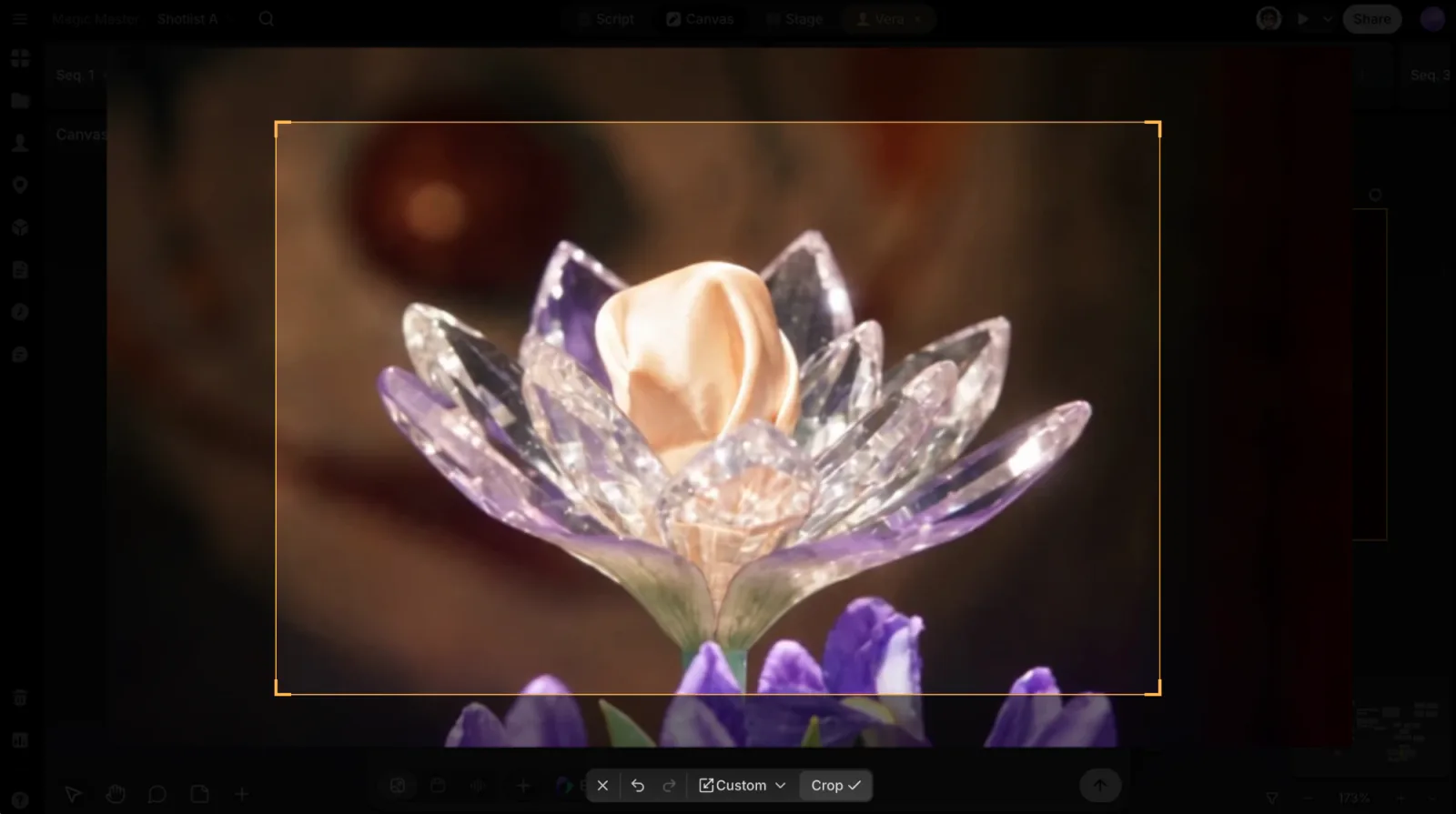
The bar also has Undo (⌘Z) and Redo (⇧⌘Z or ⌘Y) for frame changes.
Crops are non-destructive
A crop belongs to that item on the canvas, not to the file, so nothing is thrown away:
- Crop again and the dialog reopens the full original, so you can widen the frame.
- Drag the frame back to the whole picture and confirm to remove the crop.
- When you use a cropped take as a reference or a start or end frame, the model only sees the cropped part.
Want AI changes instead?
ClipTap doesn't have mask-based AI inpainting. To change what's in an image, such as a prop or an expression, type the change into the file's Enter changes... field and the ClipTap Agent makes a new take from it. Or add the image as a reference in the prompt box and describe the change. Painting a quick mark with Edit first can help show where the change goes.