Project analytics
See where a project's credits go and who did what, then zoom out to your whole workspace's usage.
ClipTap tracks credits and activity at two levels: inside a project, with the Analytics panel, and across your whole workspace, on the Usage analytics page.
The Analytics panel
Open the panel beside the canvas in either of two ways:
- click Analytics near the bottom of the project's left rail (hover it to see how many credits your workspace has left);
- or open the Project menu and pick Project › Analytics.
The panel has two tabs, Overview and Audit log, and a refresh button (Refresh analytics) to pull the latest numbers.
Project analytics are for workspace Owners and Admins. Everyone else sees "Project analytics are available to organization owners and admins." in the panel.
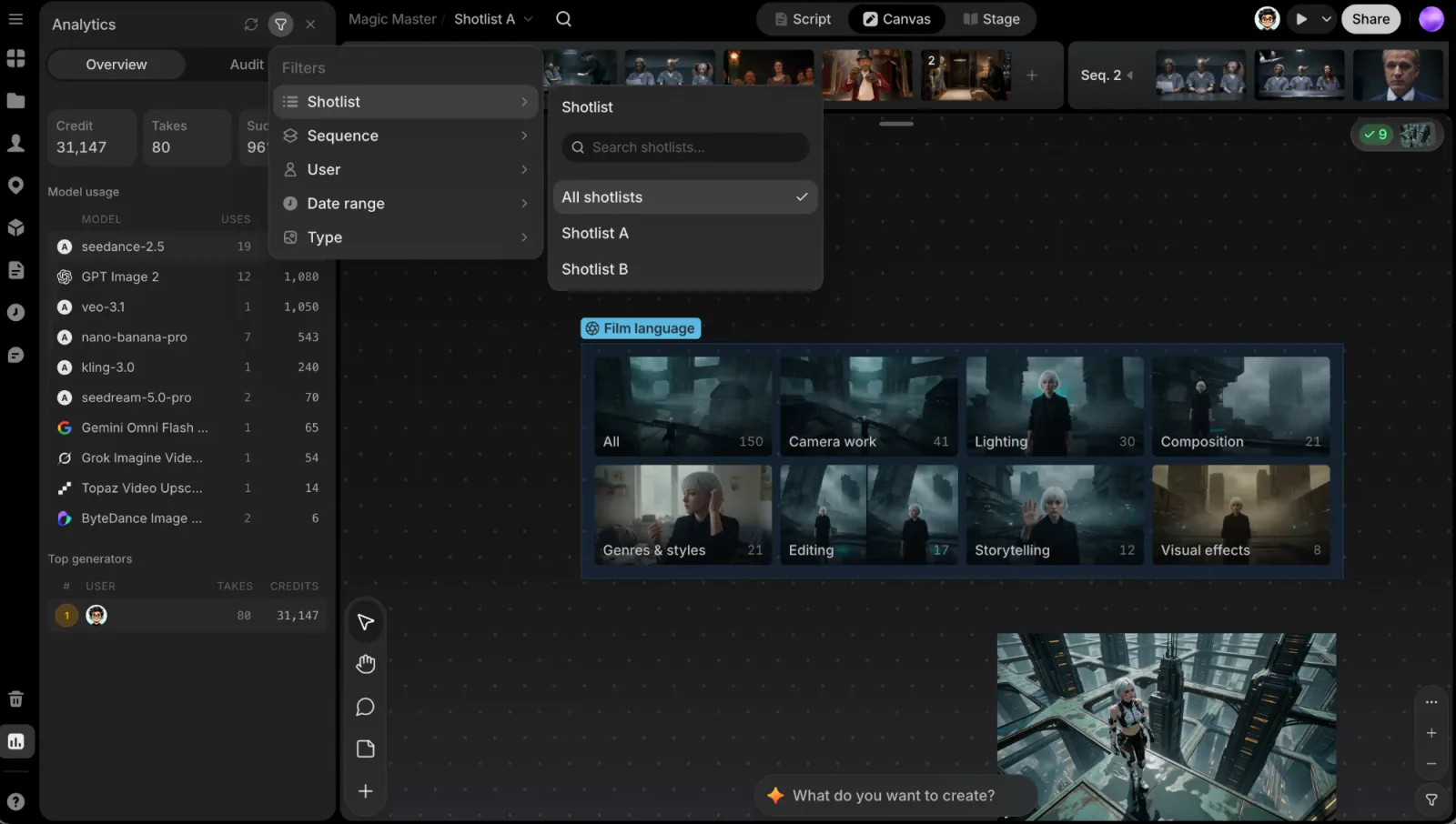
Filters
Click the filter button in the panel header to narrow both tabs:
- Shotlist: all Shotlists, or one.
- Sequence: All sequences, the Current sequence, or any other.
- User: All users, or one person.
- Date range: Last 7 days, Last 30 days (the default), Last 90 days, or All time. Pick a Start date and an End date below the list for your own range; its chip reads Custom.
- Type (Overview only): All, Image, or Video. It narrows the model table, which becomes Image models or Video models.
Each filter you pick shows as a chip under the tabs. Click a chip's ✕ to drop that filter, or use Clear all in the filter menu to put everything back.
Overview
- Three tiles at the top: Credit (credits spent), Takes (files generated), and Success (the share of generations that succeeded).
- Model usage: each model with its number of Uses and the Credits it spent.
- Top generators: who generated the most, with their takes and credits.
Only generations that succeeded count toward credits.
Audit log
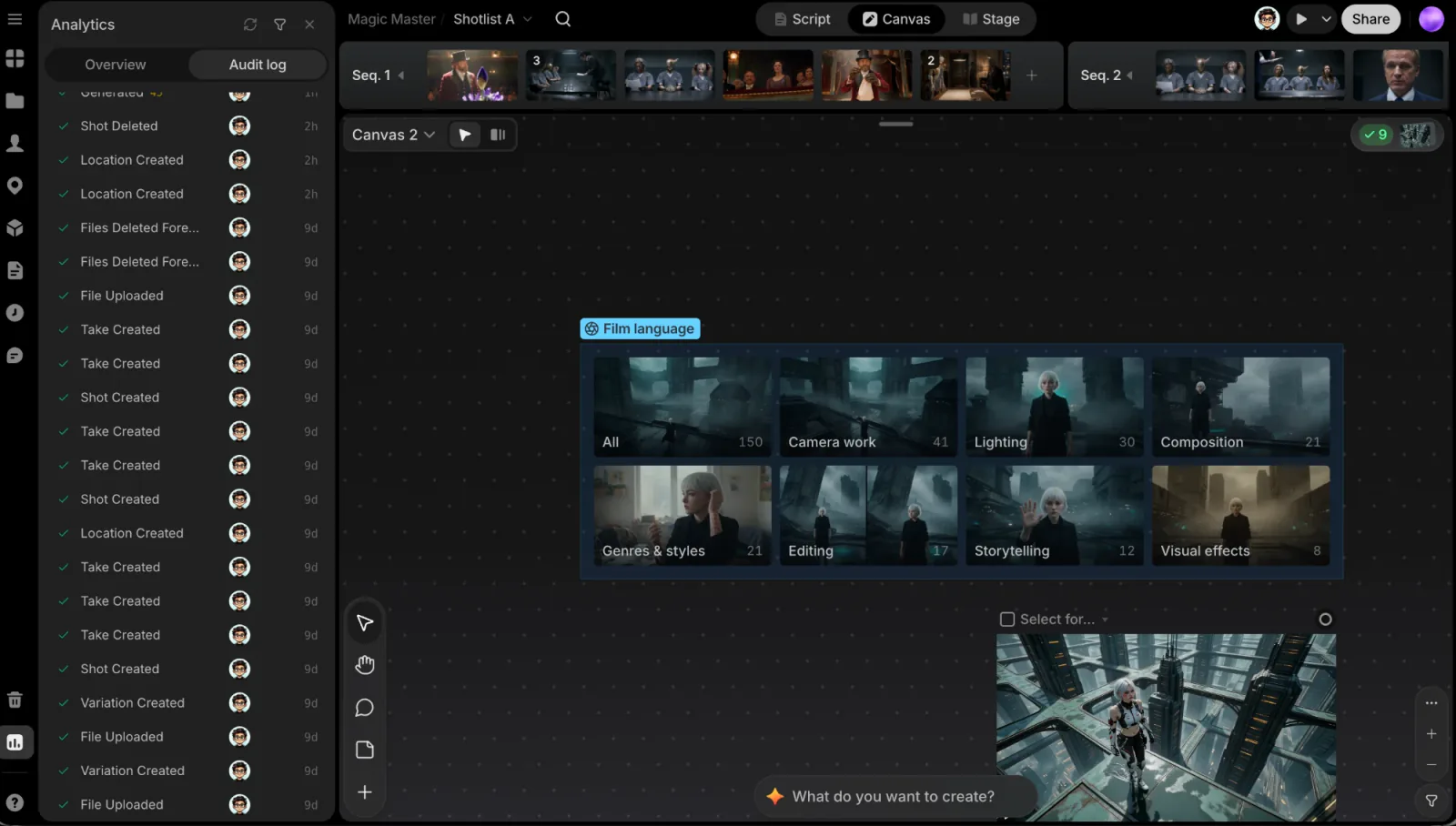
A timeline of what happened in the project, with the Event, the User who did it, and the Time. Generation events also show their credits. Events include:
- Generated and Generation Failed
- Take Created, File Uploaded, and Reference Added
- Character Created (and the same for the other Library entries) and Variation Created
- Shot Created, Shot Deleted, Scene Created, and Scene Deleted
- Trash Emptied, Files Deleted Forever, and Trash Policy Changed (see Trash)
Some shot and scene rows come from changes to the project's structure rather than from one person; those show — in the User column.
Usage analytics
For the workspace-wide picture, open Usage analytics: from the Project menu under Workspace, or from the dashboard sidebar. It's a full page covering every project in the workspace.
At the top right you'll find the date range and Export. The range defaults to Last 30 days; the other choices are Last 7 days, Last 90 days, This month, Last month, and Custom range, where you pick the days on a calendar. Export downloads the data for that range as a CSV.
The page has four tabs:
| Tab | What it shows |
|---|---|
| Overview | The Team credit balance card (with Buy credits for Owners and Admins), then Usage over time, a chart of Credits used, Takes generated, and Avg. active users/day, and below it Team usage, Generation types, and Credit projection: your average credits per day and how long what's left will last at that rate |
| Members | Member usage: credits spent by each member, with search |
| Models | AI model usage: credits by model, filtered by Model type (All, Video, Image, Audio, Text), with search |
| Recent activity | A feed of generations and other changes. View opens a take. Only workspace Owners and Admins can see it |
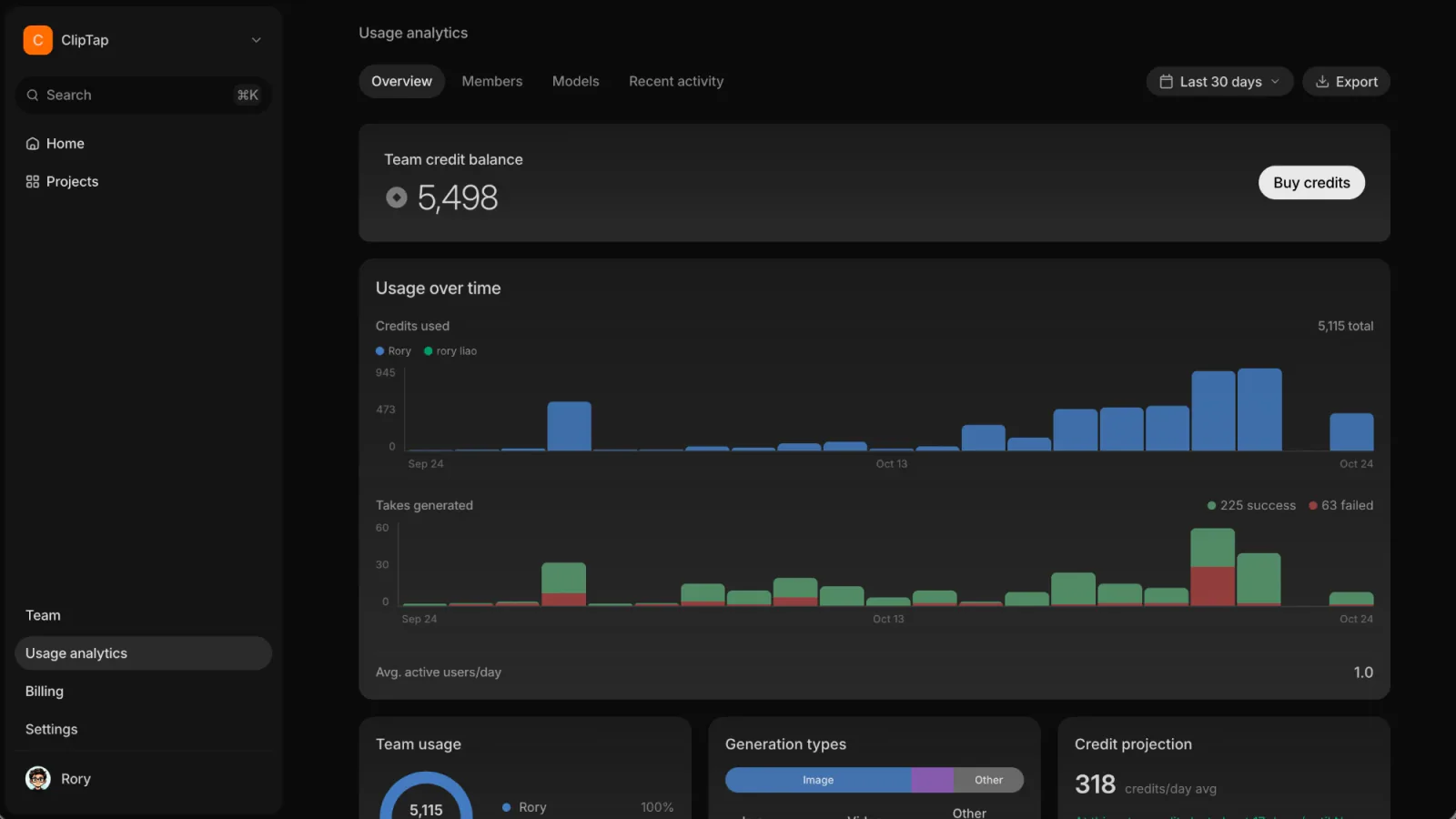
Check analytics on team projects now and then to catch credit spikes early and see where generation activity concentrates. To limit what one person can spend, set member caps (see Credits).