Set the project's style
Give the project one Style with the Agent, by picking a preset, building a moodboard in a short interview, or reading the style off pictures you like.
Every project has one Style: a short text that says how the film should look. It covers the medium (live action, 3D or 2D animation), the faces and costumes, the places, the light and colour, the framing, the era, and what to avoid. Every prompt card for your Library and shots is written to match it, so characters, places and shots keep one look across episodes.
You can write the Style yourself, but the ClipTap Agent is the quickest way to get one. It has four ways in, and each ends with a saved project Style:
- Pick a preset from a set of ready-made styles.
- Build a moodboard: answer a few questions, search the web for references, and get the Style written for you.
- Extract a style from pictures: search results, or images on your canvas.
- Fine-tune the Style you have: "a little cooler overall", "no neon", "set it in the 1990s".
Start
Start from any of these:
- An empty canvas: on the welcome card How would you like to get started?, click Build a moodboard. It sends right away.
- Home: click Build a moodboard. It fills the composer; send it when you're ready.
- Settings: on your project's Preset page, under Style, choose Write your own, then Write it with the Agent. A chat opens with the request.
- The Agent: ask in your own words, such as "Let's set the look of this project" or "Give me a few styles to pick from."
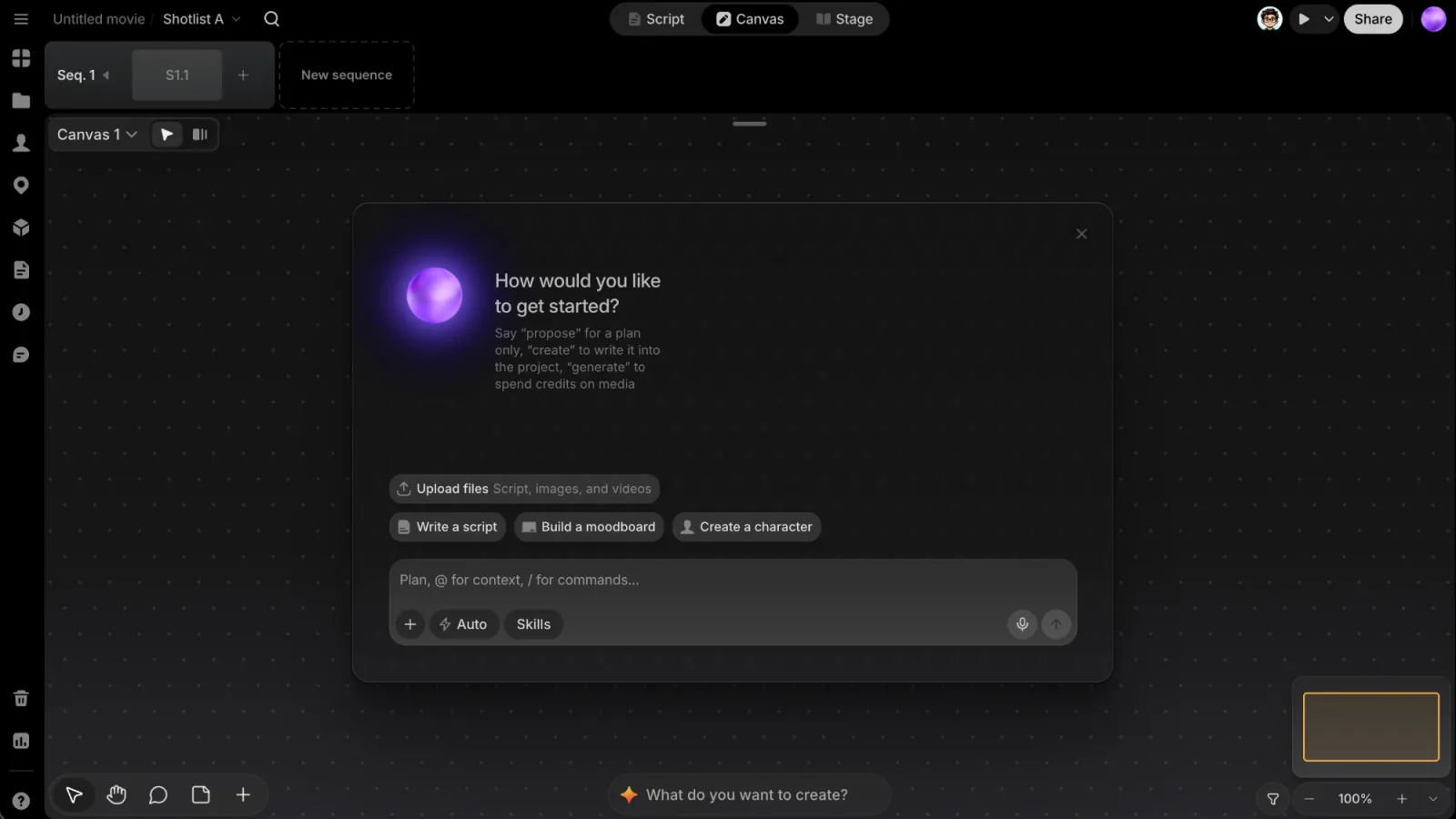
If the project has no Style yet when the Agent is about to write Library or shot prompt cards, it asks you to pick one first.
Pick a preset
Ask for styles to choose from. The Agent picks three or four presets that fit your story and shows them on a question card, each with a picture and a one-line description. Pick one and it becomes the project's Style. The last option, writing your own, takes you into the interview.
You can also pick a preset yourself: on the Preset page, under Style, click Choose (or Change) and filter by Live action, 3D animation or 2D animation.
Build a moodboard
The Agent asks one question at a time on a question card above the composer. It asks six to nine questions, roughly in this order:
- Purpose: short drama, film, commercial, brand or personal work.
- Medium: live action, 3D animation, or 2D animation or comics.
- Theme and era.
- Atmosphere: what the audience should feel.
- Visual texture, such as film grain, clean digital or hand-drawn.
- Characters: faces, styling and costume.
- Light and colour: each option names three colours and the character of the light.
- References: the kinds you want to draw on. You can pick several, then click Submit.
- What to avoid.
Anything the project has already settled, such as a theme in the Story Outline, is skipped. A few tips:
- Each option has a short label and a concrete picture of what it means. The last option always lets the Agent recommend.
- Type your own answer under Other…, for example the films you have in mind.
- Click Skip and the Agent asks a broader version of the question. After three skips, or when you say "you decide", it stops asking and writes the Style.
Review the Style text
Once it has enough, the Agent writes the Style text: 300 to 600 words in sections (medium, characters, places, light and colour, framing, era, what to avoid). It describes the look in visual terms and never names films, directors or artists, even if you did.
It then asks Save as project style? (or, if the project has one, whether to replace it or merge the two). Nothing is saved until you agree. Reply with any changes first if you like.
Search for references
Want to see pictures before you settle? Ask the Agent to search. Each search shows up as a Search web card with up to eight thumbnails. Click a thumbnail to open its source page.
- Hover a thumbnail and click + (Import image to canvas) to bring it in. It shows Imported once it's on the canvas.
- Import all brings in the whole set: Import to canvas places the images on the canvas, and Save to assets adds them to the project's files without placing them.
- Extract style reads a style off the pictures on the card (see below).
The Agent never imports on its own; you choose what comes in. After each round it says what to look for in the results and suggests three follow-up searches as pills. Click one to run it, or ask for something different.
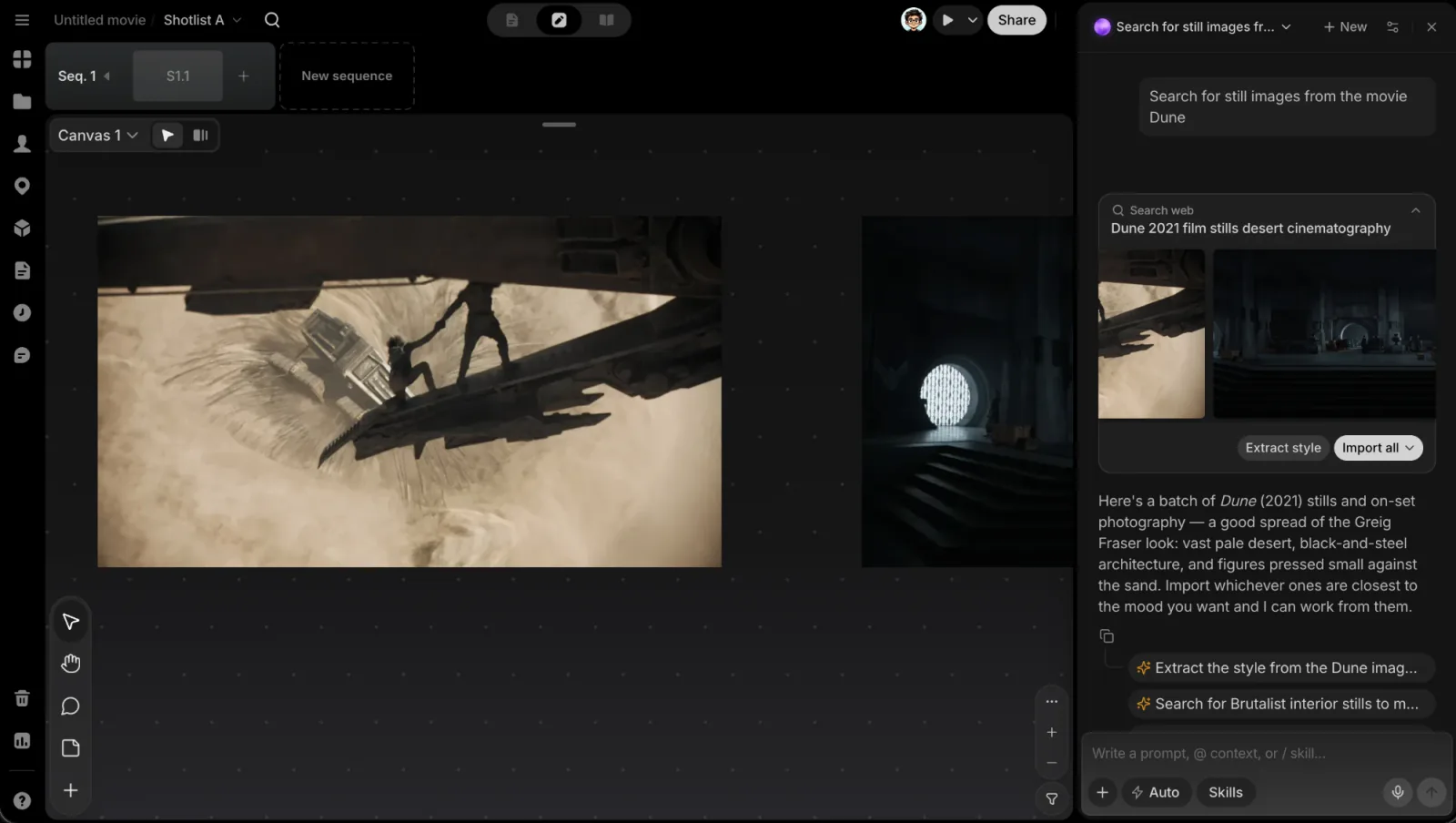
Search results are mood references, not stills from the films you named. Use them to agree on a feel, then generate your own frames.
Extract a style from pictures
Have pictures that already look right? The Agent can read the Style off them, from up to 8 pictures at a time:
- Click Extract style on a Search web card.
- Or select images on the canvas (or paste them into the composer) and say "set the style from these".
The Agent shows the text it read, then asks whether to set it as the project's Style, merge it into the one you have, or leave it.
After the Style is saved
- The Style lives on your project's Preset page, under Style. Edit the words there any time, or ask the Agent to fine-tune them.
- Prompt cards still waiting to be generated are rewritten for the new Style. If you edited some of them by hand, you're warned first, since your edits will be replaced.
- Takes you already generated stay as they are. To see the new look, generate them again on Stage.
- The Style is text only: setting it makes no pictures.
Limits
- The Agent runs one image search per reply.
- Which search service is used depends on your ClipTap setup, so results can vary.