Trash
Find files and Director desks deleted from a project, restore them, or delete them forever, and choose when the Trash empties itself.
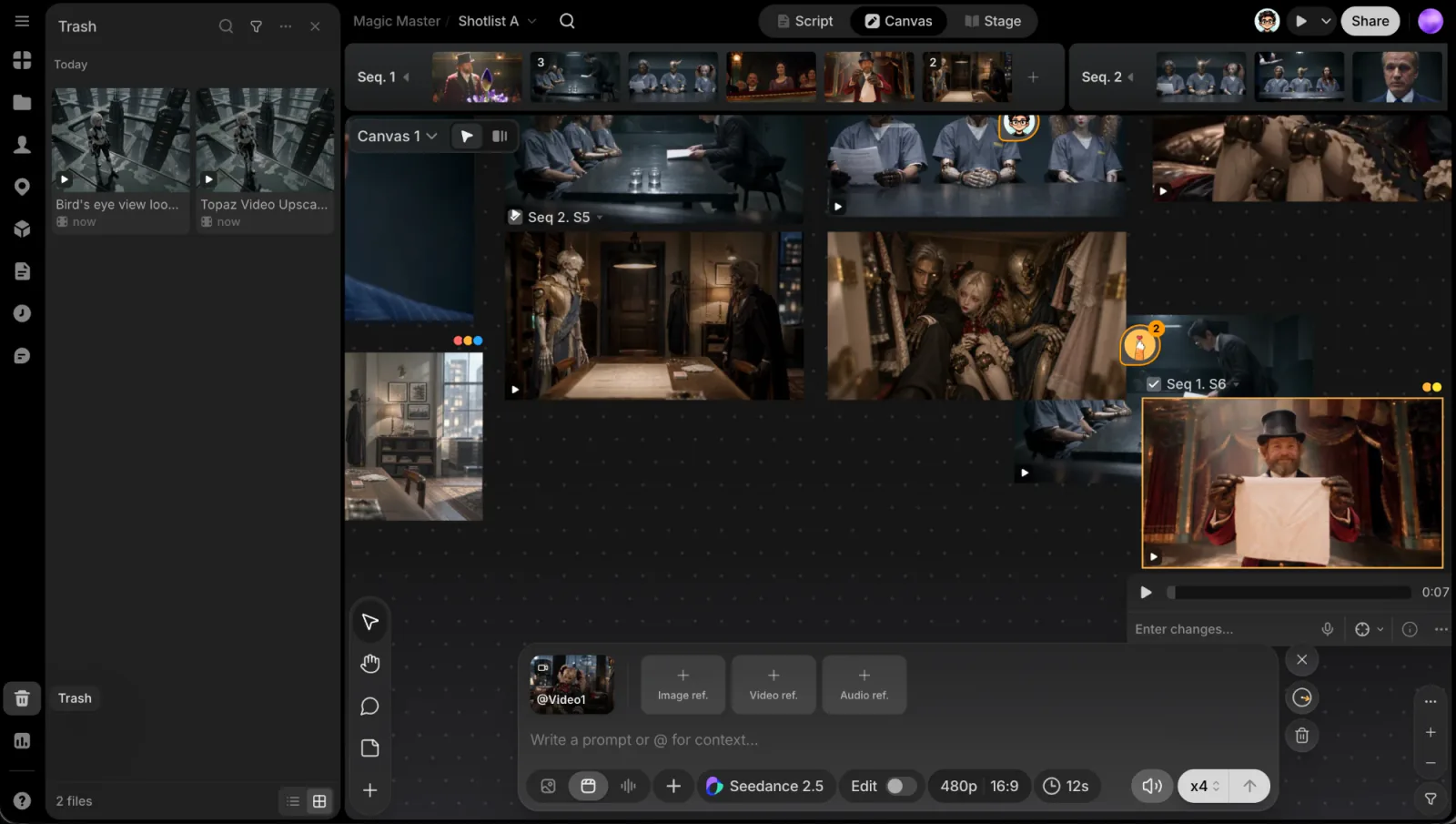
Every project has its own Trash. Files and Director desks you delete wait there until you restore them or delete them forever. Open it with Trash at the bottom of the project's left rail.
What goes to the Trash
| You delete… | Where it goes |
|---|---|
| A take in Gen history (Move to Trash) | The Trash. It leaves the canvas and Gen history |
| A file in the Uploads panel | The Trash |
| A Director desk from the Files view (Move to Trash) | The Trash. The "Director moved to the Trash" message has Undo |
| A file or desk on the canvas (Delete) | Nowhere: it only comes off that canvas, and ⌘Z puts it back. The file stays in Gen history; the desk stays in the Files view |
| A failed generation in Gen history | Deleted for good. There's no file to keep |
| A whole project | Not this Trash. See Delete project |
Browse the Trash
The newest deletions come first, under day labels (Today, Yesterday, then the date). Each card shows when it was deleted, or, once the Trash empties itself, how long it has left ("3 days left"). The footer counts the files and switches between grid and list.
- Search trash: the search button in the header looks through names and prompts.
- Filter: the filter button narrows the list by
- Deleted: Any time, Today, Last 7 days, or Last 30 days;
- Type: All types, Images, Videos, Audio, Documents, or Directors;
- Author: who made it;
- Model: the model that generated it, or Uploads for files nobody generated.
Each filter you pick shows as a chip under the header; click its ✕ to drop it.
To look at a file before you decide, double-click it or pick Open from its menu. It opens in File view.
Restore
Restore puts a file or desk back in the project.
- One item: open its ⋯ menu (or right-click it) and pick Restore.
- Several: hover a card and tick the box in its corner, tick the others, then click Restore in the footer. Right-clicking inside a selection offers Restore <n> files too.
Delete forever
Pick Delete forever… from an item's menu, or select several and click Delete in the footer. ClipTap asks first ("Delete file forever"), because this can't be undone: the file is gone for everyone.
Empty the Trash
The ⋯ button in the panel header (Trash options) holds two things:
- When the Trash empties itself: Never (the default), After 7 days, After 30 days, or After 90 days. The current choice is ticked. Picking another asks you to confirm under Empty trash automatically, then click Save. With a time set, everything is deleted forever that many days after it was moved to the Trash.
- Empty trash: deletes everything in the Trash forever, after a confirmation that says how many files that is.
Who can do what
- Everyone who can open the project can browse the Trash and open what's in it.
- Only people who can edit the project can Restore, Delete forever…, Empty trash, or change when it empties itself.
Emptying the Trash, deleting files forever, and changing the automatic emptying are recorded in the project's Audit log as Trash Emptied, Files Deleted Forever, and Trash Policy Changed.
Deleted projects aren't in any Trash. ClipTap keeps a deleted project for 30 days, and only support can bring it back. See Delete project.