Canvas
Lay out references, takes and notes on infinite canvases, review everything in Files view, follow your generations in the Queue, and work live with your team.
The Canvas is where a project's pictures, videos and sounds live side by side. You generate here, arrange takes, compare versions and leave notes on the frame they are about, with the whole team on the same board at once. A project can have as many canvases as it needs.
The Canvas is the middle of the three tabs at the top: Script · Canvas · Stage. Script is the screenplay editor and Stage is where every shot is managed. A new project opens on "Canvas 1".
Key parts of the canvas
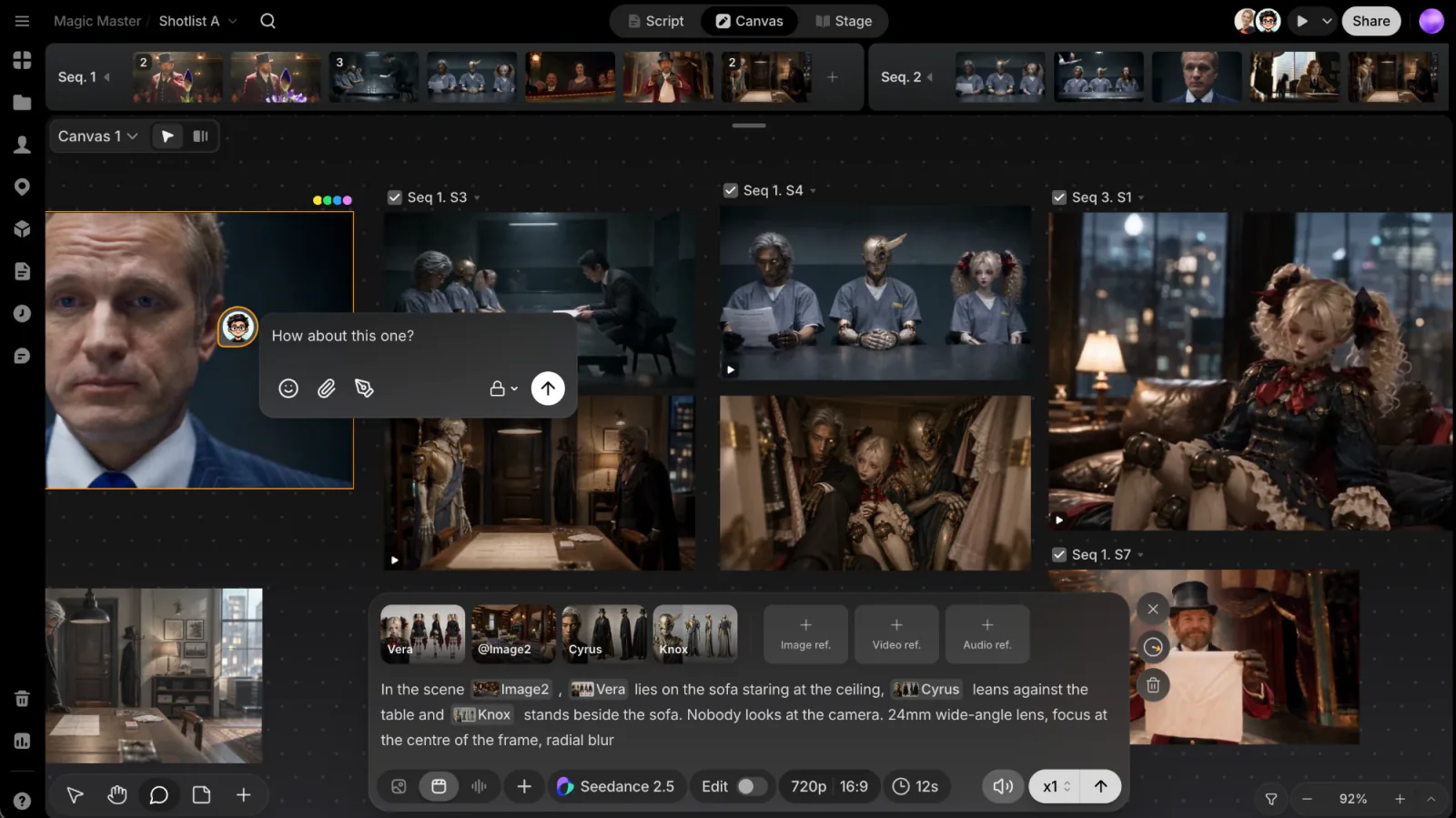
On the canvas:
- Prompt box (bottom center): generate images, videos and audio. It is hidden while the ClipTap Agent panel is open.
- Toolbar (bottom left): the Cursor (V), Hand (H), Comments (C) and Sticky note (N) tools, and the Add (+) button. Add holds Upload file, Choose asset, Director, Film language and Embed.
- Minimap and zoom (bottom right): the minimap shows the whole board with your view drawn as a frame; drag its top or left edge to resize it. The zoom pill below has Zoom in, Zoom out and a menu where you can type a percentage or pick Zoom to fit or a fixed level from 5% to 400%. Its chevron offers Hide minimap / Show minimap.
- Canvas picker and Filter (top left): switch canvases, switch between Canvas view and Files view, and filter what you see. See Files view, Filter and Multiple canvases.
- Sequence timeline (top): assign files to shots. Collapse it with its handle when you need the room.
- Queue (top right): what is generating and what just finished. See The Queue.
- Play (top right, beside Share): play a sequence's shots back to back in the player. The chevron beside it offers Play in new tab (⌘⇧P).
The rail on the left opens Shotlists, Uploads, the Library's Characters, Locations and Props, Scripts, History (every file generated in the project) and Comments. At its foot are Trash, Analytics and Help.
Right-click an empty spot on the canvas for Undo, Redo, Place next take here (see Next take box), the Add items, Create group, Paste and Select all.
Put things on the canvas
- Generate from the prompt box. New takes appear at the Next take box.
- Upload: drag images, videos or sounds onto the canvas, or use Add › Upload file.
- Bring in what you already have: Add › Choose asset picks from the project's files; you can also drag a file from History or Uploads.
- Paste: a copied picture lands where you are looking. If a group is selected, it goes into that group. A pasted
https://link becomes an Embed. - Add a Director, Film language or Embed from Add. Each has its own page.
Drag to move things, drag a corner to resize, and drag across empty canvas to select several. For arranging many files at once, see Groups and arranging.
Where Agent and Stage results land
Everything you generate gets a place on a canvas, so you can always see where it went.
- From the prompt box: takes land on the canvas you sent them from. If you have switched to another canvas by the time they finish, a message tells you how many takes were added and where.
- From the Agent or Stage: each Agent turn, and each batch you send from Stage, lands on the canvas you have open (or the first canvas if none is open). One take lands on its own; several land together in one group at the Next take box, with a tile for each take that fills in as it finishes. While the Agent is working, its orb floats over the batch.
The Queue
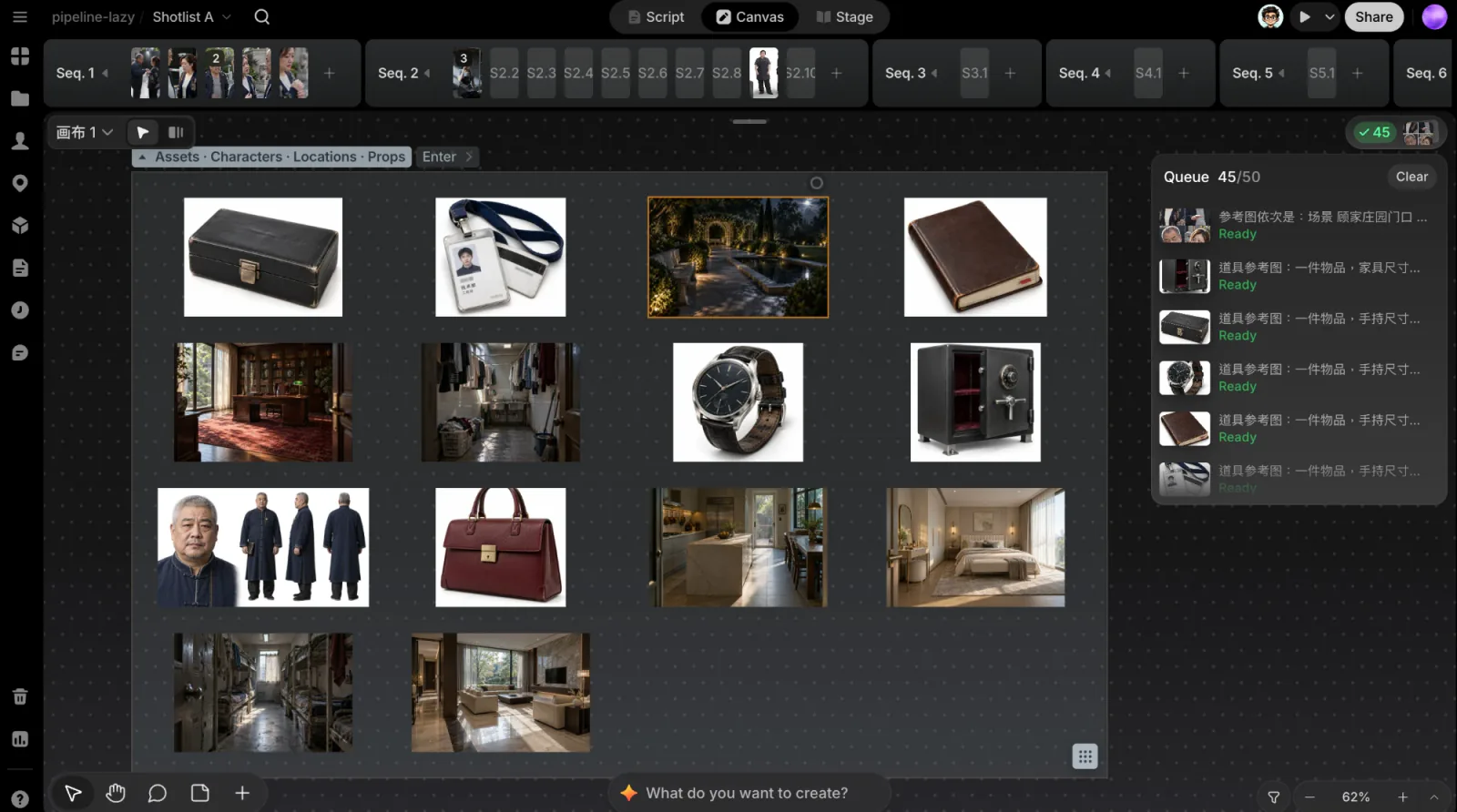
The Queue button at the canvas's top right shows how far your generations have got, for example "2 of 5". Click it to open the list.
- Each row shows the prompt and whether it is generating, ready or failed. Click a row to jump to the take.
- A failed row has Regenerate.
- Right-click a row for Jump to location, Cancel generation (while it runs) and Clear from list.
- Clear removes every finished row.
Files view
Every canvas has two faces: Canvas view, the board itself, and Files view, a feed of everything generated or uploaded on that canvas. Switch between them on the pill at the top left.
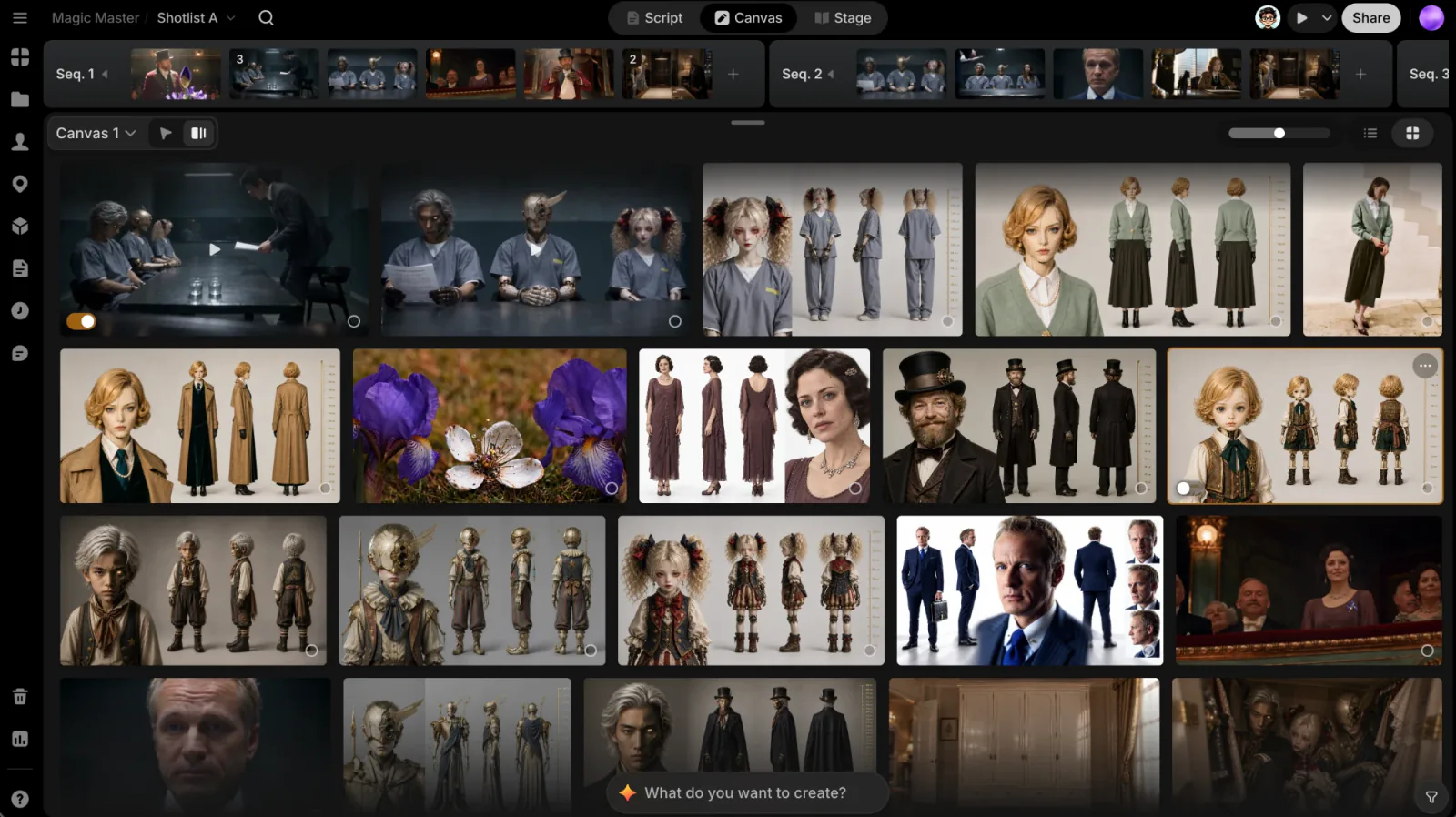
Use it to review a canvas's whole output in one place. Each canvas has its own Files view; for every file in the project, open History.
- On the canvas or not: each take has a switch. Turn it off to take the take off the canvas, on to put it back. Taking a file off the canvas keeps it here.
- List or Grid: List layout groups takes by date and then by prompt, with the prompt and settings on each row. Grid layout is a dense gallery; drag Grid size to fit more or fewer in a row.
- Select and act: ⌘-click or Shift-click to select several takes. Hover a video to scrub through it. A take's ⋯ menu (or right-click) has Select for, Assign to group, Add to..., Use as..., View (F), Provenance (P), Download, Copy image, Tag, Copy prompt, Prompt info, and Remove from canvas or Place on canvas.
- Director desks on the canvas are listed here too. Their menu has Open, Remove from canvas / Place on canvas and Move to Trash. Pressing Delete on a desk on the canvas only takes it off the board; Move to Trash sends it to the Trash, with Undo in the message that follows.
When a filter leaves nothing to show, Clear filters brings everything back.
Filter
Click the funnel (Filter) at the bottom right of the canvas, beside the zoom controls, to narrow what you see by Tags, Author, Type, Model, Resolution or Aspect ratio. Clear all resets it.
- On the canvas, files that don't match are dimmed, so you keep your place.
- In Files view, files that don't match are hidden.
ClipTap remembers your filter for each project. The funnel is hidden while a Director desk, the Film language library or an Embed page is open. See Tags for filtering by tag.
Sticky notes
Sticky notes are for quick, freeform notes on the board, separate from the threaded discussion in Comments. Click the sticky note tool (or press N) and click anywhere on the canvas to place one. It opens ready for typing.
- Format text: select text in a note for Bold, Italic, Strikethrough and Bullet list.
- Change color or size: a note's ⋯ menu has Text size (Small, Medium, Large) and Color (Yellow, Peach, Lavender, Mint, Pink or Orange).
- Resize: drag a corner handle. Hold Shift to keep the note's proportions.
The same ⋯ menu can Duplicate a note, Copy link to it, or Delete it.
Comments
Click the comment tool (or press C) to leave feedback right on the canvas. See Comments for pins, threads and replies.
Work with collaborators
Everyone with the project open shows as an avatar at the top right, and you see their pointers move on the board. Click someone's avatar to follow their view as they move around; click it again, or Stop, to stop following.
Multiple canvases
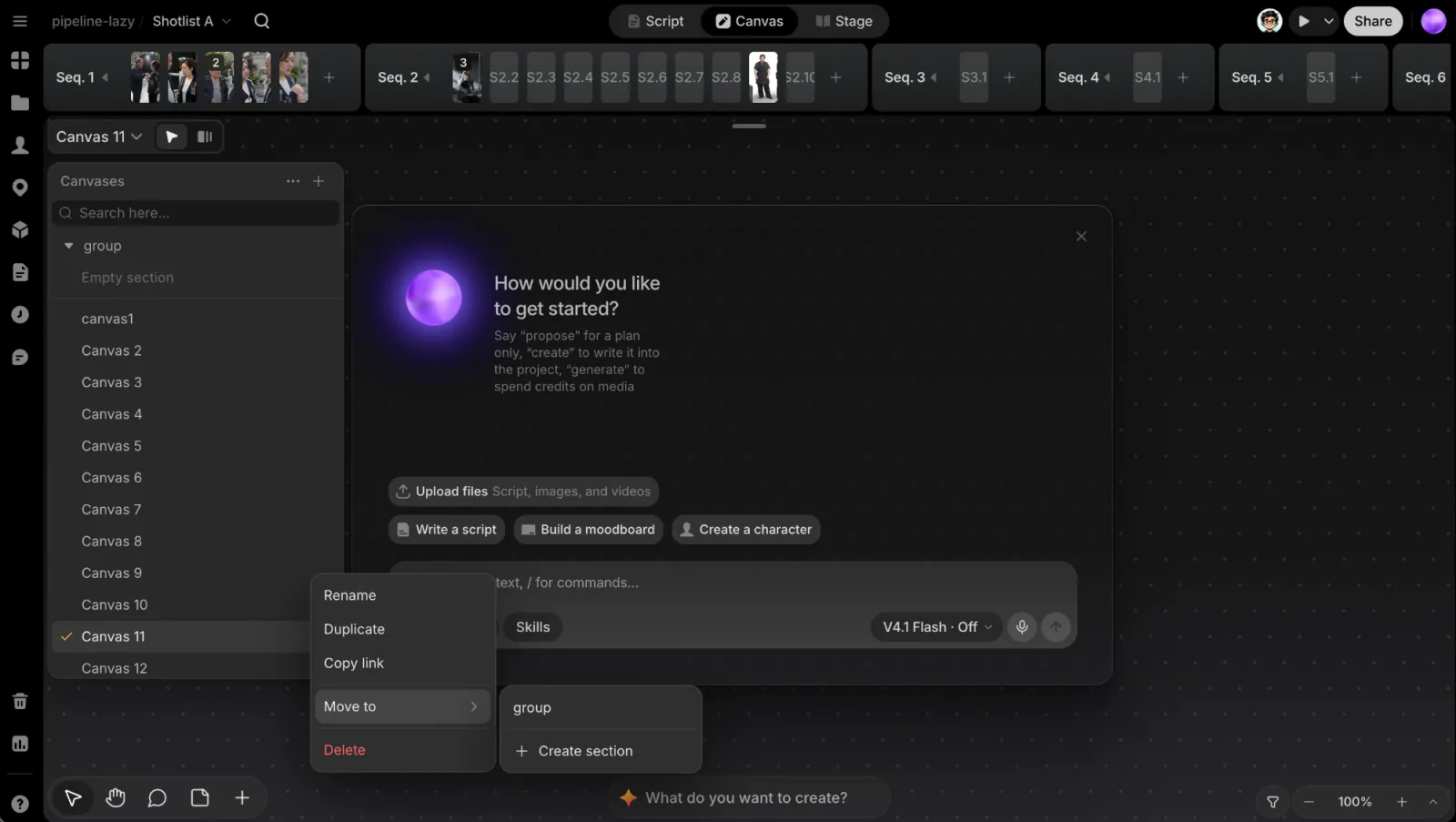
One canvas often isn't enough for every storyline, department or exploration pass. Canvases belong to the project, and each holds its own files, groups, sticky notes, Embeds, Film language nodes and Director desks. Open the canvas picker at the top left; its header reads Canvases.
- Create a canvas: click + (Create canvas). New canvases are named "Canvas 2", "Canvas 3" and so on.
- Organize them in sections: from the picker's ⋯ menu choose Create section, then give the section a name. Collapse sections folds them all. A section's own ⋯ menu can Rename it or Delete section; deleting a section keeps its canvases in the project.
- Rename, duplicate, copy a link, move or delete a canvas: hover it and click its ⋯ for Rename, Duplicate (makes a new, empty "copy"; the files aren't copied), Copy link, Move to › (pick a section, Create section or Remove from section) and Delete.
- Select several canvases with Shift-click or ⌘-click, then click Delete to remove them together.
- Search the picker by name, and Sort Alphabetical or Recently used from its ⋯ menu.
- Jump to canvas (⌘J) opens a quick search over every canvas in the project.
A Shotlist remembers its canvas: when you pick a Shotlist, its canvas opens with it.
Keyboard shortcuts
| Key | Action |
|---|---|
| V / H / C / N | Cursor, Hand, Comments, Sticky note |
| ⌘+ / ⌘- / ⌘0 | Zoom in, zoom out, zoom to 100% |
| ⇧1 | Zoom to fit |
| Enter | Zoom to the selected file |
| ⌘A | Select all |
| ⌘C / ⌘V / ⌘D | Copy, paste, duplicate the selection |
| ⌘G / ⌘⇧G | Group the selected files / ungroup |
| ⌘Z / ⌘⇧Z or ⌘Y | Undo / redo |
| ⌘J | Jump to canvas |
| ⌘K | Command palette |
| ⌘. | Open or close Comments |
| ⌘/ | Open or close the Agent |
| Esc | Clear the selection |
On Windows, use Ctrl in place of ⌘. For shortcuts that act on a selected file, see File toolbar.