Film language
Browse a library of camera, lighting, composition and other film techniques on the canvas, and drop their ready-made prompts and example clips into the prompt box.
Film language is a library of film techniques you open right on the canvas: camera moves, lighting, composition, genre looks, editing, storytelling and visual effects. Each technique has an example picture or clip, a short explanation and ready-to-use prompts. When you know the shot you want but not the words for it, find the technique and put its prompt in the prompt box.
Add a Film language node
Click Add (+) in the canvas toolbar, or right-click empty canvas and, under Add, choose Film language. A node appears with one tile per category and an All tile, each with its number of techniques.
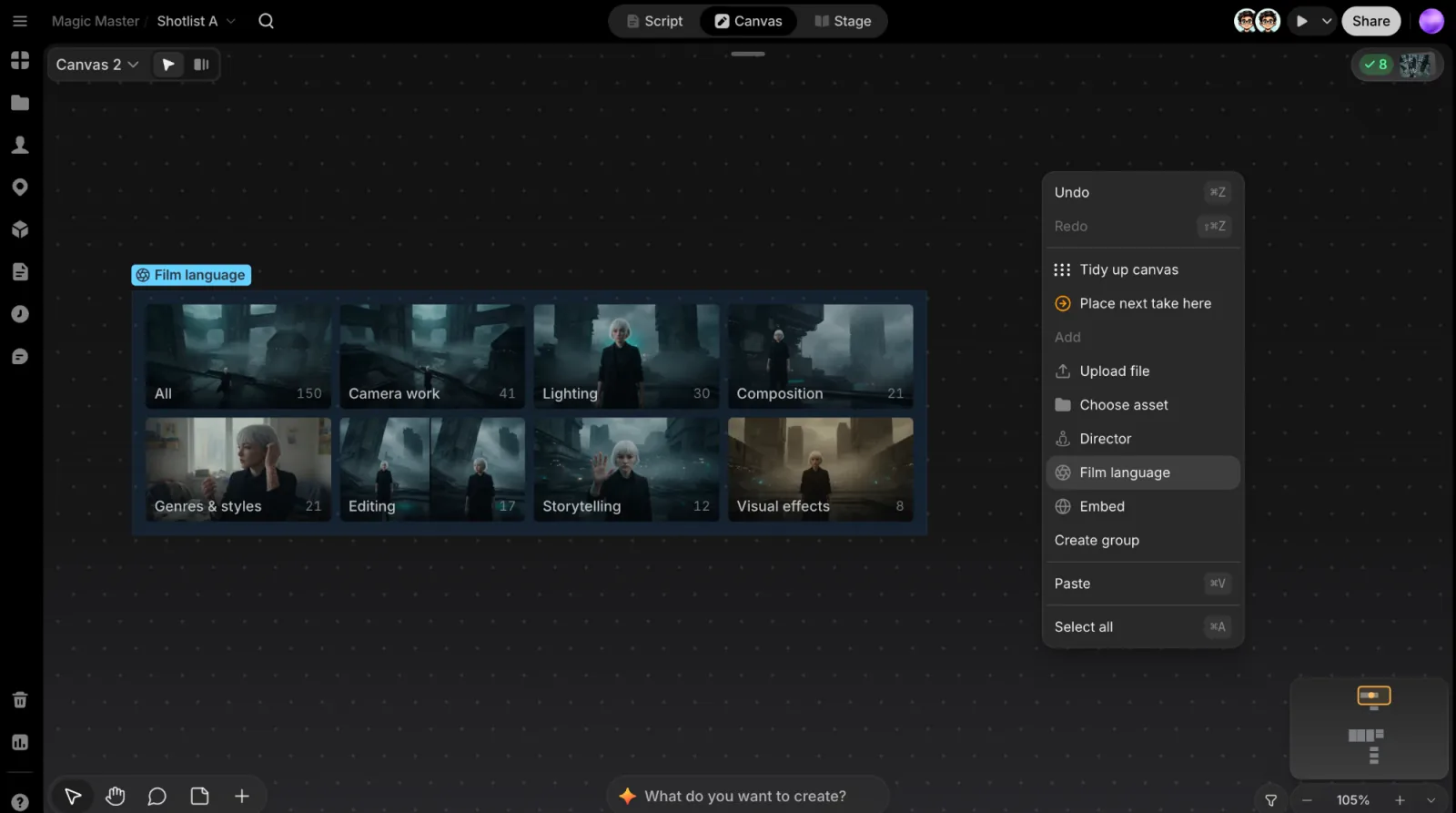
- Open a category: double-click its tile.
- Open the library: hover the node and click Enter › next to its title. It opens on the category you used last.
- Resize: select the node and drag its edge to make it wider or narrower.
You can keep several Film language nodes, for example one per department, and give each its own name and color.
Browse the library
The library opens over the canvas, with the prompt box still at the bottom.
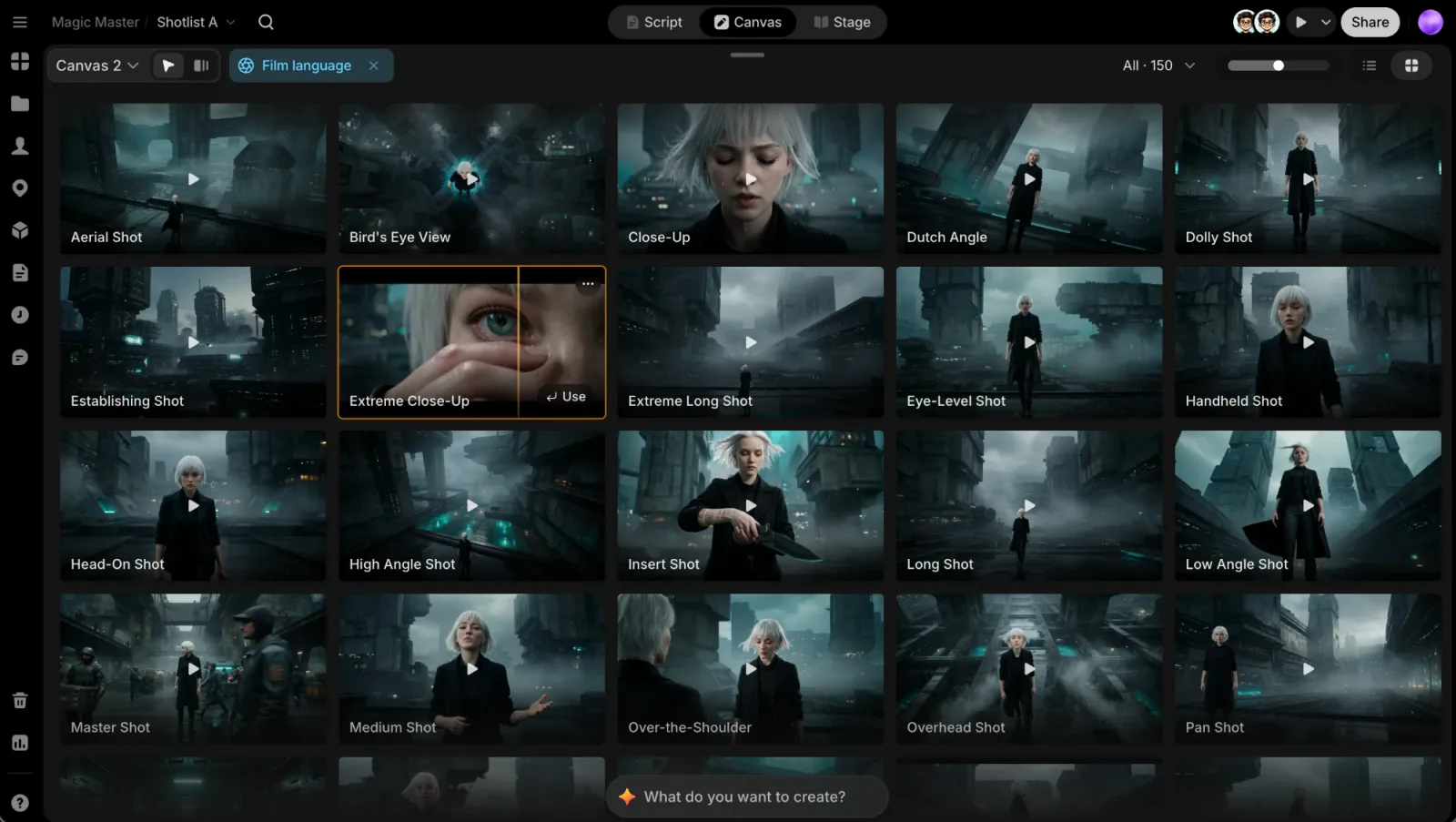
- Pick a category at the top, or All.
- Switch between List and Grid. In Grid, drag Grid size to fit more or fewer techniques in a row. List shows each technique's level (Beginner, Intermediate or Advanced), moods and prompt beside its example.
- Move the pointer across a clip to scrub through it.
To leave, click the × on the Film language chip at the top left (Close Film language).
Use a technique
Hover a technique and click Use to insert its prompt at the cursor in the prompt box. Words in square brackets, such as [Subject], are selected after the insert, ready for you to type over.
Click a technique to select it; ⌘-click or Shift-click to select several. Then:
- Enter inserts the prompts of every selected technique.
- ⌥Enter replaces the prompt box's text with them.
- Space opens the technique's details.
For more choices, click a technique's ⋯ or right-click it:
- Prompt: Use (↵) inserts the prompt; a technique with several prompts lists each one as Use · … (some are written for image models, some for video models). Replace prompt swaps the prompt box's text for it, and Copy prompt copies it.
- Media: use the technique's example in the prompt box, as a reference (the row is named for the model you picked, such as Add as reference), as the Start frame or as the End frame. Uses your model can't take are dimmed.
- Open details (Space).
Technique details
Open details (or double-click a technique) shows its example large, with the clip playing, beside a short explanation, When to use it and each of its prompts with Use. Along the bottom, Related lists techniques you can open next.
Prompts come in the language you use ClipTap in.
The node menu
Click the node's title chip, or right-click the node, for its menu: Rename (or double-click the title), a color, Duplicate and Remove from canvas. Press ⌘Z to bring back a node you removed.