Referencing with @
Type @ in the prompt box or an Agent message to pull in Library entries, past generations, uploads and recently used references.
Type @ in the prompt box or in a ClipTap Agent message to bring something from your project into what you're writing: a saved character, a location, a past generation, an upload. The two places each have their own menu, covered below.
What you can reference
In the prompt box, the @ menu opens with:
- A row of category icons at the top, to jump straight into one.
- Recently used: your last references, for quick reuse.
- Characters, Locations and Props: your Library entries, one row each.
- Groups: one row per collection with its count: Recently used, Gen history (every file generated in the project, by day), Uploads, and the Library categories.
Type after @ to search; the field reads Search characters, locations, props, or groups.... A preview column beside the list shows the highlighted row. For a Library entry it shows what the entry holds, such as 1 variant • 2 assets.
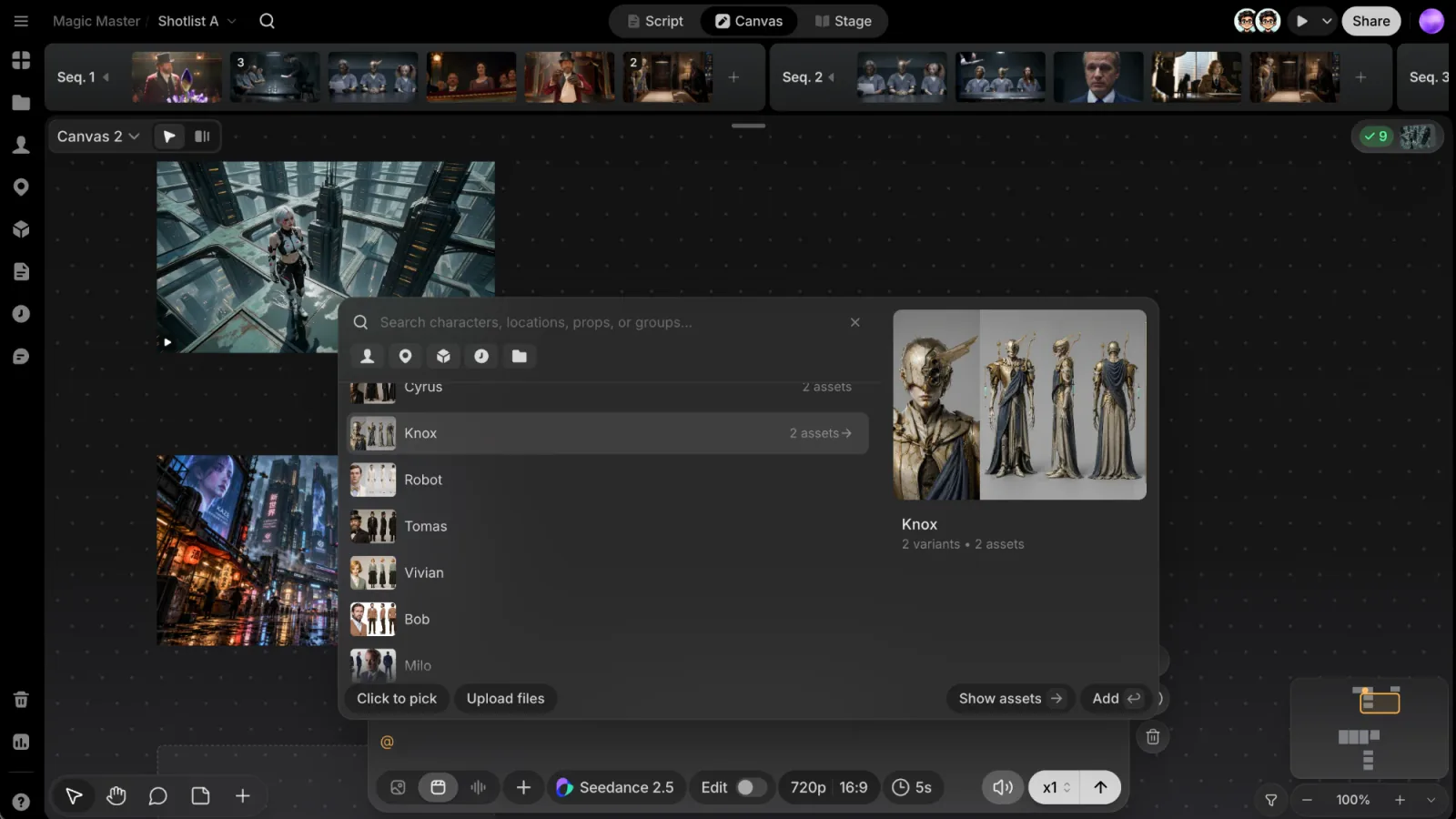
Library entries
Picking an entry attaches its first picture. To use a different picture, highlight the entry and click Show assets (or press →), then pick the one you want.
You can also pick an entry that has no picture yet. It goes into the prompt as a name, and ClipTap attaches its picture when you generate, if it has one by then. A voice-over character reads Voice-over • never shown and never adds a picture.
Pick several
Hold Shift and click rows to pick several, then click Add 3 (the button counts your picks). Double-click a row to add it straight away.
At the bottom of the menu:
- Click to pick: reference a file straight from the canvas instead (see below).
- Upload files: add a file from your computer.
- Show assets: open the highlighted entry's pictures.
- Add: add what you've highlighted or picked (or press Enter).
After you pick
The reference appears as a chip in your text and as a tile above the prompt. Click a tile to preview it; when the file is on the canvas, click the preview picture to jump to it there. Click × on a tile to remove the reference.
Click to pick
Click to pick lets you reference files right on the canvas. A hint reads Click to pick; hold Shift to pick several, then click Done (or press Esc). It respects each model's reference limit too.
In an Agent message
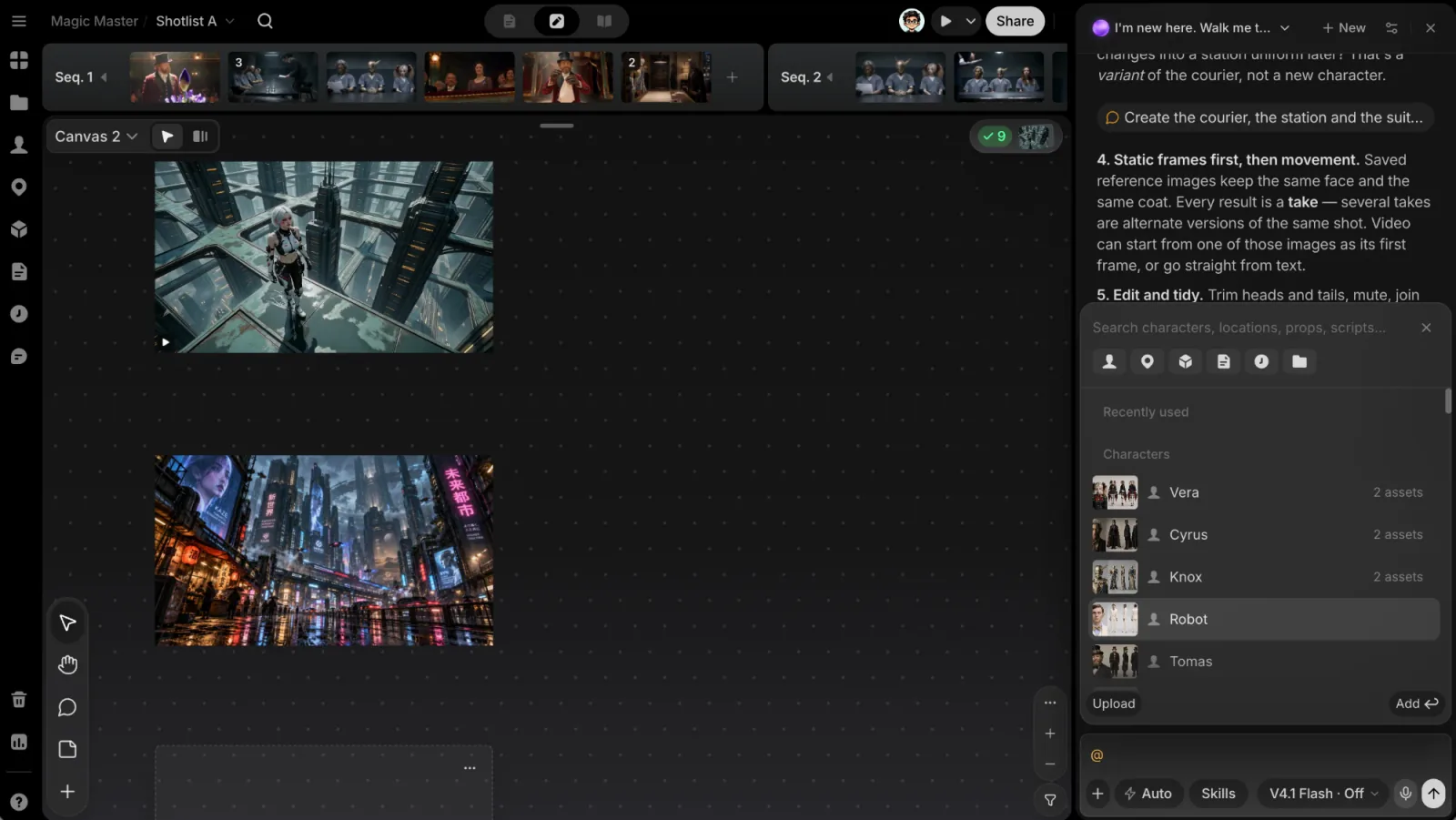
The Agent's composer has its own @ menu, with the same idea and one addition: besides Characters, Locations, Props, History, Uploads and Recently used, you can reference your Scripts. Click rows to select them, then press Enter or click Add. The footer also has Upload and Show assets. A typed @ puts the reference in your message as a chip.
The composer's + button is a flatter alternative: pick from Uploads, Characters, Locations, Props or Scripts, and your picks go into an attachment tray above the message. While the Agent panel is open, you can also select takes on the canvas or in Files view to attach them.
A prompt card on Stage uses this same menu, without Scripts.
Keyboard shortcuts
In the prompt box menu:
| Key | Action |
|---|---|
| ↑ / ↓ | Move through the list |
| → | Open a category, or an entry's pictures |
| ← or Backspace | Go back a level (with an empty search) |
| Enter | Add the highlighted row, or your Shift-picks |
| Esc | Go back a level, or close the menu at the top level |
Recently used is kept in your browser for each project, and the prompt box and the Agent each keep their own list.