Director
Have the Agent stage a scene in 3D, with people, set, action and camera moves, then export the cut as a video reference or a still on the canvas.
The Director is a 3D staging desk on your canvas. You tell ClipTap Agent the scene: who is in it, where, what happens, how long, how it should feel. The Agent builds the set, blocks the action and plans the camera the way a director talks: framing, angle, height, move and pace. You watch it play, point at what you want changed, and export the cut to the canvas as a video reference (one clip per shot, with shot notes) or as a still.
People on the desk are mannequins at real height. They stand in for your cast: what carries over to generation is the shots, the moves and the space, not the mannequins' look.
Add a Director
Click + on the canvas toolbar, or right-click an empty spot on the canvas, and choose Director. The same menu also has Upload file, Choose asset, Film language and Embed. A node named Director 1 (then 2, 3…) appears. Its picture on the canvas is the desk as it last looked.
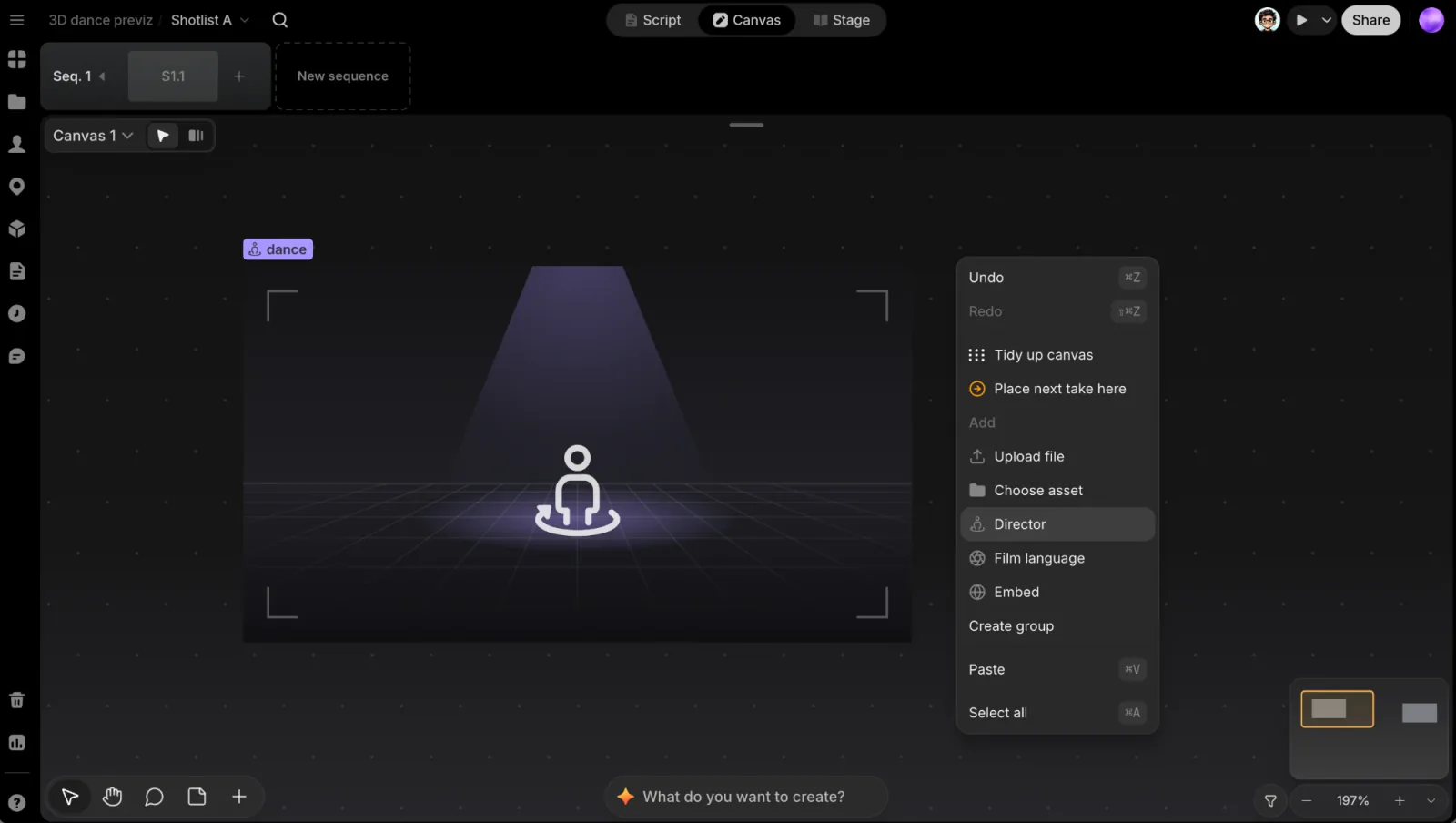
To open the desk, double-click the node or click Enter ›. Right-click the node to Enter, Rename or Delete it; its chip menu also has colour, Duplicate and Copy link. Close the desk with the X on its title chip.
Tell the Agent what to stage
With the desk open, you work in the Agent panel on the right. A new desk reads Nothing on this desk yet; click Open the Agent if the panel is closed. Describe the scene, for example: "Lin waits on the rooftop; Chen walks up behind her and she turns. Over his shoulder on her first, then a close-up as she sees him. 10 seconds."
The Agent plans before it builds. Its reply starts with a Plan card: Place, Cast, Travel (how far each person moves in the time), Beats and the Shot list. Then it builds the scene, checks every shot frame by frame, looks at the pictures it made, and saves it to the desk. Its reply shows the contact sheet it looked at.
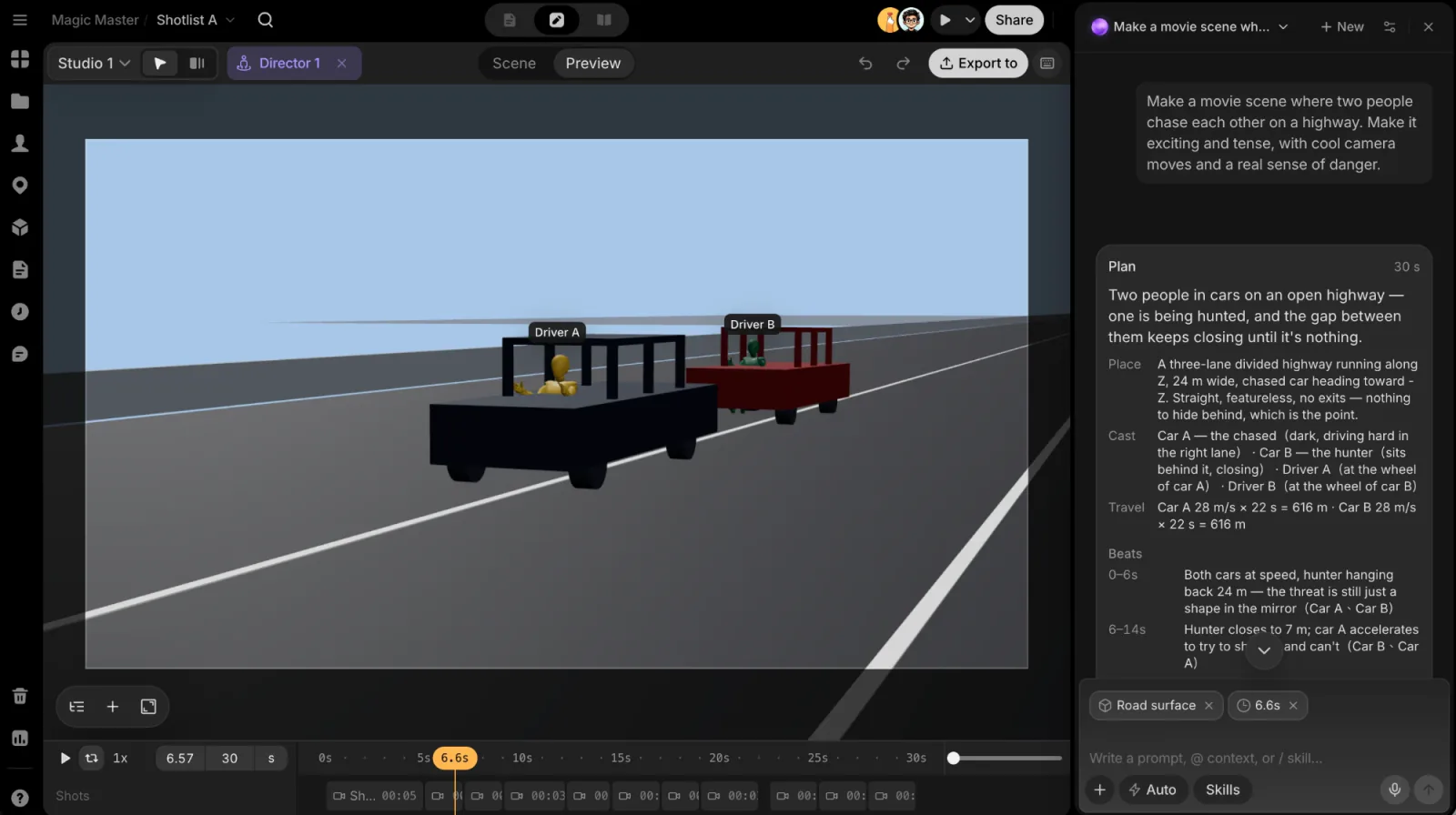
To change one thing, point at it first:
- Pick objects in the 3D view or the scene panel (⇧-click to add more).
- Pick a shot: its block on the timeline, or its row under Cameras.
- Stop the playhead at a moment.
What you point at appears as chips on the Agent's message box, so "make this a low angle" or "cut here" means exactly that shot or that moment. Each Agent turn is one undo step: ⌘Z in the desk takes the whole turn back.
Watch it
- Scene and Preview at the top switch between a free view of the set (orbit, fly with WASD) and the cut as the cameras shoot it. The desk opens in Preview.
- The timeline shows the cut as shot blocks. Click a shot to jump to it, double-click to loop it, and set the scene's length in the duration field.
- Scene tree in the bottom-left bar opens the scene panel: Cameras with their shots, then the Set. Hover a row to focus the view on it or hide it from your own view. The bottom of the panel describes what is picked: a shot's time, size, move and lens (and how far it had to move from what was asked), or where an object stands.
- Aspect ratio sets the frame: Auto, 21:9, 16:9, 4:3, 1:1, 3:4 or 9:16. Changing it re-frames every shot for the new frame.
Add things yourself
+ in the bottom-left bar adds a Sphere, Cube or Pyramid, a light (Sun, Point light or Spotlight), a Person or a Camera where the view is looking. It is picked as soon as it lands, so your next message can be about it ("put the spotlight on her"). Placing, posing and animating are asked of the Agent.
Export
Click Export to in the header and choose:
- Video: the whole cut, at 1920 × 1080 for 16:9 (the size follows the frame). With two or more shots it also puts one clip per shot and a text file named after the desk, such as Director 1 shot notes, on the canvas. The notes give each shot's time, framing, move and a reference prompt; the clips are ready to use as video references. The panel shows the format your browser will write: MP4, or WebM where the browser can't encode H.264.
- Image: the camera's frame at the playhead, as a PNG at the same size.
Then click To canvas. The export runs in your browser in the background; you can keep working while it does.
Keyboard shortcuts
Click Keyboard shortcuts in the header for the full list.
| Action | Shortcut |
|---|---|
| Fly through the scene | WASD |
| Scene / Preview | C |
| Pick / add to the pick | Click / ⇧ click |
| Clear the pick | Esc |
| Play / pause | Space |
| Loop a shot | Double-click its block |
| Undo / redo | ⌘Z / ⇧⌘Z |
On Windows, use Ctrl in place of ⌘.
From another app
Apps connected over MCP can build a scene on the desk too: set it up, block the action, plan the camera, and look at the contact sheet the tools return before saving it.
People with view-only access to the project see a View only badge in the desk's header.