Next Take box
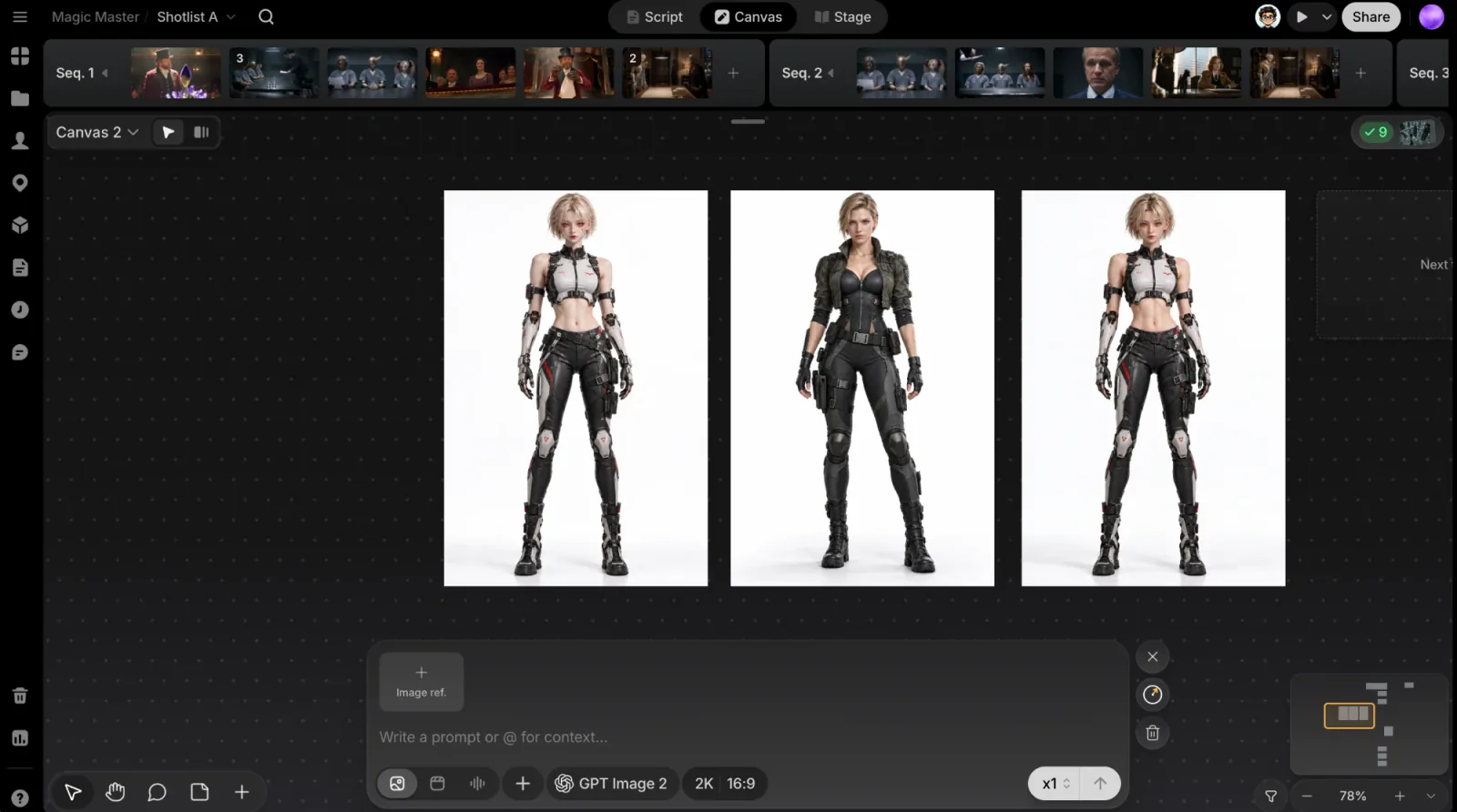
Drag the Next Take box anywhere on the canvas to control exactly where your next generation lands.
ClipTap shows a Next Take box on the Canvas: a dashed target marking exactly where your next generation will land. Its shape matches the ratio set in the prompt box, and its label updates live: Next take, or Next 3 takes for a batch.
The box stays on the canvas while the prompt box is collapsed and while the ClipTap Agent panel is open. It's hidden while the empty-canvas welcome card is showing, while you generate into a group (see below), and for people who can only view or comment on the project.
Move it
- Drag it anywhere on the canvas. While you drag, it reads Drop to place. Its position is saved with each canvas, so it stays put until you move it again, even after a reload.
- Right-click the canvas and choose Place next take here for the same result without dragging. When the box is hidden, this item is greyed out with the hint Show the next generation area first.
The box needs room for a full row of takes at your Grid columns width. If the spot you pick would overlap files already there, it moves down to the first clear row below. Both the box and the batch land there.
What happens when you generate
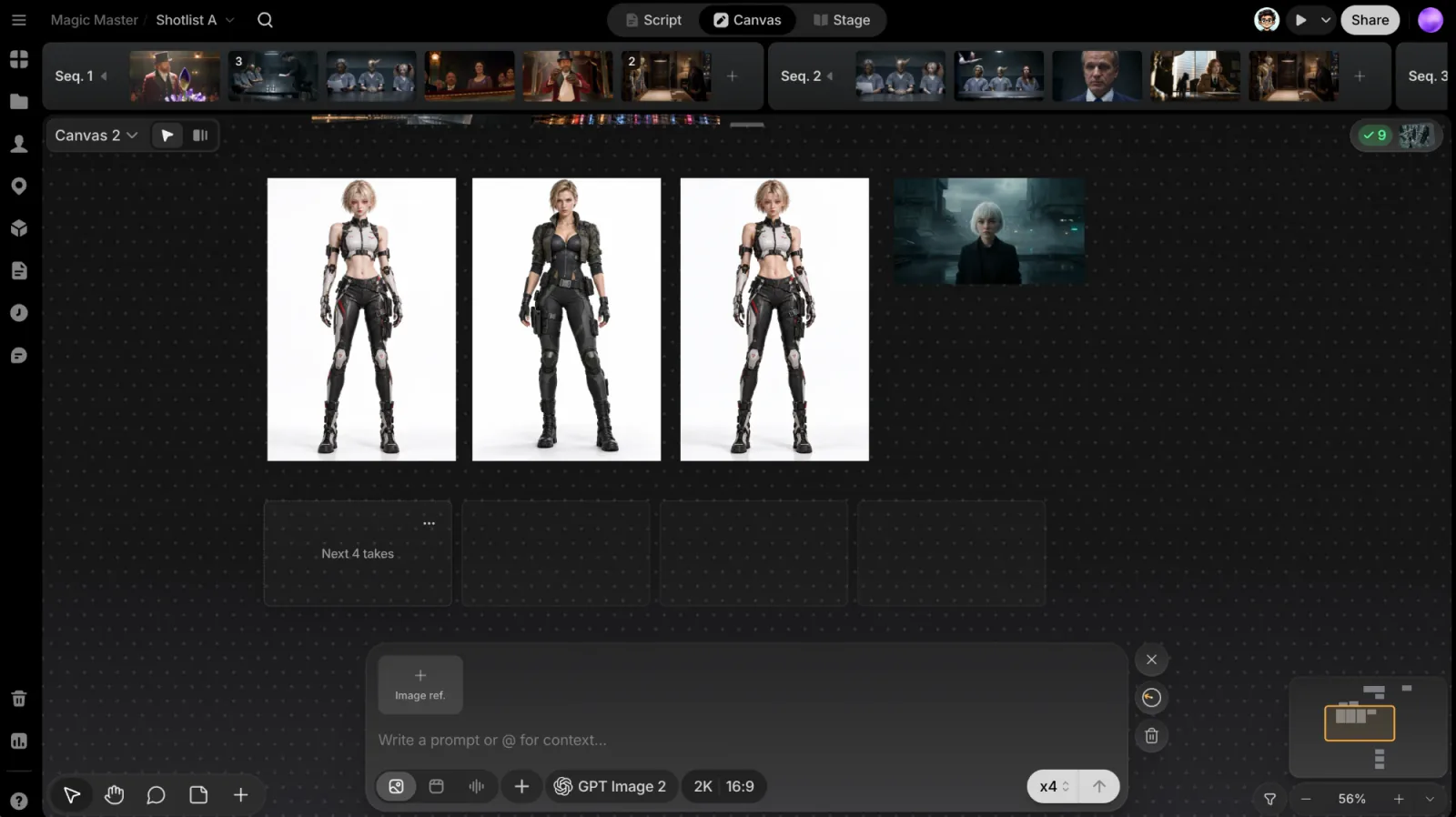
When you click generate, the Next Take box turns into progress tiles right where the results will land, one per take. The box itself steps down below the batch, ready for the next one. If a generation fails or you cancel it, its tiles disappear and the box steps back.
Find it when it's off-screen
The prompt box has a small compass button (Jump to next generation area). Its needle always points toward the Next Take box; click it to fly your view straight there.
Preferences
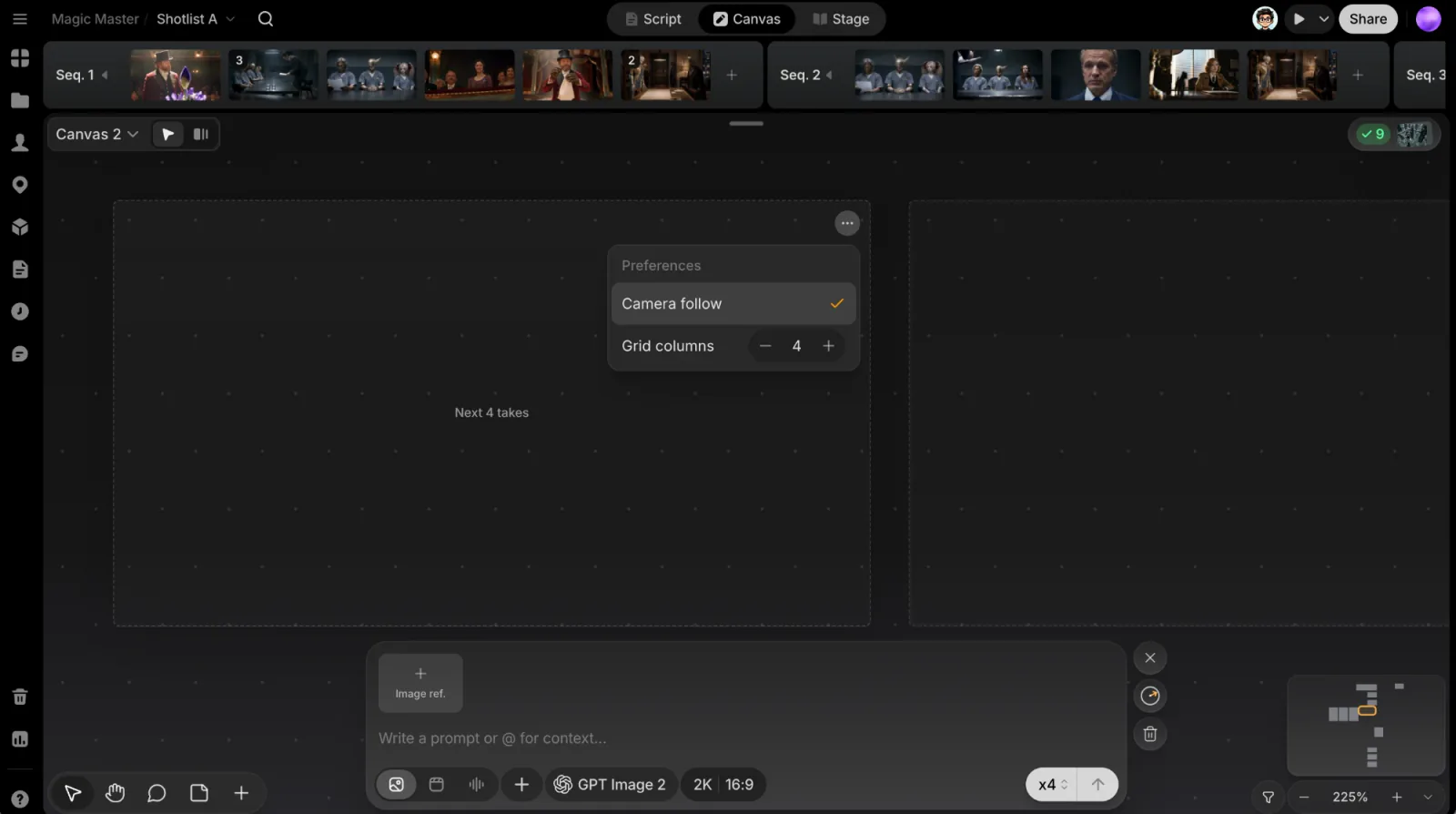
Click the box's ⋯ button to open Preferences. The button shows once you've zoomed in far enough to work with the box.
- Camera follow: centers your view on new generations as they land. On by default.
- Grid columns: how many columns a batch tiles into at the target (1–6, 4 by default) before it wraps to a new row.
These preferences last for your current session, and ⌘Z undoes a change.
Generating into a group
The box disappears while a group is your generation target. The group is highlighted instead, the compass points at the group, and new results appear inside it.