Prompt box
Generate images, videos, speech and music on the Canvas, with frames, references and your Library, and see the credit cost before you send.
The prompt box sits at the bottom of the Canvas. Write what you want, pick a model and its settings, and generate. Results land on the canvas where the Next Take box is waiting.
Can't find the prompt box? It's hidden while the ClipTap Agent panel is open. Close the Agent (⌘/) to bring it back.
Generate
When it's collapsed, the prompt box is a small pill that reads What do you want to create?. Click it to open the full box, then write your prompt (the placeholder reads Write a prompt or @ for context…).
The settings bar under the prompt, left to right. Each control shows only when the current model uses it.
- Mode: Image mode, Video mode or Audio mode. The model list and the settings follow the mode.
- + (Add reference): opens the reference menu. See Add references.
- Model: the current model with its maker's logo. Click it for the model menu. The name turns amber when it isn't your default model.
- Edit (video models that can edit a video): switch it on to Edit the reference video instead of making a new one. While it's on, the ratio reads Auto and the duration follows the source video.
- Resolution and ratio: one button, such as
2K | 16:9. Its menu has Resolution, Ratio (from 9:16 to 21:9, only the ratios the model takes) and, for some image models, Quality (Low, Medium, High). Choices the model can't combine are hidden, and the box moves to the nearest one that works. - Duration (video): a panel with − and + buttons and a slider. Models that can pick their own length also offer Auto.
- Storyboard prompt (video): when the shot you're generating for has a storyboard, add or remove its storyboard prompt. It appears as its own block in the box; type
/in it for a template. See Stage. - Enhance prompt (some models): lets the model rewrite your prompt for richer output. It's off by default, so your prompt is sent as typed.
- Audio (speaker, video models that make sound): turn generated sound on or off.
- Outputs (
x1–x4): how many takes to make at once. Speech, music and Tools models make one take per run.
Press ⌘Enter (Ctrl+Enter on Windows) or click the round arrow to generate.
Hover the generate button before you send: the tooltip, such as Generate 2 Takes, shows the credit cost of your current setup and updates as you change settings. When a discount applies, the original price shows struck through beside it. See Credits.
If your workspace is low on credits, a strip above the prompt box says so, with a Purchase credit button.
Beside the box are a few small buttons: Collapse, the compass that jumps to the Next Take box, Clear input, and in Files view Target group, which sends results into the group you're looking at.
The prompt box sends your prompt as you wrote it. The project's style, set in Settings › Preset, shapes the prompts ClipTap writes for you on Stage and through the Agent.
Reading the model menu
The AI models menu opens above the model button.
- Switch between Image, Video and Audio models with the tabs, or type in Search models....
- Each row shows the model's capabilities as chips (such as References) and a credit chip with its typical cost. Models charged by how much they produce show By usage.
- Click the star to Add to favorites, so the models you use most stay at hand.
- A greyed row with a lock is Turned off for this workspace. A workspace admin can turn it back on in Settings › Model governance.
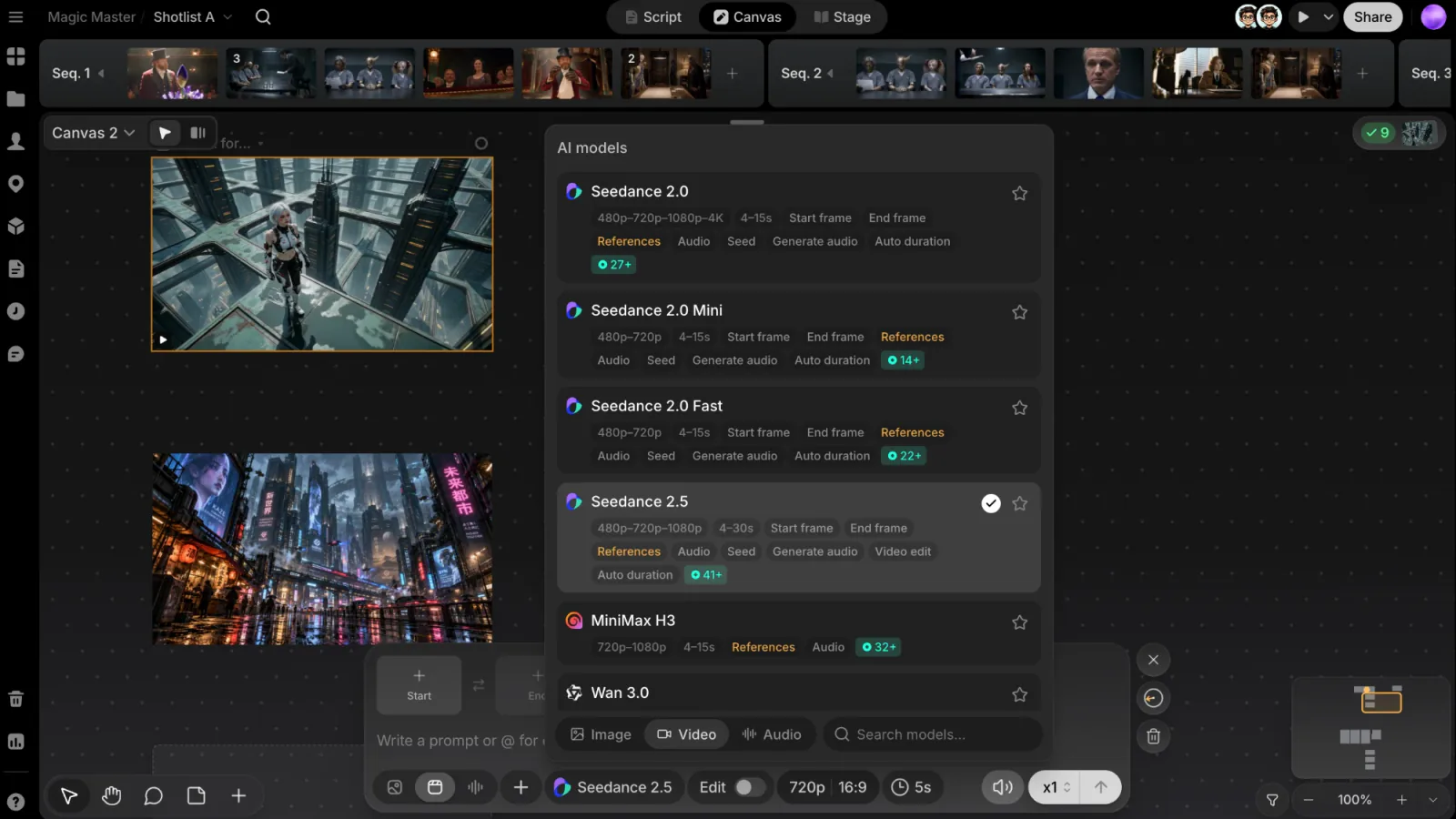
The menu holds the models your workspace has turned on. The families include:
| Tab | Models |
|---|---|
| Image | Nano Banana, GPT Image, Seedream, Midjourney, Qwen Image, Grok Imagine Image, Ideogram, FLUX |
| Video | Seedance, Kling, Veo, Wan, MiniMax, Grok Imagine Video, Gemini Omni Flash, FLUX Video, LTX |
| Audio | ElevenLabs (speech and music), Seed Audio, Qwen3 TTS |
Prices aren't listed here because they depend on your settings. Read them on the credit chips in this menu and in the generate button's tooltip.
Tools models
Below the models, a Tools heading lists image and video upscalers and a subtitle cleaner. A Tools model works on a source file instead of a prompt. The quickest way in is a file's ⋯ menu › Actions › Upscale: the file loads into the box as the source, with an upscaler already picked. Set the model's own options (such as Quality, Upscale or Erase mode) from the buttons that replace ratio and duration, check the price on the generate button, and send. A Tools model always makes one take. See Tools.
When the box can't send
If your setup breaks a rule of the model, a red strip above the box says what to fix, and the generate button waits until you do. For example:
- Images: at most 4 can be referenced
- An end frame needs a start frame
- A reference sound needs a reference image or video beside it
Start and end frames (video)
Video models that take frames show Start and End slots above the prompt. Click a slot to fill it:
- Click to pick: click an image on the canvas.
- Choose from library: pick a saved file.
- Upload from device: pick a file from your computer.
You can also open a file's ⋯ menu on the canvas and choose Actions › Use as start frame or Use as end frame (see File toolbar). Swap frames switches the two, and Remove clears a slot.
A model takes either frames or references, never both at once. While a frame is set, + is greyed out with the hint Remove the Start & End frames to use references.
Add references
Type @ in the prompt, or click +, to open the reference menu: Recently used, your Library's Characters, Locations and Props, then groups for Gen history and Uploads. Pick something and it appears in the prompt as a chip. See Referencing with @ for the full menu.
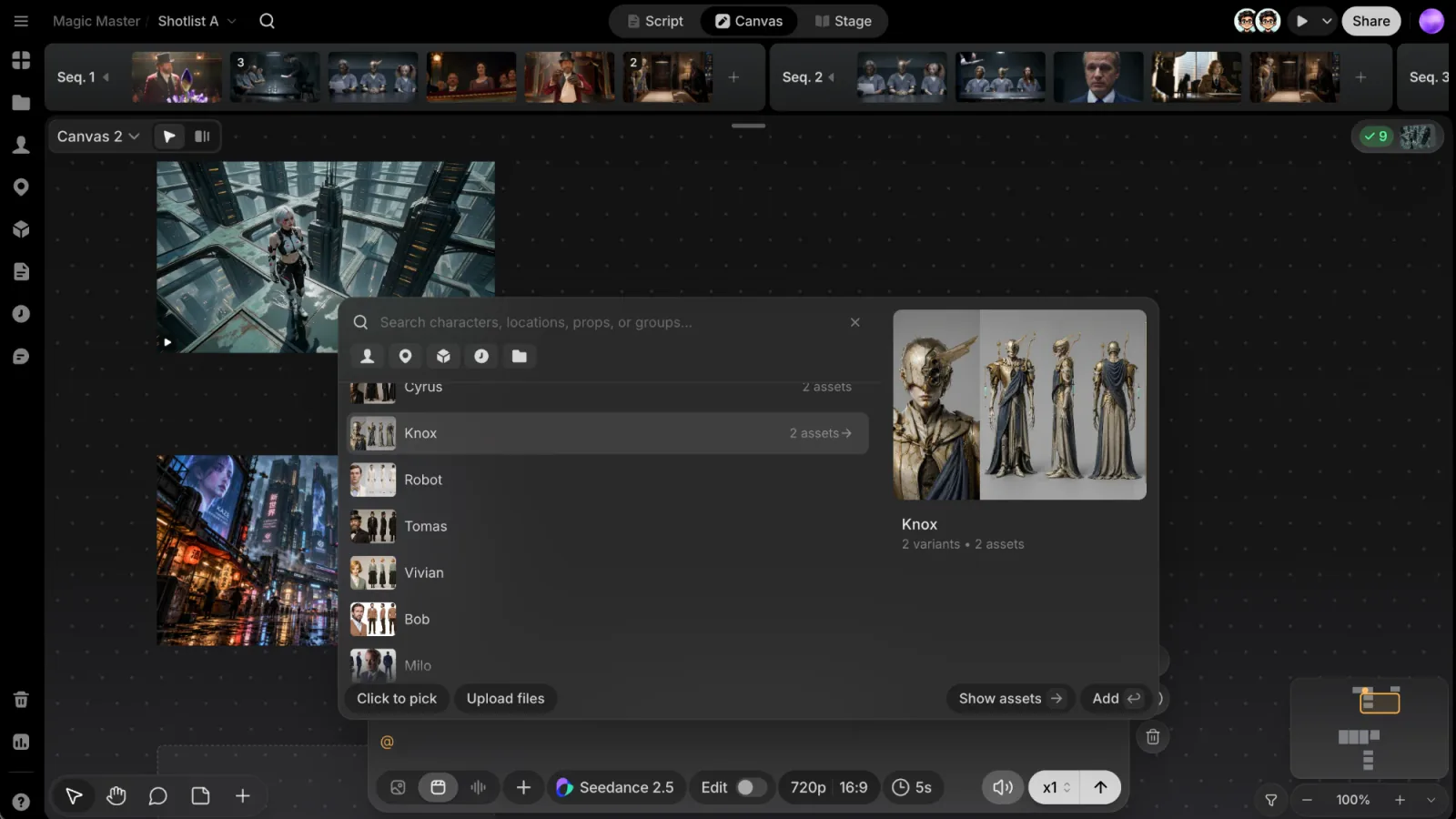
References show as tiles above the prompt: Image ref., Video ref. and Audio ref., depending on what the model accepts. Each model has its own limit, and ClipTap won't let you add more than it can take. Location references are taken literally: for a specific angle, generate that angle first and reference the new image.
You can name a Library entry that has no picture yet. When you generate, ClipTap attaches the entry's current picture if it has one by then. If it still has none, the box tells you, for example Lin has no assets Seedance 2.5 can use yet. A voice-over character is only ever a name, since it is never seen.
Speech and music
Switch to Audio mode and pick a voice or music model.
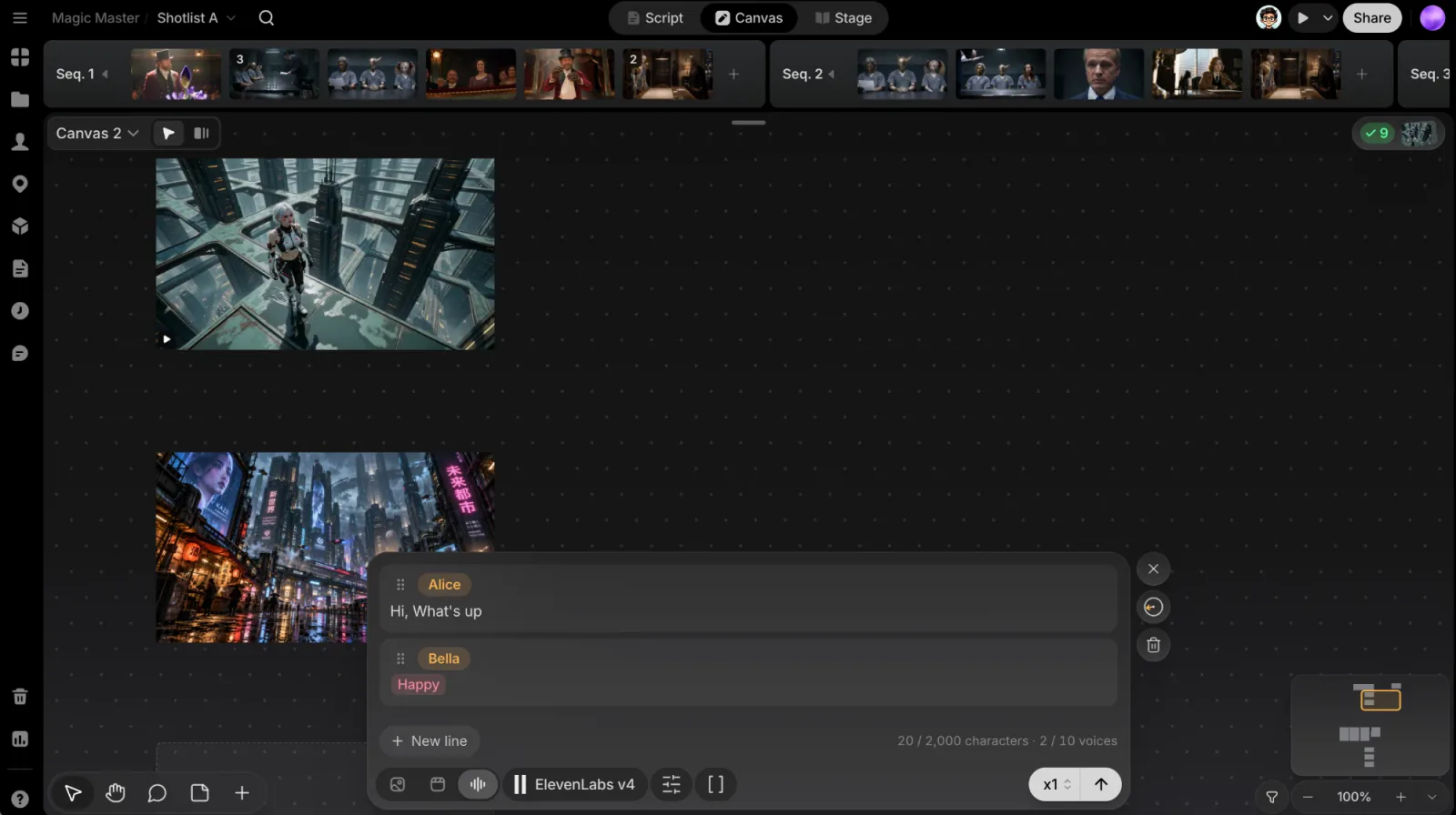
Dialogue (ElevenLabs v4, v4 Turbo, v3). Each line is its own block:
- Click the speaker chip (Choose a speaker) to pick the line's voice.
- Click New line to add a line, and drag a line's grip to reorder. Delete line removes it.
- A counter under the lines shows the characters and voices you've used against the model's limits.
- Type
[, or click Add a delivery tag ( [ ), for delivery tags such as a laugh, a sigh or a pause, grouped as Emotion, Sounds, Voice, Effects and Pauses. A tag the model can't read is marked, and it's left out when you send.
Single voice (Seed Audio, Qwen3 TTS). Write the line, then pick the voice from the Voice button, which has search and a Play preview for each voice. Seed Audio also has a Style field with presets such as Happy, Gentle, Whispering and Slower, and it can take up to 3 reference sounds to borrow a voice, or one picture.
Voice settings holds the model's sliders and choices; Reset puts them back.
Music (ElevenLabs Music). Describe the music (genre, mood, instruments, tempo, lyrics) and fine-tune it under Music settings.
Each run makes one take.
After you generate
The Next Take box turns into progress tiles right where the results will land, and the next slot steps down below the batch. Results appear on the canvas you sent them from. See Next Take box.
Stage's prompt cards use the same box in a smaller form, one take at a time; see Stage.