Tags
Color-tag files on the canvas and in Files view, and filter by tag to keep large projects organized.
Color-tag any file, on the canvas or in Files view, to organize a project at a glance. Tags belong to the project, not to a single file: every file picks from the same list of up to 10 tags, and a file can carry several at once.
A new project starts with seven tags named after their colors: Red, Orange, Yellow, Green, Blue, Purple and Grey. Rename them, add your own, or delete the ones you don't need.
Add a tag
- Canvas: each file shows its tag dots in a corner. An untagged file shows a small open ring that grows an Add Tags pill when you hover it. Click it to open the tag picker. You can also open the file's ⋯ menu and hover Tag ›.
- Files view: the colored dots sit in the bottom-right corner of each take. Hover for Add tags, or use Tag › in the take's ⋯ menu or right-click menu.
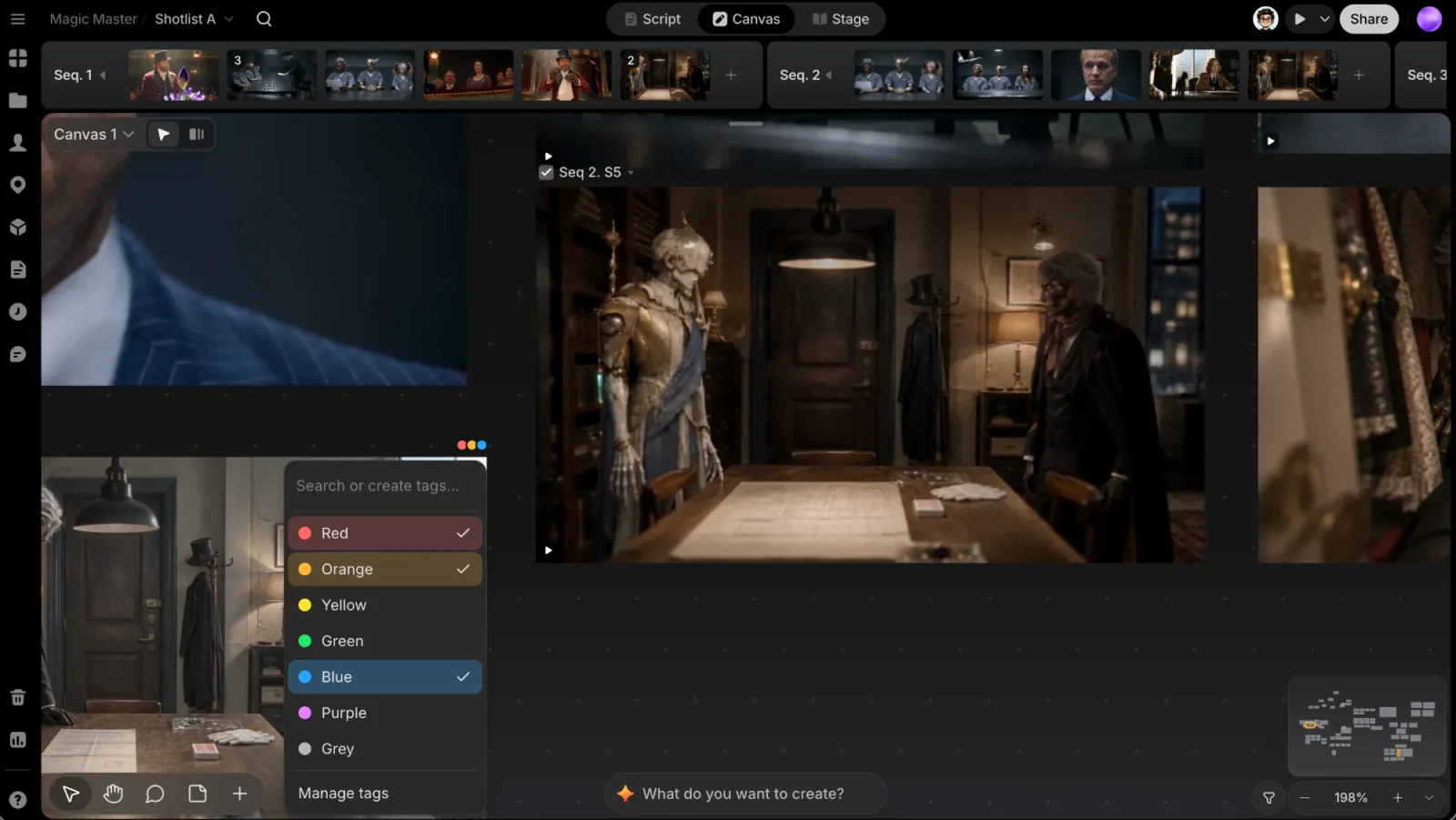
In the picker, click a tag to add it; a tick marks the tags the file already has, and clicking a ticked tag removes it. With several files selected, the picker tags them all.
Create a tag on the spot
Type into the picker's Search or create tags... field. If no tag matches, a Create "<name>" row appears; click it or press Enter. The new tag gets the next unused color, which you can change later. Once a project has 10 tags, the Create row no longer appears.
Manage all tags
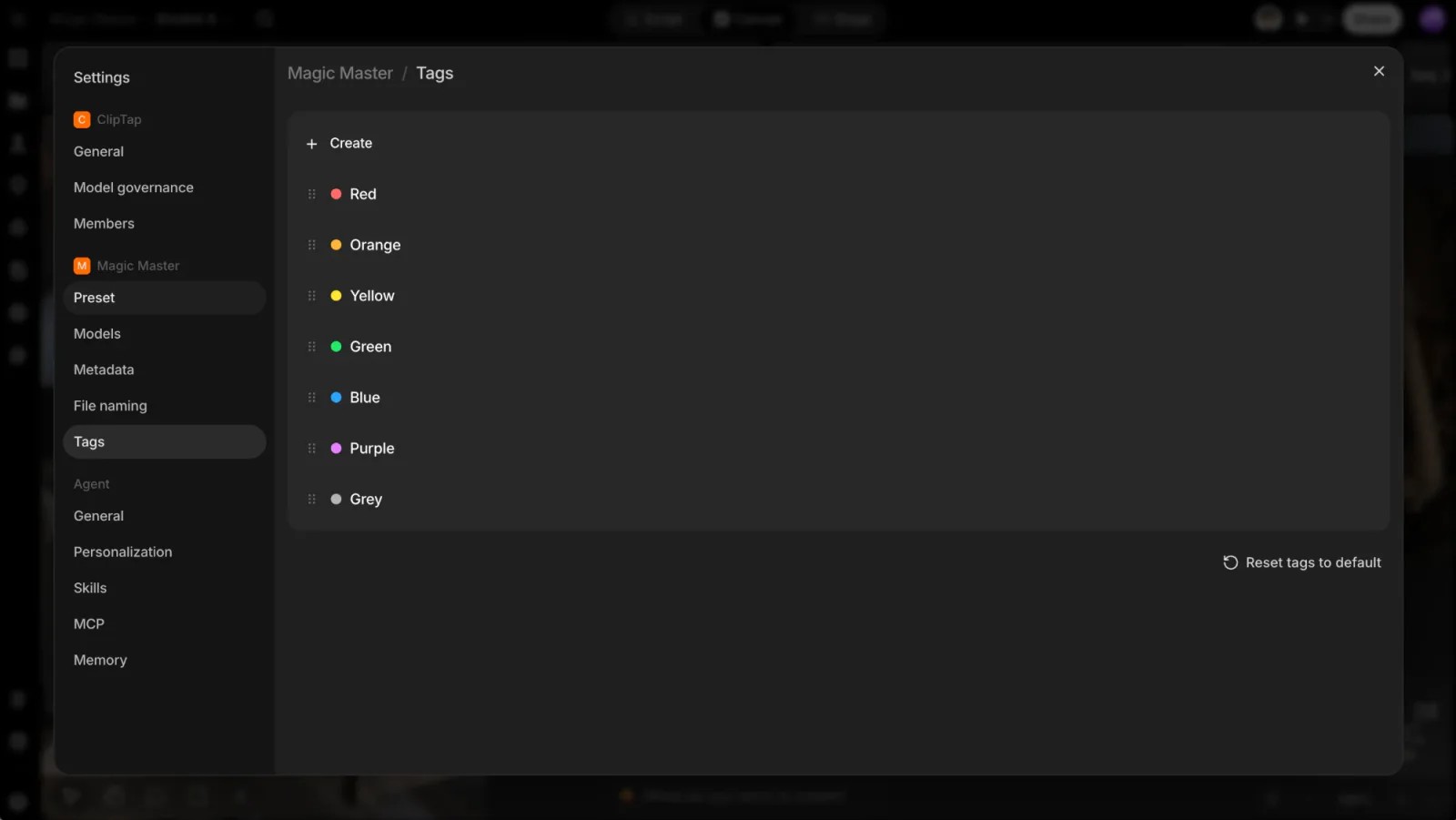
Click Manage tags at the bottom of the picker. It opens Project settings on Tags (you can also get there from the Project menu or Settings). Here you can:
- Reorder tags by dragging their rows.
- Recolor a tag: click its color dot and pick one of seven colors (Red, Orange, Yellow, Green, Blue, Purple, Grey).
- Rename a tag: click its name, type, and press Enter.
- Create a tag: click Create, type a name into Enter name… and Save (or Cancel). The button is disabled once the project has 10 tags.
- Delete a tag: hover its row, click the trash icon, then Yes, Delete in the row (or Cancel). The tag is removed from every file that had it.
Reset tags to default, below the list, replaces all of the project's tags with the original seven.
Reset tags to default deletes every tag and clears tags from all files in the project, with no confirmation step. Use it only when you want to start over.
The picker itself has no rename or delete options; all editing happens here.
Filter by tag
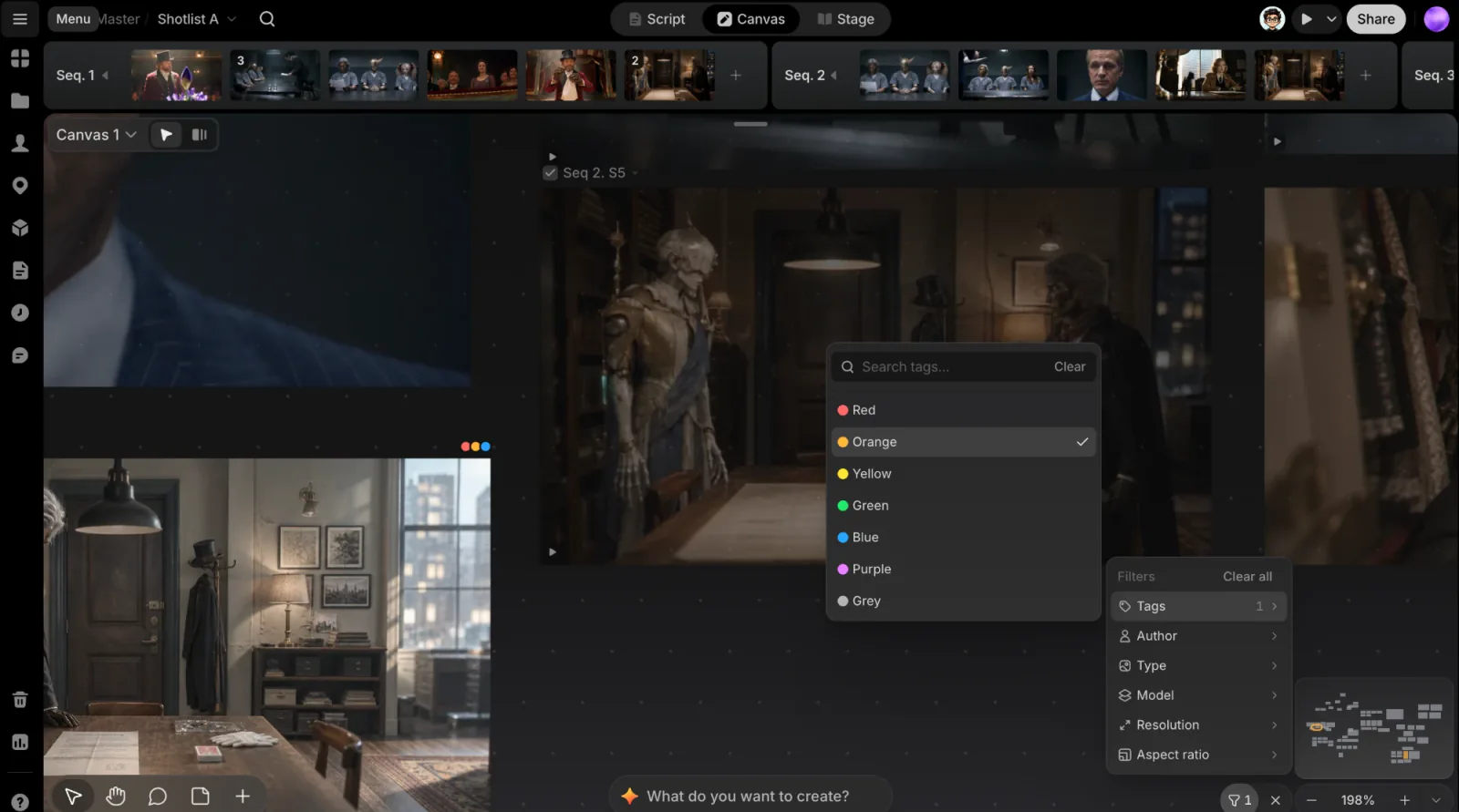
Click the funnel (Filter) at the bottom right of the canvas, beside the zoom controls, hover Tags, and pick one or more tags. Picking several tags shows files with any of them; combining Tags with another filter, such as Model or Type, shows only files that match both.
- On the canvas, files that don't match are dimmed, so you keep your place.
- In Files view, files that don't match are hidden.
Clear all removes every filter. ClipTap remembers your filter for each project. See Filter for the other filters.