ClipTap Space
A Mac app that puts your projects on a drive, so your editor opens a Shotlist with every take in place and media downloads only as you play it.
ClipTap Space is a desktop app for macOS. Your projects appear as a drive in Finder, with every take named and ordered by your Shotlist. Premiere Pro, Final Cut Pro, DaVinci Resolve and CapCut (剪映) open the project as it is, alternate takes and all, and media downloads only as it plays. There's nothing to download, sort or relink by hand.
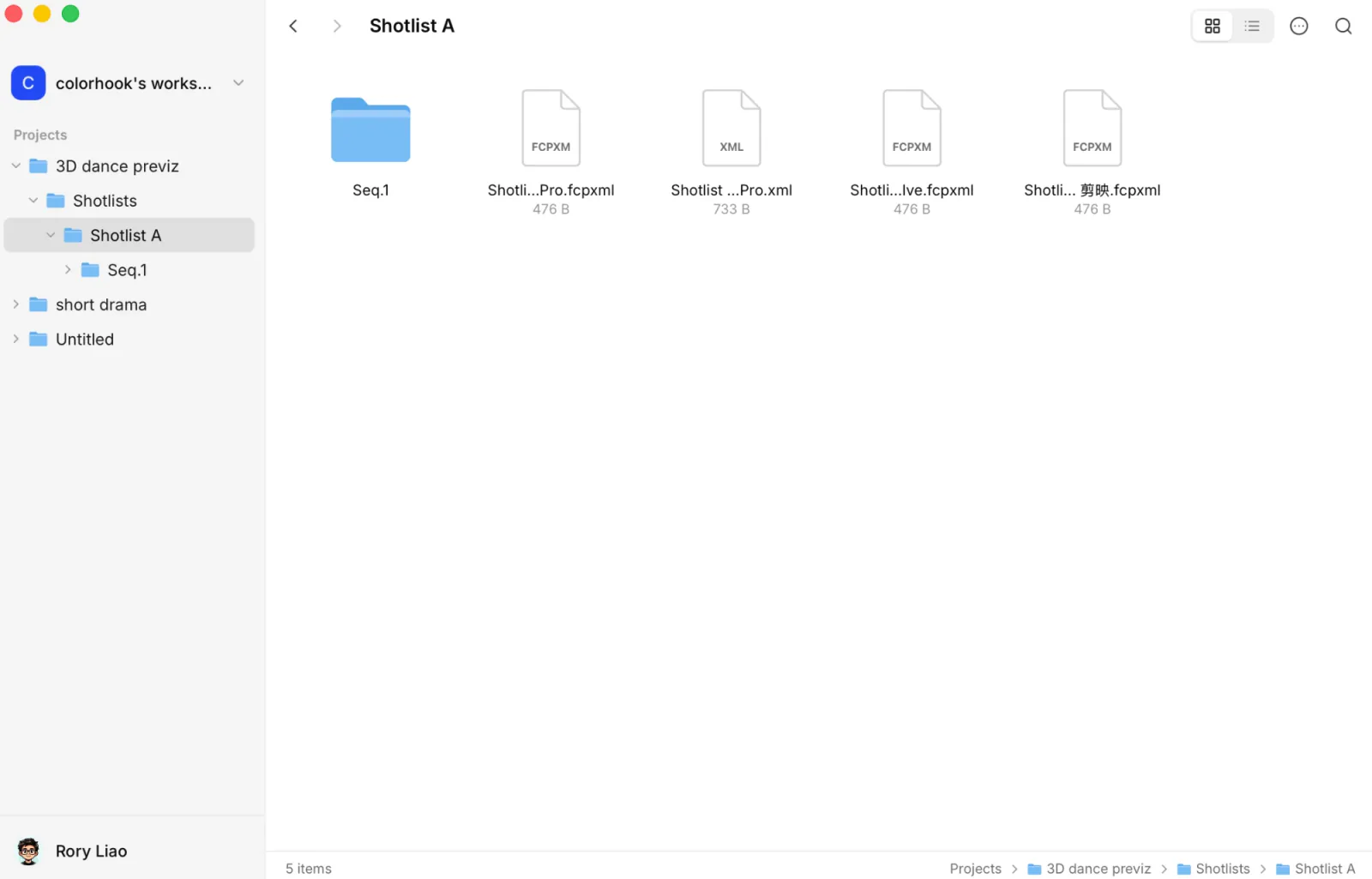
What it gives an editor
- Takes in shot-list order. Each Shotlist is a folder of sequences and shots, with every take named and ordered by your Shotlist.
- A project file per editor. Every Shotlist folder holds a ready project for each editor, carrying the selected takes, the alternates and the handles you choose.
- Light on disk. Only the parts of a file you play are downloaded and cached, so the drive never fills your disk. Folders you keep offline stay on your Mac.
- Always current. Changes made in ClipTap, such as a new take or a reordered shot, show up on the drive within seconds. The drive is read-only: you edit in your editor, and change the project in ClipTap.
Install
Download it
Open the ClipTap home page and click Download ClipTap Space. The app runs on a Mac with Apple silicon and macOS 26 or later.
Move it to Applications
Open the downloaded disk image and drag ClipTap Space to Applications, then open it from there. Run from the disk image, it can't update itself.
Sign in
Start in the app
On the welcome screen, click Sign in with your browser. The app shows a code, and your browser opens the Connect a device page of ClipTap.
Approve in the browser
Sign in to ClipTap if you aren't already. Check that the page shows the same code as the app, then click Approve. The page says Device connected, and you can close the tab.
Wait for the drive
The app prepares your drive and reads your projects. When it's ready, the drive is mounted in Finder and at ~/Movies/ClipTapSpace.
The drive shows one workspace's projects at a time. If you belong to several, switch under Organization in the app's General settings. Projects already in an editor keep finding their media when you switch.
Open a Shotlist in your editor
- Press ⌥Space to open the ClipTap Space search bar, and choose Open a Shotlist in….
- Pick the Shotlist. Each one shows how many of its shots have a selected take.
- Pick your editor. ClipTap Space writes the project and opens it there.
In the app window, the Action menu of a project has Open a Shotlist in an Editing App…. You can also open a project file from the Shotlist's folder in Finder yourself.
Some editors import a project rather than open it. In that case ClipTap Space shows the file in Finder and tells you which menu to use.
Settings
Open Settings… from the app's menu.
- General: Other takes sets how a shot's alternates come into your editor: Selected only, Stacked (on the tracks above, switched off), or Auditions in Final Cut Pro. Handles (frames) leaves unused frames at each end of a clip for trims and transitions. Open at login keeps the drive ready after a restart. You can also set the language here.
- Storage: choose the Cache size, Clear cache, and turn Fetch timelines opened in an editor on or off. With it on, the clips of a Shotlist you open download in the background, so playing and scrubbing read from your Mac.
- Keep a folder offline: select it in search and press ⌘P, or right-click a file or folder in the app window and choose Keep Offline.
Updates download by themselves; the app asks you to restart when one is ready.
ClipTap Space is for macOS. On another computer, use Export to download the Shotlist as an FCPXML timeline with its media.