Command Palette & shortcuts
Open the command palette to jump anywhere, find a shot, scene, Library entry or take, and act on your selection, plus every keyboard shortcut in one place.
Press ⌘K (CtrlK on Windows) anywhere in a project, in Script, Canvas, or Stage, or click the search button in the top bar (Open command palette). Type in Search or write a command..., move with ↑ ↓, and press ↵ to run the highlighted command. If nothing matches, the palette says No results found.
The palette adapts to your selection. With nothing selected it shows ways to move around, the canvas tools, and zoom. Select one file or several first, and the actions for them come first, under a chip that names what you picked (Image take, Video take, Audio take, or "<n> takes").
Most commands also work as direct keyboard shortcuts, no need to open the palette first. The full list is at the end of this page.
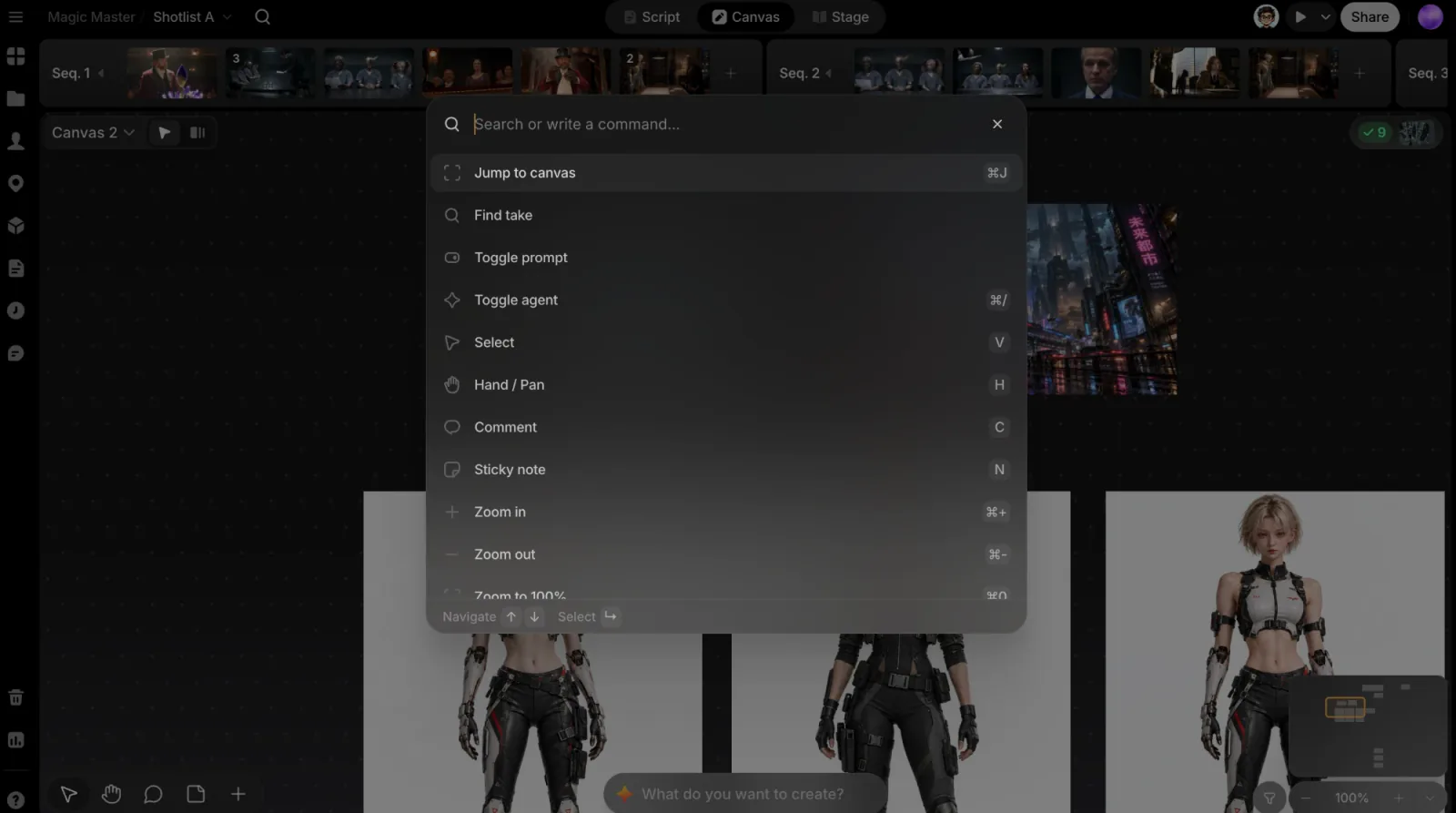
Jump around
| Command | Shortcut | What it does |
|---|---|---|
| Jump to canvas | ⌘J | Lists the project's canvases (the open one is marked current). Pick one to go there |
| Find take | — | Search the project's takes; see below |
| Toggle prompt | — | Shows or hides the prompt box |
| Toggle agent | ⌘/ | Opens or closes the ClipTap Agent |
Find shots, scenes and Library entries
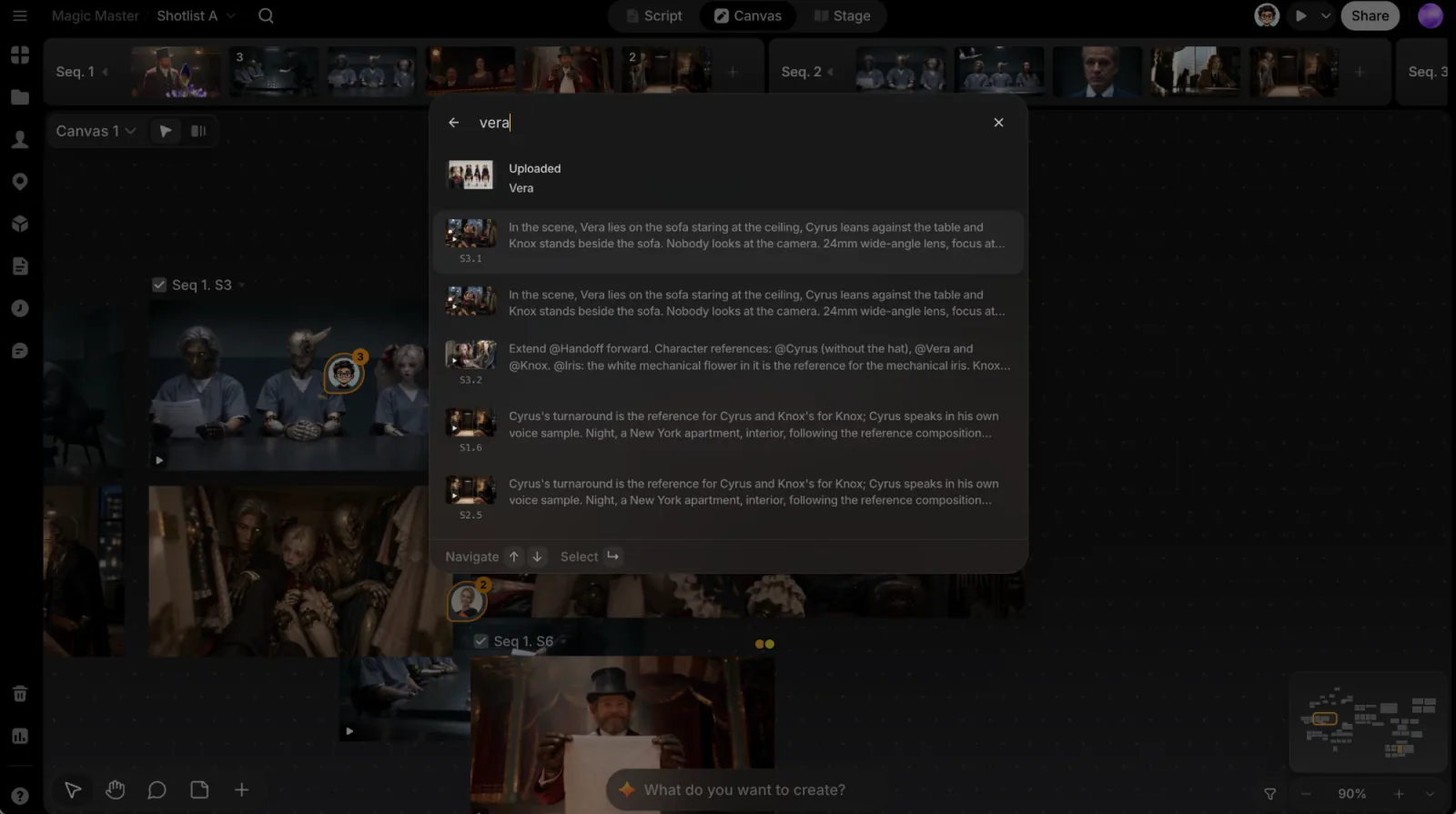
From two characters on, the project's shots, sequences, script scenes, and Library entries (characters, locations, props) that match what you typed show up under the commands, each with its kind on the right. Names come first: type a shot's title, a character's name, or a scene heading and it's at the top. With semantic search on, things that mean the same follow.
| Result | Opens |
|---|---|
| Shot (shown as S2.3) | The shot's page on Stage, on its Shotlist |
| Sequence (S2) | Stage's shots on that Shotlist |
| Scene | Its episode in Script; the result shows the line of the scene that matched |
| Character / Location / Prop | The entry's page in the Library |
Takes are not in this list: use the Find take row below it.
Find a take
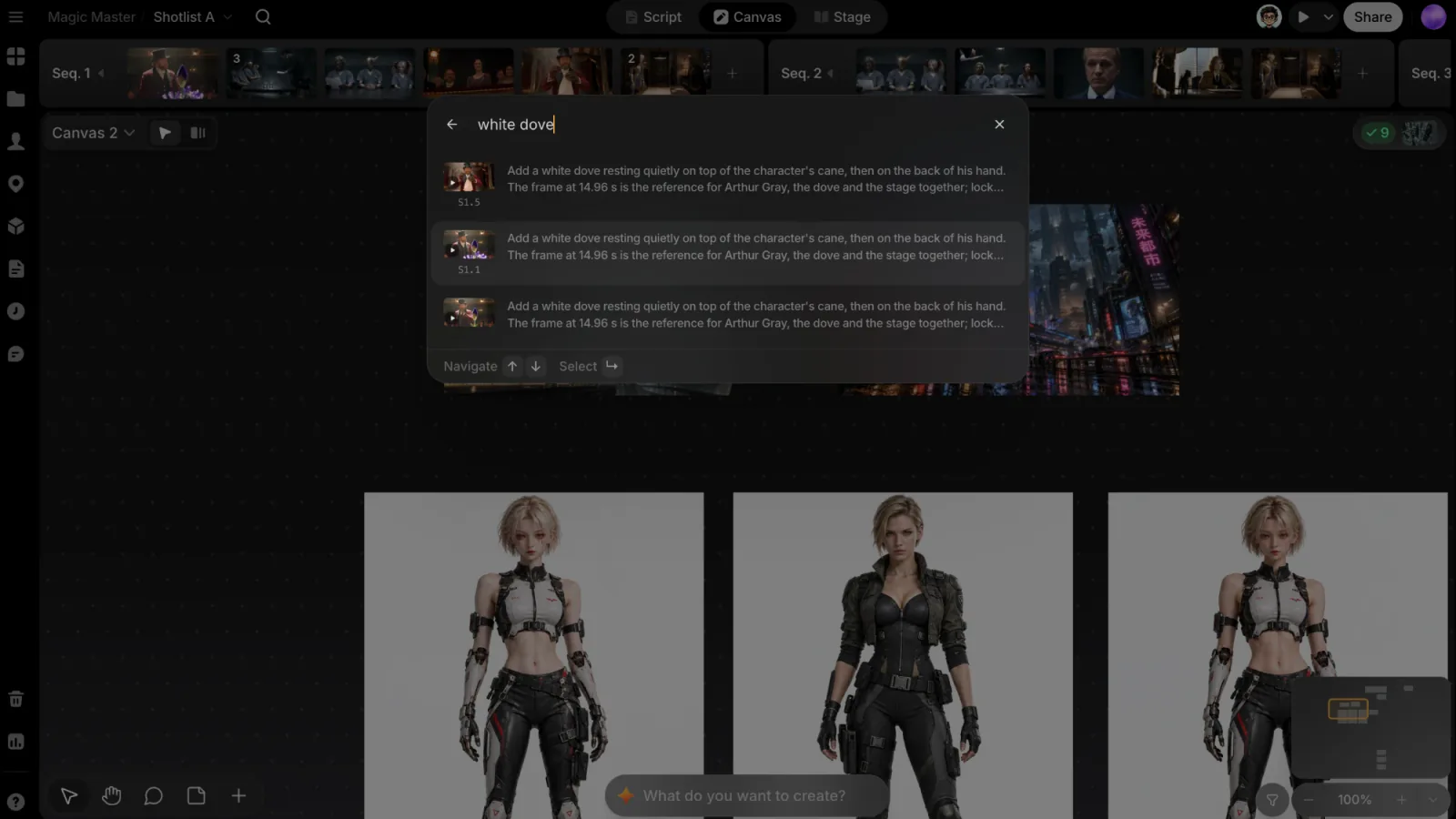
Pick Find take, or just start typing: from two characters on, the last row offers Find take ‘<what you typed>’. Either way you land on the take search, Search takes by prompt, style, content....
- It finds the project's takes by their prompt, visual style, and what's in them. Audio takes (voice-overs, music, sound effects) are found by their prompt or file name; type a word like audio, voice, or music to put them first.
- Paste a take's id and the row becomes Jump to take <id>, which finds that exact take.
- Pick a result to go to its canvas with the take in view. A take that isn't on a canvas opens in File view.
Canvas tools and view
| Command | Shortcut |
|---|---|
| Select / Hand / Pan / Comment / Sticky note | V / H / C / N |
| Zoom in / Zoom out | ⌘+ / ⌘− |
| Zoom to 100% / Zoom to fit | ⌘0 / ⇧1 |
| Undo / Redo | ⌘Z / ⌘⇧Z |
With one file selected
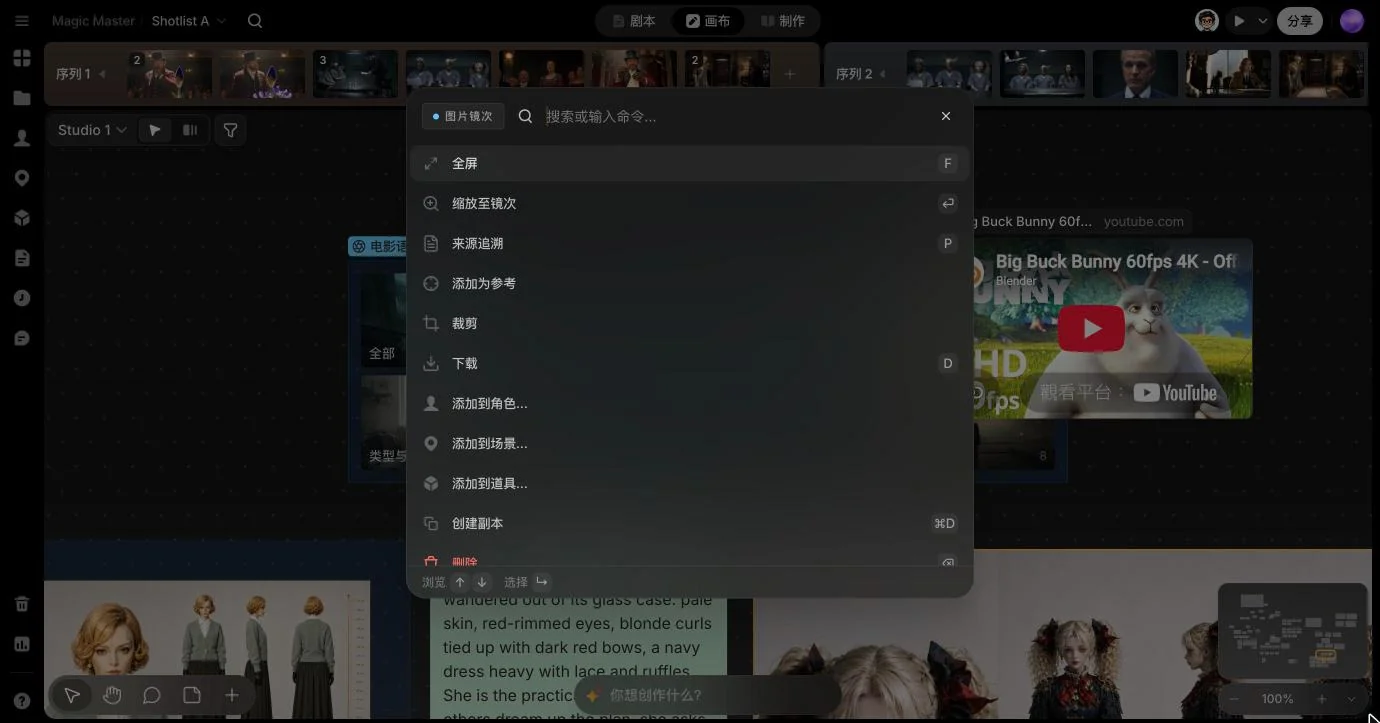
Select a file, then open the palette. Its actions come first:
| Command | Shortcut |
|---|---|
| Fullscreen (opens File view) | F |
| Zoom to take | ↵ |
| Copy prompt (when the file has one) | ⇧C |
| Provenance (File view on the file's provenance graph) | P |
| Add as reference | — |
| Crop (images on the canvas) | C |
| Download | — |
| Add to a character… / Add to a location… / Add to a prop… | — |
| Duplicate | ⌘D |
| Delete | ⌫ |
With several files selected
| Command | Shortcut |
|---|---|
| Fullscreen (File view on the first one) | F |
| Group (on the canvas) | ⌘G |
| Download all | — |
| Add to a character… / Add to a location… / Add to a prop… | — |
| Duplicate | ⌘D |
| Delete | ⌫ |
On the canvas, Delete takes the files off this canvas right away, with no confirmation. Press ⌘Z to bring them back. The files stay in the project and in Gen history; to move a take to the Trash, delete it from Gen history. Deleting a selected group also takes the files inside it off the canvas.
Search across all projects
Outside a project, on Home and Projects, ⌘K (or the Search pill in the sidebar) opens Search across all projects…. It finds takes (images, videos, and audio), shots, sequences, scenes, and Library entries (characters, locations, props) across your projects. Scene results search your script text, show the matching line, and open that episode in Script.
Keyboard shortcuts
On Windows, use Ctrl wherever you see ⌘, and Alt for ⌥. Single-key shortcuts don't fire while you're typing in a field.
Everywhere in a project
| Key | Action |
|---|---|
| ⌘K | Open the command palette |
| ⌘J | Jump to a canvas |
| ⌘. | Open the Comments panel, or close whichever side panel is open |
| ⌘/ | Open or close the Agent |
| ⌘⇧P | Play the Shotlist in a new tab |
| Esc | Close the Agent, the player, or an open menu |
Canvas
| Key | Action |
|---|---|
| V / H / N | Select / Hand / Sticky note tool (Esc goes back to Select) |
| C | Comment tool (with one file selected: Crop) |
| ⌘+ / ⌘− | Zoom in / out |
| ⌘0 | Zoom to 100% |
| ⇧1 | Zoom to fit |
| ⌘Z | Undo |
| ⌘⇧Z or ⌘Y | Redo |
| ⌘A | Select all |
| ⌘C / ⌘V | Copy / paste the selection |
| ⌘D | Duplicate the selection |
| ⌘G | Group the selected files (two or more) |
| ⌘⇧G | Ungroup the selected group |
| F | Open the selected file in File view |
| P | Open File view on the file's provenance |
| ↵ | Zoom to the selected take |
| ⇧C | Copy the selected file's prompt |
| Delete / Backspace | Take the selection off the canvas (a group takes its files with it) |
| Esc | Close the open menu, then clear the selection |
File view
| Key | Action |
|---|---|
| ← / → | Step between the shot's takes (while comparing: move the divider) |
| ⌘ + scroll | Zoom the image |
| Esc | Close File view |
Script editor
| Key | Action |
|---|---|
| ⌘⌥1 – ⌘⌥8 | Switch the current block's type, in format-bar order |
| Tab / ⇧Tab | Change the current block's type forward / back |
| Enter | Continue with the natural next block |
| Space @ | Insert a character or asset |
| ⌘Z / ⌘⇧Z | Undo / redo, including the Agent's last write to this episode |
See Scripts for how the block types flow into each other.