Comments
Leave comments on the canvas or in File view so collaborators can review work in context.
Use comments when feedback is about something specific, a file or a spot on the canvas, and needs to stay attached to it instead of getting lost in a chat message or email. Everyone in the project sees the same threads: on the canvas, in the Comments sidebar, and in File view.
Add comments on the canvas
Click Comments in the toolbar at the bottom of the canvas, or press C with no single file selected. (With one file selected, C crops it instead.) The cursor becomes a pin.
- Place anywhere: click empty canvas to drop a free comment, or click a file to pin the comment to it. The file is outlined while you hover it.
- Write: type in Write your comment... and click Send comment. Use Add emoji for emoji and Attach image (the paperclip) to add a picture. A picture with no text is a valid comment.
- Choose who sees it: the visibility picker sets the comment to Public, Internal, or Client.
- Keep going: the comment tool stays on after you send, so you can drop the next pin right away. Esc backs out one step at a time: first the draft, then the open thread, then back to the Cursor tool.
A comment pinned to a file moves with the file wherever it goes on the canvas. Drag a pin to attach it to another file, or onto empty canvas to free it. While you use the comment tool, collaborators see your pointer shaped like a pin.
Draw on files
When the comment is pinned to a file, click Annotate in the composer. The camera zooms to fit the file, and you get the Draw, Arrow, Line, and Box tools, plus a Drawing color dot with 7 colors. Press ⌘Z (CtrlZ on Windows) to undo a stroke, and Close annotation tools when you're done. Drawings are canvas-only; they don't appear in File view.
Reply, react, and resolve
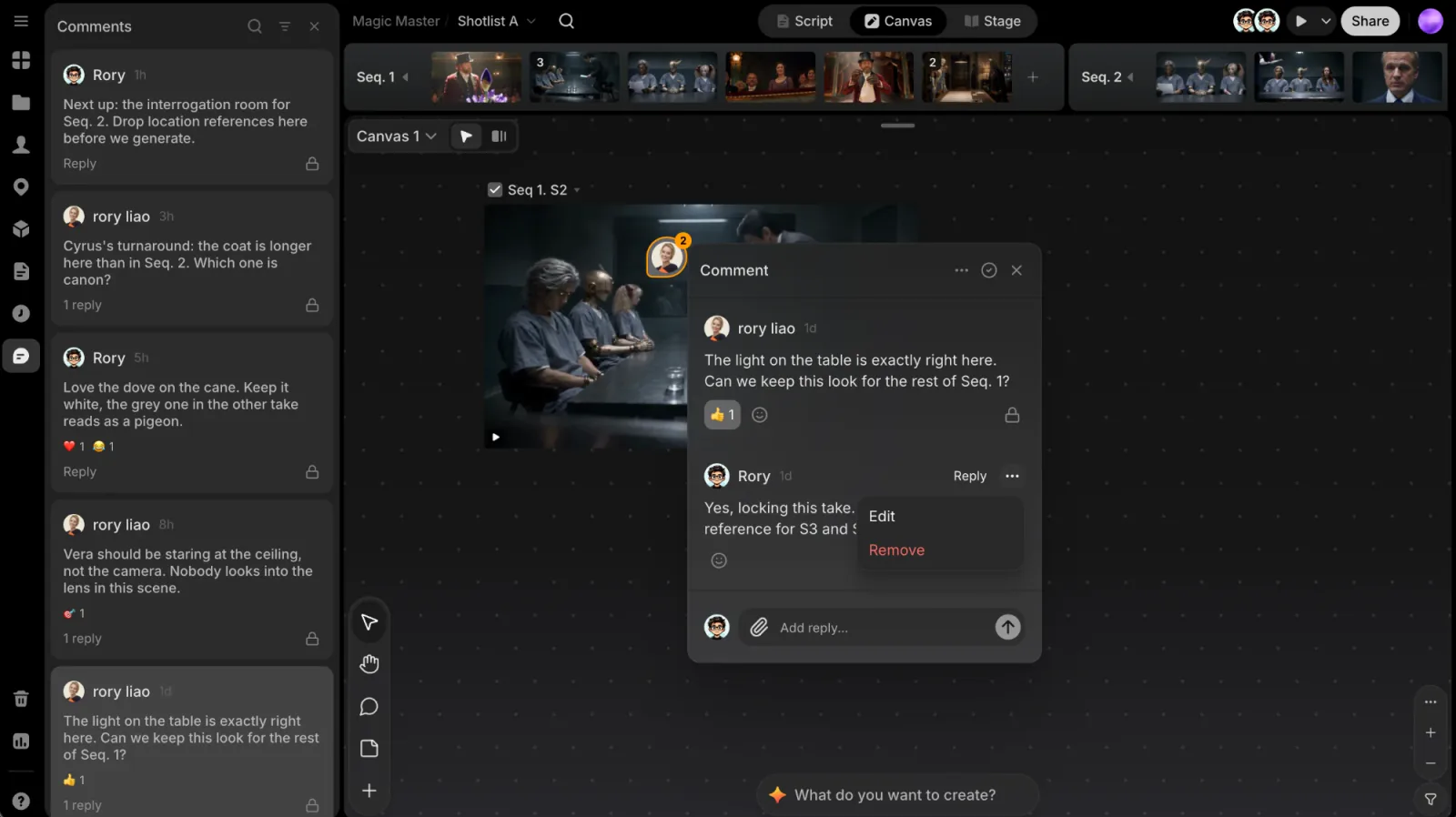
Click a pin to open its thread. Resting on a pin without clicking shows a small preview with the first line and the reply count. Pins that overlap merge into a numbered disc; click it to zoom in.
In a thread you can:
- Reply in Add reply..., with an optional image. Reply to a specific message to nest your answer under it (Replying to <name>, with Cancel).
- React with Add reaction; reactions show as emoji chips with a count.
- Edit or Remove your own messages from their menu.
- Mark as resolved when the feedback is handled, or Reopen thread to bring it back. Resolved threads leave the canvas but stay in the sidebar.
- Delete thread from More options. ClipTap asks you to confirm, and it can't be undone.
Review comments in the sidebar
Click Comments in the left rail (or press ⌘.) to open the Comments sidebar. It lists every thread in the project, so you can review the discussion and jump back to it.
- Search comments finds threads by text.
- Filter and sort comments narrows the list by Status (All, Open, Resolved) and Visibility (All, Public, Internal, Client), and sorts it by Recent, Status, or Sequence order. Mentions keeps only comments that contain an @.
- Click a card to move the camera to its pin and open the thread. A card's menu can Mark as resolved / Mark as open or Delete thread.
- Comments left by reviewers through a review link carry a Review link badge.
New comments are written on the canvas or in File view; the sidebar is for reading and managing them.
Add comments in File view
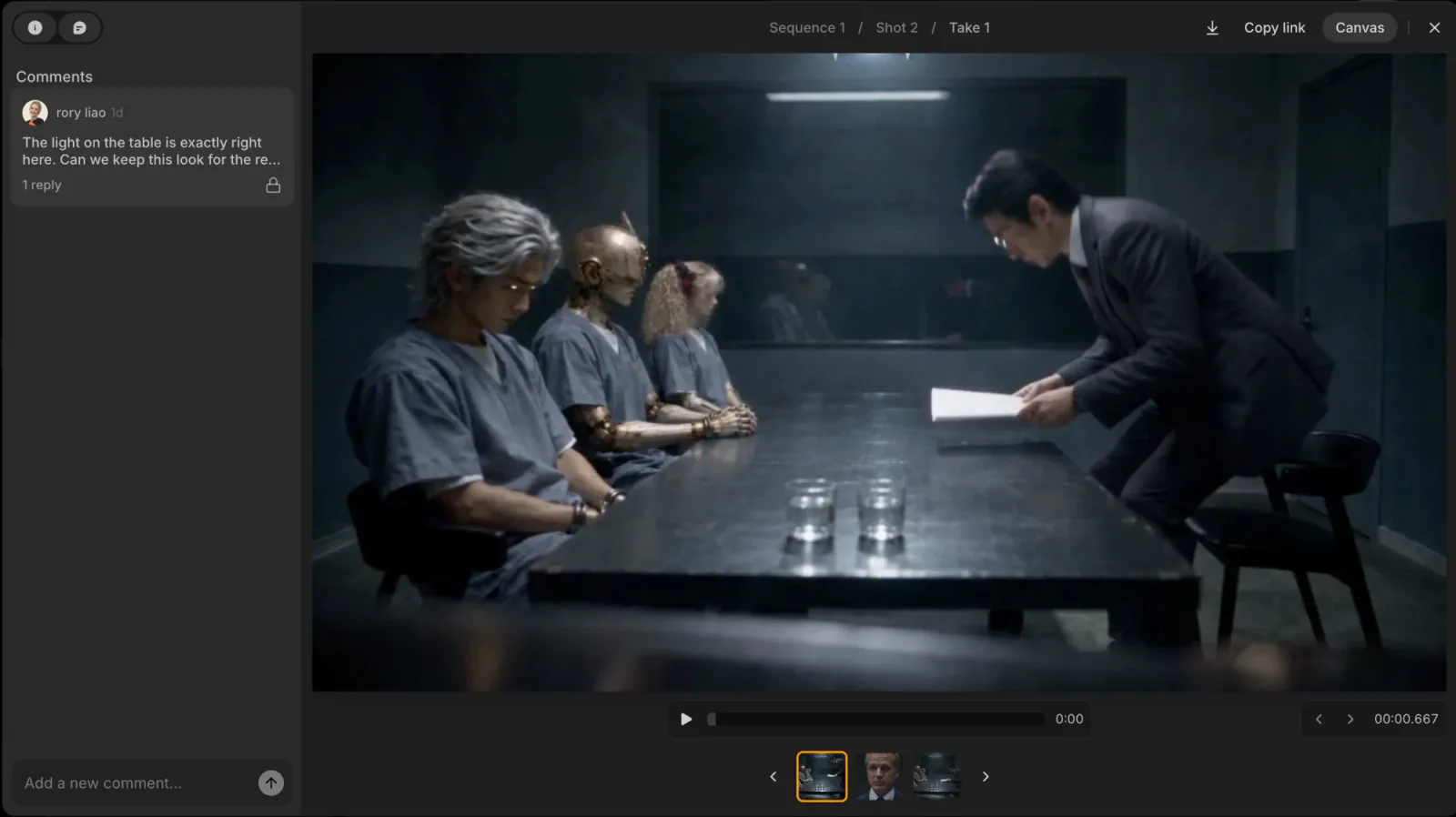
Comments work in File view too, for review focused on one file at a time. Open a file (double-click it or press F) and switch its panel to the Comments tab. The cursor becomes a pin: click anywhere on the image to drop a pinned comment, or type in Add a new comment... at the bottom. Threads have the same replies, reactions, and resolving as on the canvas.
Pins stay in sync both ways: a pin dropped in File view shows on the canvas too, and the other way round.
Use canvas comments for spatial feedback and drawings, and File view comments for close review of a single file.