Sharing
Invite collaborators to a project, set what each person can do, and send a review link to people outside your workspace.
Share a project in two ways. Invite people by email and choose what each of them can do. Or create a Review link to the open Shotlist, so anyone you send it to can watch it and leave comments, with no account. Both live in the Share button at the top right of the project.
The Share panel has four parts:
- an invite field at the top;
- Members at <your workspace>: the access everyone in your workspace gets to this project by default;
- the people you've shared the project with one by one, including pending invitations;
- the Review link and its Password.
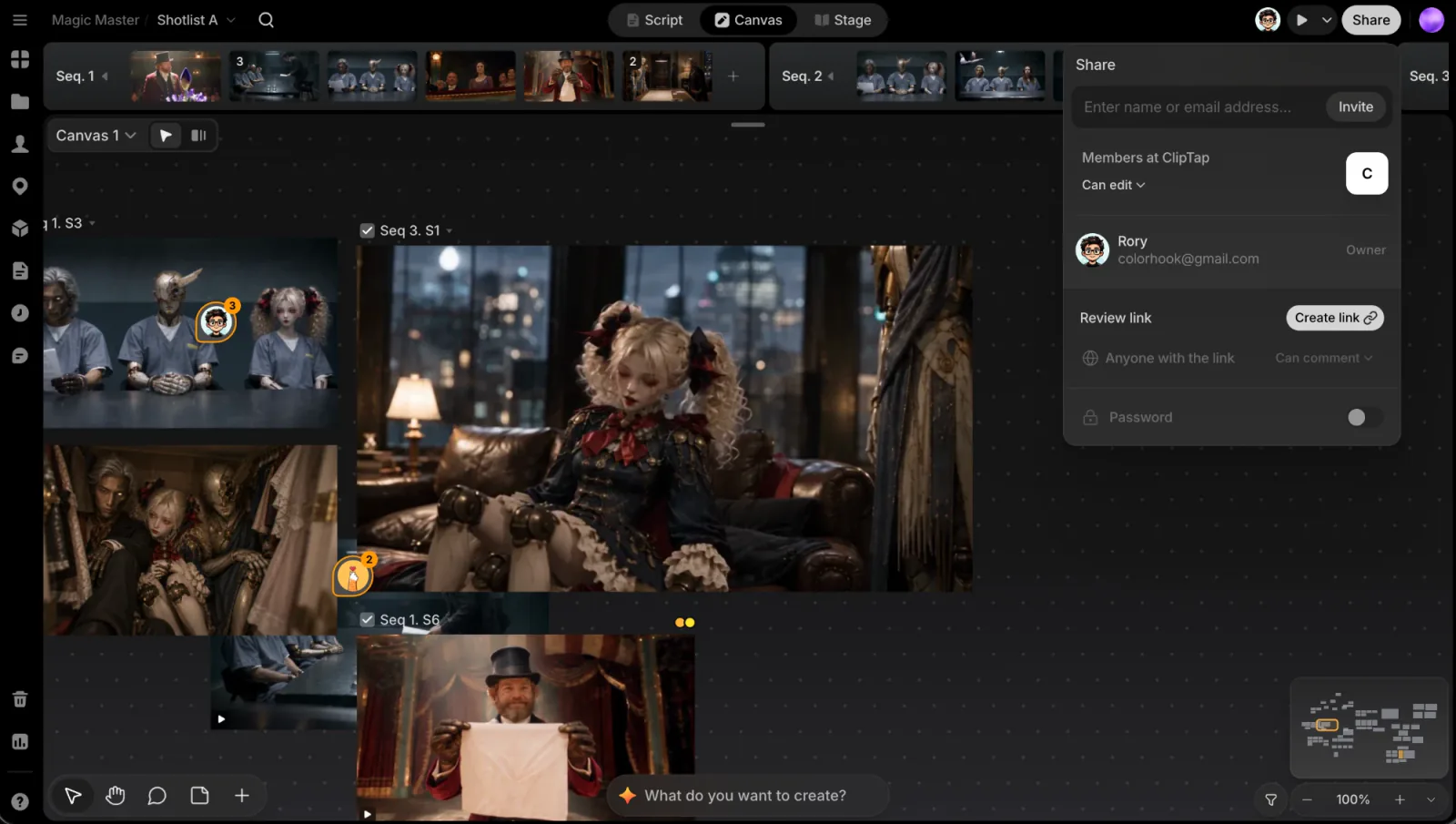
Invite a collaborator
Open Share
Click Share at the top right of the project.
Enter an email
Type an address into Enter name or email address... and click Invite.
Adjust their role
New collaborators start at Can edit. Change it from the menu next to their name.
What happens next depends on who you invited:
- Someone already in your workspace gets access right away and shows up in the list.
- Someone outside it gets an invitation email ("Invite sent to …"). They show as Invited · <role> until they accept.
Only people who can edit the project can invite others. Everyone else sees "Only editors can invite collaborators" in the field.
Roles
Each collaborator has one of three roles:
| Role | What they can do |
|---|---|
| Can edit | Work in the project: generate, arrange, write, and invite others |
| Can comment | View everything and leave comments |
| Can view | View the project only |
Pick Remove from project at the bottom of the same menu to take someone off the project. The Owner row can't be changed.
Members at your workspace
The Members at <workspace> row sets the default for everyone in your workspace: Can edit (the default), Can comment, Can view, or No access. Only the project's owners can change it.
How the rules combine:
- Workspace Owners and Admins always have full access to every project.
- If you've shared the project with someone directly, their own role wins, whether it gives them more or less than the workspace default.
- Otherwise, members get the workspace default, capped by their workspace role. A workspace Viewer never gets edit access this way.
- Guests only see projects shared with them.
Workspace roles and members are covered in Workspaces & team.
Invitations
An invitation email carries a link to join the project. Links are valid for 7 days.
- The invitee needs a ClipTap account. If they aren't signed in, the link sends them to sign in first, then brings them back. When it works, they see Invitation accepted.
- If they sign in with a verified email (Google sign-in, or after confirming the verification link), their pending invitations are accepted automatically.
- Someone from outside your workspace who accepts joins it as a Guest, and sees only the projects shared with them. Their row reads "<email> · Guest".
For a pending or expired invitation, open the menu on its row:
- Resend invitation sends a fresh link, valid for another 7 days.
- Revoke invitation cancels it.
If a link has run out, the invitee sees "This invitation is invalid or expired." Resend it from the Share panel.
Review links
A review link shares one Shotlist, the one open in the project, with anyone who has the link. They don't need a ClipTap account and they can't open the rest of the project. Hover Review link to see which Shotlist it shares ("Shares <name>").
Create the link
In the Share panel, click Create link. The link is created and copied in one go. After that the button reads Copy link.
Choose what reviewers can do
The Anyone with the link row has a menu: Can comment (the default) or Can view.
Add a password (optional)
Turn on Password, type one, and click Set. Reviewers then have to enter it before they see anything. Turn the switch off to remove the password.
To stop sharing, pick Turn off review link from the Anyone with the link menu. The link stops working right away.
Only people who can edit the project can create, change, or turn off a review link. Each Shotlist has its own link.
What reviewers see
The link opens a review page for the Shotlist. If it has a password, the page asks for it first (Password required).
- Gallery (the default) plays the Shotlist as one story: each shot's chosen take in order, with the shot's name and status under the picture and the sequences in a filmstrip below.
- List shows the shots as rows with their preview, title, status, shot type, description, duration, and characters.
- Grid shows the shots as cards.
With Can comment, reviewers open Comments, pick a shot in Gallery, and write. They can pin a comment to a point on the picture, attach images, add emoji, and reply. The first time they post, they're asked to Add your name, which then shows next to their comments. With Can view, the panel says "This review link is view only".
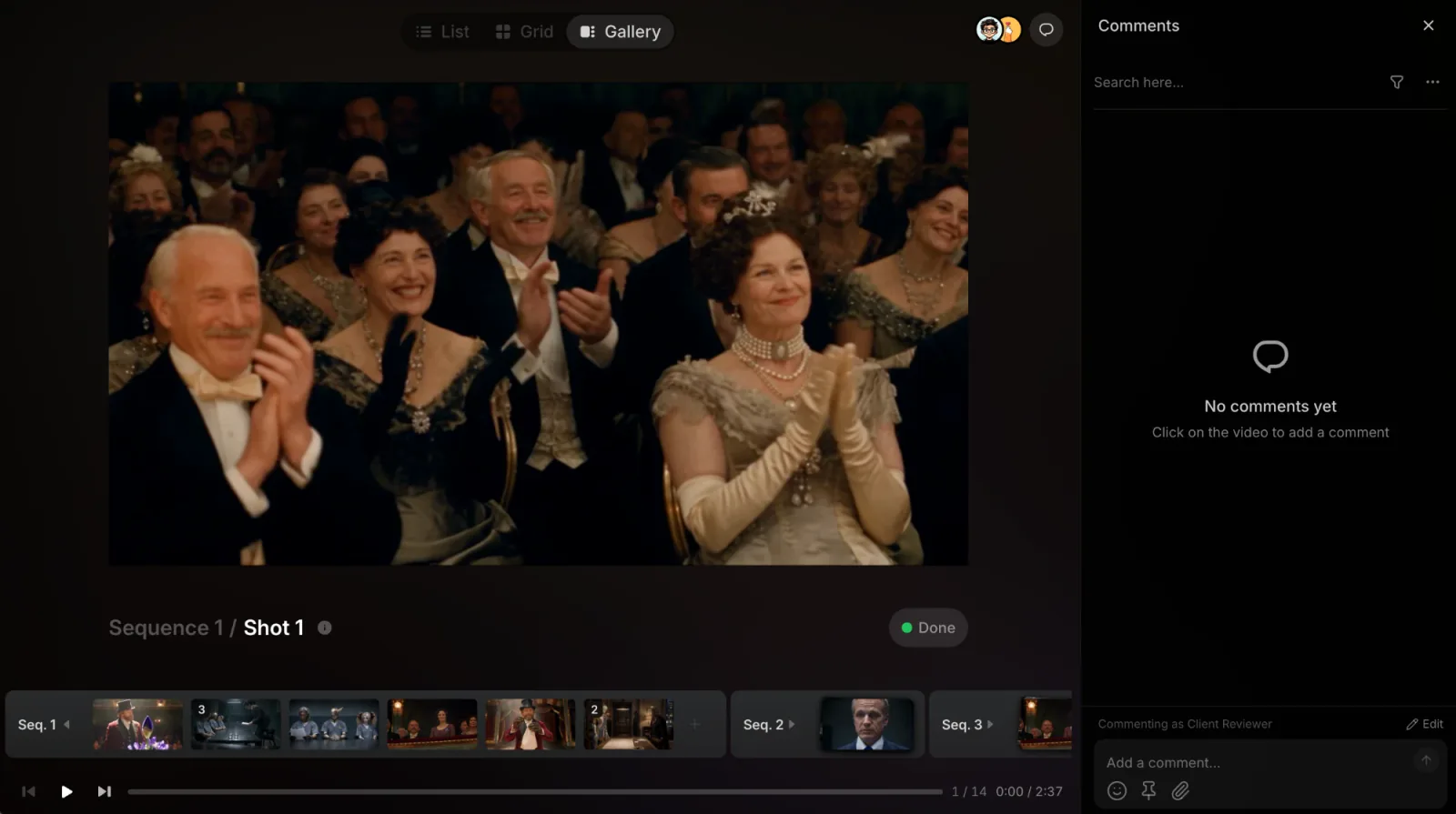
Reviewers' comments land in the project's Comments panel. Filter by Review link to see only theirs.
What sharing doesn't share
Your ClipTap Agent chats are private. Sharing a project gives people its canvases, Scripts, Shotlists, and files, but not your Agent conversations. A review link shares even less: one Shotlist's shots and the comments on them.