Settings
One dialog for your workspace, the project you're in and your Agent, with what each page holds and who can change it.
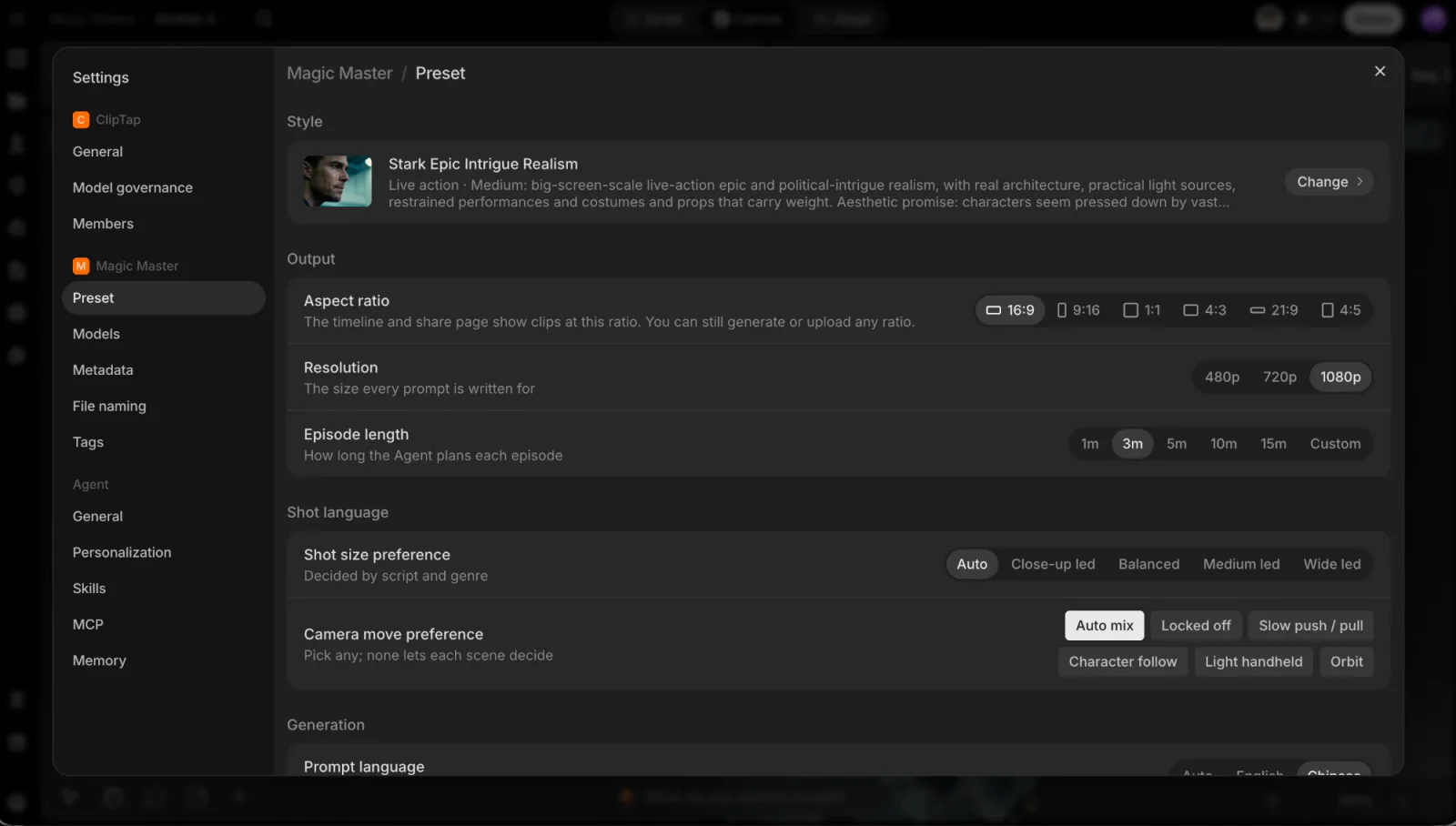
ClipTap keeps every setting in one Settings dialog. Its left column has up to three groups:
- Your workspace (shown by its name): General, Model governance and Members.
- The project you're in (shown by its name, only when you open Settings inside a project): Preset, Models, Metadata, File naming and Tags.
- Agent: General, Personalization, Skills and MCP.
Your own account is a tab of the workspace's General page.
Open Settings
Settings opens on the page that fits where you are:
| Where you click | Opens on |
|---|---|
| Settings in the dashboard sidebar | Workspace › General, Workspace tab |
| Account settings in your account menu | Workspace › General, Account tab |
| Menu › Settings inside a project | Project › Preset |
| The settings button in the Agent panel › More settings | Agent › General |
| Manage tags in a file's tag picker | Project › Tags |
| Change beside Filename in Export settings | Project › File naming |
| Manage in the Agent's Skills picker | Agent › Skills |
From there, click any page in the left column. The page you're on is part of the address, so a link you copy opens Settings on the same page.
Who can change what
- Workspace pages: the workspace's owners and admins. Everyone else can read them, under the note "Only the workspace's owners and admins can change these".
- Project pages: the project's owners and editors. Others see the note "Only the project's owners and editors can change these".
- Agent pages and your account: they're yours. What you set there applies to you, not to the rest of the team. Shared Skills and MCP connectors have their own rules; see Skills and ClipTap Agent.
- Guests see only their own account.
Workspace
General
The Workspace tab holds the Team name and the Logo (a square image, at least 256×256px).
The Account tab holds your own settings:
- Name, Profile picture, and the Email address or Mobile number you sign in with.
- Passkeys: sign in with Face ID, Touch ID, Windows Hello or a security key instead of a code. Click Add passkey to add one.
- Language: the language ClipTap's screens use for you, on every device.
- Danger zone: Leave workspace takes you out of the current workspace (not possible when it's your only one); an admin can invite you back. Delete account asks you to type DELETE. You're signed out and the account disappears at once, with every workspace you're the only owner of and its projects. Workspaces that have another owner stay with them. For 30 days only support can restore the account; after that it's deleted for good. Credits aren't refunded when you delete an account.
Model governance
Choose which models your team can use, grouped into Image, Video and Audio. Switch a model off and it stays in the model menu, locked and marked Turned off for this workspace, so nobody generates with it. A project can still allow it on its own Models page.
Members
The workspace's people and their credit caps, the same panel as Team in the dashboard sidebar. See Team and Member credit caps.
Project
These pages belong to the project you're in and apply to everyone working in it.
Preset
How the project looks and how its prompts are written. The Agent follows these settings whenever it writes a prompt card.
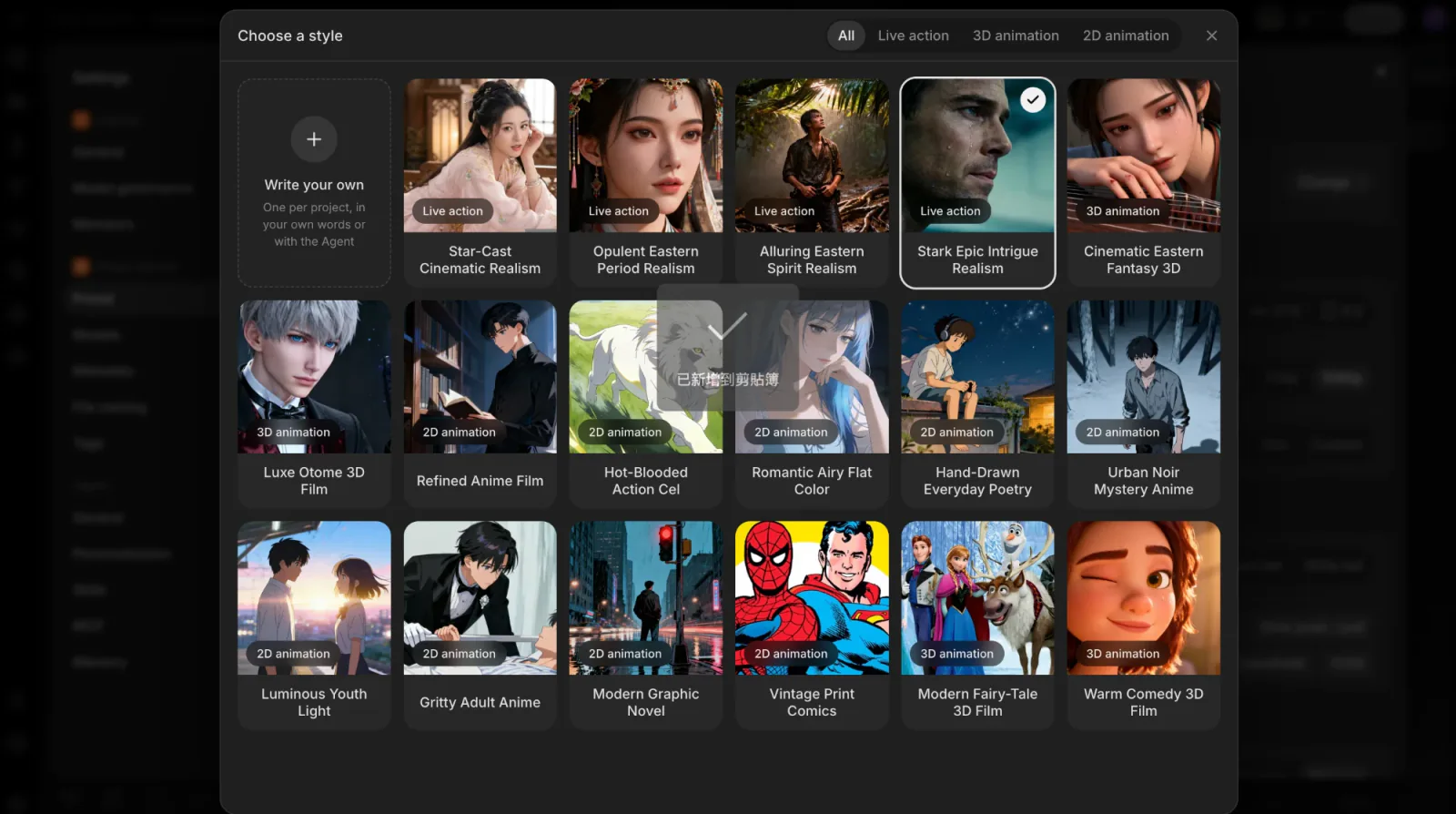
Style sets the look of every picture and video. Click Choose (or Change once a style is set) to open Choose a style: preset styles as pictures, filtered by All, Live action, 3D animation and 2D animation. Click one to use it.
Or click Write your own to describe the look in your own words in Own style: pick the Medium, write how the project should look (the faces and costumes, the places, the light and colour, what to avoid), then click Use this style. Write it with the Agent opens a chat where the Agent helps you write it. A project has one own style; saving again replaces it. To build the style through an interview or from pictures, see Project style.
When you change the style, prompt cards that haven't been generated yet are rewritten for the new look; cards that already have pictures are left as they are. If some of those waiting cards were edited by hand, ClipTap asks first (This rewrites prompts you edited), because the new style replaces your edits.
Output
- Aspect ratio: 16:9, 9:16, 1:1, 4:3, 21:9 or 4:5. The timeline and the share page show clips at this ratio; you can still generate or upload any ratio.
- Resolution: 480p, 720p or 1080p, the size every prompt is written for.
- Episode length: 1, 3, 5, 10 or 15 minutes, or Custom for anything up to 30. The Agent plans each episode to this length.
Shot language
- Shot size preference: Auto (decided by the script and genre), Close-up led, Balanced, Medium led or Wide led.
- Camera move preference: pick any of Locked off, Slow push / pull, Character follow, Light handheld and Orbit, or Auto mix to let each scene decide.
Generation
- Prompt language: Auto follows the script's language; or always English or Chinese.
- Storyboard sheets for complex shots: shots with three or more cuts, or two people in one cut, get a storyboard sheet before their video.
- Voices from takes: a character with a picture but no voice gets a voice taken from the first video they speak in.
Models
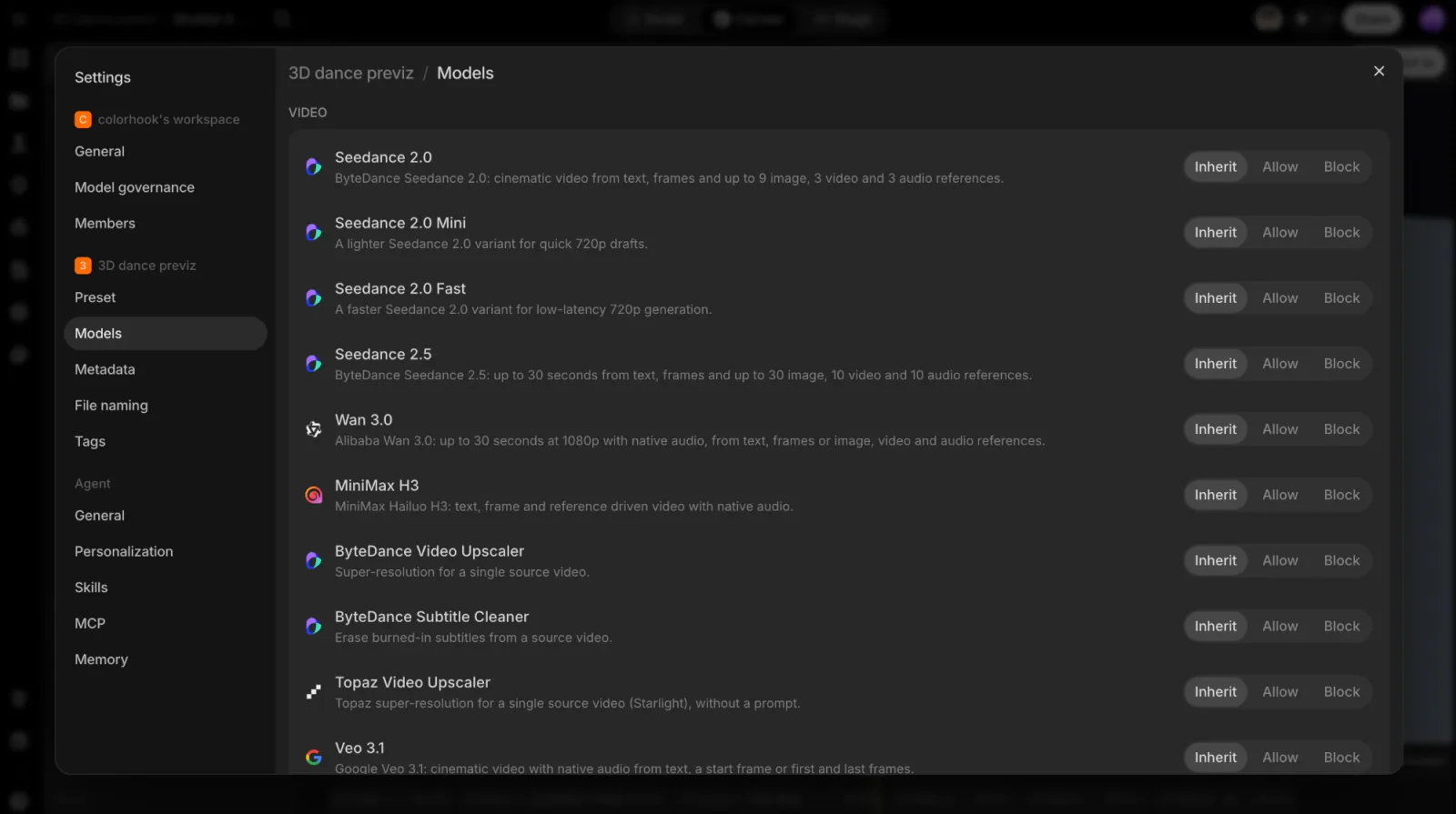
Override which models this project can use. Every model, grouped into Image, Video and Audio, has three choices, saved as you click:
- Inherit: follow the workspace's Model governance.
- Allow: available in this project, even if the workspace turned it off.
- Block: not available in this project.
Your default image and video models are personal; set them under Agent › General.
Metadata
The fields every shot carries on Stage: Shot type, Camera movement, INT/EXT, Location, Character, Dialogue, Duration, Due date, Notes and Description. Use Show field / Hide field to choose which appear, and drag fields to reorder them. Under Status, add, rename, recolour, reorder or delete the statuses, grouped into Not Started, To-do, Complete and Other.
Turn on Lock metadata so nobody on the team adds or removes fields; only admins can change locked metadata.
File naming
How files are named when you export a Shotlist.
- Filename template: type @ to add a field (Sequence, Shot, Take or Date). Anything you type between fields becomes a separator. Click a field to set how many Digits it's padded to, such as 001. Show raw format shows the template as plain text.
- Export preview: the folder tree your export will have, with the files named by your template.
- Reset to default puts the template back.
Tags
The project's tags, up to 10.
- Create adds a row: type the name (Enter name…) and save.
- Click a name to rename it, and the colour dot to recolour it. Drag a row to reorder.
- The bin icon asks Yes, Delete in the row itself.
- Reset tags to default brings back the starter set right away, with no confirmation, and takes tags off every file.
See Tags for tagging files and filtering by tag.
Agent
These pages are yours: they set how the ClipTap Agent works for you in every project.
General
- Confirmation: Ask means the Agent always asks before it generates. Auto means it works without stopping to ask; generations still wait for your confirmation.
- Default AI models: your own default Image model and Video model, used when you or the Agent don't pick another, and, inside a project, the Agent model that does the thinking.
Personalization
- Tone of voice: Direct, Clear, Neutral, Warm, Efficient or Detailed.
- Custom instructions: tell the Agent how you'd like it to respond. Changes save automatically.
Skills
Browse, create, edit and turn off the Skills the Agent can follow. See Skills.
MCP
Connect the Agent to other services over MCP, for you alone, for this project or for the whole workspace. See ClipTap Agent.