Scripts
Write, import and develop your screenplay in the Script tab, with your Library and the ClipTap Agent built in.
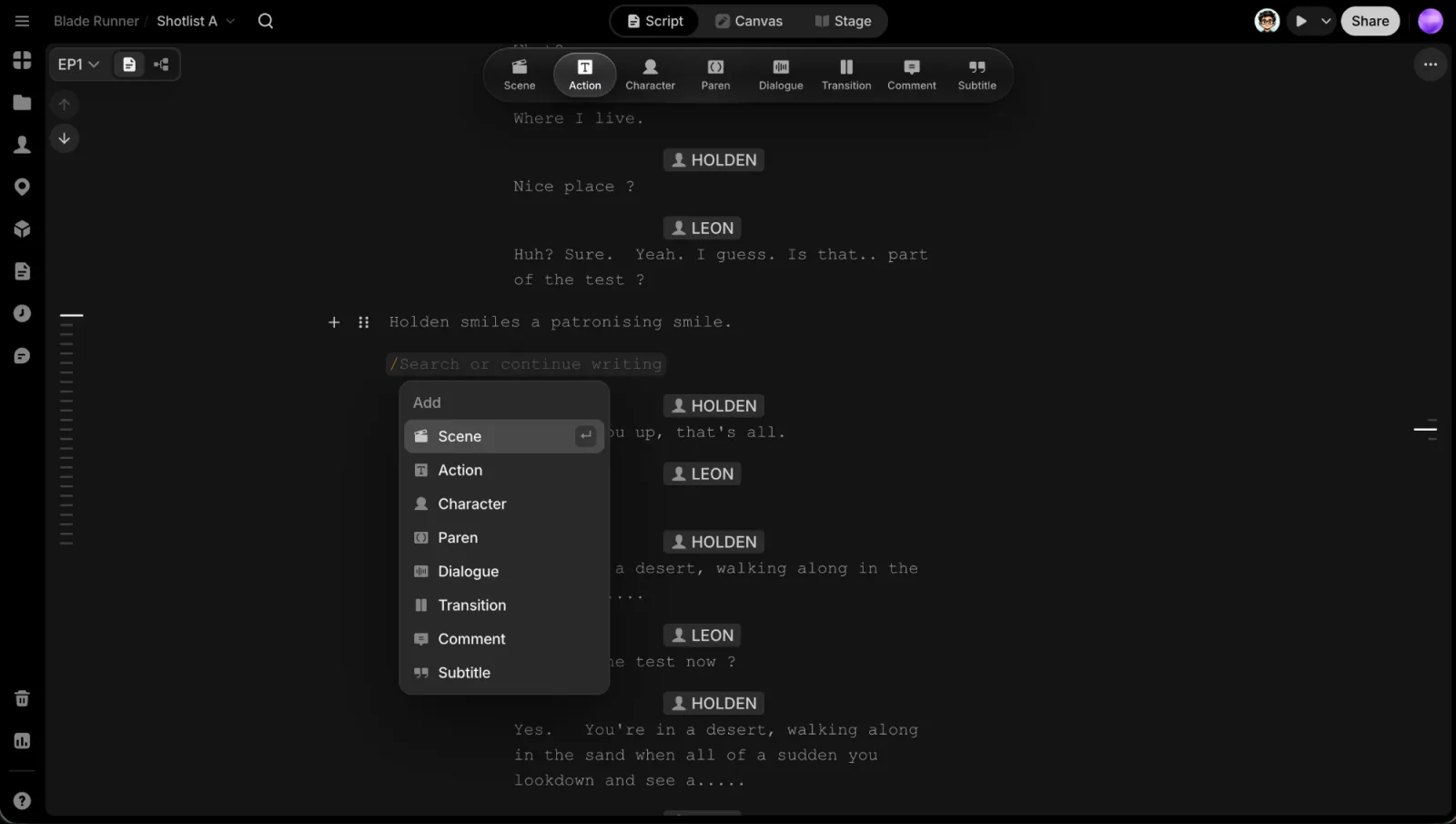
Select Script in the top bar (next to Canvas and Stage) to open the screenplay editor full-page. A project can hold many scripts, and each script is one episode: new ones are titled EP1, EP2, and so on.
The pill at the top left holds the script switcher and a view switch, Script | Story Outline. The Story Outline is the plan for the whole story; see Story Outline.
Manage scripts
- Switch or create: open the switcher in the top-left pill. The Scripts popover lists every script (the current one has a check). Click New to add one, or search the list.
- Copy link, Rename or Delete from a script's row menu in the switcher.
- Episode actions: the ⋯ menu at the top right has Copy link, Layout, Export and Edit (Rename, Duplicate, Delete).
- Step through episodes: the arrows under the pill go to Previous episode and Next episode (hover to see the title). On the last episode, the next arrow becomes New episode.
- Jump to an episode: the tick rail on the left edge has one mark per episode. Hover a mark for its card (episode number, scene count and an estimated running time), and click to open it.
Layout and export
Layout switches the page between Asian (flush left, the default) and Hollywood (indented dialogue). Export saves the script with Print / Save as PDF…, as Fountain (.fountain), or as Final Draft (.fdx).
Write with blocks
A script is a stack of eight block types: Scene, Action, Character, Paren, Dialogue, Transition, Comment and Subtitle.
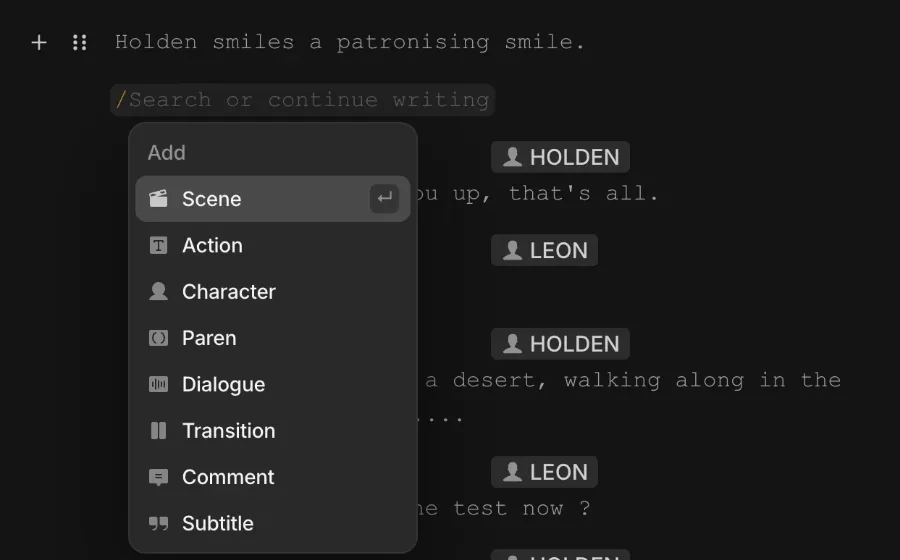
- Add a block: type
/at the start of a block or after a space, or click the + in the block's gutter. - Move or convert: drag a block's grip to move it (a marquee selection moves together). Click the grip for Turn into and Delete.
- Switch the current block with the format bar, or with ⌘⌥1 to ⌘⌥8 in the order above (CtrlAlt on Windows).
- Scene headings start with a picker for INT., EXT., INT/EXT. or EXT/INT., followed by a location from your Library and an optional time of day.
- Transition blocks offer CUT TO:, FADE IN:, FADE OUT., FADE TO:, DISSOLVE TO: and BACK TO:.
- Comment blocks hold notes for the team. Subtitle blocks hold on-screen text.
The keyboard keeps you in the flow:
| Key | What it does |
|---|---|
| Tab / ShiftTab | Change the current block's type (for example Action to Character, or Dialogue to Paren) |
| Enter | Continue with the natural next block: after a Scene comes Action, after Dialogue a new Character |
| ( in an empty Dialogue | Start a parenthetical |
| Backspace | Deletes a scene heading, character or transition as a whole |
| ⌘A twice | Select all blocks |
| Esc | End a block selection |
| ⌘Z / ⌘⇧Z | Undo / redo |
You can also drag across empty space to marquee-select blocks. Write voice-over as a parenthetical, such as (V.O.), (O.S.) or (O.C.).
The thin rail on the right is the scene outline: one tick per scene. Hover a tick for the scene's card, including its speaking characters (click one to highlight every line they speak), and click to jump straight there.
Reference your Library with @
Anything saved to your Library can be pulled into the script: Characters, Locations and Props. A Character block picks a character, a Scene heading takes a location, and @ (after a space) inserts any kind inline. Chips point at the same Library items the rest of the app uses, so the script and your canvas stay in sync. Click a chip to replace it.
A name that isn't in the Library yet becomes an amber draft chip. Click it and choose Create "<name>": the Unidentified elements dialog lets you set the type, name and description, then Create the Library entry.
Import a script
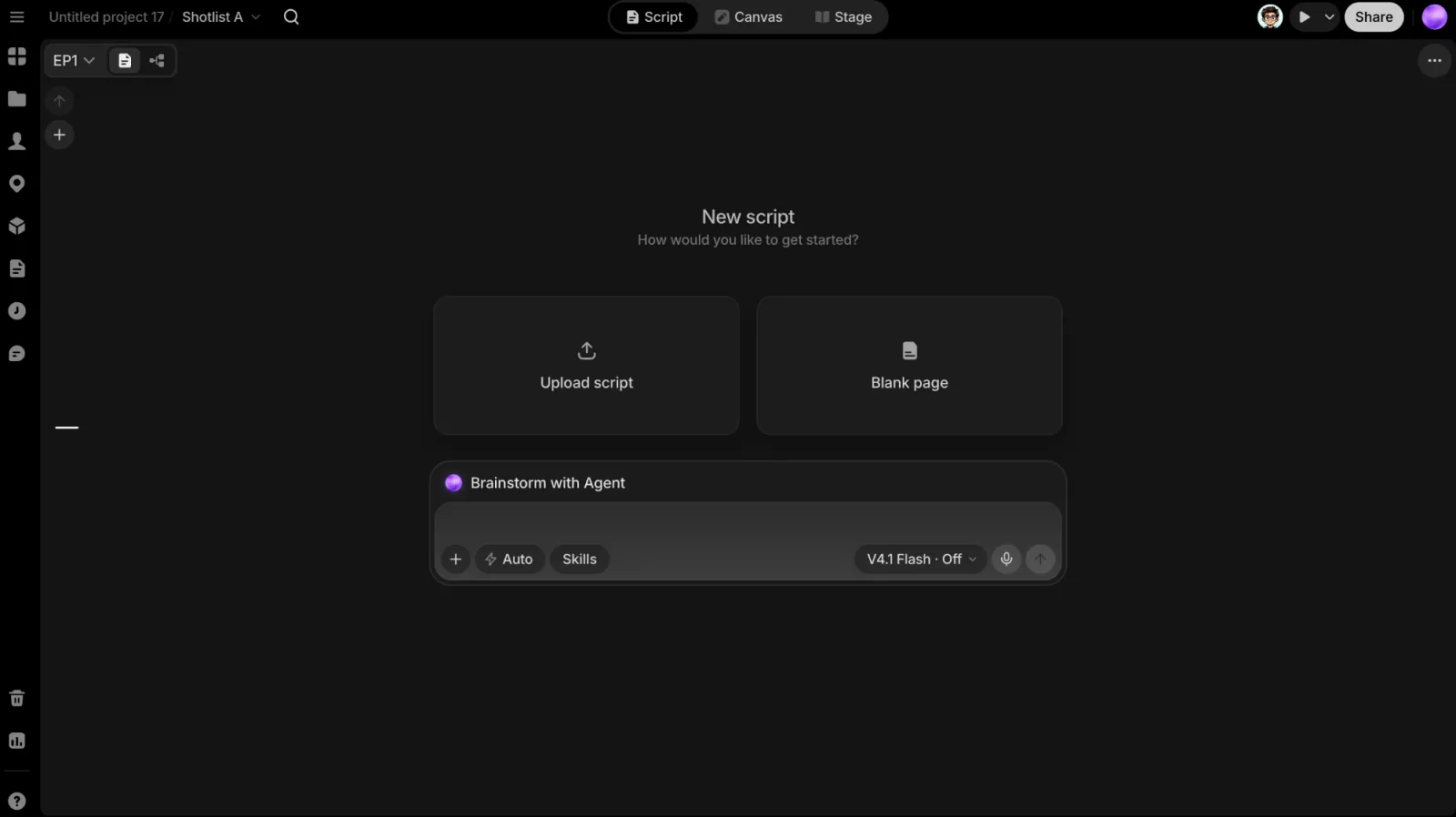
An empty episode opens the New script start page, "How would you like to get started?":
- Upload script: choose a
.fdx,.fountain,.pdf,.docx,.doc,.rtf,.odt,.epub,.txtor.mdfile. The ClipTap Agent imports it straight away. - Blank page: start writing.
- Brainstorm with Agent: describe your idea and develop it with the Agent.
What an import does:
- Your words stay yours. The text comes in as you wrote it, laid out as proper blocks, and is checked word for word against the file.
- Episodes are split for you. A file with episode headings becomes one script per episode (EP1, EP2…), each appearing as soon as it is read.
- A long piece without episodes makes the Agent ask how long an episode should run first: the whole thing as one episode, or about 2, 5 or 10 minutes (or your own length). It then cuts at scene breaks, and never leaves a stub at the end.
- New names go into the Library: characters, locations and props the import finds become Library entries, linked from the script.
- Undo: press ⌘Z in an episode's editor to take back what the import wrote there.
You can also drop a script file into the Agent's message box in any view. If you send it without saying what it's for, the Agent asks whether to import it, read it as reference, or analyse it. Later, you can ask the Agent to split an episode in two, or into episodes of a given length.
The Scripts panel
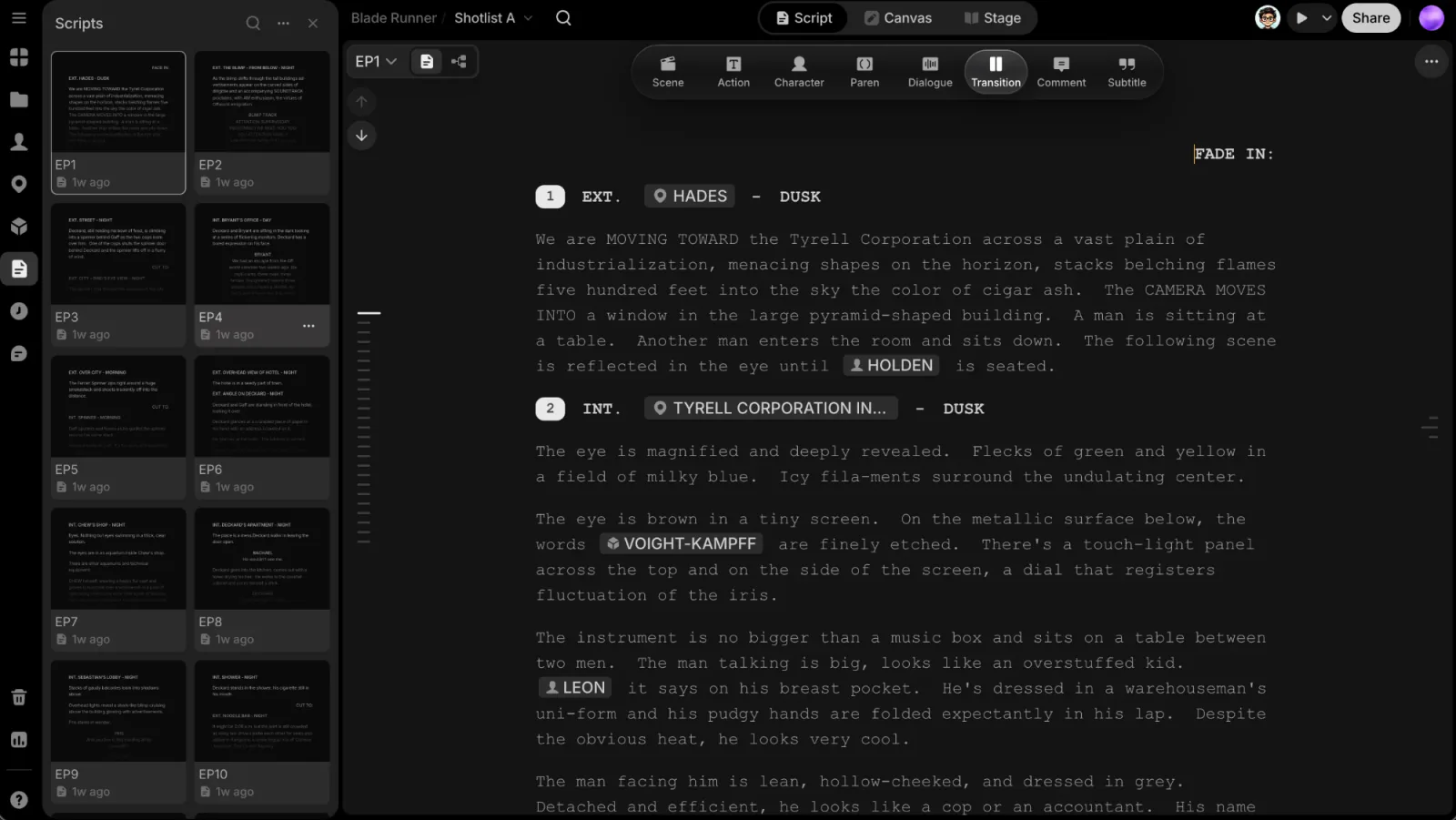
The Scripts button on the left rail opens every script of the project as a grid of cards, each showing its opening page, its title and when it was last edited. Use it to read a script while you work on the Canvas or on Stage.
- Click a card to read the script in the panel. Hover a Library chip to preview that character, location or prop. Back to Scripts returns to the grid.
- Search the scripts from the panel header.
- New script: from the header's ⋯ menu.
- A card's ⋯ (or right-click) has Open, Copy link, Duplicate, Rename and Delete. Open takes you to the Script tab with that script.
- While reading, the header's ⋯ has Open in editor, Copy link, Duplicate, Rename, a Layout switch and Delete. This Layout only changes how the panel shows the script, not the script's own layout.
Write with the ClipTap Agent
All AI writing goes through the ClipTap Agent. Ask it to draft a scene, rewrite a passage or develop the story, and its changes stream straight into the script at the Agent's own caret. There is no review step: press ⌘Z in the editor to undo the Agent's last write, and ⌘⇧Z to bring it back. The Agent won't overwrite an episode you've already written unless you ask it to rewrite it.
Other people editing the script at the same time show up with their own carets and selections.
Scripts and the rest of your project
The Agent has your script and the whole project in the same conversation. Ask it to break a scene into shots, storyboard a scene, or work out what a sequence needs. Your open script is automatically part of the Agent's context, so "board out scene 3" just works. When it writes an episode, it reads the Story Outline for that episode first.
Next
Plan the story across episodes in the Story Outline, or see what the Agent can do in ClipTap Agent.