Project menu
Open the menu at the top left of a project to rename, export, configure, or delete it, check your credits, and find help and shortcuts.
The project menu is where project-level housekeeping lives. Click the menu button at the top left of the project, above the left rail, to open it.
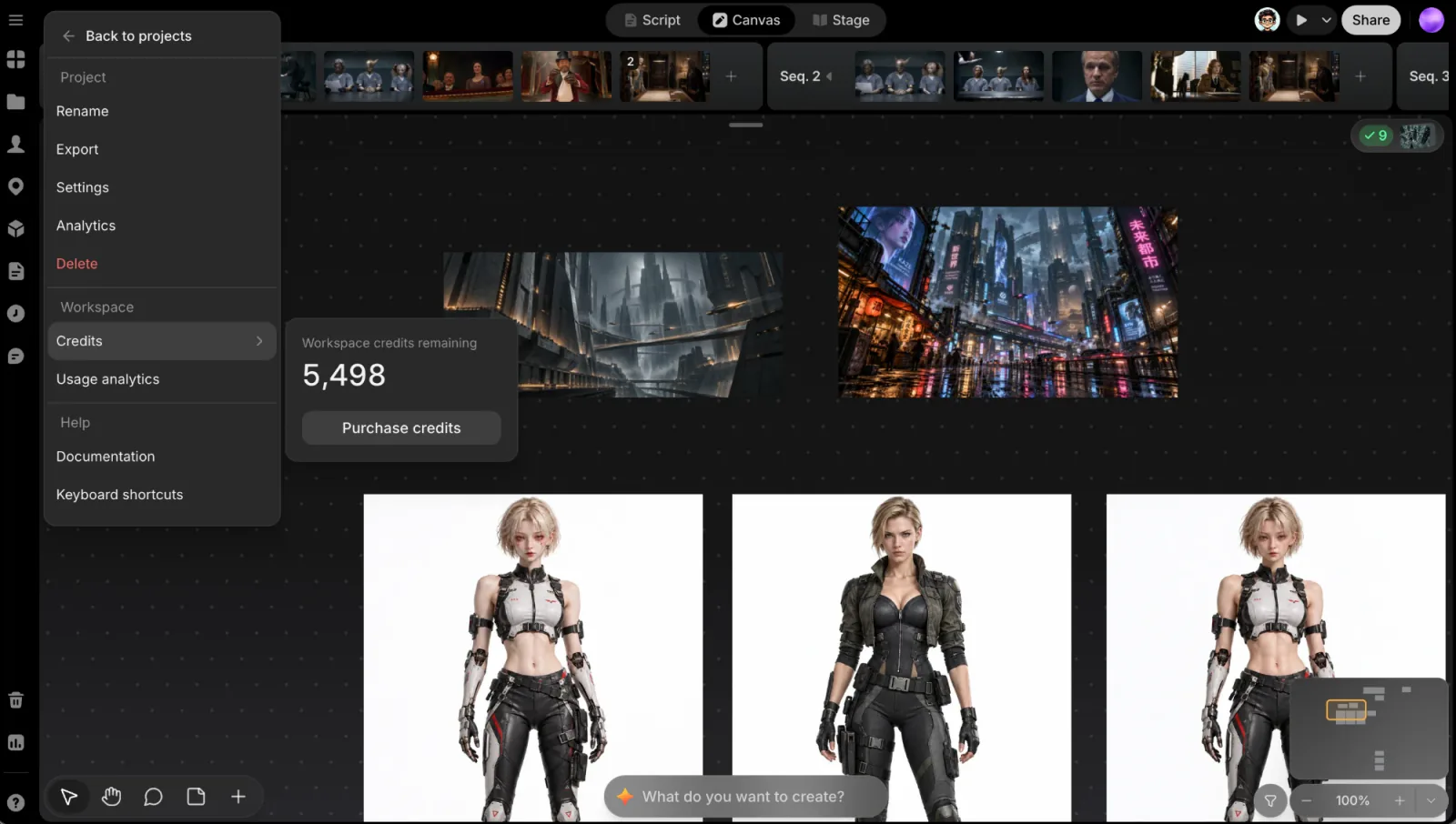
What's in the menu
- Back to projects: back to your Projects list.
- Project
- Rename: edit the project's name in the top bar.
- Export: turn the open Shotlist into a timeline for your editor. See Export to an editor.
- Settings: open the Settings dialog on this project's Preset page. See Settings.
- Analytics: open the project's Analytics panel. See Project analytics.
- Delete: delete the project (below).
- Workspace
- Credits ›: what your workspace and you have left (below).
- Usage analytics: your workspace's usage page. See Project analytics.
- Help
- Documentation: these docs, in a new tab.
- Keyboard shortcuts: the shortcut list in the Help panel (below).
Rename and Delete only appear if you're allowed to do them in this project.
Credits
Hover or click Credits to open a small card beside the menu:
- Workspace credits remaining: the balance everyone in the workspace spends from.
- Your weekly cap and Your daily cap: shown only when an admin has set a cap for you. Each reads "<used>/<cap> used", with what's left this week or today under it.
- Purchase credits: for workspace Owners and Admins, opens the buy-credits dialog.
How credits, caps, and buying work is on Credits.
Help and shortcuts
The Help button at the bottom of the left rail opens the Help panel. It links to the main topics in these docs, to Documentation, and to Keyboard shortcuts. Picking Keyboard shortcuts in the project menu opens the same panel straight on its Shortcuts page.
| Group | Action | Shortcut |
|---|---|---|
| General | Toggle sidebar | ⌘. |
| Open command palette | ⌘K | |
| Toggle agent | ⌘/ | |
| Jump to canvas | ⌘J | |
| Undo / Redo | ⌘Z / ⇧⌘Z | |
| Script editor | Cycle node type / backwards | Tab / ⇧Tab |
| Continue a line | Enter | |
| Insert a character or asset (type @ after a space) | Space @ | |
| Canvas | Select / Hand / Comment / Sticky note tool | V / H / C / N |
On Windows, use Ctrl in place of ⌘. The full list, including what works on a selection, is on Command Palette & shortcuts.
Settings
Settings opens the one Settings dialog, already on this project's Preset page. On the left you'll find your workspace's pages, this project's pages (Preset, Models, Metadata, File naming, Tags), and the Agent pages. Each page is described on Settings.
Delete project
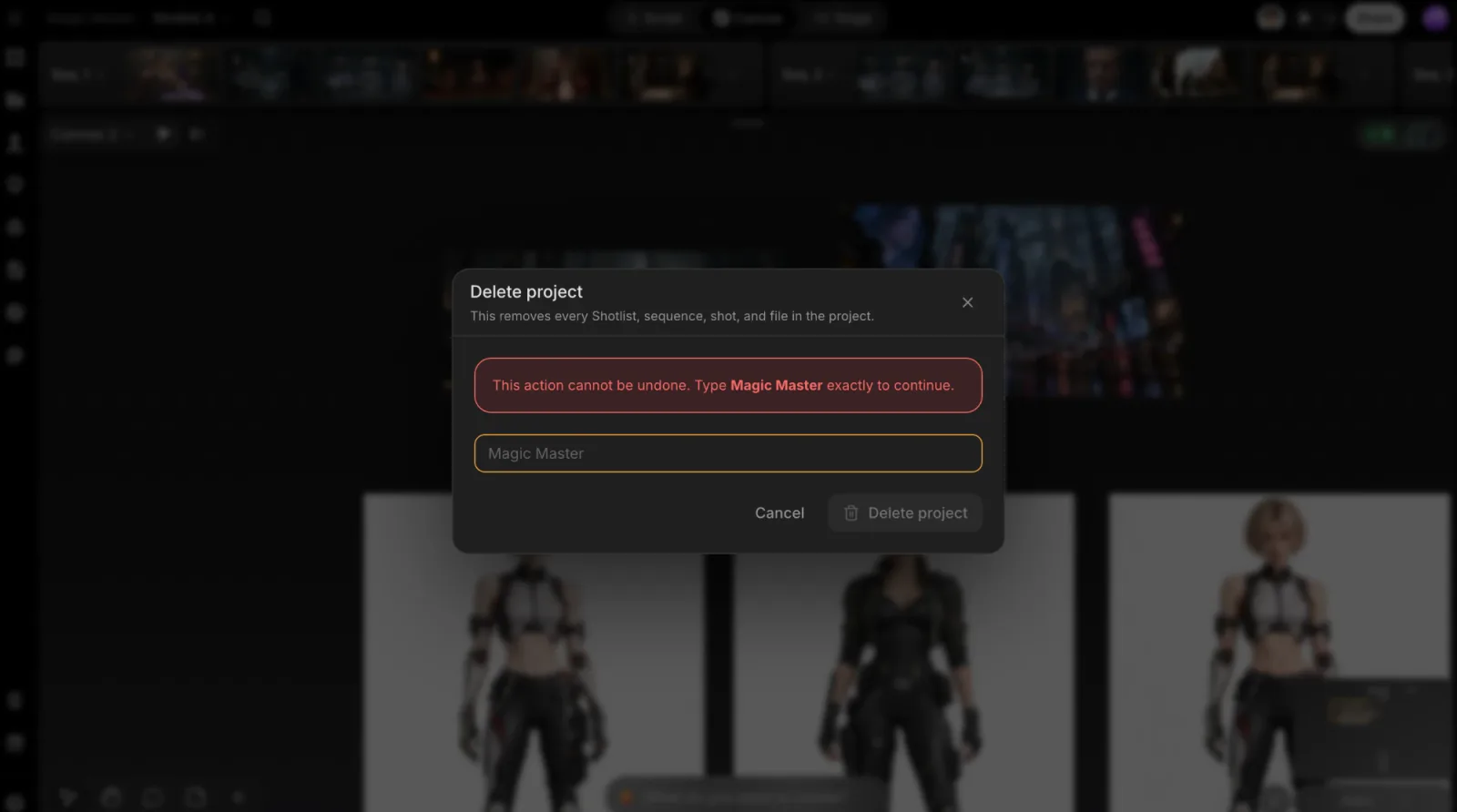
Delete removes the project and everything in it: every Shotlist, sequence, shot, and file. You can't undo it yourself, so the Delete project dialog asks you to type the project's exact name first. The Delete project button only becomes clickable once the name matches.
A deleted project disappears from the workspace right away. It doesn't go to the project's Trash, which only holds files and desks deleted inside a project. ClipTap keeps a deleted project's data for 30 days and then deletes it permanently. Within those 30 days, email [email protected] if you need it back; after that it can't be recovered.
The same confirmation appears when you delete a project from its card on the Projects page.