File toolbar
Ask for a change, add a file as a reference, check how it was made, and reach every other action from the toolbar and menu of a file on the canvas.
Every file on the canvas has its own toolbar and menu. The toolbar holds what you reach for most: telling the ClipTap Agent what to change, adding the file to the prompt box, reusing its prompt, and checking how it was made. Everything else is one click deeper, in the menu.
The toolbar
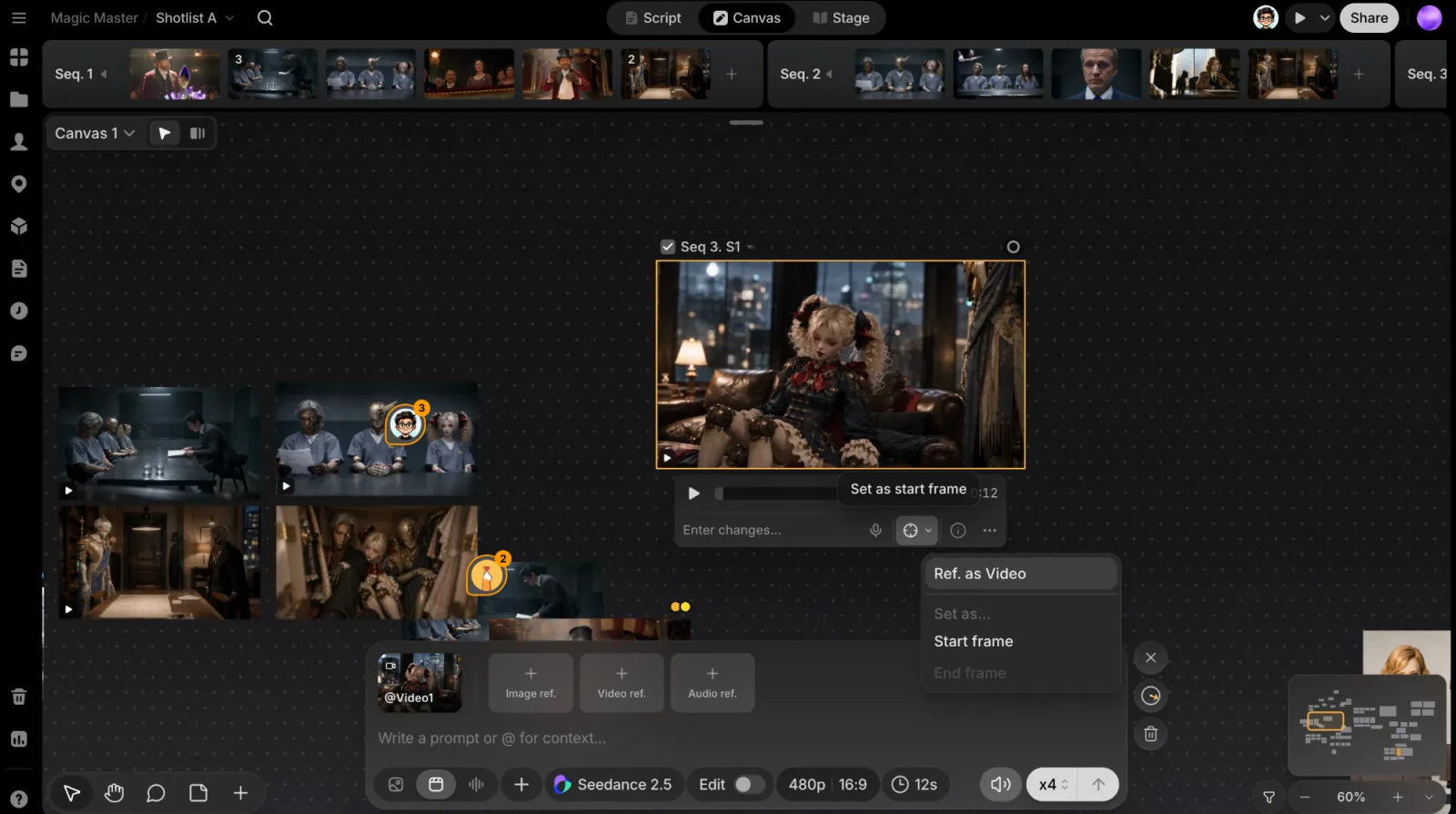
Click a file on the canvas to select it. A toolbar appears below it and follows the file as you pan and zoom. Videos and sounds get a playback row above it: play and pause, a scrubber, and the current time.
Left to right:
- Enter changes...: type what should change, such as "make it night" or "closer on her face", and press Enter. Your words go to the Agent's open chat with the file attached, and the Agent makes the new take. Click Record voice to say it instead of typing.
- Add as reference: puts the file in the prompt box. Its name follows the model you have picked, for example Add as reference, Set as start frame or Set as end frame. Click the arrow beside it (More reference options) to choose another use: the reference row, then Start frame or End frame under Set as.... Uses the model can't take are dimmed. If the model can't take this file at all, the button isn't shown.
- Reuse prompt (images): puts the file's prompt, model, settings and the references and frames it was made with back into the prompt box. A file that has since been deleted is left out, and the box says how many.
- Information (ⓘ): opens a card above the button with the model, resolution, aspect ratio and author, and the prompt. Copy copies the prompt. More info opens the full File view.
- More options (⋯): the menu below.
The menu
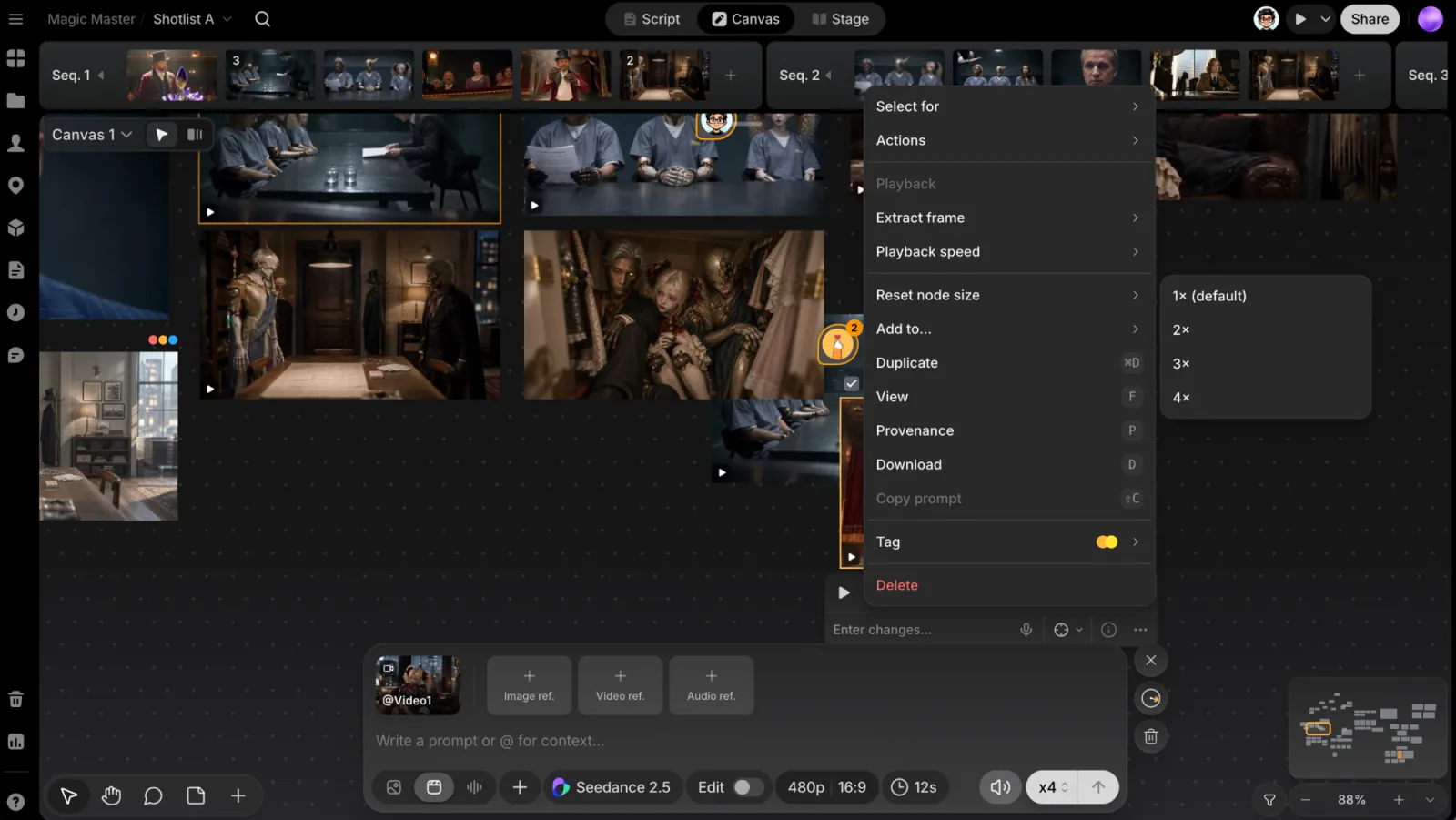
Click ⋯ on the toolbar, or right-click a file, to open its menu. Submenus open when you hover their row.
- Select for (images and videos): pick the file as the take for a shot on Stage. If it's already a shot's take, the row shows that shot, such as
Seq 1. S2. - Actions: what you can make from this file. See Actions below.
- Playback (videos and sounds): Extract frame (videos) saves the Current frame, Start frame or End frame as an image beside the video. Playback speed plays the file at 0.5×, 1×, 1.5× or 2×.
- Reset node size: set the file's size on the canvas to 1× (default), 2×, 3× or 4×.
- Add to...: save the file into a Character, Location or Prop in the Library.
- Duplicate (⌘D) and View (F, opens File view).
- Provenance (P): opens File view on the file's lineage: what it was made from, with which model.
- Download, Copy image (images) and Copy prompt (⇧C).
- Compare with... (images): pick a second image with Click to pick or Choose from library, and both open side by side in File view.
- Tag: add a colour tag. See Tags.
- Delete: takes the file off this canvas. It isn't deleted: a generation stays in Gen history and an upload stays in the Uploads panel, so you can drag it back. ⌘Z also brings it back. To throw a file away, delete it from Gen history or Uploads; it goes to the Trash.
Actions
Actions gathers what you can make from the file. Rows the file's type doesn't offer are left out; a row the picked model can't use stays, dimmed.
| File | Use it in the prompt box | Make a new file from it |
|---|---|---|
| Image | Use prompt, Use as image reference, Use as start frame, Use as end frame | Upscale, Crop, Edit |
| Video | Use prompt, Use as video reference | Upscale, Trim, Extract audio, Auto split |
| Sound | Use prompt, Use as reference | Trim, Transcribe subtitles |
Use prompt is dimmed for uploads, which have no prompt. Crop and Edit are covered in Edit & crop images; the rest in Tools.
Select several files
Select two or more files. The toolbar below the selection has:
- Enter changes… and the microphone: one request to the Agent with every selected file attached.
- View (F): open the selection in File view.
- Tidy up: line the files up in a compact grid.
- Group (⌘G): put them in a group. See Groups.
- More options (⋯).
Right-click the selection, or click ⋯, for Add to..., Add as reference, Download, Tag, Tidy up, Group, Copy (N) and Delete (N). The Actions submenu works on one file at a time, so it isn't in this menu.
Keyboard shortcuts
With a file selected:
| Key | Action |
|---|---|
| F | Open File view |
| P | Open File view on the provenance graph |
| C | Crop |
| ⇧C | Copy prompt |
| ⌘D | Duplicate |
| ⌘C / ⌘V | Copy / paste, also onto another canvas |
| Delete | Take off the canvas |
| Esc | Close menus, then deselect |
| ⌘Z / ⌘⇧Z | Undo / redo canvas edits |
On Windows, use Ctrl in place of ⌘.