Credits
What costs credits in ClipTap, where you see the price before anything runs, and how to buy more.
ClipTap is pay as you go: no subscription, just credits you buy for the workspace when you need them. Writing, planning, organising and working together don't cost anything. Credits pay for the work AI models do for you.
What uses credits
- Generating images, video and audio, including upscaling and the other tools that run a model. The price depends on the model and your settings, such as resolution, duration and the number of takes.
- The ClipTap Agent's work. Each turn is charged as the Agent works, for what it actually used. If the workspace runs out in the middle of a turn, what the Agent already wrote stays, and you can continue once credits are added.
- Generating subtitles for a sound or a video. The confirmation shows the price first.
- Voice input, when you dictate to the Agent instead of typing.
When Claude or ChatGPT works in your project over MCP, its writing and planning run on your own Claude or ChatGPT plan and cost no ClipTap credits. Only generating media on ClipTap does, and only if you let the app spend credits.
Credits belong to the workspace
Credits are tied to your workspace, not to you. Everyone in it spends from the same balance, so a generation made by any member in any project of the workspace comes out of the shared pool.
Owners and admins can give each member a weekly or daily cap. A generation, Agent turn, transcription or dictation that would take you past your cap doesn't start. See Member credit caps.
See the price before you generate
- Prompt box: hover the generate button for a tooltip such as Generate 2 Takes with the credits your current setup costs. It updates as you change the model, resolution, duration or number of takes. See Prompt box.
- Model menu: every model shows a credit chip, so you can compare before you pick.
- The Agent's review card: the Agent never generates on its own. Each generation stops on a card in the chat that shows what will be made and what it costs. Adjust it if you like, then click Confirm or Cancel. If the workspace can't cover the cost, the card shows Not enough credit with Purchase credit, and Confirm stays off until you top up.
- Stage cards: a shot's or a Library item's prompt card shows its price beside the send button.
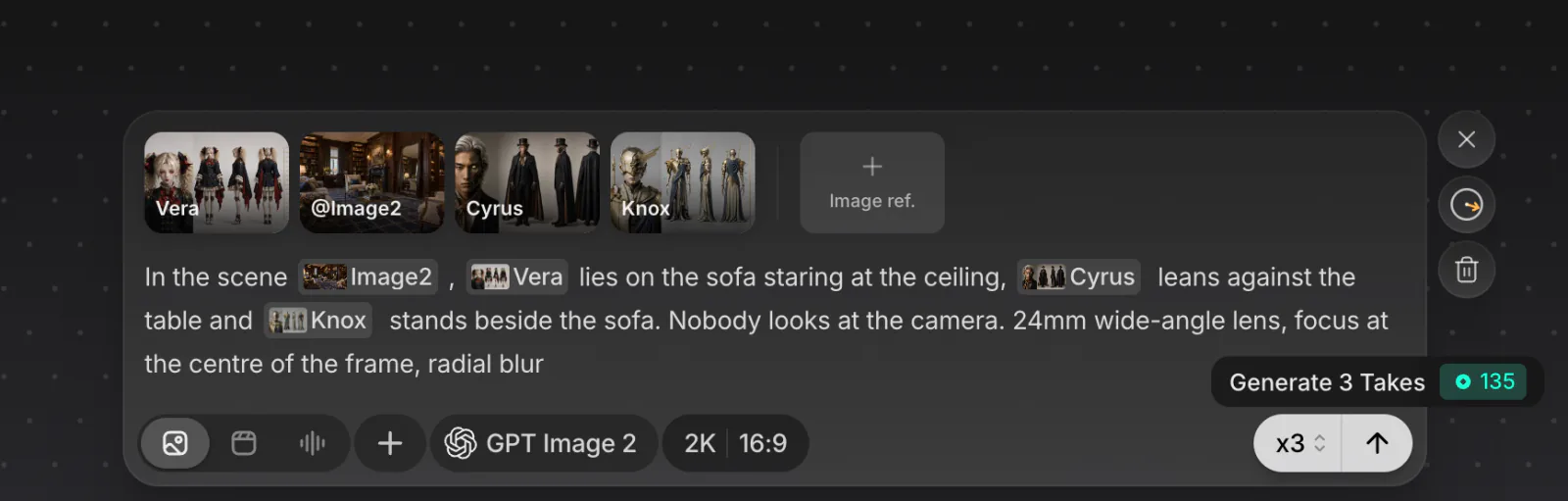
Once a file exists, its Information panel lists its Cost.
When you're running low
When the balance runs low, or is less than what your prompt would cost, a strip appears on top of the prompt box: Only N credits left. or You're out of credits., with Purchase credit. Click the chevron to hide it for now.
To check from inside a project, open Menu › Credits. It shows Workspace credits remaining and, if you have caps, Your weekly cap and Your daily cap with how much you've used. The Analytics button in the left rail shows the balance when you hover it.
Buy credits
Only workspace owners and admins can buy credits.
Open Add credit
Click Buy credits on the workspace's Billing page or on Usage analytics, Purchase credit on the low-credit strip or an Agent review card, or Purchase credits in Menu › Credits.
Pick a pack
Drag the slider to choose a pack, from 1,000 to 1,000,000 credits, at $0.01 a credit. The window shows the pack and its price before you go on. For more, click Contact sales.
Check out
Click Checkout to pay on Stripe's secure checkout page. You come back to Billing, and the credits appear as soon as the payment clears.
- Bought credits never expire. They stay in the workspace until they're used.
- Model-scoped credits. Credits we grant can be limited to some models and can have an end date. They're spent before the rest of your balance on those models, the ones that expire soonest first; whatever is left at the end date expires.
- Credits aren't refundable. They have no cash value. If a generation fails on our side, its credits come back automatically. See Refunds and Cancellations.
Every model and feature is open to every workspace. See Pricing.
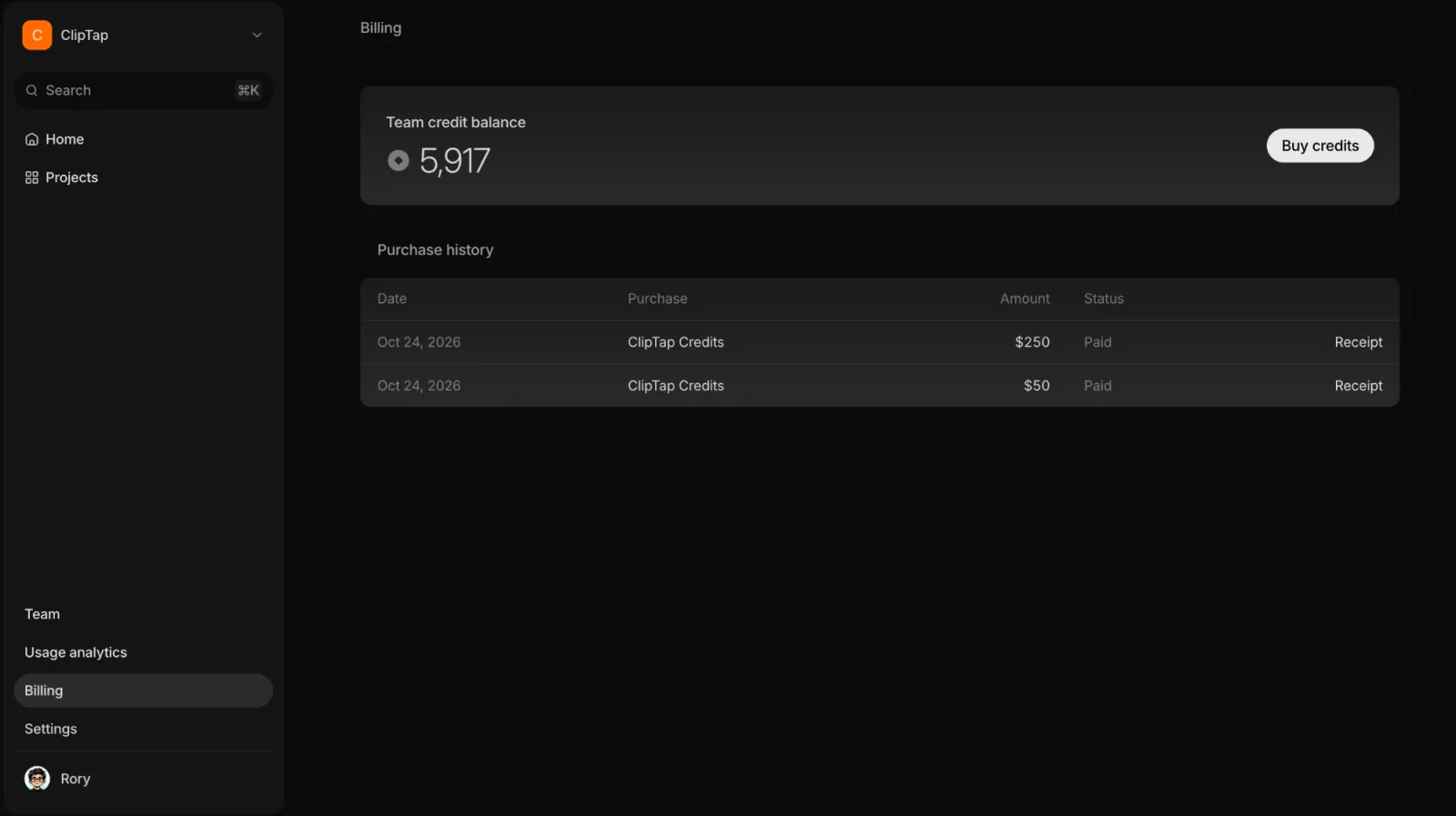
Billing page
Click Billing in the dashboard sidebar:
- Team credit balance: what the workspace has left, with Buy credits. Hover the clock beside it to see Expiring credits, the next model-scoped credits to run out.
- Model-scoped credits, when the workspace has any: how many are left, which models they're for, and Expires with a date or No expiry.
- Purchase history: every pack bought, with its amount, status and receipt.
Workspaces that subscribed to one of our earlier plans also see that plan here. It keeps renewing until you cancel it with Manage in Stripe; the credits you buy aren't affected.