Library
Save characters, locations and props with their looks and voices, and keep the uploads that don't fit a category.
Save a character, a location or a prop to the Library once, then reference it with @ by name in any later prompt. This is how ClipTap keeps people, places and objects consistent across a project. See Referencing with @.
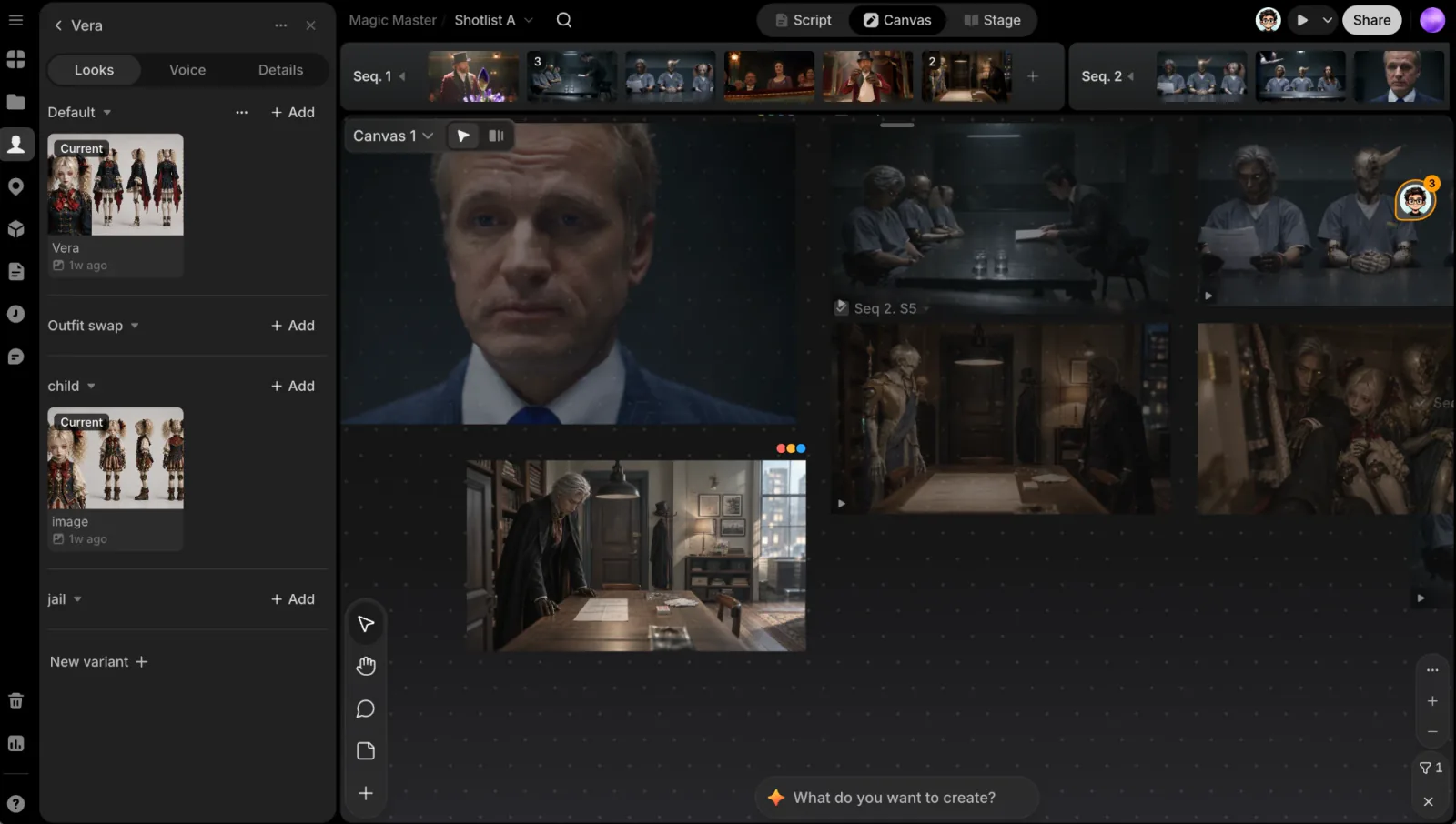
You'll also meet the Library inside reference pickers elsewhere in the app: adding a start frame or a reference in the prompt box, for example, offers Choose from library next to Click to pick and Upload from device.
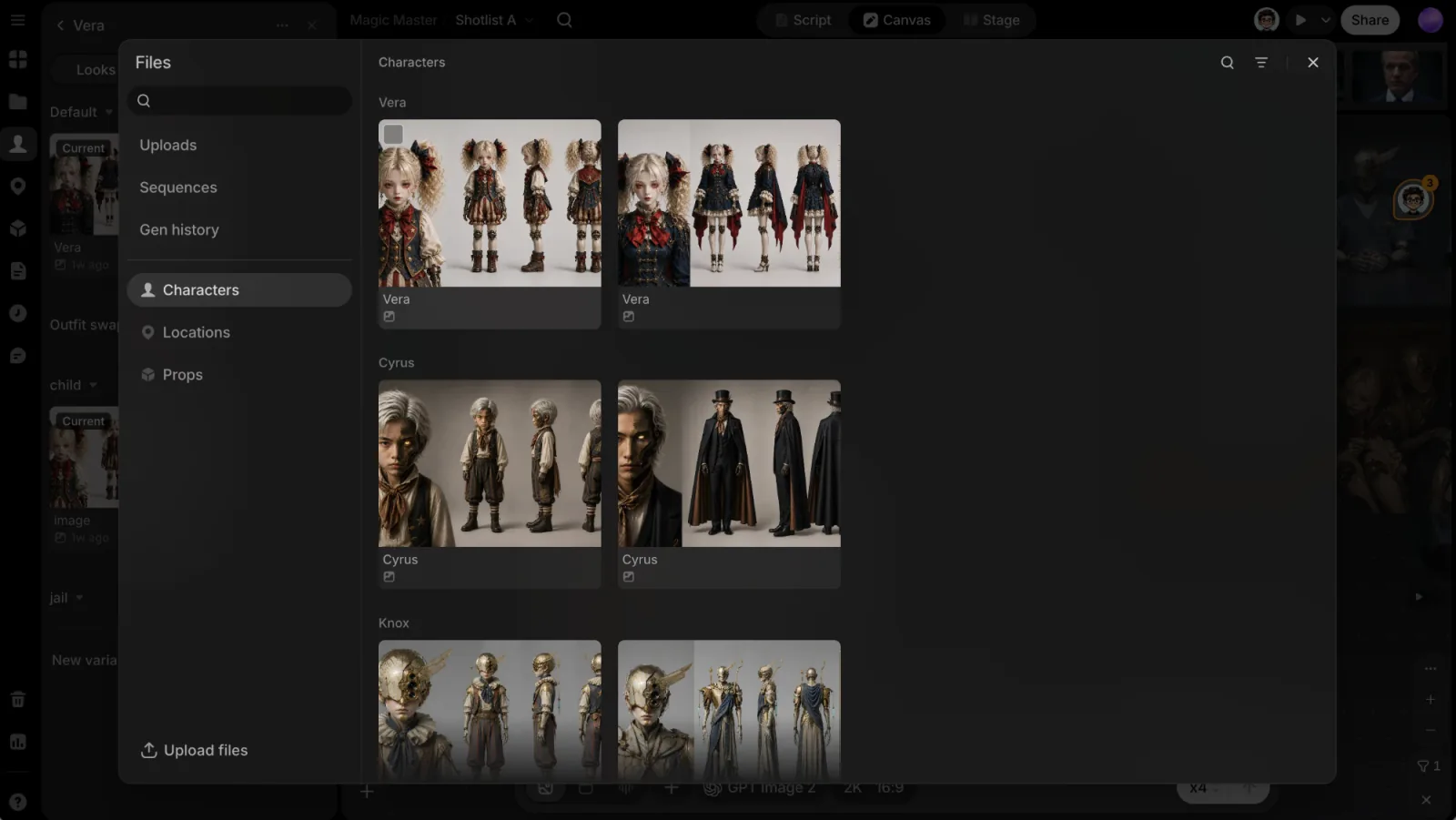
Library categories
Each category has its own panel, opened from the left rail. Click its icon to switch:
A reusable person or creature, with a voice
A reusable environment
A reusable object
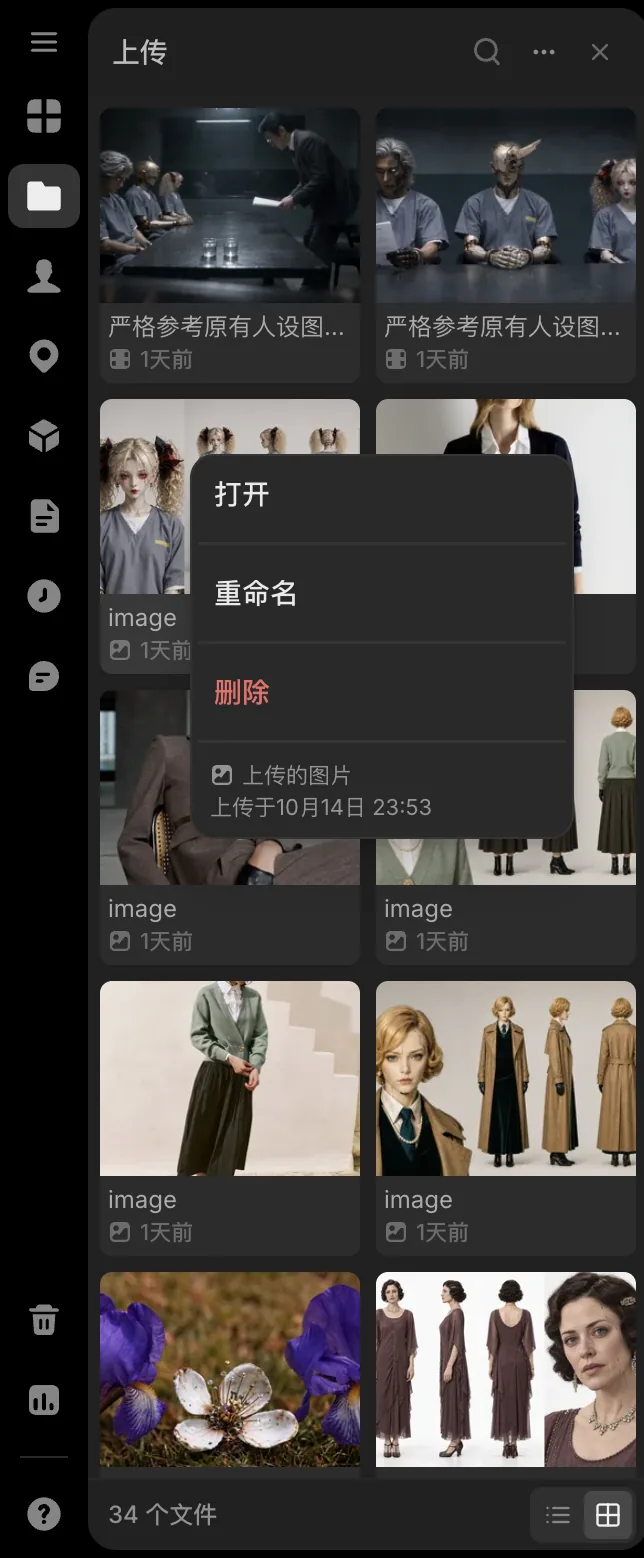
Uploads and other files not tied to a category
Each panel has a Search button and Close panel in its header. The same entries also appear as cards on Stage's Library tab and as chips in your scripts.
Save to the library
Start from an image, or from scratch
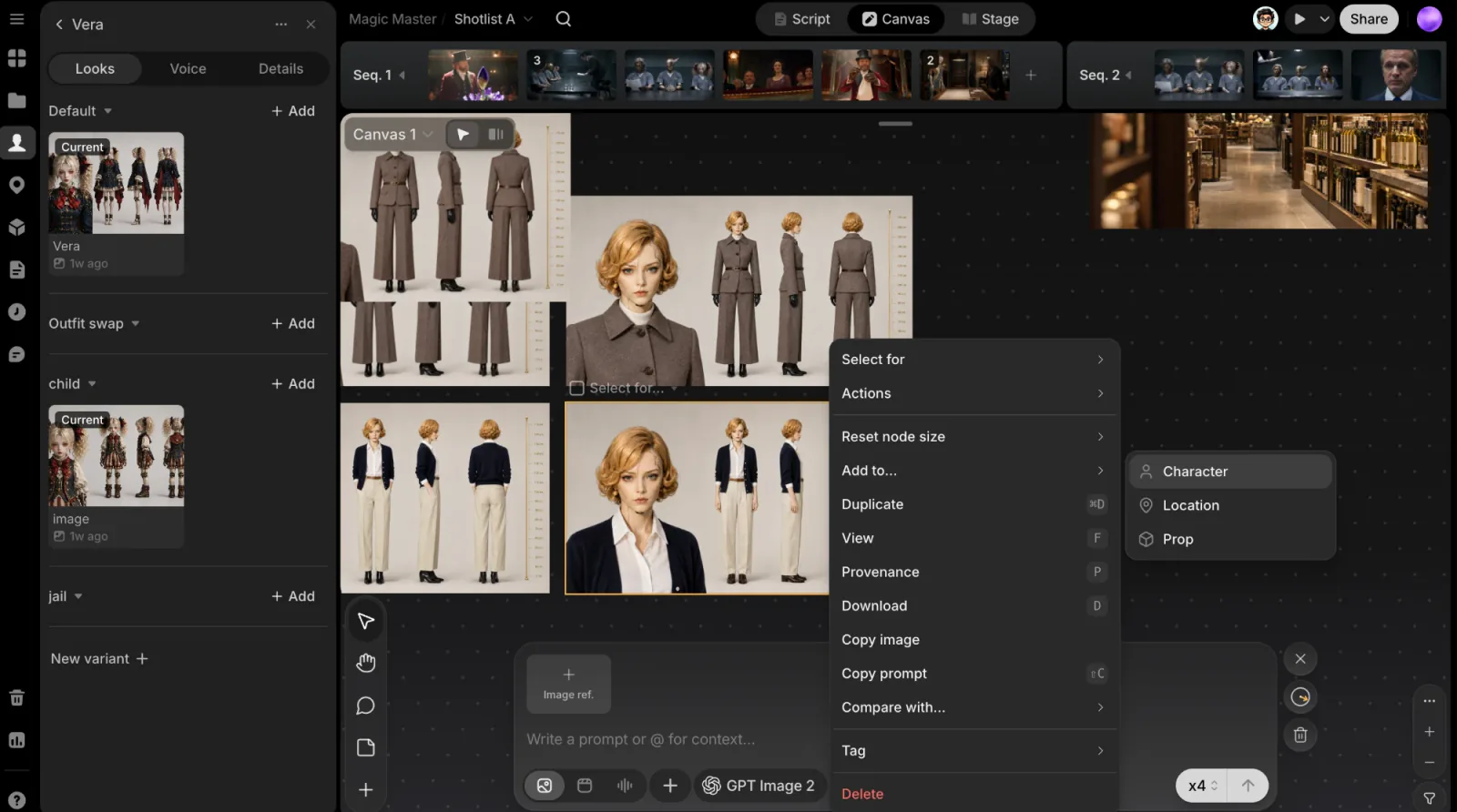
Right-click an image on the canvas or open its ⋯ menu, and choose Add to... › Character, Location or Prop. Or open a category panel and click the New character (or New location, New prop) tile.
Pick or create an entry
From a canvas image, the Add to dialog lists the existing entries. Pick one and choose a variant for the image, or click New character, give it a Name and a description of the visual traits to keep consistent, then Create and add.
From the New character tile, a form opens in the panel: fill in Name and Description, add pictures under Assets with + Add, and for a character, set a Voice (see Voices). Click Create.
Add more pictures (optional)
Open the entry and add extra angles with a variant's + Add button. More views usually improve later consistency.
Entry pages
Click an entry to open it. A back link sits at the top, with the entry's tabs:
- Looks (Stills for a location, Appearance for a prop): one section per variant. Click a variant's + Add to add pictures with Click to pick (click images on the canvas; hold ⇧ to pick several, then Done), Select from library or Upload from device. Click a picture to open it in File view; right-click it or use its ⋯ to Replace or Delete it. Deleting a picture only takes it out of the entry; the file stays in the project. New variant at the foot adds a variant.
- Voice (characters only): the character's voice. See Voices.
- Details: the Name and Description, and for a character, its part in the story and its background.
Right-click an entry tile in the panel (or use its ⋯) to Rename, Duplicate or Delete it.
Each variant is also a prompt card on Stage, where every generation becomes one of its takes and you choose the current one. See Stage.
Characters
A reusable person or creature you'll generate again and again. Saving one keeps their look consistent across every shot they appear in, and makes them referenceable by name anywhere in the project.
Use clear, single-character images on a blank or white background. Background elements can bleed into later outputs. Several angles usually give more consistent results than one narrow view.
Voices
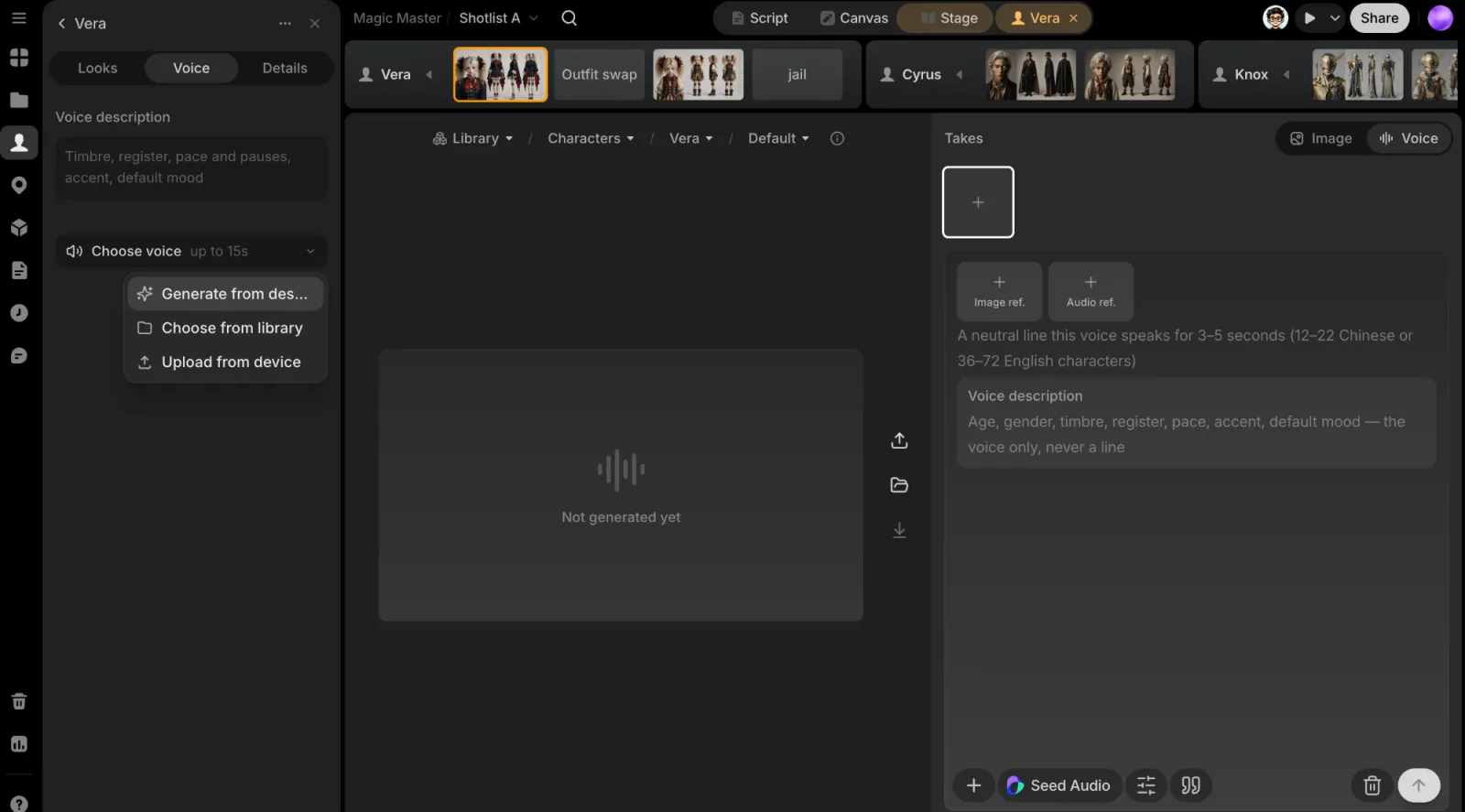
Every variant of a character speaks with the character's voice. On the Voice tab, write a Voice description (timbre, register, pace and pauses, accent, default mood), then click Choose voice (up to 15s):
- Generate from description opens the character's card on Stage on its Voice tab, where you generate voice takes from the description.
- Choose from library or Upload from device: an MP3 or WAV of up to 15 seconds.
Video generation uses the voice so the character sounds the same across shots. Each voice shows as a card you can play; its ⋯ has Remove, which leaves the sound file in the project. Taking a voice from a video take also happens on the character's card on Stage.
Voice-over variants
A Voice-over is heard, never seen: a narrator, a voice on the phone, a character's inner voice. To make one, open a variant's ⋯ menu and choose Voice-over, or turn on the Voice-over switch (Heard, never seen) in the new-character form.
A voice-over variant shows a sound tile instead of pictures and has no + Add. It never puts a picture into a prompt; in the @ menu it reads Voice-over • never shown. A character whose variants are all voice-overs is a voice only.
Locations
A reusable environment or set. Saving one lets you return to the same place across many shots without describing it again, and generate new angles of it later.
Save environment-first images with no characters in frame. Include only what you want to influence future generations. For important sets, save a range of views: wide establishing shots and specific angles both help continuity.
Props
A reusable object (a weapon, a vehicle, a piece of set dressing) that needs to look the same wherever it appears.
Save the object alone on a blank or white background. Use several clean sources for important props so you can reference different angles later without inventing them.
Variants
Give a character, location or prop several looks (a different outfit, time of day or state) without a separate entry for each. Every entry starts with one default variant; add more as needed.
- Add a variant: click New variant below the sections on the entry's Assets tab, then type its name.
- Add pictures to a variant: each variant keeps its own set. Use its + Add, or drag a picture onto another variant to move it there.
- Rename or delete a variant: from its ⋯ menu. The default variant can't be deleted, and deleting a variant keeps its files in the project.
- Reference an entry: in the
@menu each entry is one row. Click Show assets to pick a particular picture.
Keep variants for meaningful visual differences. Extra angles of the same look belong in that variant's existing set.
Importing files
Bring anything from your computer into the project, such as reference images or footage, without needing a Library entry first.
Import files by:
- Dragging files from your desktop onto the canvas
- Right-clicking the canvas and choosing Upload file (or Choose asset for a file already in the project)
- The Add (+) button in the canvas toolbar
- Uploading into the Uploads panel: use Upload in its ⋯ menu, or drop files on the panel
- Uploading from the prompt box or the Agent composer
- Upload from device on a shot or card on Stage
The Uploads panel keeps every uploaded file. Search it with Search in all files, sort by Recent, Oldest or Name, switch between List view and Grid view, and organize files with New folder. Right-click a file to Rename it, Move to a folder, or Delete it from the project; double-click it to open File view. Drag any file onto the canvas to place it, or attach it as a prompt reference.