Skills
Saved ways of working that the Agent follows, built in or written by you, for yourself, a project or the whole workspace.
A Skill is a saved way of working: a method the ClipTap Agent follows when you add it to a message. ClipTap comes with expert Skills for genres, story structure, script doctoring and full production pipelines. You can also turn the way your team works into a Skill the Agent follows next time.
Use a Skill
Type / in the Agent's composer, or click Skills under it. The picker opens with three tabs:
- All: every Skill you can use, grouped as Recently used, Yours, This project, Workspace, Official and From the market.
- Favorites: Skills you starred.
- Mine: Skills you wrote.
Each row leads with the Skill's picture, then its name, command and what it does. Type to search, move with ↑↓, and press Use (or ↵) to add the highlighted one. To see what a Skill does before you pick it, click its picture: an eye shows on it when you hover the row.
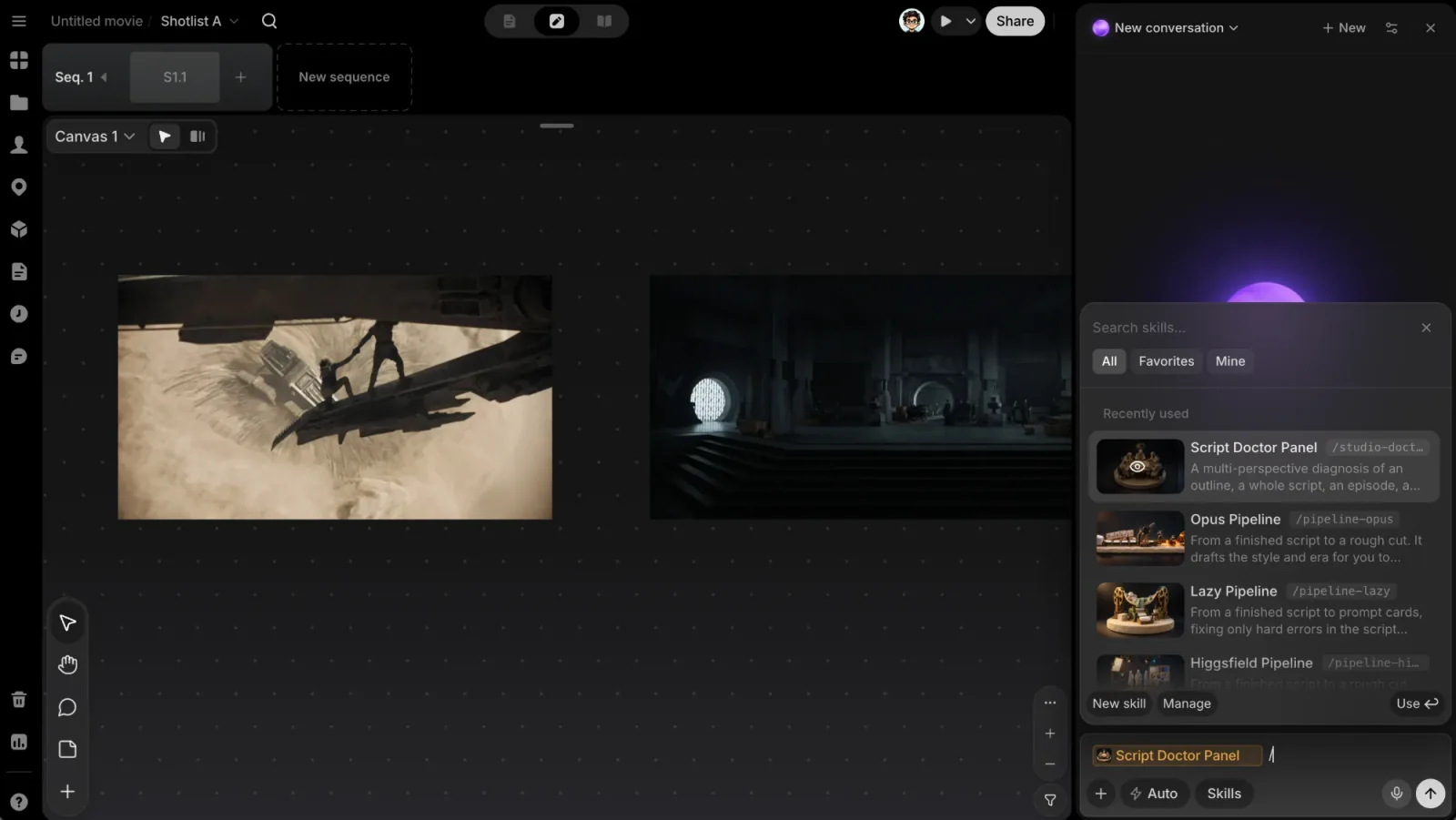
The Skill lands in your message as an amber chip, Skill /name. Hover it to see its card, or remove it to send without it. Write the rest of your request around the chip and send. A message can carry up to 8 Skills. The same works in the composer on Home.
Some methods load on their own when your request calls for them: script writing, the character interview, setting the project's style, importing a screenplay and others. They don't appear in the picker; just ask.
Skill details
Click a Skill's picture in the picker to open its page. It shows the introduction, any cover pictures or example videos, and a few Try asking lines you can start from. From there:
- Use skill adds it to your message.
- Add to favorites stars it, so it shows under Favorites.
- Share copies a link to it.
- The … menu has Duplicate skill (your own copy to change), and, on a Skill you wrote, Edit skill and Turn off. A Skill that's turned off doesn't appear in
/until you turn it on again.
Built-in Skills
These come with ClipTap and appear in the picker:
| Kind | Skills |
|---|---|
| Genre | Mystery Genre, Romance Genre, Comeback Genre |
| Structure | Hero's Journey, Save the Cat Beats |
| Style | Hollywood Commercial, Nonlinear Narrative |
| Format | Production-Grade Short Drama |
| Script doctor | Script Doctor |
| Studio | Project Development, Full Script Drafting, Script Doctor Panel, Dialogue Expert, Asset Library, AI Video Storyboard, Video Prompts, Music & Sound Design |
| Pipeline | Opus Pipeline, Shuohao Pipeline, Studio Pipeline |
| Other | Skill Creator |
The three pipelines take a project through many steps by themselves. See Run a whole pipeline. Official Skills are added by the ClipTap team and appear alongside these.
Built-in and official Skills can't be edited. Use Duplicate skill to make your own version.
Create a Skill
In the picker, click New skill and choose:
- Chat with the Agent: the Agent asks one question at a time (what kind of Skill it is, what it takes and makes, its rules, its name and who can use it), saves it, and gives you a line to try it with.
- Create skill: opens the editor so you write it yourself.
You can also start from Settings › Agent › Skills (Manage in the picker takes you there), or just ask: "Turn the way we write ad scripts into a Skill."
The editor has two parts:
- Basics: Name, Command (what you type after
/), Subtitle (one line under the name in every list), Introduction (what it does, when to use it, what it needs and makes), Who can use it, an icon and Colours, and cover pictures or example videos (images up to 5 MB, videos up to 50 MB). - Content: the Instruction the Agent follows, plus reference documents it reads along with it. Upload .md reads a
SKILL.mdfile into the editor; you can also drop a.mdfile on it.
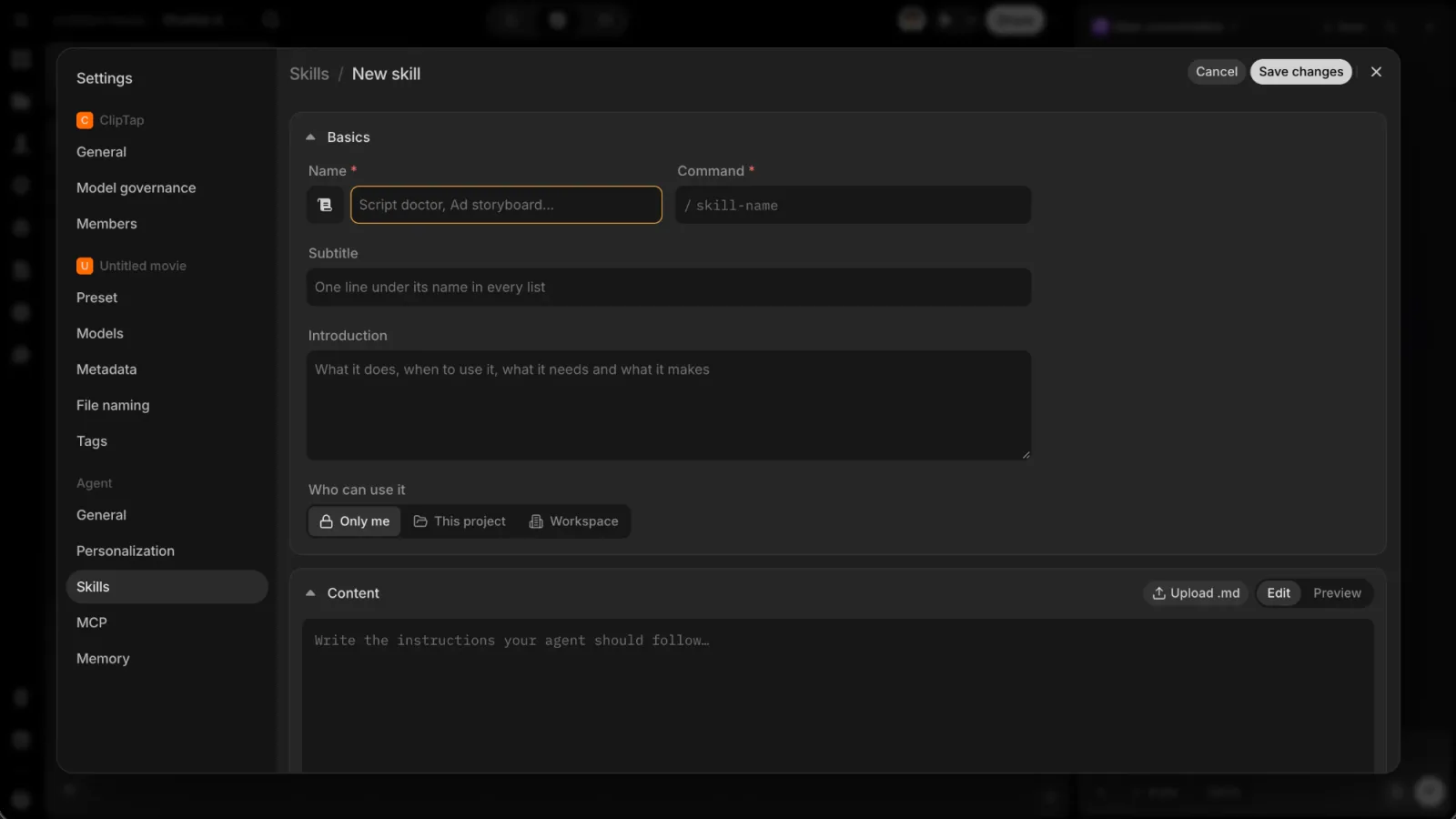
Renaming the Command changes what everyone types to use the Skill, so tell the people who use it.
Who can use it
Every Skill you write has a Who can use it setting:
- Only me: just you, in every project.
- This project: everyone who can open the project. You need to be an owner or editor of the project, and to have it open.
- Workspace: every member of the workspace.
Only the author edits a Skill. The author, the project's owner, or a workspace owner or admin can delete it.
Manage your Skills
Settings › Agent › Skills lists your Skills with Who can use it, the author and when each was last edited. A row's … menu has Duplicate, Download (the Skill as a file) and Delete skill. Deleting a shared Skill removes it for everyone; messages that already used it are not affected.
The Skills market
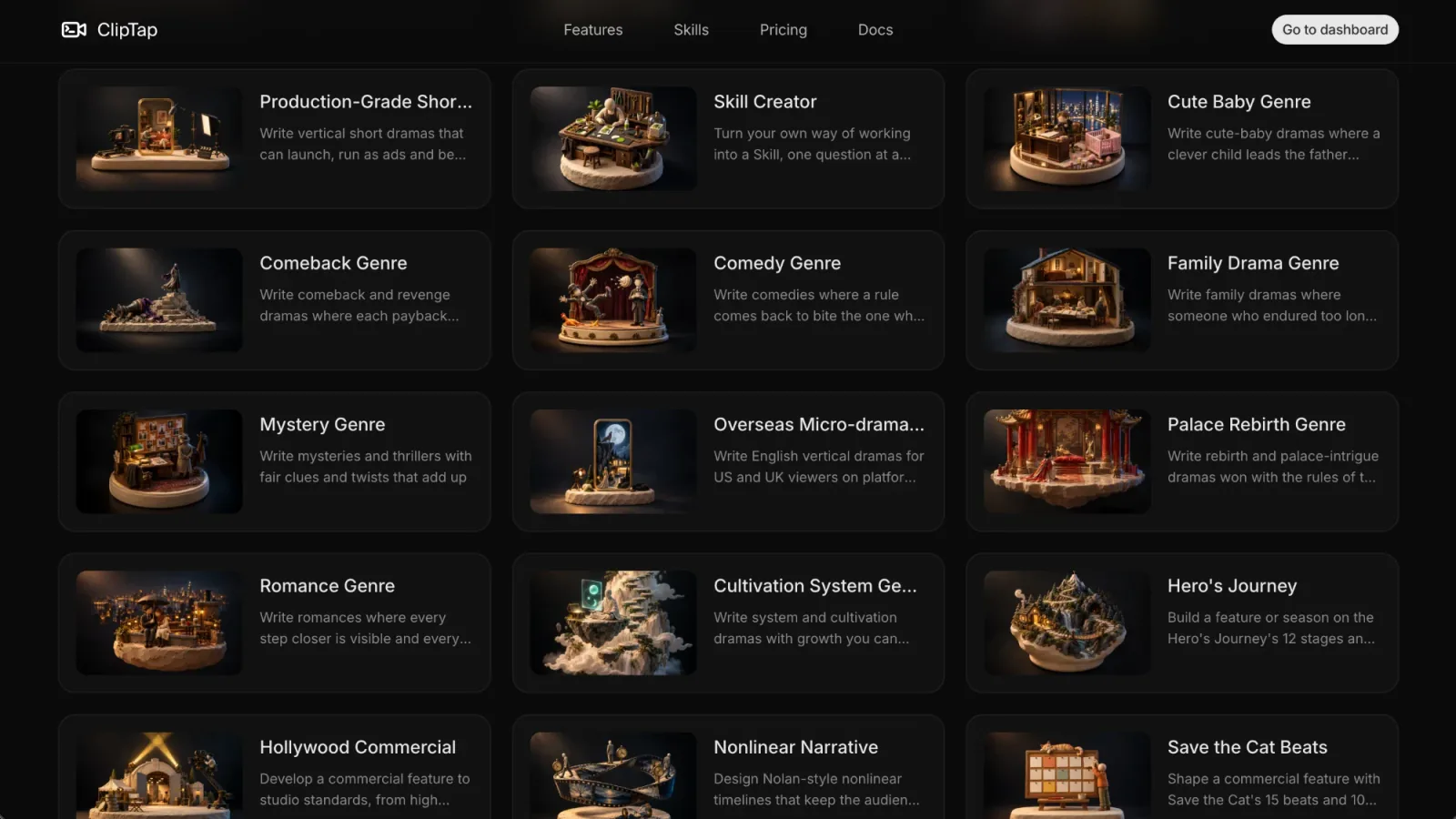
The public Skills page at /skills (Skills in the site header) collects ready-made Skills anyone can browse, also when signed out, in English, Traditional Chinese (/zh-TW/skills) or Simplified Chinese (/zh-CN/skills). It opens with the Agent's composer, then lists every Skill as a card with its picture and a line on what it does, most used first. Search to narrow the list.
Open a Skill to read its introduction and examples. Add skill opens Home with the Skill ready in the composer, so you can start a project with it. Skills you star on the market appear in the picker under From the market.
Next
ClipTap Agent
The AI partner in every project that reads your script, Story Outline, Library, canvas and Stage, and does the work you ask for in plain words.
Set the project's style
Give the project one Style with the Agent, by picking a preset, building a moodboard in a short interview, or reading the style off pictures you like.