File view
Open any image, video or sound full screen to see how it was made, what it came from, what people said about it, and to compare takes.
File view opens a file (image, video or sound) full screen with a panel beside it. It's the place to see everything about one file: how it was made, what it came from, and what people are saying about it.
Open it by double-clicking a file on the canvas, choosing View from its menu, or pressing F with a file selected. Press P (or choose Provenance) to open it straight on the lineage graph. You can also open files here from the Files view, the Uploads and Library panels, Gen history, Stage and the Trash.
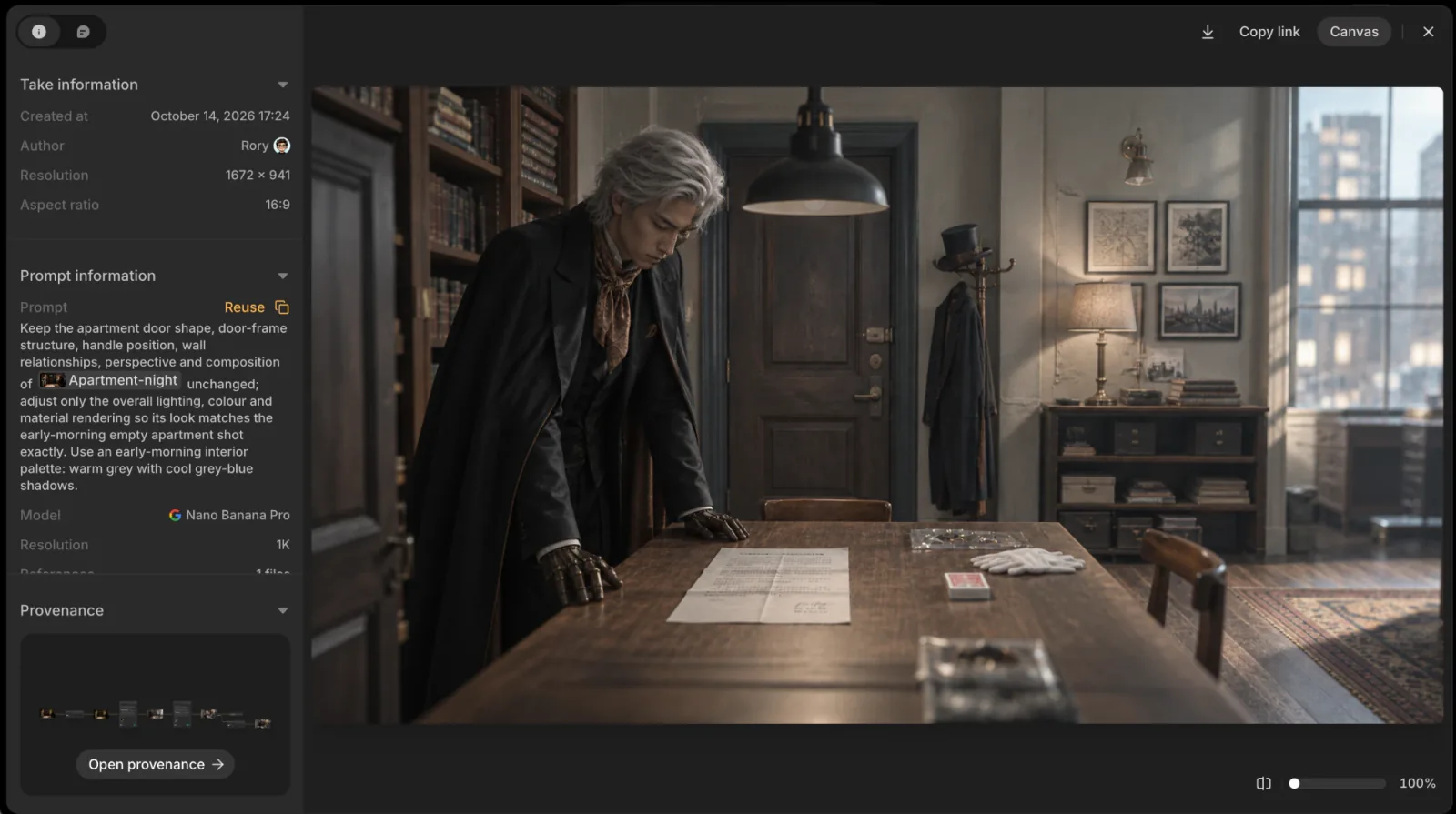
What's in the panel
Two tabs at the top: Info and Comments. Collapse the panel with » to give the file the whole screen; click Expand panel to bring it back.
Info
Each section folds on its own.
- Take information (File information for uploads and sounds): when it was made and by whom, then the resolution and aspect ratio, the duration for videos and sounds, the Frame rate for videos and the Sample rate for sounds. A take the Agent made for someone reads "name & Agent".
- Prompt information (generated files only): the prompt, the model, the resolution, and any references, seed or negative prompt used, plus the Cost in credits. Reuse loads the prompt, the model, its settings and the references and frames into the prompt box; the copy icon copies just the prompt.
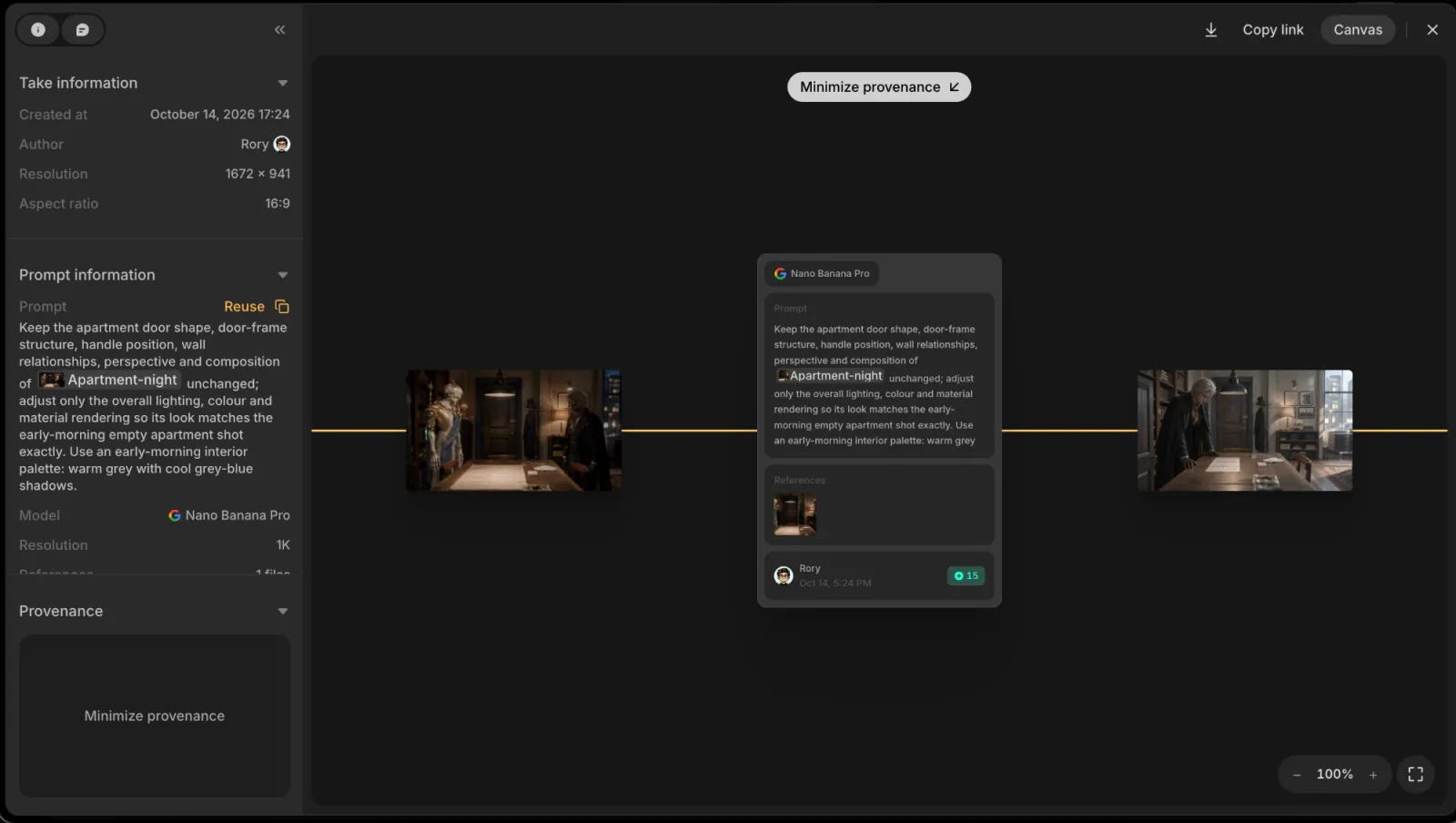
- Provenance: a small card docked at the bottom. Click Open provenance for the full lineage graph: the files it was made from, the model used, and the references that went in. Drag to pan and use the zoom controls; double-click a card to open that file. Minimize provenance docks it again.
Comments
Switch to Comments and your pointer becomes a pin. Click anywhere on the picture to drop it and write a comment. Threads work like canvas comments, with replies, reactions and resolving. Pins placed here show on the canvas too, and the other way round.
Move between files
For a take in a shot, the header shows where it lives as Sequence / Shot / Take N.
- ← and → step between the shot's takes.
- The take strip at the bottom shows when the shot has more than one take. Click a thumbnail, or use Previous take and Next take.
- Esc closes File view.
Look closely
For images, use the zoom slider at the bottom (100% to 400%), or hold ⌘ (Ctrl on Windows) and scroll. Drag to pan while zoomed, and click the percentage to fit the image again. Load full-res swaps in the original file when you need every pixel.
Videos and sounds play on the stage with their own playback bar. Press Space to play and pause.
Sounds and subtitles
A sound opens as a waveform with its playback bar. If it has subtitles, they run under the waveform in time with playback, each word lighting up as it's said; when several people speak, each line names its speaker. On the canvas, the sound's card shows the current line under its wave.
If a sound has no subtitles yet, editors see Generate subtitles under the waveform, with the price in credits. Click it and confirm with Generate · N credits. Each sound is transcribed once. If the workspace is short of credits, the button is dimmed with Not enough credits under it; a file that can't be transcribed shows Subtitles can't be made for this file. You can also start it from the canvas: ⋯ › Actions › Transcribe subtitles.
Compare images
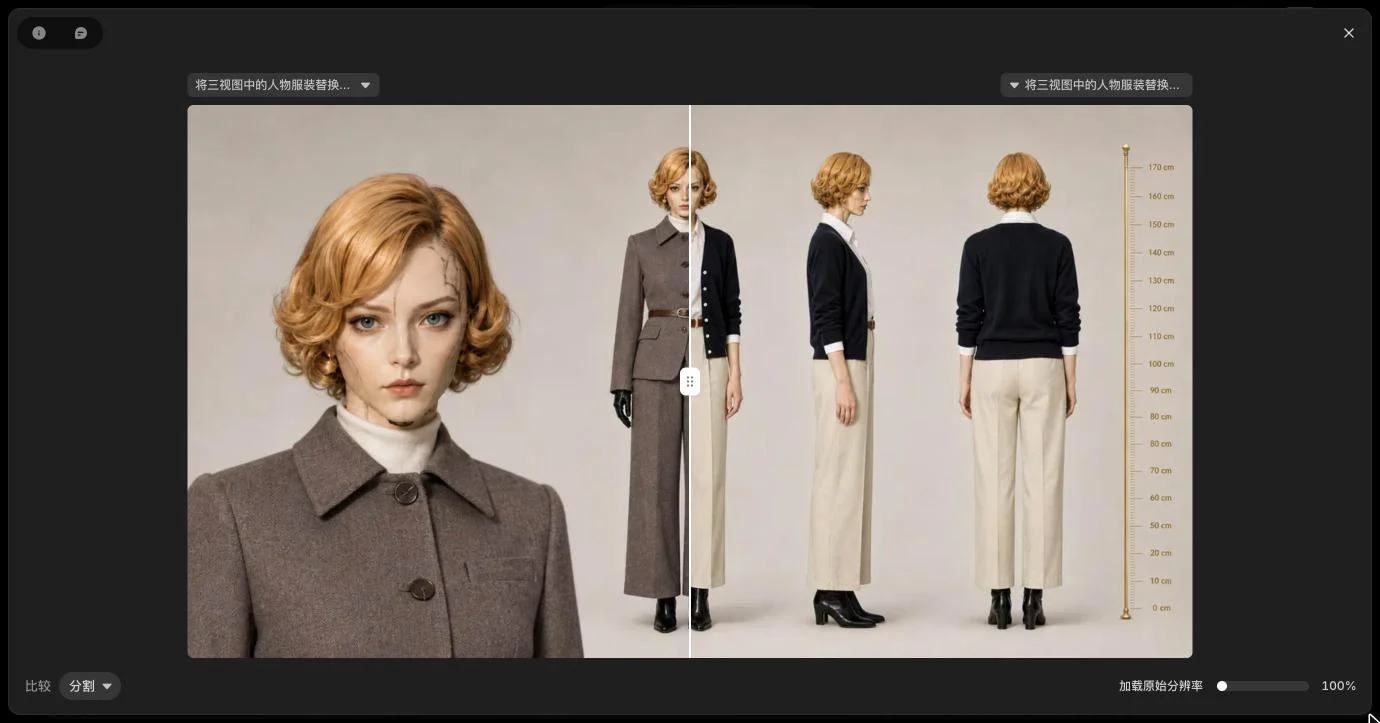
Weigh two images against each other before you choose which one moves forward. Click Compare in the bottom bar (images only), then pick the second image with Click to pick, Choose from library, or one of the Recently used files. Click to pick closes File view so you can click an image on the canvas.
- Split: both images overlaid, with a divider you drag to wipe between them. The arrow keys move the divider.
- Fade: blend from one to the other with a slider.
- Side by side: both images in full, next to each other.
Switch modes from the pill in the bottom bar, swap either side from its chip, or remove a side with its ×. You can also start from the canvas: open an image's menu and choose Compare with....
Act on a file
The header holds:
- Download: download the file.
- Copy link: copy a link to this file. Anyone with access to the project who opens it lands back on this file in File view.
- Canvas: close File view and go to the file on the canvas. Files opened from the Trash have no Canvas button, since they aren't on one.
- Close.
To reuse or copy the prompt, use Reuse and the copy icon in Prompt information.