Tools
Make a sharper copy, cut a video into its shots, trim a clip, pull out its sound, or get subtitles, all from a file's Actions menu.
Tools make a new file from one you already have: a sharper copy, a video cut into its shots, a shorter clip, its soundtrack, or subtitles for a sound. The original always stays as it was.
Find the tools
Right-click a file on the canvas, or click ⋯ on its toolbar, and open Actions. The lower part of the submenu lists the tools that fit the file. Tools work on one file at a time, so they don't appear when several files are selected.
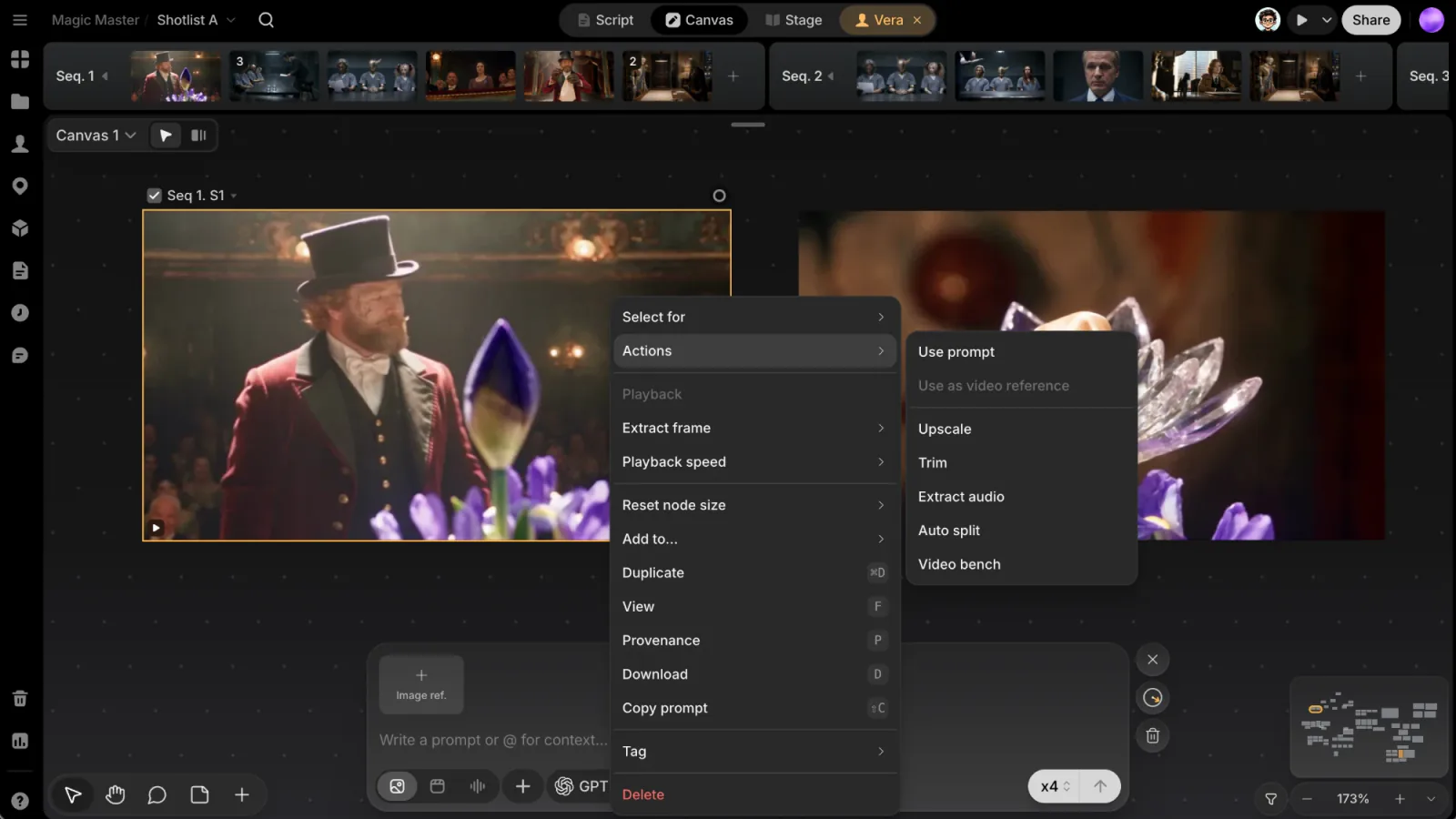
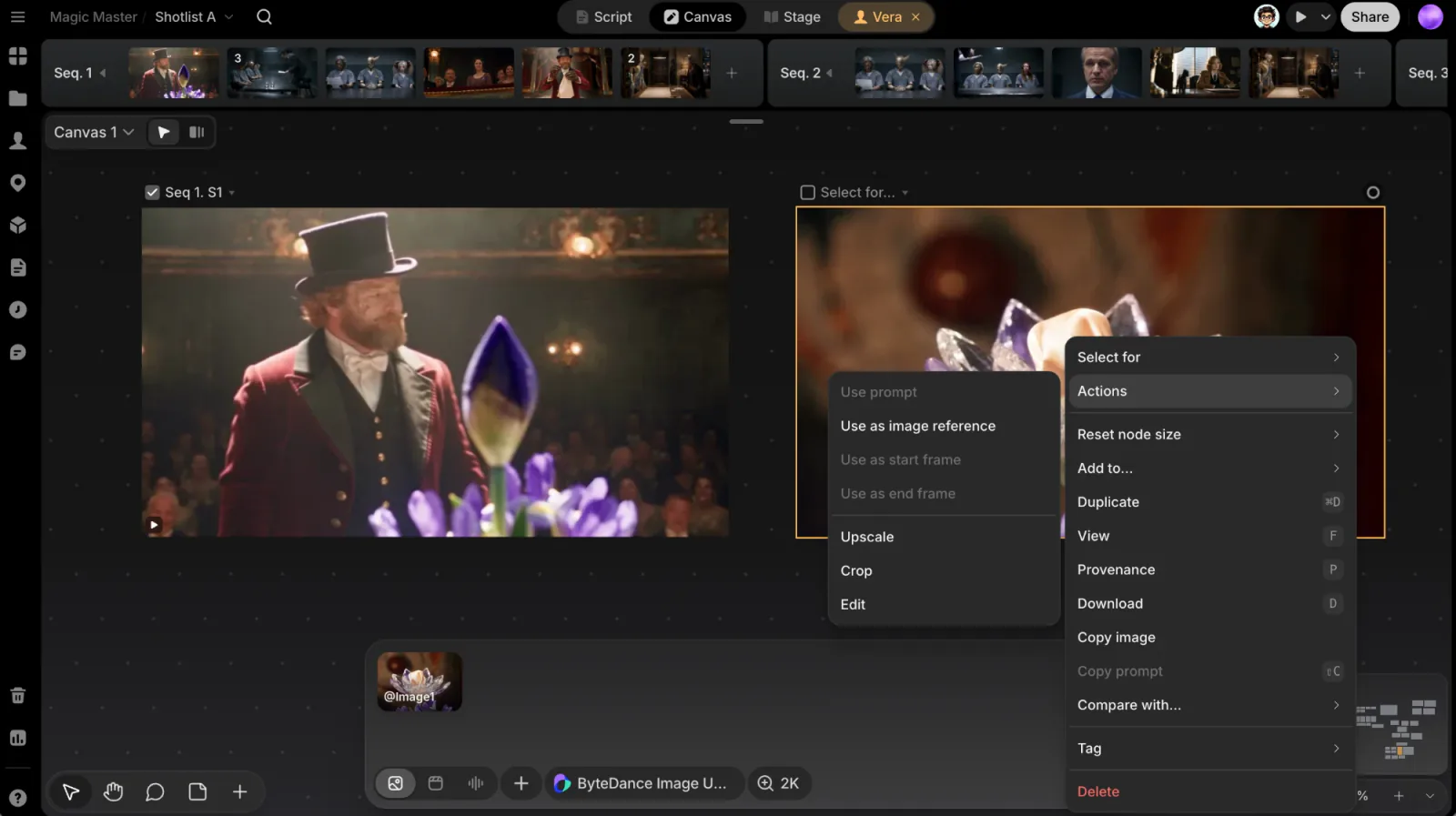
| Tool | Works on | What you get | Credits |
|---|---|---|---|
| Upscale | Images, videos | A higher-resolution copy | Yes, quoted before you send |
| Auto split | Videos | Each shot as its own clip, in a new group | No |
| Trim | Videos, sounds | The part you keep, as a new file | No |
| Extract audio | Videos | The soundtrack as a sound file | No |
| Transcribe subtitles | Sounds | Subtitles that follow playback | Yes, quoted before you confirm |
Crop and Edit for images are in the same submenu; see Edit & crop images. To save a single frame of a video as an image, use Playback › Extract frame in the same menu.
Upscale
Upscale makes a higher-resolution copy of an image or a video.
Choose Upscale
Open the file's menu and choose Actions › Upscale.
Check the prompt box
The prompt box opens with the file as its source and an upscaler picked for its type. You can pick another upscaler from the model menu. The price shows on the credit chips in the model menu and in the generate button's tooltip.
Send
Nothing runs until you send. The sharper copy lands on the canvas like any other generation, and the original stays untouched.
To check the difference on an image, open the original's menu and choose Compare with.... If your workspace has no upscaler, you see No upscaler is available in this workspace.
Auto split
Use Auto split on a video that holds several shots, such as a trailer or a multi-shot generation. It works on any finished video on the canvas, generated or uploaded.
Pick the video
Open the video's menu and choose Actions › Auto split.
Get the clips
A group named after the video, ending in · Shots, appears beside it and fills with one clip per shot. The notice reads Split into N shots.
If the video has no cuts, you see No cuts found: this video is a single shot. A video that's still uploading can't be split yet; wait for the upload to finish. Auto split handles up to 120 shots per video.
Trim
Trim keeps part of a video or a sound as a new file.
Open Trim
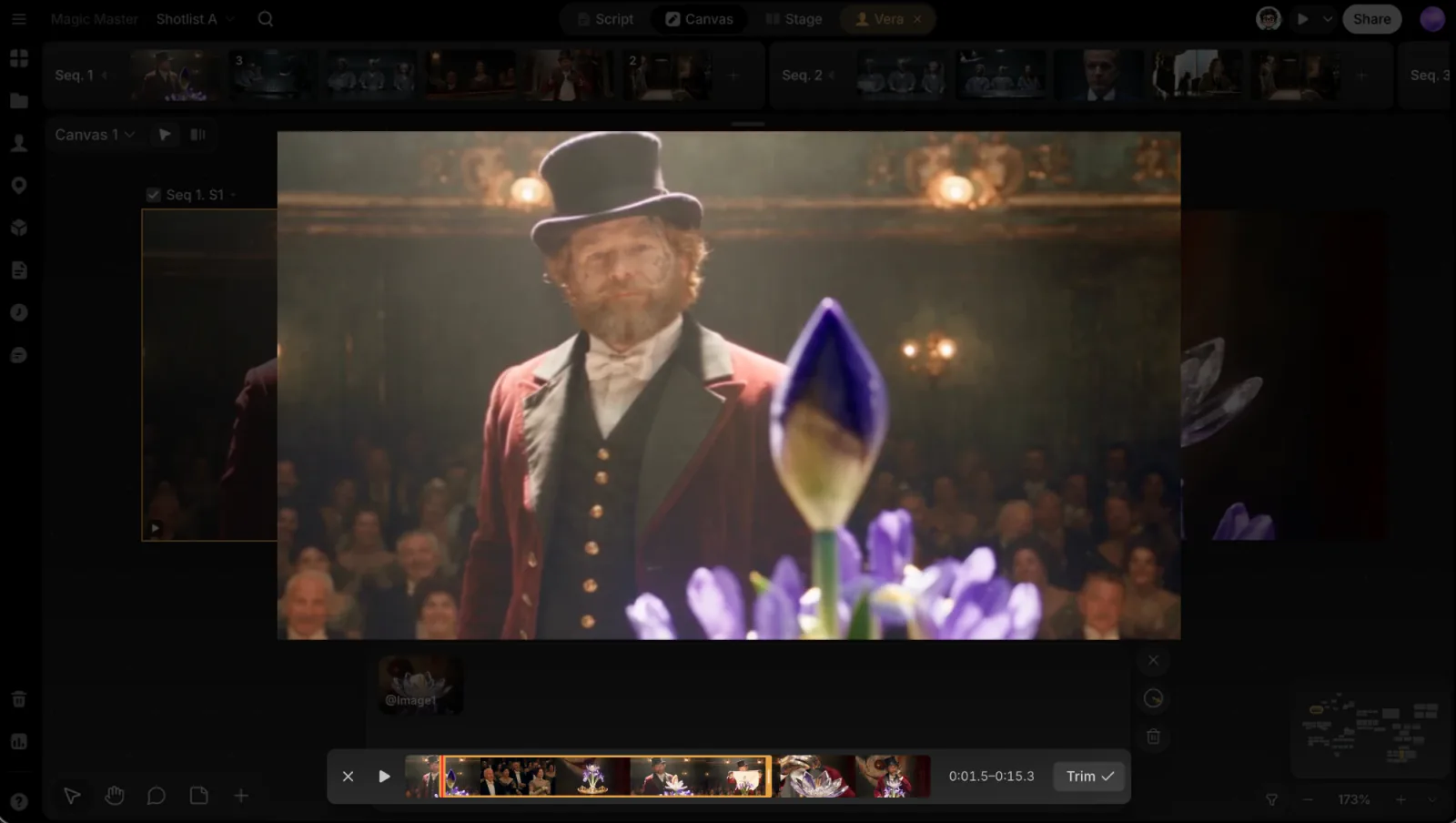
Open the file's menu and choose Actions › Trim. The clip opens on a dark stage with a bar underneath: play, the clip's frames with the kept part framed in yellow, and the in and out times.
Set the in and out points
Drag either side of the yellow frame. The picture shows the frame under the edge as you drag. Press Space to play the clip.
Trim
Click Trim or press Enter. The button reads Done until you change the range. Press Esc to cancel.
The kept part is saved as a new file beside the original, which stays as it was.
Extract audio
Actions › Extract audio saves a video's whole soundtrack as its own sound file on the canvas. Use it to transcribe the dialogue, trim a line, or use the sound as a reference. Extracting the same video again gives you the same file.
Transcribe subtitles
Actions › Transcribe subtitles turns a sound's speech into subtitles.
- Choose it from a sound's menu. ClipTap asks Generate subtitles? and shows the price.
- Confirm with Generate · N credits.
The subtitles then follow playback in File view and under the sound's wave on the canvas. Each sound is transcribed once, so the row is dimmed after that. If the workspace is short of credits you see Not enough credits, and a file that can't be transcribed shows Subtitles can't be made for this file.