MCP for Claude and ChatGPT
Connect ClipTap to Claude or ChatGPT over MCP, so the AI you already use can write, plan and build in your projects.
Connect ClipTap over MCP, and Claude or ChatGPT gets to work in your projects. Ask in your usual chat to write an episode, break it into shots, fill the Library, write every shot's prompt, or build a scene in 3D on the Director. The script, shot list and prompts run on your Claude or ChatGPT plan, with no ClipTap credits spent.
The app works as you: it sees the projects you can open in one workspace, and it lands its work there like any other change.
Connect Claude or ChatGPT
The quickest way is the MCP section on the ClipTap home page: under Pick your app, choose Claude or ChatGPT.
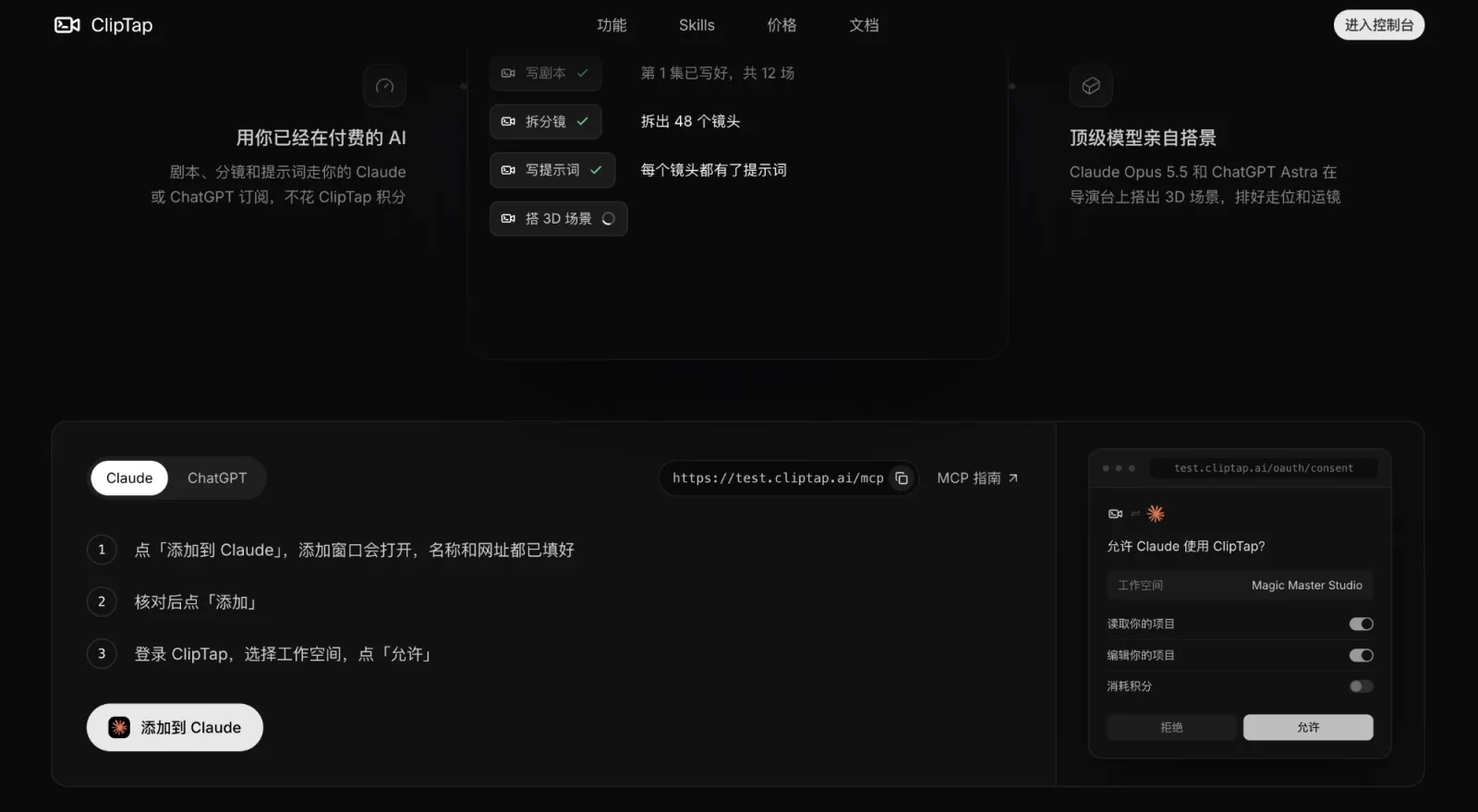
Add to Claude
Click Add to Claude. Claude's add-connector dialog opens with the name and URL filled in.
Check and add
Check the details and click Add.
Sign in and allow
Sign in to ClipTap, pick a workspace and click Allow (see Sign in and allow access).
The Server URL box under the buttons has the address with a Copy button:
https://cliptap.ai/mcpClaude Code, Codex and other MCP apps. Add https://cliptap.ai/mcp as a remote MCP server in the app's MCP settings, the same URL you paste into Claude or ChatGPT. The first time the app uses it, your browser opens ClipTap's sign-in and permission page.
Sign in and allow access
Connecting opens ClipTap in your browser:
Sign in
Sign in to ClipTap if you aren't already.
Choose a workspace
If you belong to more than one workspace, the page asks Where should <app> work? Each connection works in one workspace: it sees and changes only that workspace's projects. To use another workspace too, connect again and choose that one.
Allow the permissions
The page asks Allow <app> to use ClipTap? With more than one workspace, Change next to it picks a different one. Choose what the app may do, then click Allow (or Deny).
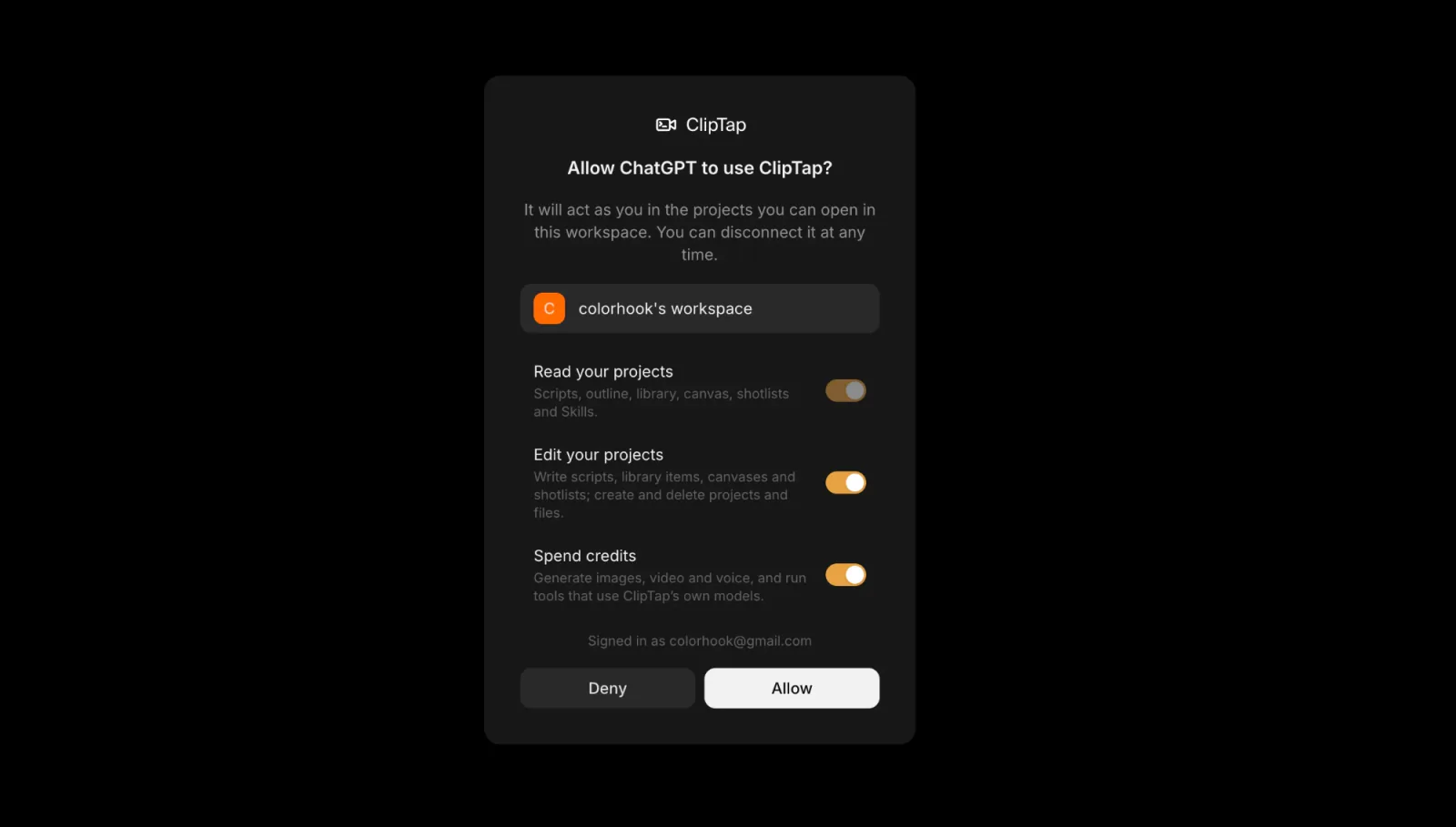
The three permissions:
| Permission | What it covers | Default |
|---|---|---|
| Read your projects | Scripts, outline, library, canvas, shotlists and Skills | Always on |
| Edit your projects | Write scripts, library items, canvases and shotlists; create and delete projects and files | On |
| Spend credits | Generate images, video and voice, and run tools that use ClipTap's own models | Off |
What it can do
Once connected, ask in plain language. Name the project, or ask the app to list your projects first.
| Area | What the app can do | Try asking |
|---|---|---|
| Projects | List, create, rename, archive and delete projects; list and create canvases; list and duplicate Shotlists | "Create a project called Night Shift" |
| Scripts & Story Outline | Read, write, revise and reorder episodes, import a screenplay, split it into episodes; read and update the Story Outline | "Import this screenplay and split it into episodes" |
| Library | Read, add and update Characters, Locations and Props, their variations and voice references; write their prompt cards | "Add every character from episode 1 to the Library" |
| Style | Read and set the project's Style, or read a style off pictures | "Set the style from these three images" |
| Canvas & files | Read the canvas, place and group files, upload files or import them from a public link, delete files | "Upload these five references into a group called Wardrobe" |
| Stage | Plan shots, edit sequences and shots, write and review shot prompt cards, select, copy and move takes, check takes, list shots by status or by person, see recent activity, export a Shotlist to FCPXML | "Build a shot list for scene 3, then export it" |
| Video | Trim, join and split videos into their shots, pull a frame, describe what happens | "Split this video into its shots" |
| Web | Search the web and image search, read a web page | "Find rainy rooftop references at night" |
| Director | Build a set, block the action, plan the camera, look at the frames and storyboard before committing | "Build the rooftop scene in 3D with two cameras" |
| Generation | Quote a generation, generate images, video and voice, follow and cancel jobs (needs Spend credits) | "Quote four takes of shot 1.2 on a video model" |
| Skills | Find, read, create, edit, duplicate and delete your Skills | "Create a Skill for writing cold opens" |
Results land in your project like any other take or edit, and everyone on the project sees them.
Over MCP there are no review or approval cards like in the ClipTap Agent: deletes and generations run as soon as the app calls them. The app is told to quote the cost and check with you before it generates, so keep an eye on what it proposes. It also can't ask you questions on a card; it asks in its own chat.
Credits over MCP
Writing and planning over MCP are free: scripts, the Story Outline, shot lists, Library entries and prompts are written by Claude or ChatGPT on your own plan. Only running models on ClipTap costs credits:
- Generating images, video and voice.
- A few tools that use ClipTap's own models: importing a screenplay, designing Library cards, designing a character voice and planning shots. All but the voice have a free way, where the app does the writing itself; leave Spend credits off and it takes that way.
Credits come from the workspace you connected, the same as generating in the app. After each credit-spending call the app is told how much the session has spent so far, so it can keep you informed. See Credits.
Resources and Skills
Besides tools, apps can open some project content directly:
- a Script (one episode), as plain screenplay text;
- the project's Story Outline, as Markdown;
- a Shotlist, as Markdown.
Your Skills show up in the app as prompts (in Claude Code, among its slash commands as /mcp__cliptap__<command>). Pick one, describe your request, and optionally name a project; the app follows the Skill's instructions.
Limits
- About 120 tool calls per minute per person.
- Each result is capped in size. Oversized results are trimmed, with a note telling the app how to narrow its request.
The other direction
- ClipTap Space, the desktop app, signs in through your browser too. See ClipTap Space.
- To let the ClipTap Agent read from your own tools over MCP, see Connect your tools.