Story Sheet
Plan the whole story in one table, the premise, the rules, threads to pay off and each episode's plan, read by the Agent before it writes.
The Story Sheet holds what has to stay true across your episodes: what the story is, the rules it keeps, what each episode is for, the setups that must pay off, and the facts that hold for a while. A project has one Story Sheet. Open it from the Script tab: switch the top-left pill from Script to Story Sheet.
The ClipTap Agent reads the entries that apply to an episode before it writes that episode, and it records what an episode settled as new entries. You can write and change every entry yourself too.
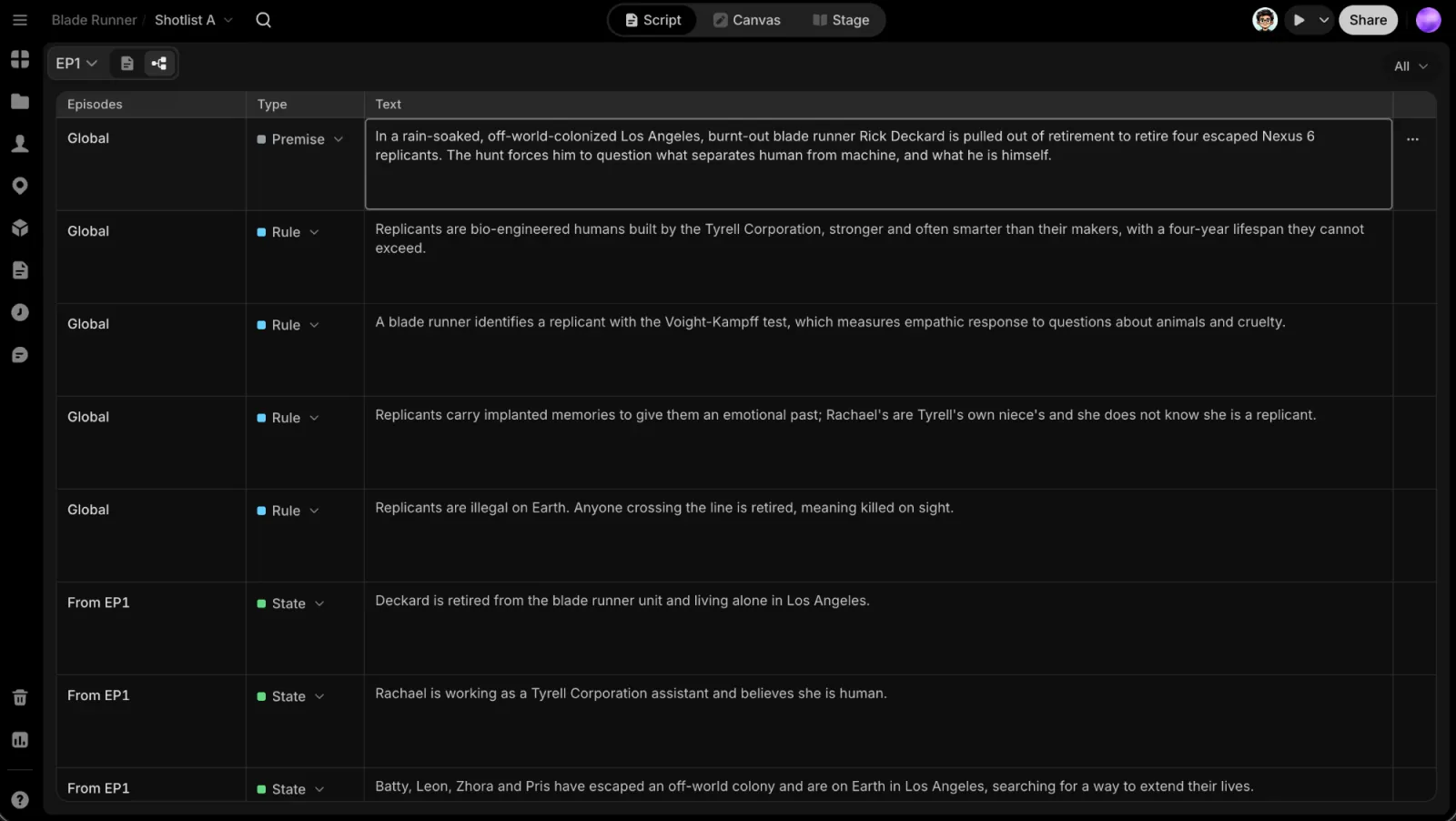
Entries and their types
The Story Sheet is one table in four sections. Each row is an entry, with its Type and its words (Entry) first, so the words line up down the page:
| Section | What it holds |
|---|---|
| Bible | What holds for the whole story. Its Type says which kind: World, Logline, Theme, Antagonist, Beat sheet, Format or Rules |
| Thread | What is true from an episode on: a setup to pay off, who knows what, who holds what |
| Episode | One episode's plan: its question, hook, steps, turn, cost and cliffhanger |
| Open | What isn't decided yet, and how to write around it |
Click a column's header to sort the rows, drag its right edge to resize it, or drag the columns after Entry to reorder them.
Which episodes an entry holds for
Threads, plans and open questions have an episode column to pick from. A Thread or an open question has From and To: leave To at No end to keep it holding from then on, or set an open question's From to Global so it applies to every episode. A plan has just its Episode. Bible entries hold everywhere.
Status says how far an entry has come: Open or Paid off for a Thread, Not written or Written for a plan, Open or Decided for an open question.
A dot at the end of a row flags a problem: a Thread is Overdue, an episode it depends on was rewritten (EP3 changed · may be out of date), or it points at something deleted or changed. The top right counts these flags; click a count to show only those entries. These are the same flags the Agent sees.
Write and edit entries
- Add an entry: click the + under a section. In the Bible, pick the type first. The new entry opens for typing.
- Edit the text: click it and type. Type @ to point at a Library item, a scene or another entry.
- Change a Bible entry's type: click its Type cell.
- Delete with the row's ⋯ or a right-click. Deleting asks first; the Agent no longer reads the entry.
Undo. Typed text undoes like any text field. An entry someone else changed since is left alone.
Working together
Everyone on the project sees edits as they happen. Other people in the Story Sheet show as faces at the top right, and as a ring with their name on the row they are in.
When the Agent works on the Story Sheet, its orb appears at the top right with what it is doing, and the rows it is working on are ringed in its colour. A row it just changed glows with a check for a moment.
If your project had an outline from before the Story Sheet, it turns into entries the first time you open the page.
You don't have to fill in the Story Sheet by hand. Ask the Agent to plan the season, or to note what an episode set up; it writes entries you can then edit.
Next
Write the episodes in Scripts, or manage the characters, locations and props the story uses in the Library.